The WPSD Palisade User Guide
WPSD is a digital voice software suite and distribution for amateur radio, used for personal hotspots and repeaters alike. WPSD Palisade is its new generation: a new dashboard, guided setup, profiles, and everything run from your browser. It supports DMR, D-Star, Yaesu System Fusion (YSF/C4FM), P25, NXDN and M17 digital voice, and POCSAG paging.
This guide covers WPSD Palisade. The manual for WPSD (legacy) is still online for anyone running it.
Tip
To print the whole guide, or save it as a PDF, open the print edition: every chapter on one page, ready for your browser’s Print.
Get Started
Getting started with WPSD is reasonably straightforward. This section will prepare you and your hotspot or repeater for use with WPSD.
There are three main parts of WPSD:
Your radio Yes, you must have a digital-capable radio. The radio is responsible for the digital encoding and decoding the voice streams. I know you are thinking you should be able to do everything with the Pi or a computer. Technically, you can, but if you are capable of that, you don’t need to read instructions like these. The radio encodes your voice digitally and then transmits it as an FM signal to be received by your MMDVM modem.
Your modem The MMDVM or “Multi-Mode Digital Voice Modem” you have probably seen talked about. It is generally supplied as a HAT or “Hardware Attached on Top.” The HAT interfaces with the General Purpose Input/Output (GPIO) pins on the host.
Your host This is a single-board computer (SBC) such as a Raspberry Pi. The host runs the WPSD software, which handles the configuration, user choices, and Internet gateway tasks.
Another way of looking at this configuration is that there is a radio and a hotspot. The hotspot combines the MMDVM and the host, often in a case with (optionally) batteries and a display. Neither the batteries nor the display are necessary, of course. The batteries can help you be more flexible, and the screen is preferred by those who enjoy visual feedback, such as seeing the callsign of the person to whom they are speaking.
Where your audio actually goes
It’s worth being clear about this up front, because it’s the source of a lot of confusion later: WPSD never touches your audio. Digital voice modes like DMR, D-Star, YSF, P25, and NXDN are, as the name says, digital — your voice is encoded into data by your radio, and everything past that point (the modem, the hotspot, the Internet, the network you’re connected to, and the other station’s hotspot) carries that data, not sound.
        flowchart TB
    You["Your voice"] --> Radio["Radio (encodes to digital data)"]
    Radio -- "digital data, over RF" --> Modem
    Modem -- "digital data, over GPIO/USB" --> Host["WPSD Host"]
    Host -- "digital data, over the Internet" --> Network["DV Network"]
    Network --> OtherHotspot["Other station's hotspot"]
    OtherHotspot -- "digital data, over RF" --> OtherRadio["Their radio (decodes to audio)"]
Audio only exists at the two ends of that chain — inside your radio and inside the other operator’s radio. WPSD, the modem, and every network in between are moving data, not sound. Practically, this means:
Volume/gain problems are a radio problem, not a WPSD problem. If someone sounds too loud or too quiet, that’s your (or their) radio’s transmit/receive audio settings — there’s no volume or gain control on the WPSD side to adjust, because there’s no audio there to adjust.
WPSD can’t “fix” audio quality. Choppy or garbled audio almost always traces back to RF between your radio and modem, or a shaky Internet connection — not something in the digital data path itself, which is either received correctly or it isn’t.
Getting started tasks
Getting started takes four steps:
Attention
Once you have your system installed and configured, it’s strongly recommended that you back it up and save the backup, along with your dashboard password, somewhere safe. WPSD has a comprehensive backup capability built into the dashboard. See Backup and Restore.
Gathering the Hardware
A WPSD device is a small computer (a Raspberry Pi), an MMDVM modem board on top of it or plugged into it, and a microSD card. You also need a digital radio to talk through it, and a computer or phone with a web browser to set it up.
A Radio
You can use nearly any radio that supports one of these digital modes:
DMR
D-Star
Yaesu System Fusion (YSF/C4FM)
P25
NXDN
M17
POCSAG paging (with a pager)
Every mode works equally well through the WPSD device, so choose a radio for your own reasons: what your local repeaters and club use, what your friends have, the price, or the color.
You won’t be transmitting far, so you don’t need much power. Too much power can even overwhelm the modem: use your radio’s lowest setting.
Two common starting points, if you want a suggestion: the Retevis RT3S (DMR, inexpensive) and the Yaesu FT-70DR (System Fusion).
Single Board Computer
WPSD Palisade runs on these Raspberry Pi models:
Raspberry Pi Zero 2 W
Raspberry Pi 3 (all versions)
Raspberry Pi 4
Raspberry Pi 5
The image is built and tested for these boards only. Older 32-bit models (Pi 1, Pi 2, Pi Zero, Pi Zero W) and other single board computers can’t run it.
Don’t save money on the power supply. Cheap switching supplies are often electrically noisy, which shows up as poor reception, and many deliver less than their label says. Use one rated for your Raspberry Pi; the official Raspberry Pi supplies are a safe choice. Some people run their WPSD device from a rechargeable battery pack, which avoids power supply noise entirely.
Modem
The modem is an MMDVM board, usually with an ADF7021 radio chip.
Note
MMDVM boards with one ADF7021 radio chip are hotspot boards: they have a single SMA antenna connector or a small ceramic antenna on the board. Boards with two ADF7021 chips are duplex boards, with two antenna connectors: they receive and transmit at the same time, which DMR uses to carry both timeslots. Boards with no radio chip at all are repeater boards, which connect to separate radios and have no antenna connector. WPSD Palisade supports all three.
The modem receives the digital signal from your radio and turns it into data the WPSD device sends over the Internet, and the other way round. It has two main parts: the ADF7021 radio chip (or two), transmitting at very low power (about 0.1 to 0.25 watts), and a small microcontroller running the modem’s firmware.
Modems known to work well with WPSD:
ZUMspot GPIO and USB MMDVM boards, and MMDVM-Pi repeater boards
DVMega boards and hotspots (from the Netherlands, not the UK)
LoneStar (N5BOC) GPIO and USB MMDVM boards
BridgeCom Systems SkyBridge hotspots
BI7JTA MMDVM boards
Repeater Builder STM32-DVM boards
Some modems behave poorly; this article to modem vendors explains the common problems. The WPSD project doesn’t make modems or their firmware, and can’t support a modem’s own peculiarities.
SD Card
A microSD card of 8 GB or more, Class 10 or better. WPSD Palisade stores very little, so a larger card doesn’t help. A card from a known brand lasts longer than a no-name one.
A Computer or Phone
You’ll write the image to the SD card on a computer (Windows, macOS, Linux or ChromeOS). After that, everything is done in a web browser, on a computer, tablet or phone. The dashboard works on a phone, but a larger screen makes setting up easier.
Installing WPSD Palisade
WPSD Palisade comes as a disk image: you write it to a microSD card, put the card in your Raspberry Pi, and power it on. Everything else is done from your browser.
What you need
A Raspberry Pi 3, 4, 5 or Zero 2 W with an MMDVM modem (see Gathering the Hardware)
A microSD card of 8 GB or more
A computer with a card reader
Note
The image is for 64-bit Raspberry Pi models only. Older 32-bit models (Pi 1, Pi 2, Pi Zero, Pi Zero W) can’t run it.
Getting the image
Download the latest image from the WPSD website, wpsd.radio. The file is named for its release, such as WPSD_RPi-Trixie-2026.11.0.img.xz (see What do the version numbers mean?).
The .xz ending means it is compressed. You don’t need to uncompress it: the tools below write it to the card as it is.
Writing the image to the card
Writing the image erases everything on the card.
Raspberry Pi Imager
Raspberry Pi Imager runs on Windows, macOS and Linux.
Put the card in your computer and open Raspberry Pi Imager.
Under Raspberry Pi Device, choose your model.
Under Operating System, scroll to the bottom and choose Use custom, then pick the
.img.xzfile you downloaded.Under Storage, choose your card.
Choose Next. When Imager asks whether to apply OS customization settings, choose No. WPSD Palisade sets up its own device name, login and Wi-Fi when it first starts; Imager’s settings would get in the way.
Confirm, and wait for Imager to write and check the card.
balenaEtcher
balenaEtcher works the same way: choose Flash from file and pick the .xz file, choose your card under Select target, then Flash!.
On the command line (Linux and macOS)
xz -d WPSD_RPi-Trixie-2026.11.0.img.xz
sudo dd if=WPSD_RPi-Trixie-2026.11.0.img of=/dev/sdX bs=4M status=progress
sync
Replace /dev/sdX with your card. Check it carefully with lsblk (Linux) or diskutil list (macOS) first: dd writes to whatever device you name.
Before you put the card in
If you want your Raspberry Pi to join your Wi-Fi network on its first start, you can add your network’s details to the card now. First Boot explains how, and what happens if you don’t: the WPSD device then offers a Wi-Fi network of its own for you to set it up from. You can also set up the whole hotspot in advance with a first-boot file.
Next
Put the card in your Raspberry Pi, connect the modem, and power it on. Continue with First Boot.
First Boot
The first time you start your WPSD device, two things happen: it gets onto your network, and you adopt it, which makes you its owner. There’s no default password: nobody can change your WPSD device until you’ve adopted it, and then only with your password.
Getting it on your network
Your WPSD device needs your network to reach the digital voice networks, and to let you open its dashboard. There are three ways in, and a fourth that also does the adoption for you: the first-boot file.
With a network cable
Plug the Raspberry Pi into your router before you power it on. That’s all: go on to Finding your WPSD device.
With Wi-Fi, set up from your phone or computer
Power the WPSD device on with no network to join, and after a minute or two it starts its own open Wi-Fi network, the setup network, named WPSD-Setup- and a six-character ID, such as WPSD-Setup-5CA1AB.
Join it from your phone or computer. A setup page opens by itself, as at a hotel’s Wi-Fi. If it doesn’t, stay connected and open
http://172.16.42.1/.Choose your Wi-Fi network from the list (or Other network… for a hidden one), and enter its password. Add more than one if you like, such as home and your phone’s hotspot, in the order to try them.
Choose Connect. The WPSD device leaves the setup network and joins yours, and your phone or computer loses the setup network.
Reconnect your phone or computer to your own Wi-Fi, and open the address the page showed you, or find.wpsd.direct (see Finding your WPSD device).
If the WPSD device can’t join your network (a mistyped password, say), the setup network comes back within about a minute: rejoin it, and the page says what went wrong.
Tip
If the setup is in progress on another device, the page asks for a handoff code: it’s shown on that device’s setup page, and lets you continue on this one.
With Wi-Fi, set up on the card
If you’d rather the WPSD device joined your Wi-Fi by itself on its first start, put a Wi-Fi settings file on the card before you put it in the Pi:
Make the file with the WPSD Wi-Fi Configuration Generator: enter your network’s name and password, and it gives you a
.nmconnectionfile. (Any NetworkManager profile works.)Copy it to the card’s boot partition, the part a computer can open.
At its first start, the WPSD device installs the file and deletes it from the card, since it holds your Wi-Fi password. A file it can’t use is left on the card renamed .invalid, so you can see it was refused; the WPSD device then starts its setup network instead.
Or set it all up before it boots
The first-boot file, wpsd-firstboot.toml, sets up a new WPSD device before it ever starts: it joins your Wi-Fi, takes your owner password, callsign and location, finds your modem, and skips adoption and most of Guided Setup. It’s handy for setting up a WPSD device you can’t easily reach, or a batch of cards for a club.
Build the file with the WPSD First Boot Configurator. Fill in what you know; anything you leave blank is set up the usual way, in the dashboard. The page builds the file in your browser: nothing you type is sent anywhere.
Write the WPSD Palisade image to the card, as usual (see Installing).
Copy
wpsd-firstboot.tomlto the card’s boot partition (the small drive your computer opens after writing the card, withconfig.txtin it). Keep the name exactly as it is.Put the card in the Pi and power it on. Then open find.wpsd.direct, or your WPSD device’s address (
https://and its name followed by.local), and log in with your owner password. The browser’s certificate warning appears once, as described below.
What it can set:
Section |
What |
|---|---|
Owner |
The owner password (or only a scrambled form of it, a hash: recommended, so nobody who finds the card can read it), and the recovery Wi-Fi passphrase. Without an owner password, the WPSD device is adopted in the dashboard as usual. |
Device |
Its name (left blank, each WPSD device names itself after its own ID, so one file can serve several cards), and the private dashboard. |
Station |
Your callsign, DMR ID, latitude and longitude, and location name. |
Modem |
Found automatically at first boot, a board you name with its serial port, or left for Guided Setup. |
Wi-Fi |
The country, and up to 8 networks in the order to try them. |
SSH |
On or off, whether it accepts the owner password, and your public keys (the configurator can fetch them from GitHub). |
The WPSD device applies the file once, then deletes it from the card, since it holds your Wi-Fi passphrases. It’s checked whole first: if anything in it is wrong, none of it is applied, and it’s renamed wpsd-firstboot.toml.invalid, with the reasons in the WPSD device’s log. The file only works on a WPSD device that hasn’t been adopted yet.
Tip
With an owner password hash in the file, SSH and the Console take the password after your first login to the dashboard.
Finding your WPSD device
The easiest way: on a phone or computer on the same network as the WPSD device, open
https://find.wpsd.direct
Every WPSD device tells find.wpsd.direct its address on your network, and the page matches you with the WPSD devices reporting from the same network. On a home network it shows your WPSD device straight away: choose Open (a new WPSD device that isn’t adopted yet says Set up).
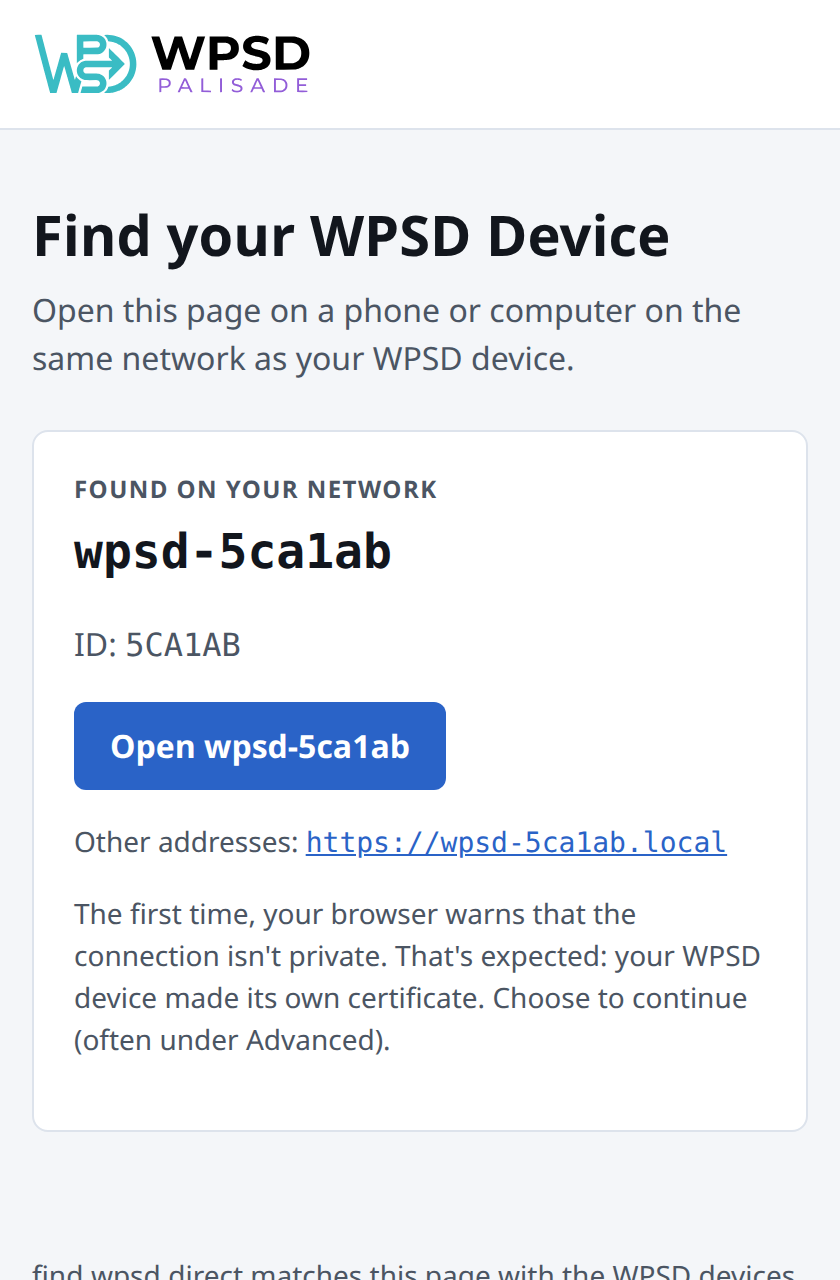
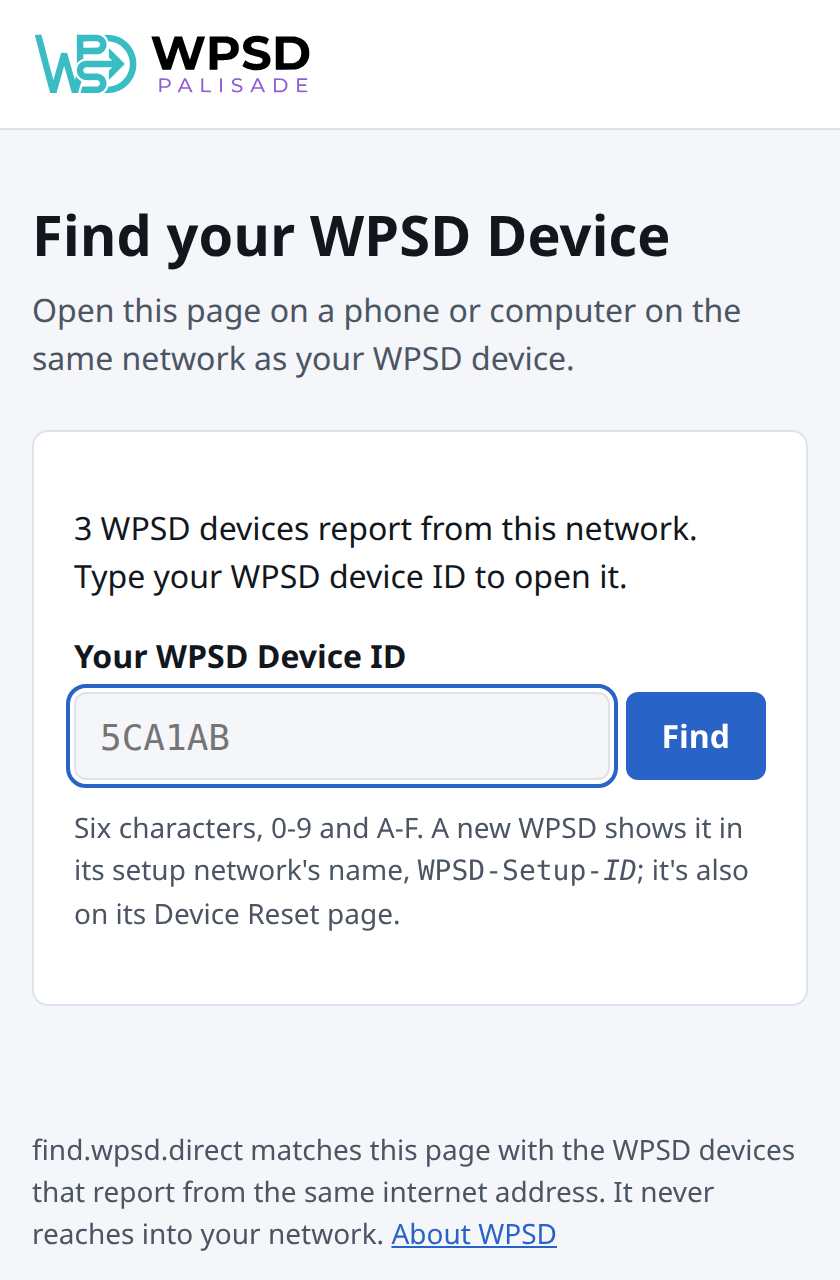
Where several hotspots report from the same network (a club, a campus, a hamfest), the page only says how many it found: type your WPSD device’s ID to open yours. The ID is the six characters in its setup network’s name (WPSD-Setup-5CA1AB).
Tip
If find.wpsd.direct finds nothing: make sure your phone is on the same Wi-Fi (not mobile data), turn off any VPN or iCloud Private Relay, and give a WPSD device you just started two or three minutes to come online.
Other ways in. A new WPSD device names itself wpsd- followed by its ID in lowercase, such as wpsd-5ca1ab, so two new WPSD devices on one network never clash. You can open it by that name followed by .local:
http://wpsd-5ca1ab.local
using your WPSD device’s own ID: the setup page shows the full address. If .local addresses don’t open on your network (some routers, guest networks and many Android phones don’t support them), look for wpsd- in your router’s list of connected devices and use the address it lists.
Note
The dashboard uses an encrypted connection (HTTPS) with a certificate the WPSD device made for itself, so the first time, your browser warns that the connection isn’t private. That’s expected: choose to continue (often under Advanced). The warning doesn’t come back.
A few minutes after it’s online, a listed hotspot also gets an address of its own, <id>.wpsd.direct, with a certificate browsers trust, so there’s no warning there. While wpsd.direct is being tested these are test certificates, and the warning still shows; see Security.
Adopting it
The first page you see is Adopt this WPSD Device.
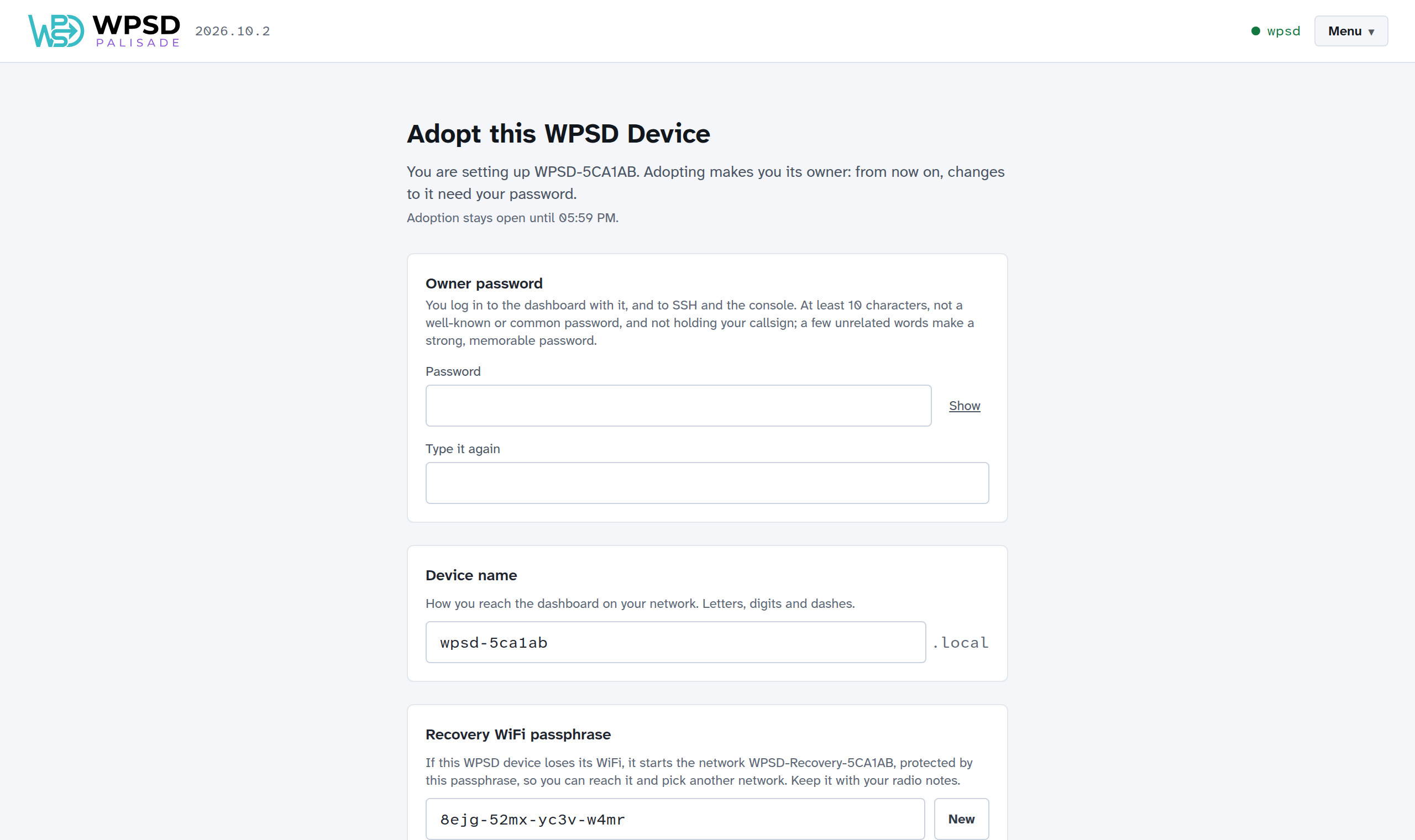
Owner password: you log in to the dashboard with it, and to SSH and the Console. At least 10 characters; a few unrelated words make a strong password you’ll remember. The page refuses the passwords anyone tries first, and says why as you type (see Passwords WPSD refuses).
Device name: how you reach the dashboard on your network (the name, followed by
.local). Keep the one it chose, or pick your own: lowercase letters, digits and dashes.Recovery Wi-Fi passphrase: if the WPSD device later loses its Wi-Fi, it starts a protected network,
WPSD-Recovery-and its ID, with this passphrase, so you can reach it and choose another network. New makes another one. Write it down, or keep it with your radio notes.
Choose Adopt this WPSD Device. The WPSD device is yours, and you’re logged in. If you changed its name, the page gives you the new address to continue at.
Important
Adoption is open for an hour after the WPSD device starts, to whoever opens it first. If the hour has passed, unplug the WPSD device and plug it back in: adoption opens for another hour.
Setting it up
Once it’s adopted, the WPSD device asks how you’d like to set it up:
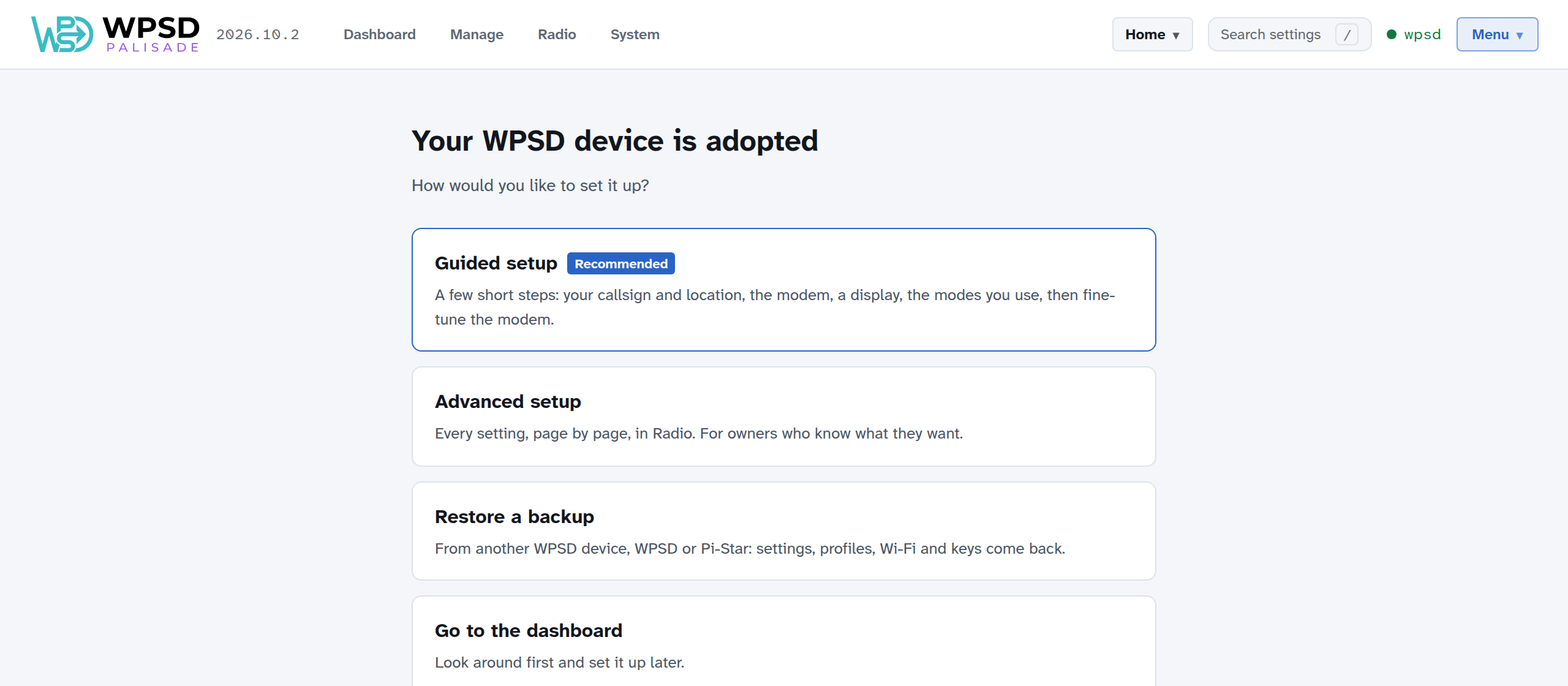
Guided setup (recommended): a few short steps, your callsign and location, the modem, a display, and the modes you use. See Guided Setup.
Advanced setup: every setting, page by page, in Radio.
Restore a backup: from another WPSD device, WPSD (legacy) or Pi-Star. See Backup and Restore.
Go to the dashboard: look around first. A bar reminds you that the WPSD device isn’t set up yet, and the panel beside the activity, Waiting for setup, shows what’s left: your callsign, whether a modem was found, and the modes. A new image has no mode on, and the radio stays off until the device is set up, so nothing transmits or connects to a network before you’ve chosen to.
If you forget your password
Put an empty file named wpsd-reset on the SD card’s boot partition and start the WPSD device. It gives up its owner, but keeps its radio and network settings, and you can adopt it again with a new password. See Device Reset for that and the other ways back.
Networks and ports
Behind an ordinary home router, nothing needs opening or forwarding: the WPSD device’s connections to the digital voice networks go out from your network, like a web browser’s. On your own network, the dashboard is on the usual web ports (80 and 443) and SSH on port 22.
Some networks get in the way: guest and hotel Wi-Fi, workplace networks, and some mobile carriers’ connections (carrier-grade NAT) can block the kinds of traffic digital voice uses. If a mode connects at home but not elsewhere, try another connection, such as your phone’s hotspot. See Common Symptoms.
Changing Wi-Fi later
Add, order and remove networks on System > WiFi. See Wi-Fi and Device Name.
Guided Setup
Guided Setup takes you through everything a new WPSD device needs, one step at a time: your station, the modem, a display, the modes you use, and calibration. It’s the quickest way to get on the air.
You can start it:
right after adopting your WPSD device: choose Guided setup on the welcome page;
from the dashboard while the device isn’t set up yet: choose Set it up in the bar at the top or in the Waiting for setup panel;
at any time from Radio > Overview: choose Start Guided Setup.
Nothing changes on your WPSD device until the last step, where you review and apply. Cancel setup, at the top, leaves without changing anything. Running it again later is fine: it starts from your current settings.
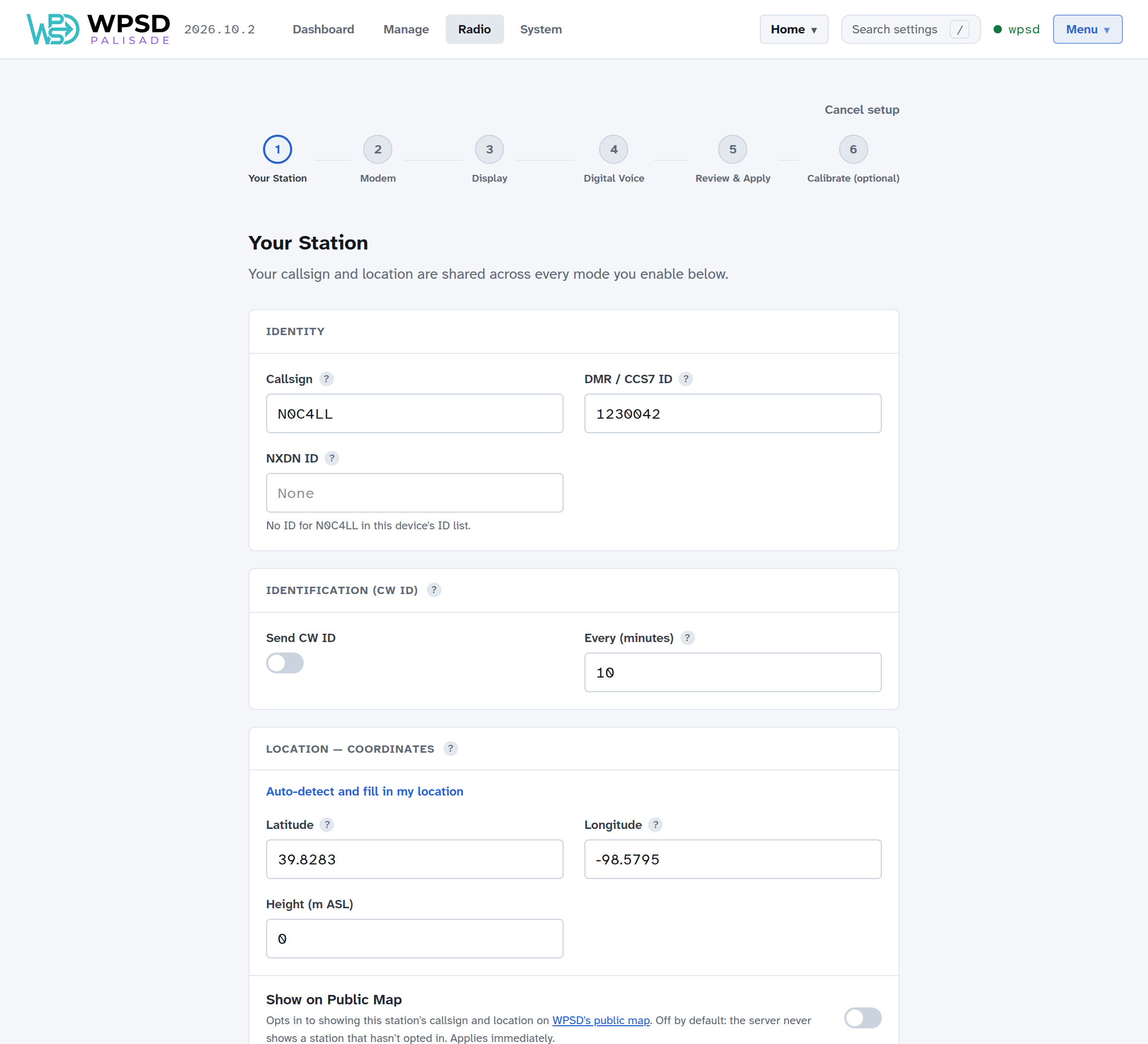
1. Your Station
Your callsign and location are shared by every mode you turn on.
Callsign: your amateur radio callsign.
DMR / CCS7 ID: your DMR ID, needed for DMR (get one from RadioID). The ? next to each field explains it.
NXDN ID: filled in for you from the WPSD device’s ID list when your callsign has one.
Identification (CW ID): sends your callsign in Morse code every so many minutes. Leave it off unless your license requires it.
Location: your latitude and longitude, used for APRS and the public map. Auto-detect and fill in my location asks your browser for your position; you can also type them. Then your town or city and a short description.
Show on Public Map: puts your callsign and location on WPSD’s public map. It is off unless you turn it on, and takes effect at once.
2. Modem
Tell WPSD Palisade which modem it has and which frequencies to use.
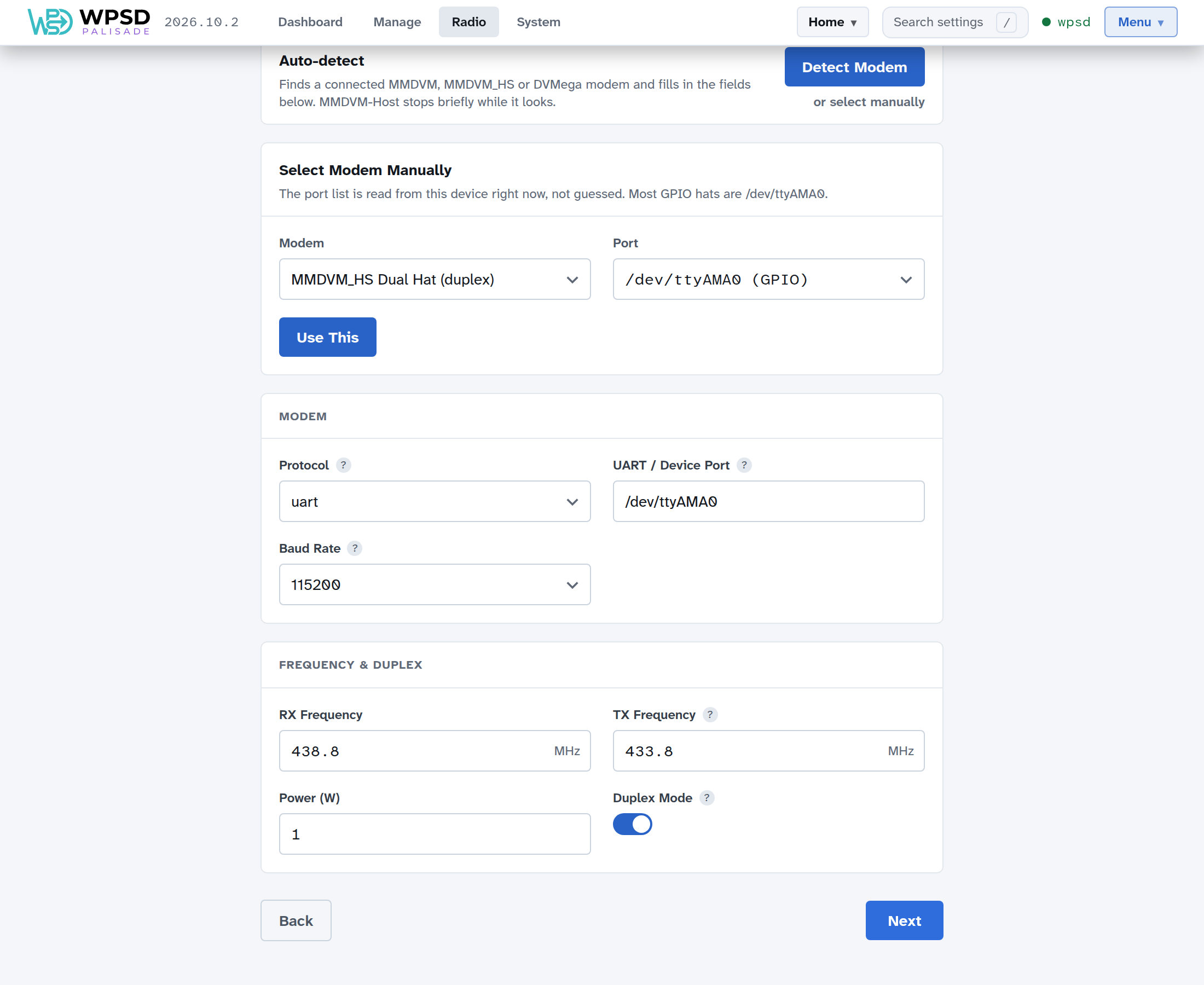
Choose Detect Modem. WPSD Palisade looks for a connected MMDVM, MMDVM_HS or DVMega modem and fills in the fields for you. (If the radio programs are already running, they stop for a moment while it looks.)
If it finds nothing, or more than one, choose or select manually and pick your modem and its port from the lists. Most modems that sit on the Raspberry Pi’s pins are on
/dev/ttyAMA0.Set the RX Frequency and TX Frequency. On a simplex hotspot (one antenna) they are the same. On a duplex board (two antennas), turn Duplex Mode on: the two frequencies then differ, and if they were the same, WPSD Palisade moves the transmit frequency a few MHz away for you. Change it to suit your band plan.
Tip
Choose a frequency in your country’s band plan for digital hotspots, away from repeater inputs and outputs and from satellite segments.
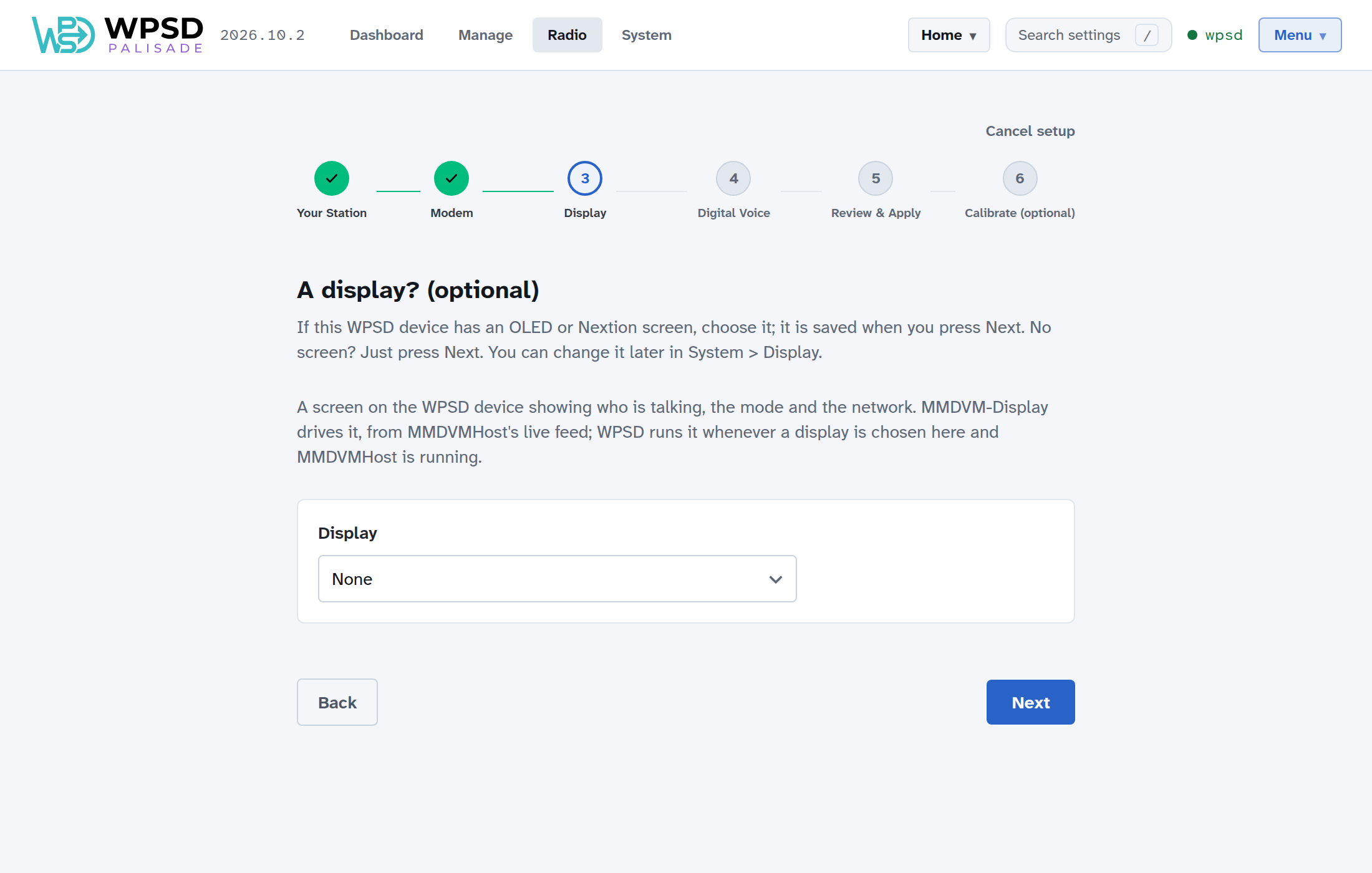
3. Display
If your WPSD device has a small screen (an OLED or Nextion display), choose it here; it’s saved when you choose Next. No screen? Choose Next. You can change it later in System > Display.
4. Digital Voice
Turn on the modes you use; a new image has none on. Each mode you turn on opens its main settings: where to connect at startup, and for DMR, which networks.
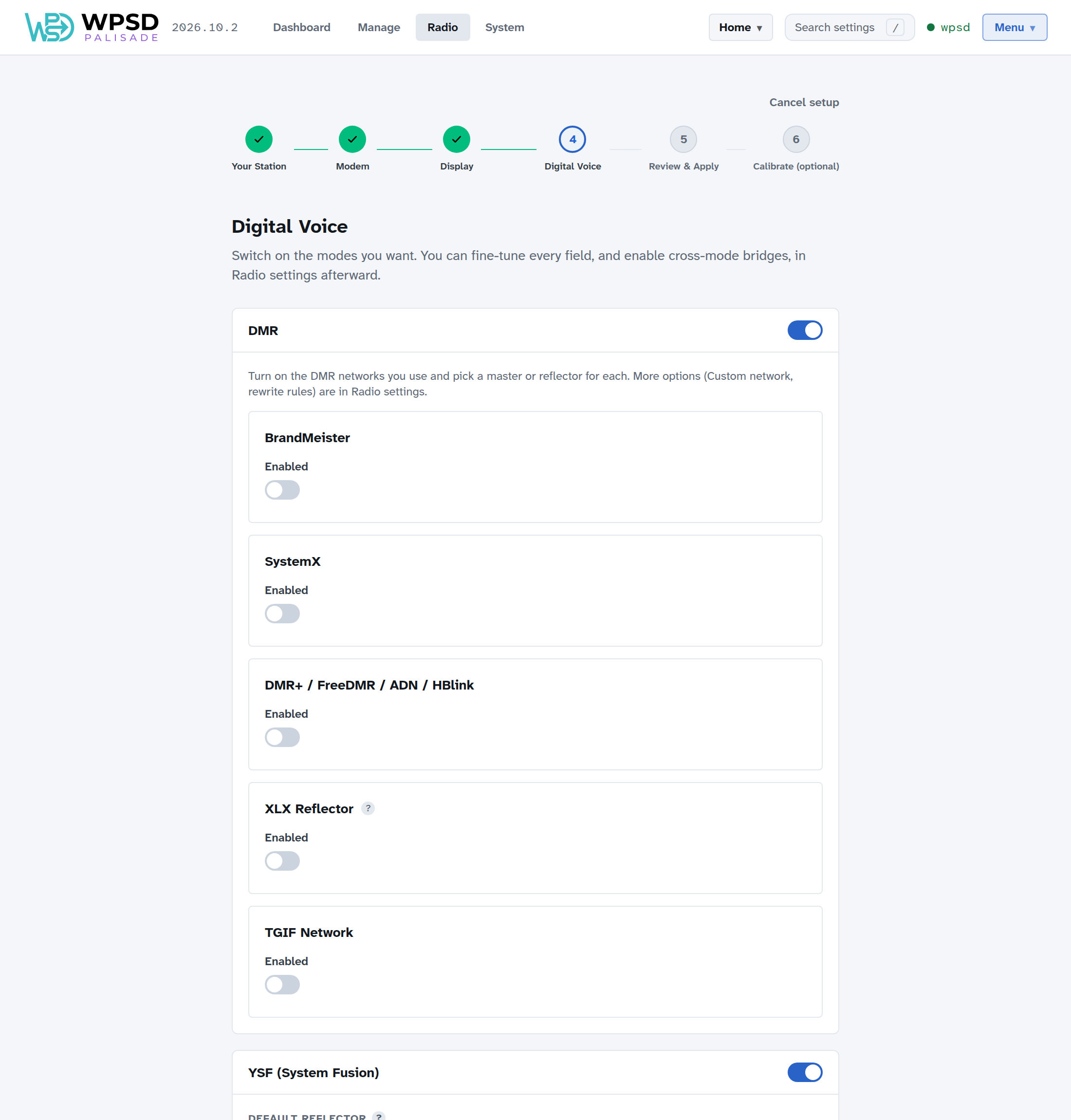
DMR lists each network you can use: BrandMeister, SystemX, DMR+ / FreeDMR / ADN / HBlink, XLX, and TGIF. Turn on the ones you use and choose a master or reflector for each.
BrandMeister: choose the Master Host nearest you, and enter your Hotspot Security PIN (set it on your BrandMeister account’s SelfCare page).
ESSID: if you run more than one WPSD device or radio on the same DMR ID, give each its own two-digit ESSID; Connects as shows the ID it will use.
YSF (System Fusion), D-Star, P25, NXDN and M17 each have a switch, and once on, their startup reflector or room. Cross-mode bridges (such as DMR to YSF) are set up later on Radio > Bridges, and paging and APRS on their own Radio pages.
5. Review & Apply
Review lists every setting you changed, in plain language. Nothing has changed yet.
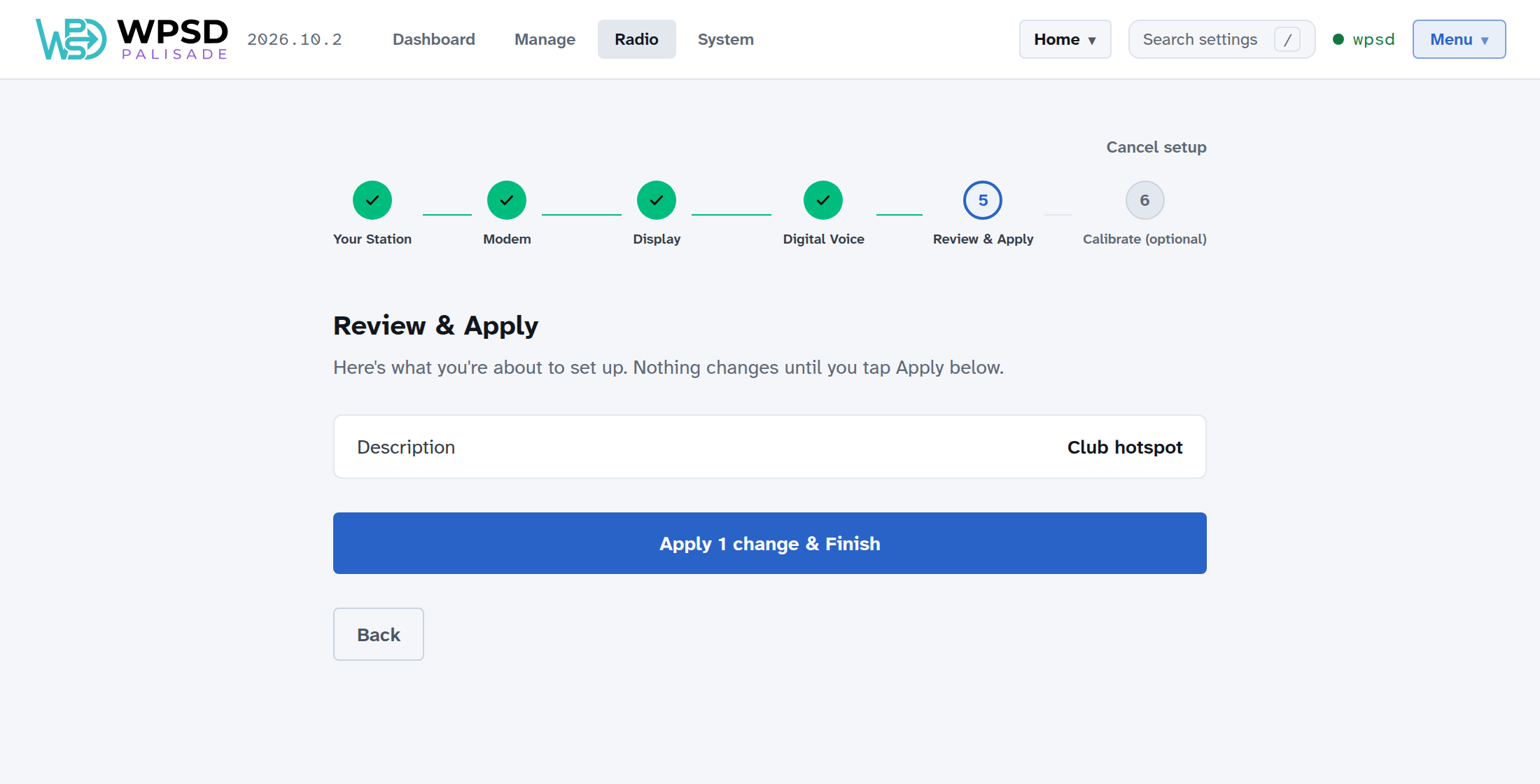
Choose Apply & Finish (it says how many changes). The radio programs whose settings changed restart, which takes a few seconds.
6. Calibrate (optional)
Calibration tunes the WPSD device to your radio for the cleanest reception, and takes a minute or two with your radio in hand. You can do it now, or choose Skip for now and do it any time later in Modem Calibration.
Done
Your station is set up. Your setup is saved as a profile: give it a name (for example Home), then choose Go to Dashboard, or Open Radio settings to fine-tune anything further.
Profiles let you keep several setups and switch between them in seconds; see Profiles.
The Dashboard
The dashboard is WPSD Palisade’s home page: who is on the air now, what you’ve heard recently, and how your WPSD device is doing. Open it in a browser at your WPSD device’s address (https://wpsd-<id>.local, where <id> is your WPSD device’s own code, unless you renamed it); Dashboard in the top bar always brings you back.
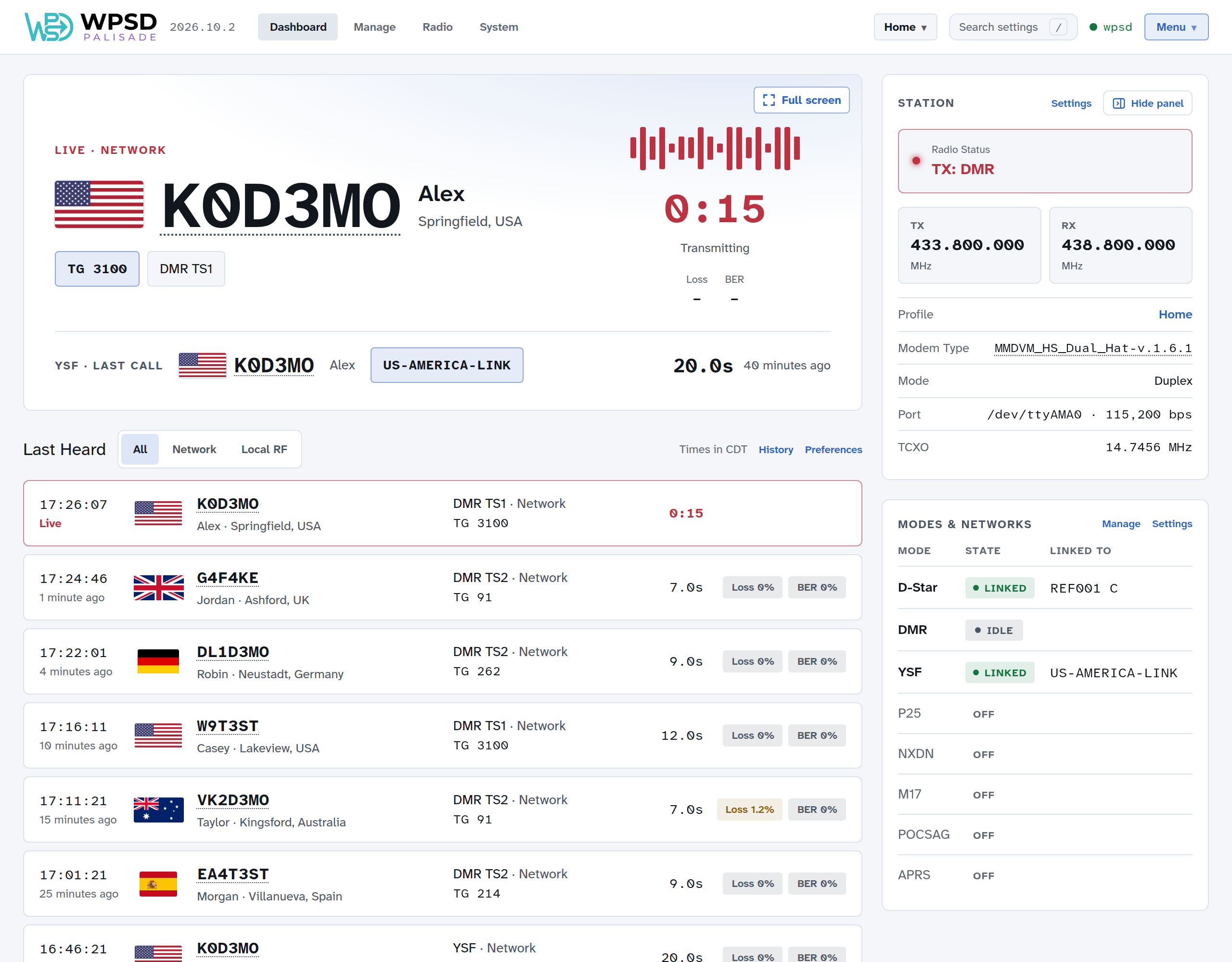
The Live panel
The large panel at the top shows the call on the air now, or the last call heard.
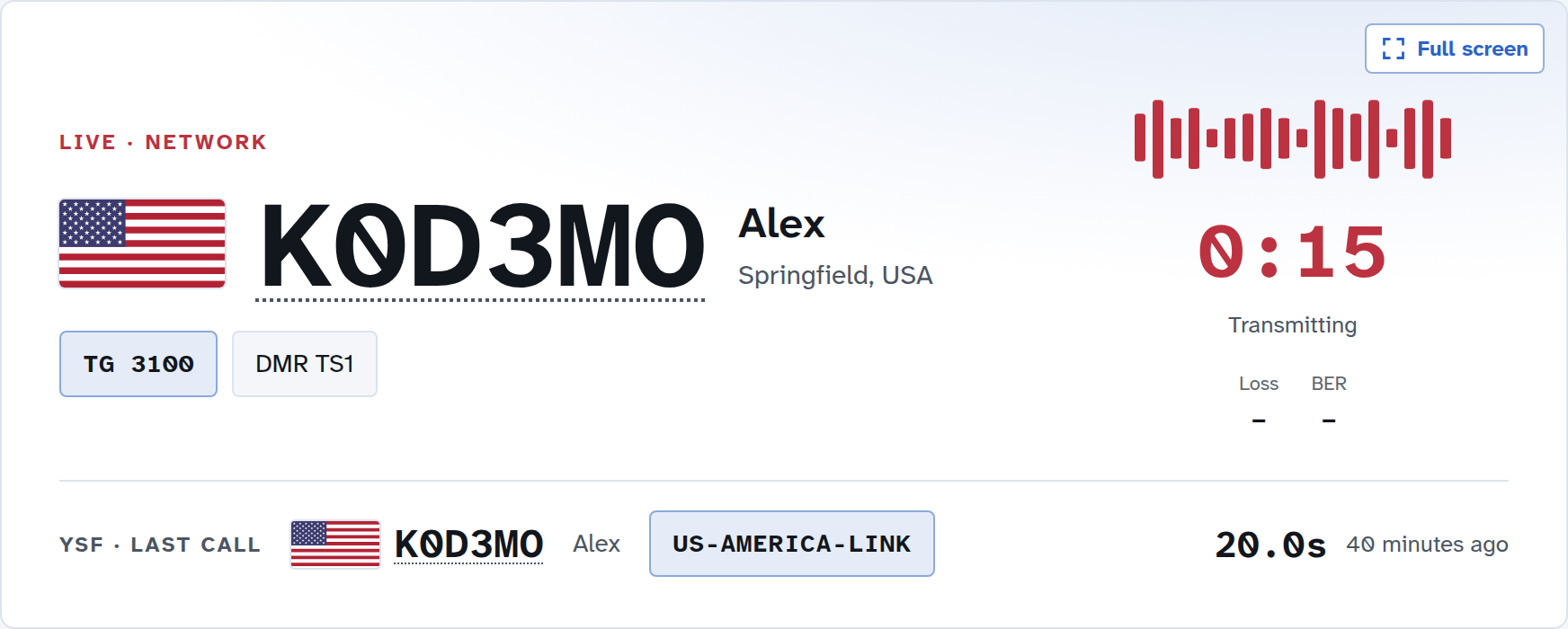
LIVE while someone is talking, Last call once they’ve finished.
Network for calls coming from the Internet, which the WPSD device transmits to your radio; Local RF for calls from a radio near you, which the WPSD device receives and sends to the network.
The caller’s flag, callsign, name and location. Hover over a flag to see the country’s name. The callsign is a link to the caller’s page on QRZ or RadioID, whichever you chose in Preferences.
The talkgroup or reflector and the mode (with the DMR timeslot).
How long the call has run, and once it ends, its Loss (network calls: the share of the call that didn’t arrive) and BER (bit error rate: how cleanly the radio signal was received). They are plain gray when fine, and turn amber or red only when there is a problem.
Both DMR timeslots
A duplex hotspot carries two DMR timeslots, so two calls can be on the air at once. The call that started first stays large; the other appears on a line underneath. When the first call ends, the one still on the air moves up.
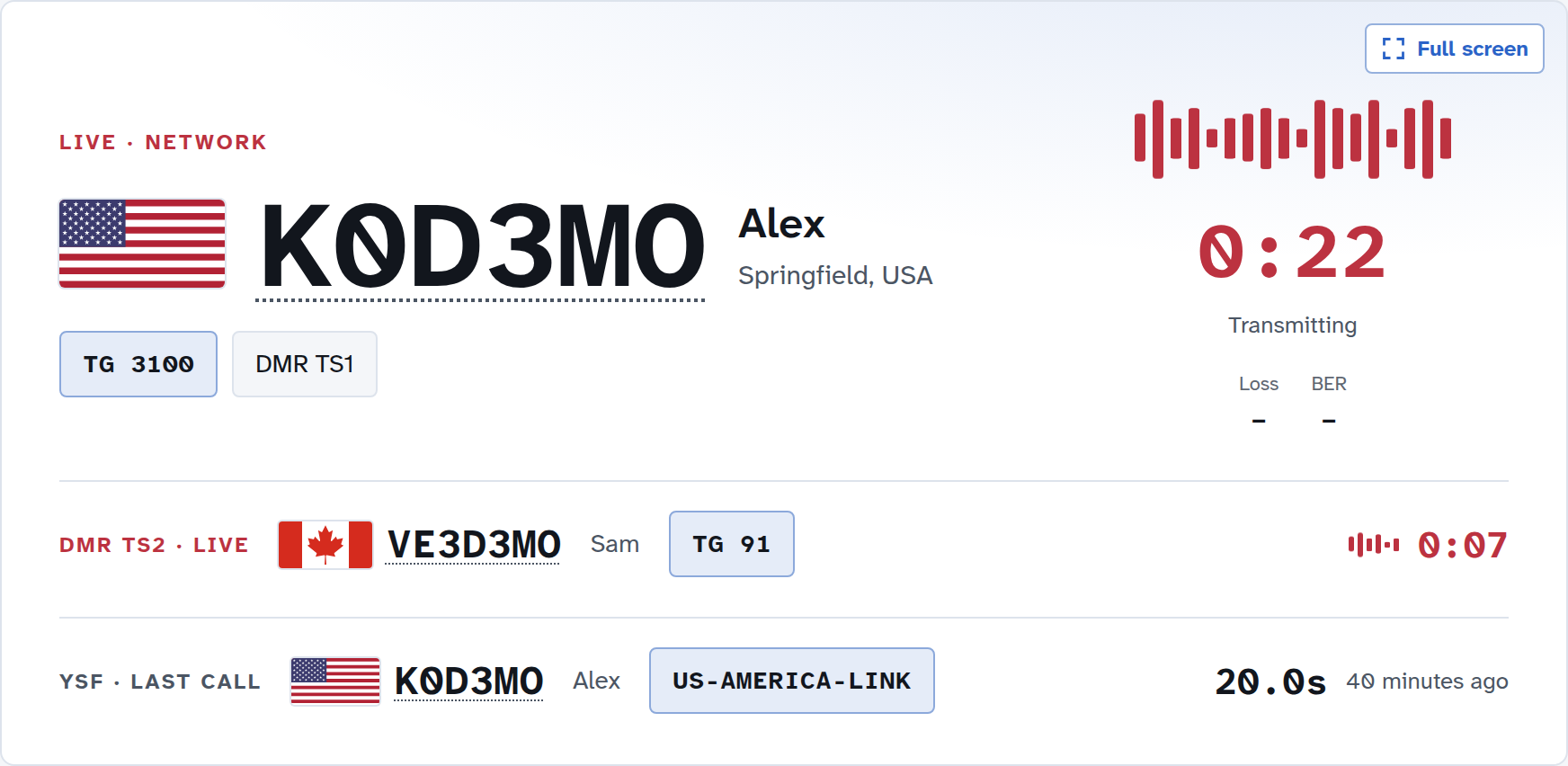
By default the second line goes away a minute after its call ends. To keep each slot’s last call in view, turn on Keep both DMR slots’ last calls in Preferences (offered on duplex hotspots with both timeslots on).
Several modes
With more than one mode on, the Live panel also keeps the last call in another mode in view, on its own line. How many calls it shows depends on your modem:
Simplex modem: two, the newest call in each of the two modes heard most recently.
Duplex modem with DMR on: three, both DMR timeslots and the newest call in any other mode.
Duplex modem without DMR: one, the newest call.
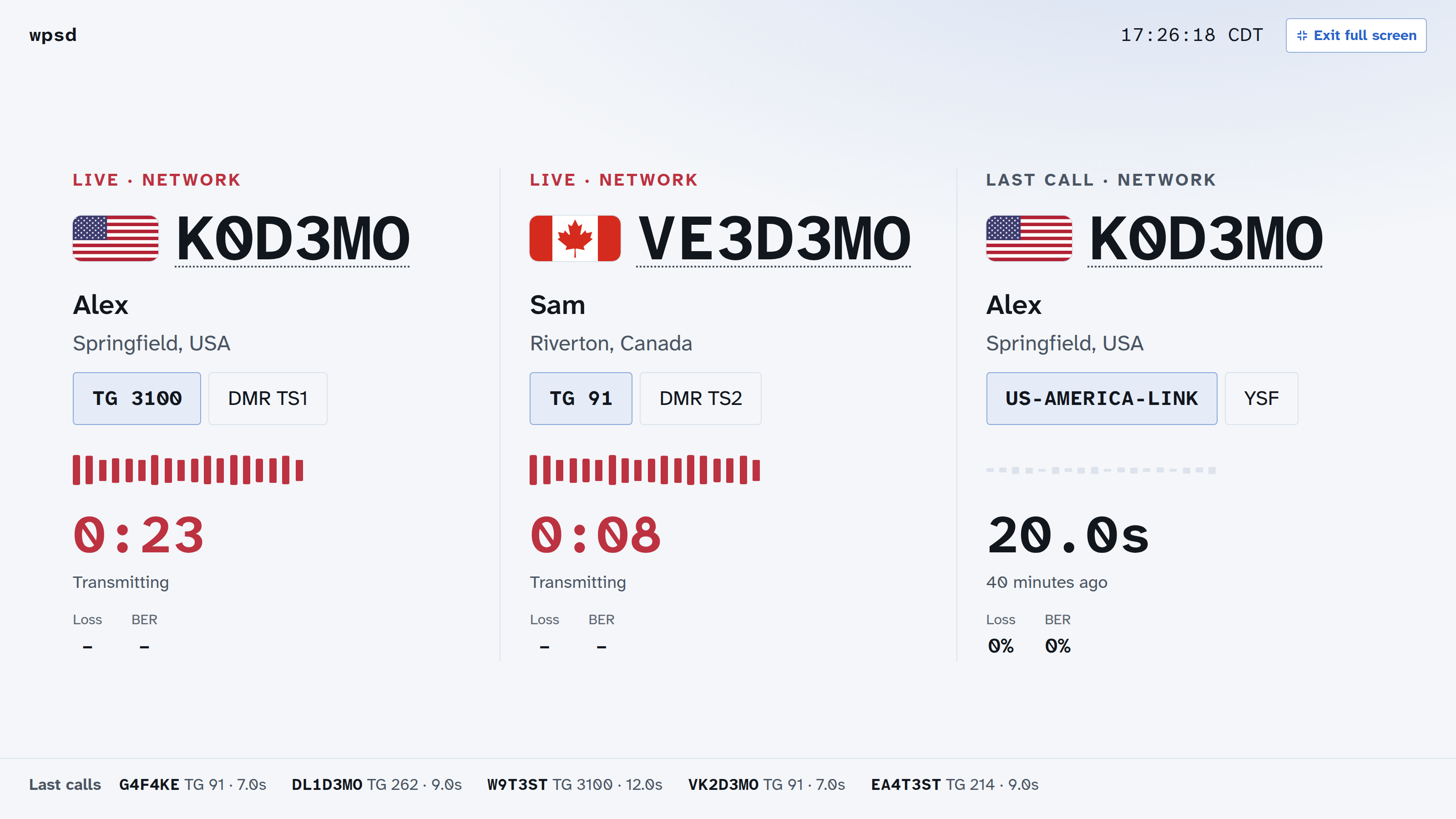
The pictures above show a duplex modem with DMR, YSF and D-Star on. The order follows the calls, never the mode or timeslot: a call on the air comes before one that has ended, the one that started first stays large, and of calls that have ended, the one that ended last leads. Each line names its mode, such as DMR TS1 or YSF. Calls in other modes are in Last Heard, below.
Full screen
Full screen, at the top right of the Live panel, fills the screen with it, for a monitor in the shack: its calls large and side by side, your WPSD device’s name and the time at the top, and the last few calls along the bottom. Exit full screen or the Esc key returns.
Short key-ups (“kerchunks”)
Very short transmissions (a quick key-up to check a repeater) can fill the list. Hide kerchunks in Preferences leaves out calls shorter than the time you choose. A call on the air only appears once it has lasted that long, so a kerchunk never flashes up and disappears.
Last Heard
Below the Live panel, Last Heard lists the latest calls, newest first.
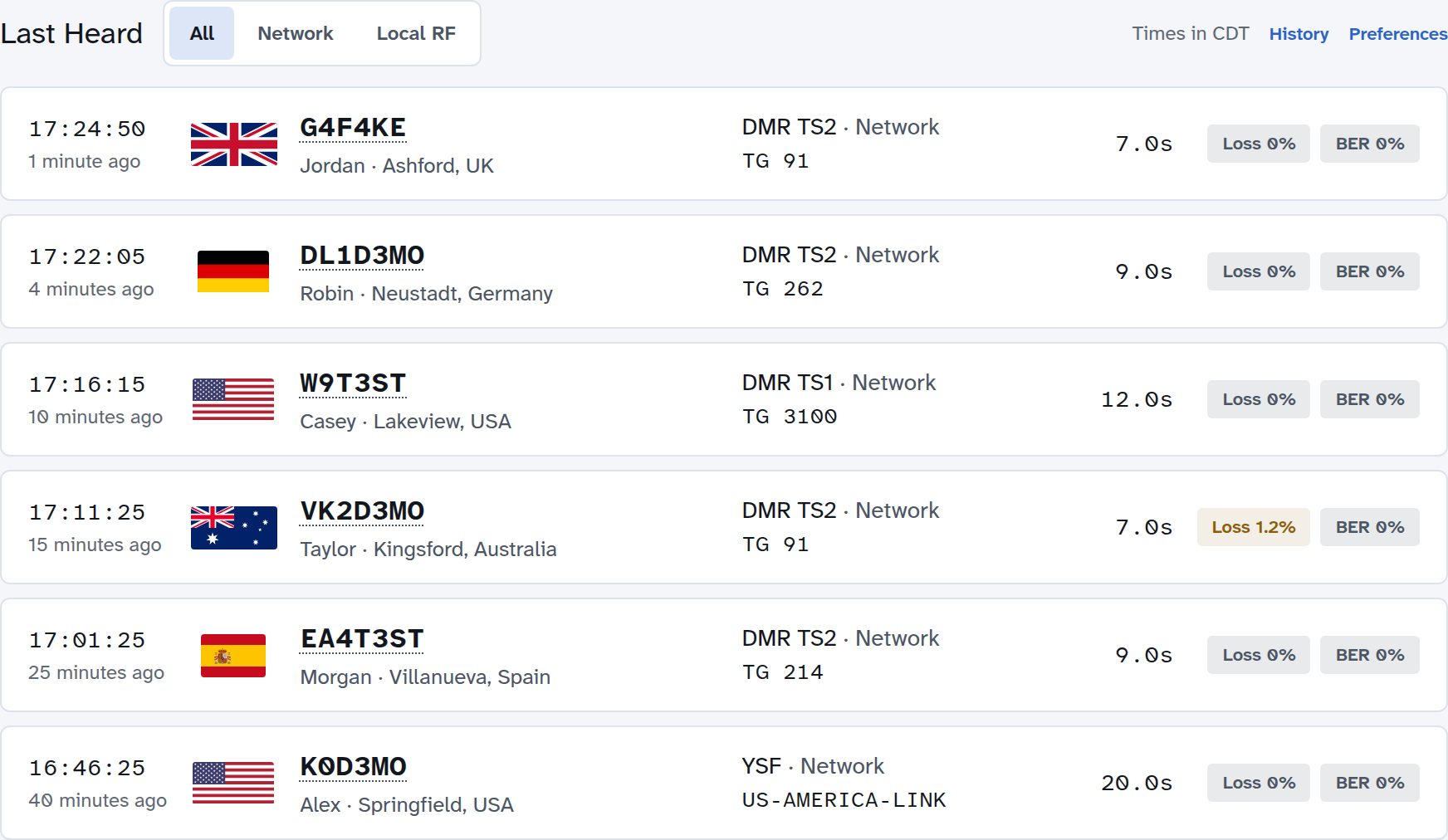
All, Network and Local RF choose which calls to show.
Each row shows when the call started (and how long ago), who it was, the mode and talkgroup, how long it lasted, and its Loss and BER.
A caller who calls repeatedly on the same talkgroup appears once, at their latest call.
Times are in the time zone shown above the list (Times in CDT, for example); choose it in Preferences.
Show more opens the rest of the list. How many rows show first is a preference too.
History
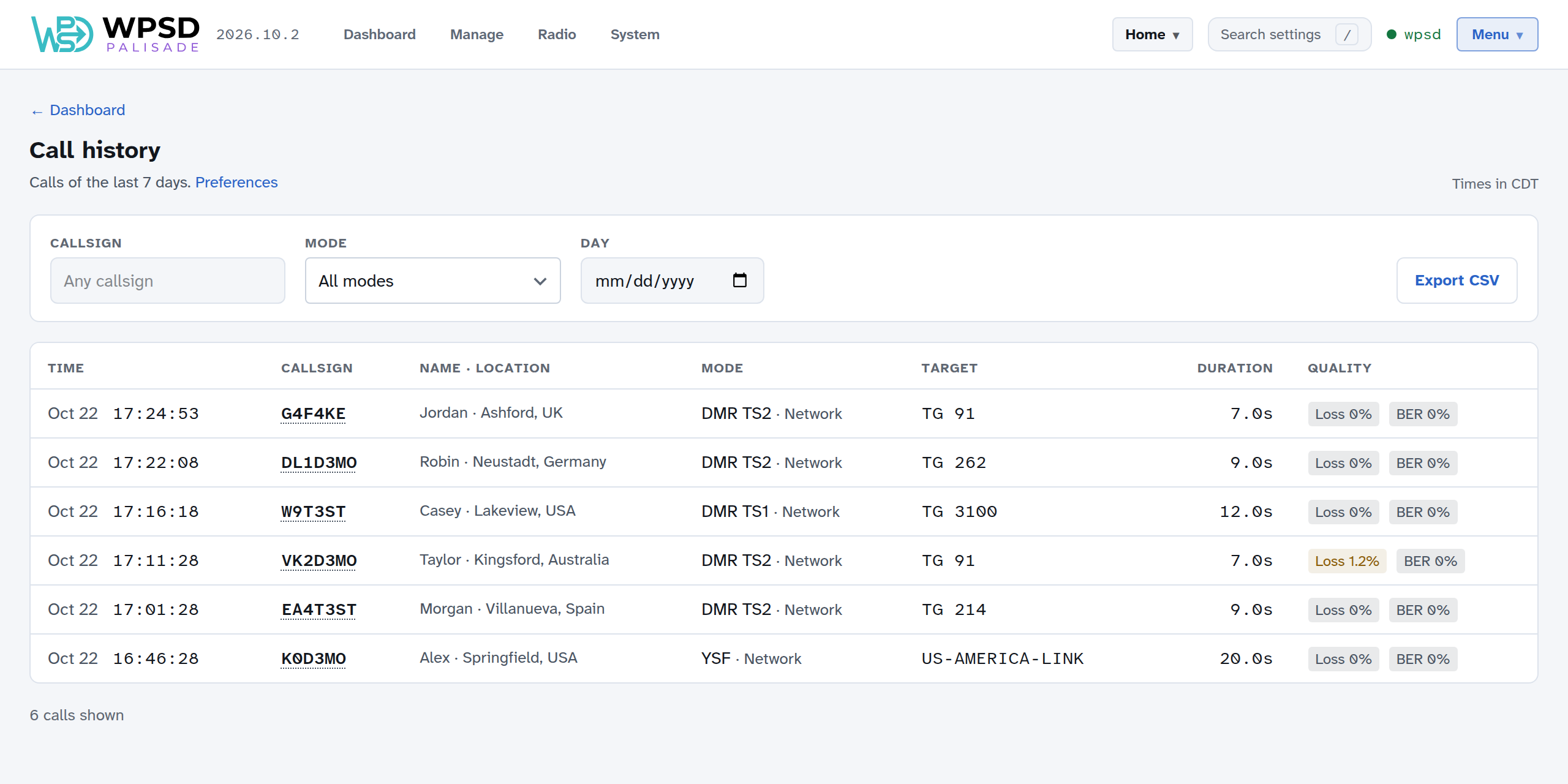
History, above the list, opens every call kept on the WPSD device (the last 7 days unless you change it in Preferences). Search by callsign, mode or day, and Export CSV to download the calls as a spreadsheet.
The side panel
The panel on the right shows your WPSD device at a glance.
Station
Radio Status: what the WPSD device is doing: Idle, Standby in a mode, RX (receiving from a radio) or TX (transmitting a network call), or a problem such as Failed or Offline.
TX and RX frequencies (one, TX / RX, on a simplex hotspot).
Profile: the profile in use (see Profiles).
Modem Type and its firmware, Mode (Duplex or Simplex), Port and speed, and the modem’s TCXO (reference crystal).
Modes & Networks lists every mode and its state: Off, Paused, Idle (on but not linked), Linked (with the reflector or network it’s linked to), Partial (some DMR networks linked, some failed), or Failed. Manage opens the Manage pages, where you link and unlink.
Hiding it
Hide panel slides the side panel away and gives the calls the whole width; a slim Show panel tab stays on the right edge to bring it back. Your browser remembers the choice.
The top bar

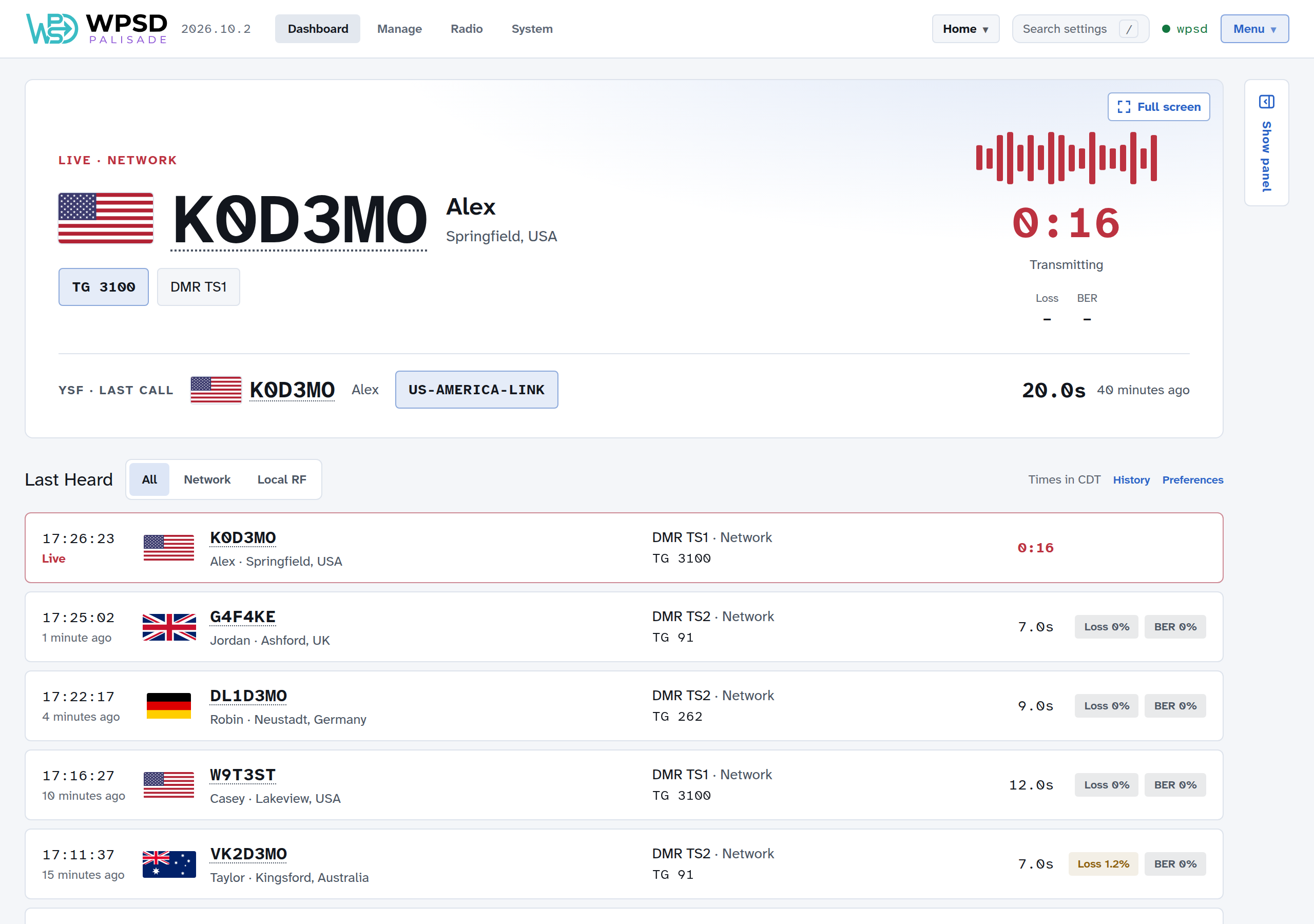
Dashboard, Manage, Radio and System: the four parts of WPSD Palisade.
The profile in use (here Home): open it to switch profiles; see Profiles. While a scheduled switch runs it also says until when.
Search settings (or press
/or Ctrl+K): find any setting by name and go straight to it.Your WPSD device’s name, in green while your browser is connected to it. If the connection drops it shows Reconnecting…, then Offline; the page catches up by itself when the WPSD device is back.
Menu: Preferences, Security, restarting or shutting down the WPSD device, and logging out.
Notices appear here when something needs you, such as updates waiting (see Updates).
On long pages, a Back to top button appears at the bottom right.
What visitors see
Anyone on your network can open the dashboard and see the calls, without logging in. Visitors see no profile names and can’t change anything; they’re asked to log in for Manage, Radio and System. To keep the whole dashboard private, turn on Private dashboard in Security.
Manage
Manage is where you change what your WPSD device is doing right now: pause a mode, link to a reflector, add a talkgroup, send a page. Radio settings decide how the WPSD device starts; Manage changes things for now, without touching them.
The managers on the left depend on what you use: each appears once its mode or network is switched on in Radio. They’re grouped as Modes, Links, DMR talkgroups and Paging. Each shows what’s happening Now, the controls to change it, and a Recent list of what was done.
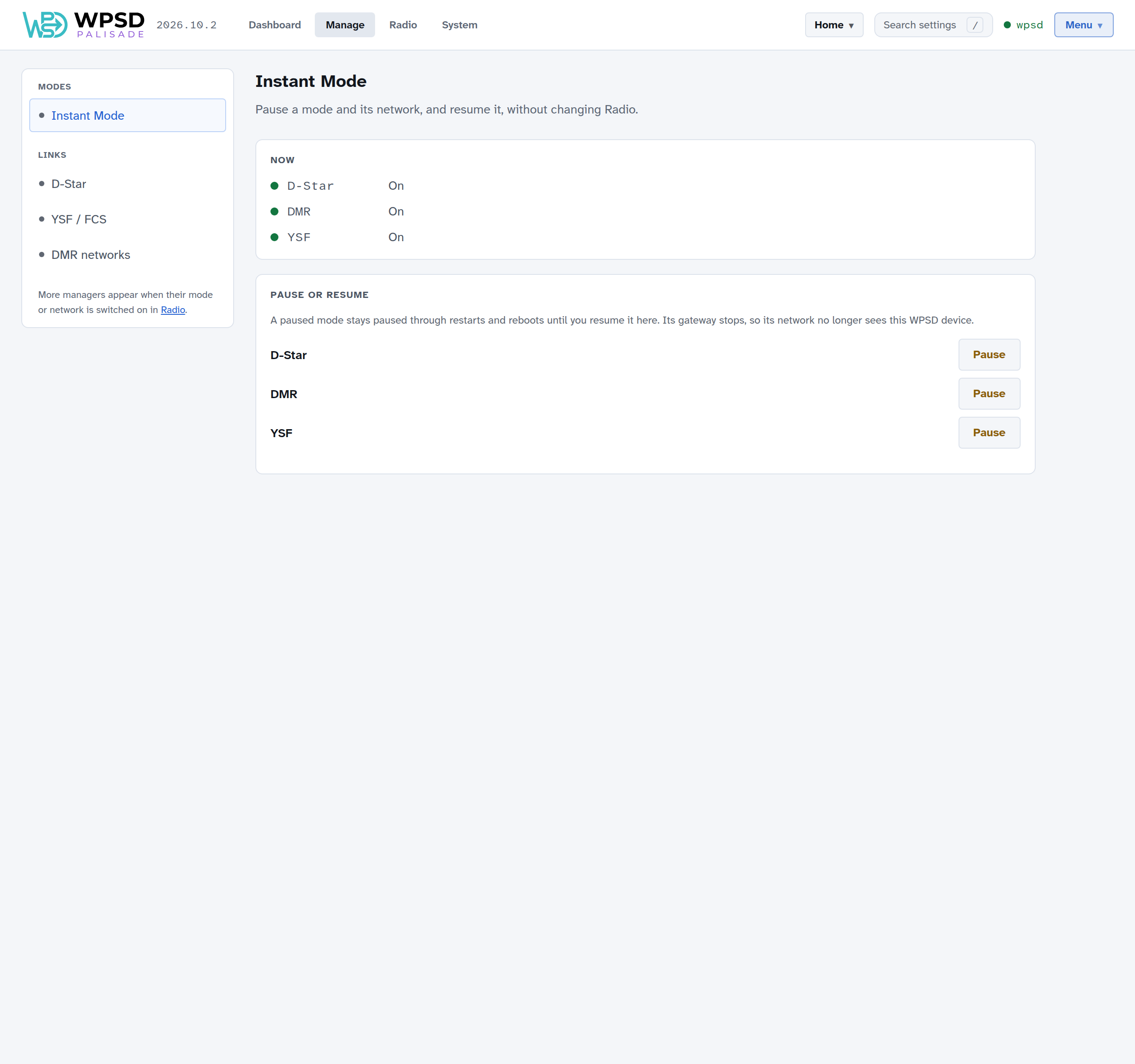
Instant Mode
Pause a mode and its network, and resume it, without changing Radio settings.
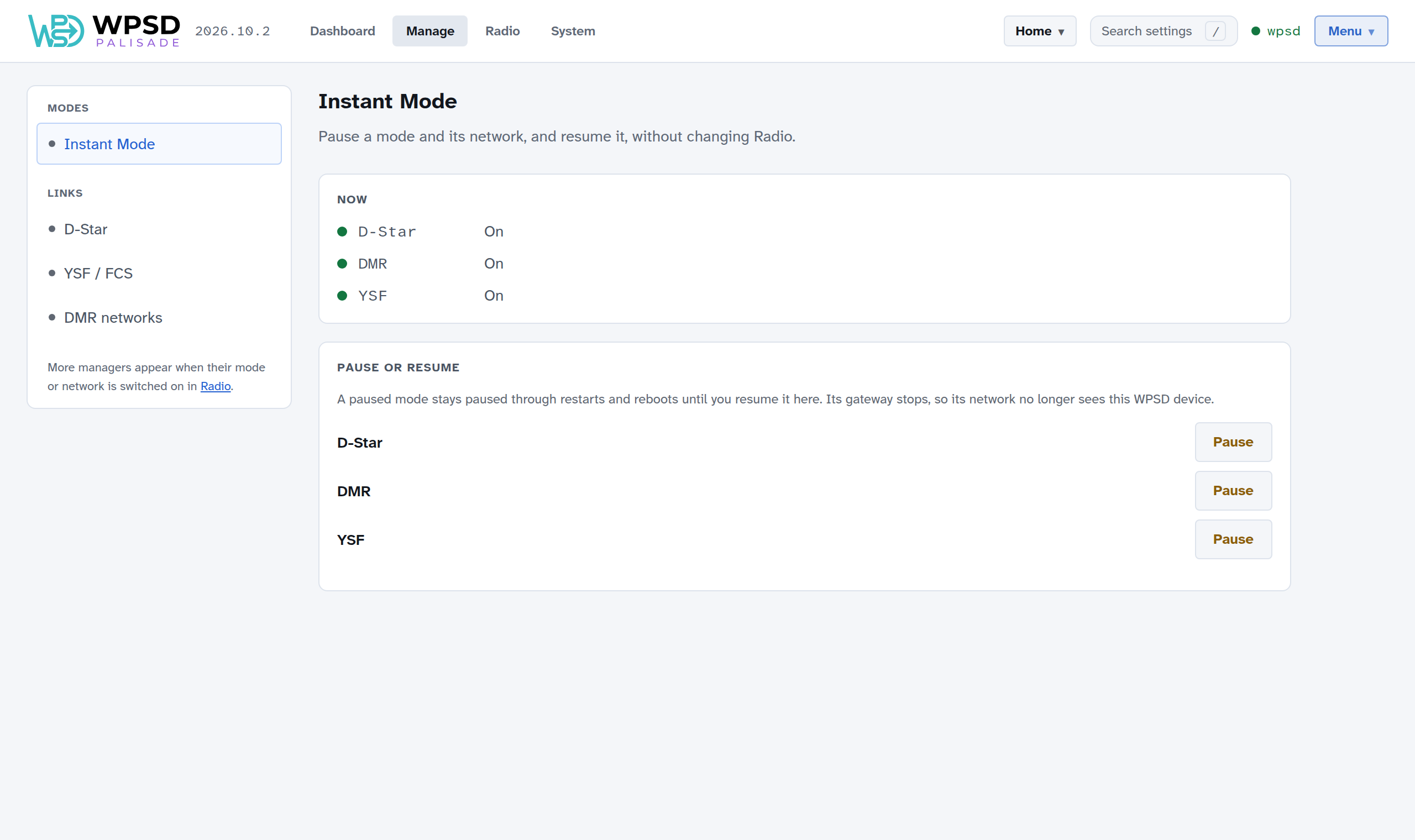
A paused mode stays paused through restarts and reboots until you resume it here. Its gateway stops, so its network no longer sees your WPSD device. Paused modes show as Paused on the dashboard.
Links
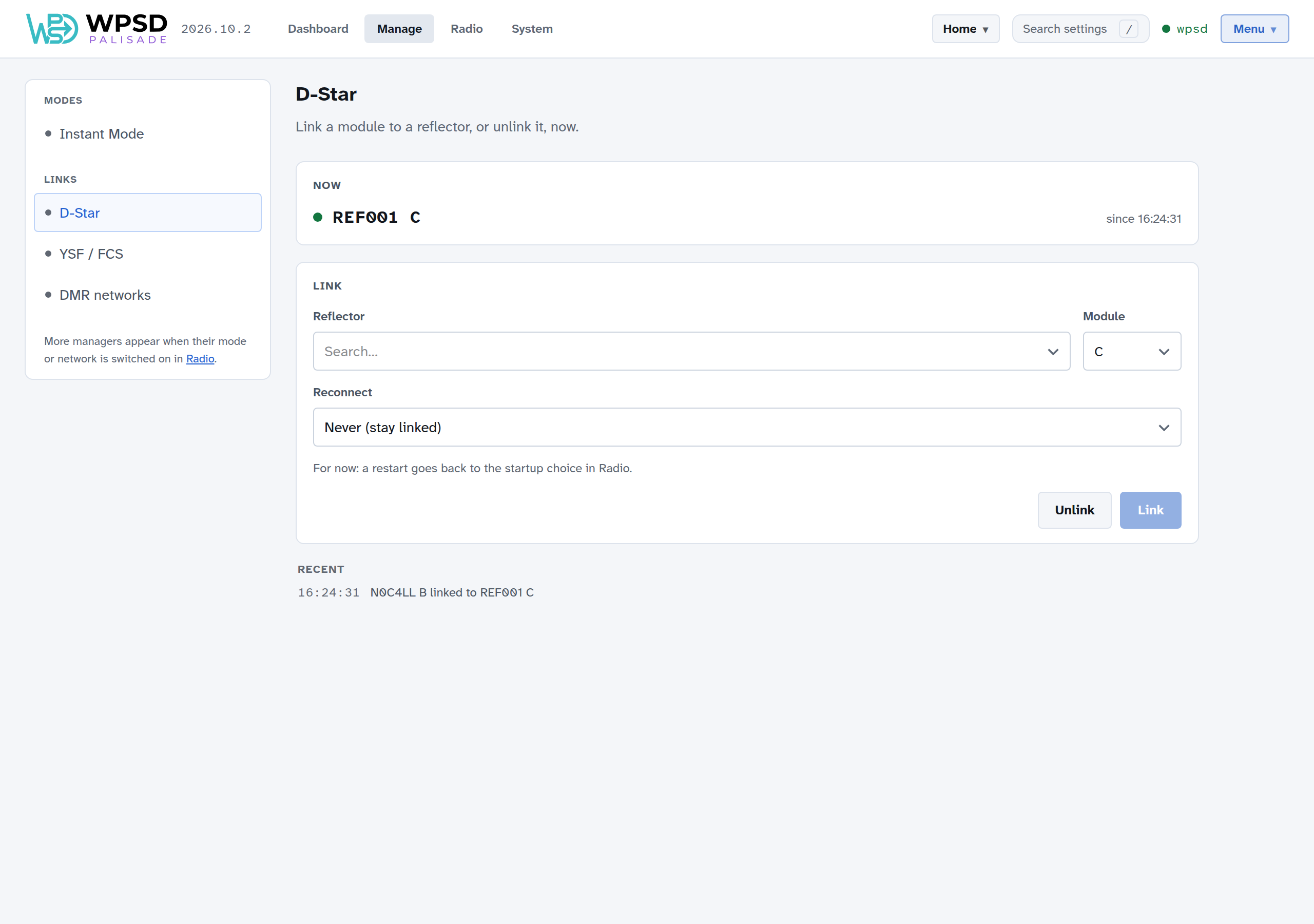
The link managers (D-Star, YSF / FCS, P25, NXDN and M17) link to a reflector, room or talkgroup, or unlink, now.
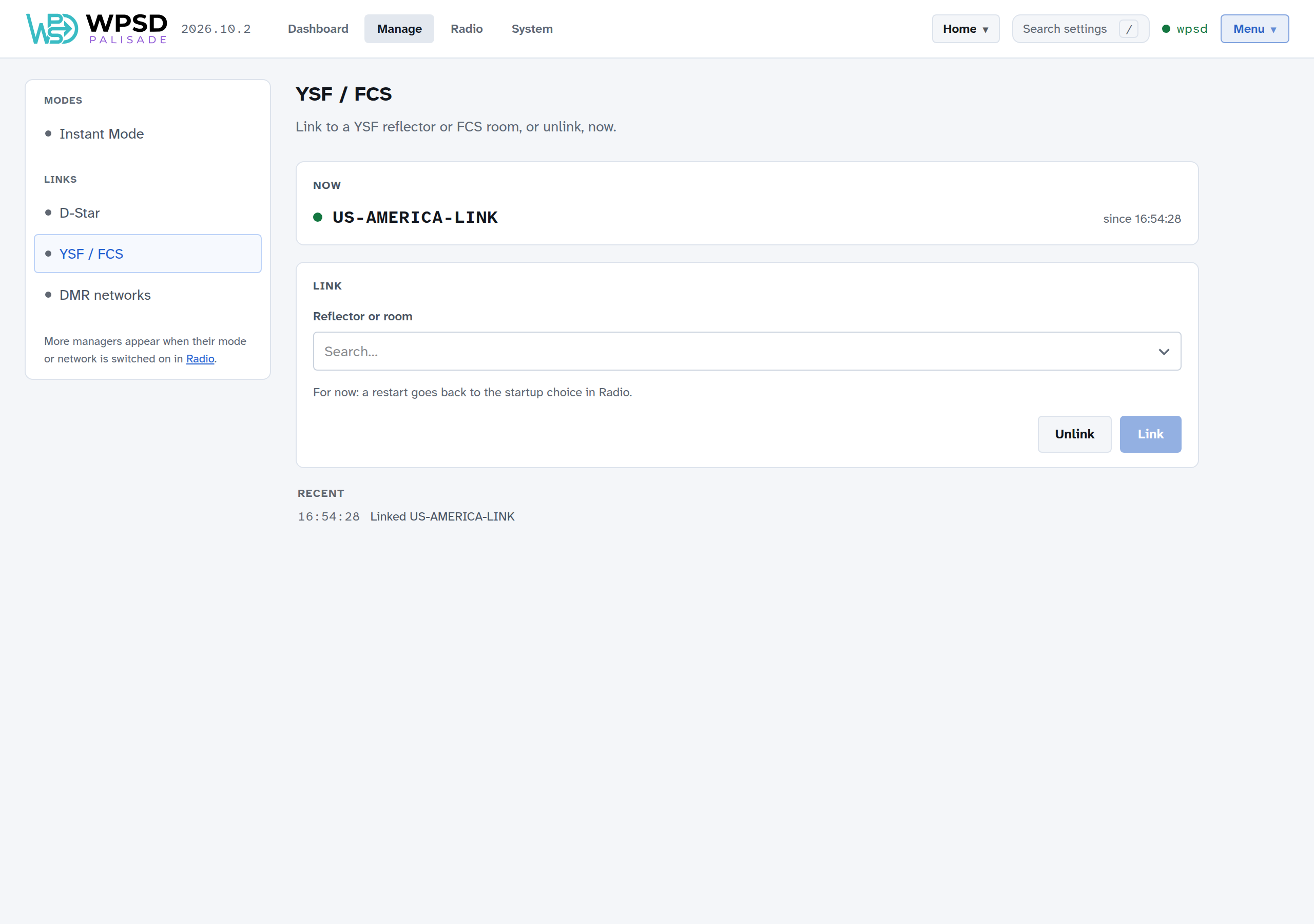
Choose a reflector from the list (type to search it), then Link; Unlink drops the link. A restart goes back to the startup choice set in Radio.
D-Star: choose the reflector and its module (the letter after it), and Reconnect: whether the WPSD device relinks by itself if the link drops, and after how long.
YSF / FCS: YSF reflectors, and FCS rooms if they’re switched on in Radio. With DG-ID routing on, the DG-IDs decide the links instead.
M17: the reflector and its module.
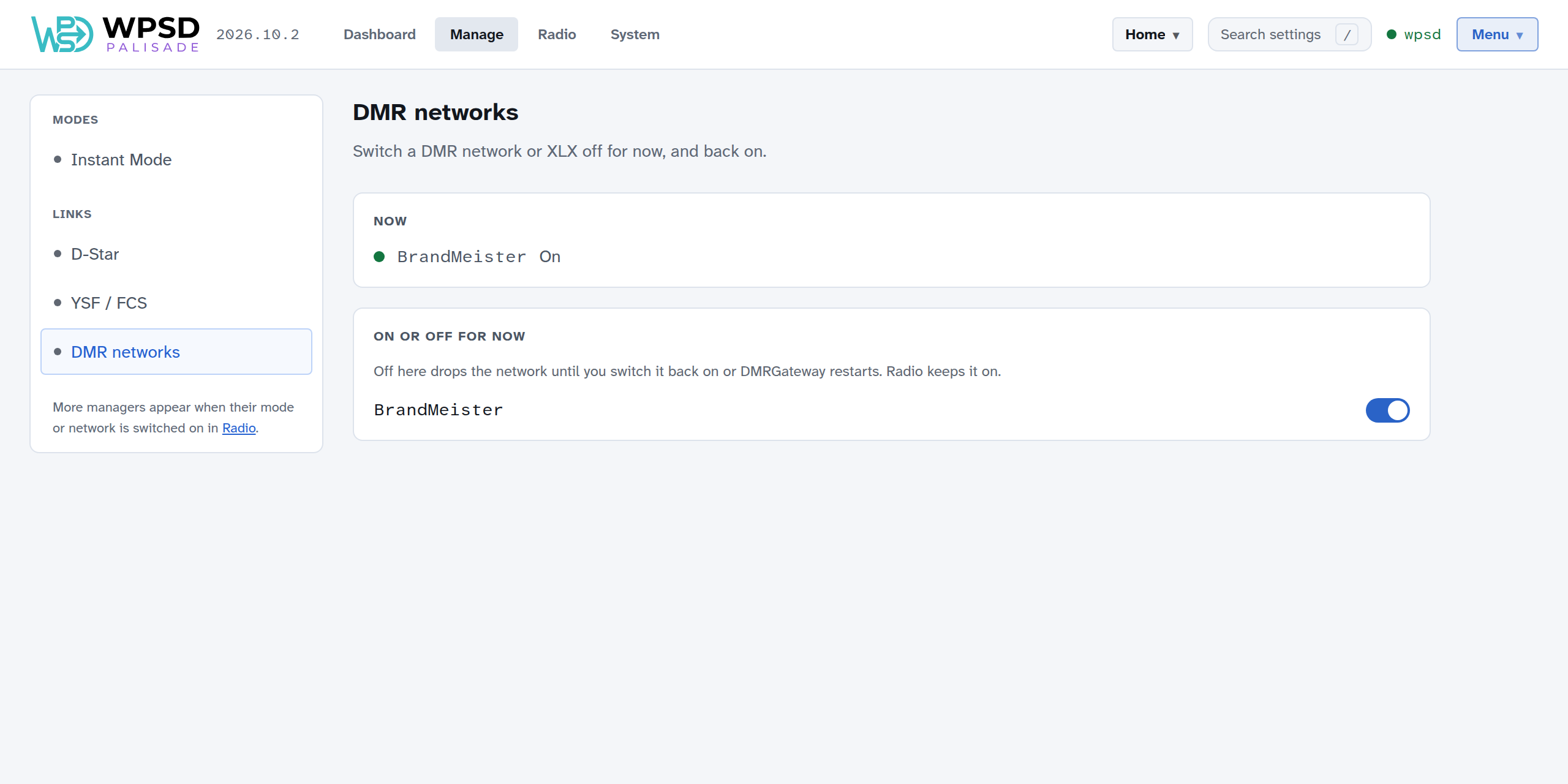
DMR networks
Switch a DMR network, or XLX, off for now, and back on. Off here drops the network until you switch it back on or its gateway restarts; Radio settings keep it on.
DMR talkgroups: BrandMeister, TGIF and SystemX
Each DMR network you use has its own talkgroup manager. It shows your WPSD device’s talkgroups on that network, per timeslot (just one on a simplex hotspot), and lets you change them.
Linked now: the dynamic talkgroup (linked because someone keyed up on it) and how long until the network drops it. Each time you key up on it, the time starts over. Drop unlinks it now.
Always linked (static): talkgroups that stay linked. Type a number or a name and choose Add; Add several at once… takes a pasted list; Remove and Remove all… take them off. On BrandMeister, a static talkgroup can be switched off without removing it, to keep it for later.
Drop current call ends the call on that timeslot.
Recently heard: talkgroups heard lately, to add with one click.
API keys
To change talkgroups, the manager needs your API key for that network. Choose API key and paste it.
BrandMeister: create one in BrandMeister’s SelfCare, under Profile > API Keys.
TGIF and SystemX: from your account on that network’s website.
Keys are checked with the network when you save them, and never shown again in full: only their last four characters. They’re kept on the WPSD device and stay the same for every profile.
Paging
With POCSAG on, Paging sends a page over the air from your WPSD device: choose a pager (or another RIC), the kind of page and the message, then Send page. Keep your pagers’ RICs under Saved pagers. With your DAPNET login added, you can also send messages Through DAPNET to pagers anywhere. See POCSAG and DAPNET.
Profiles
A profile is a saved radio setup: which modes are on, the networks, talkgroups and reflectors, the frequencies, and the dashboard’s preferences. Keep one for each way you use your WPSD device (at home, for the club net, on a trip) and switch between them in a few seconds. Only what differs changes, and only the programs whose settings changed restart.
You always have one profile active. Guided Setup saves your first one, usually called Home.
What a profile holds, and what it doesn’t
In each profile |
The same for every profile |
|---|---|
Your callsign, IDs and location |
Wi-Fi, the device name and network settings |
Frequencies and duplex |
Your password, SSH, keys and the private dashboard |
Modes on and off, and every mode’s settings |
The modem hardware (board, port, speed) |
Networks, startup talkgroups and reflectors, cross-mode bridges |
Displays, logging and the log archive |
APRS and paging (DAPNET) |
API keys (BrandMeister, DAPNET) |
Dashboard preferences: time zone, clock, units, Last Heard |
Your own talkgroup names; this browser’s theme and language |
Your custom settings |
So switching profiles can never take your WPSD device off your network or lock you out.
Radio > Profiles
Radio > Profiles lists your profiles, the active one first.
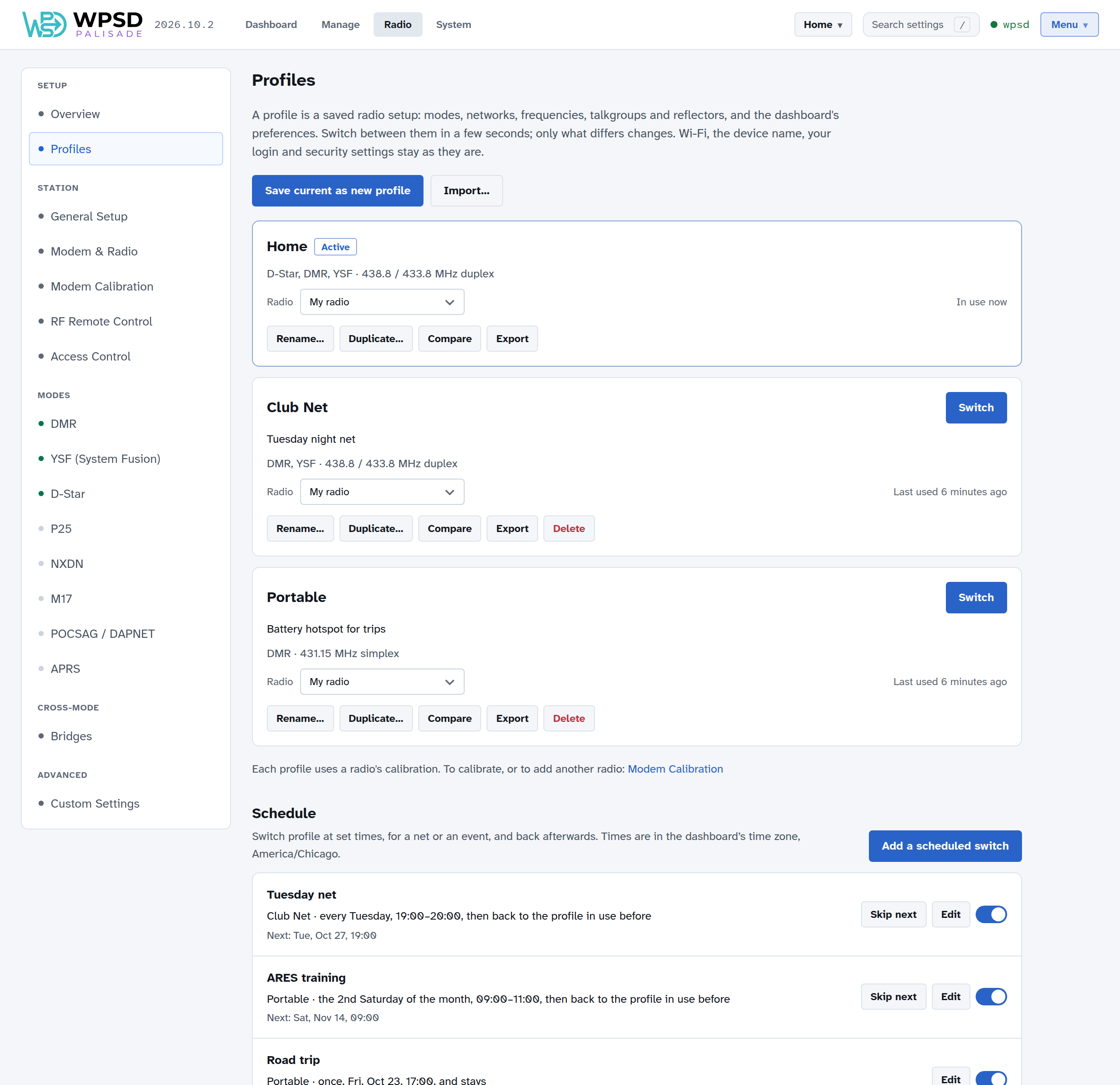
Each card shows the profile’s name and note, a summary (its modes, networks and frequencies), the Radio it uses (see Radios and calibration), when it was last used, and:
Switch (on profiles that aren’t active).
Rename… its name and note.
Duplicate… to start a new profile from a copy.
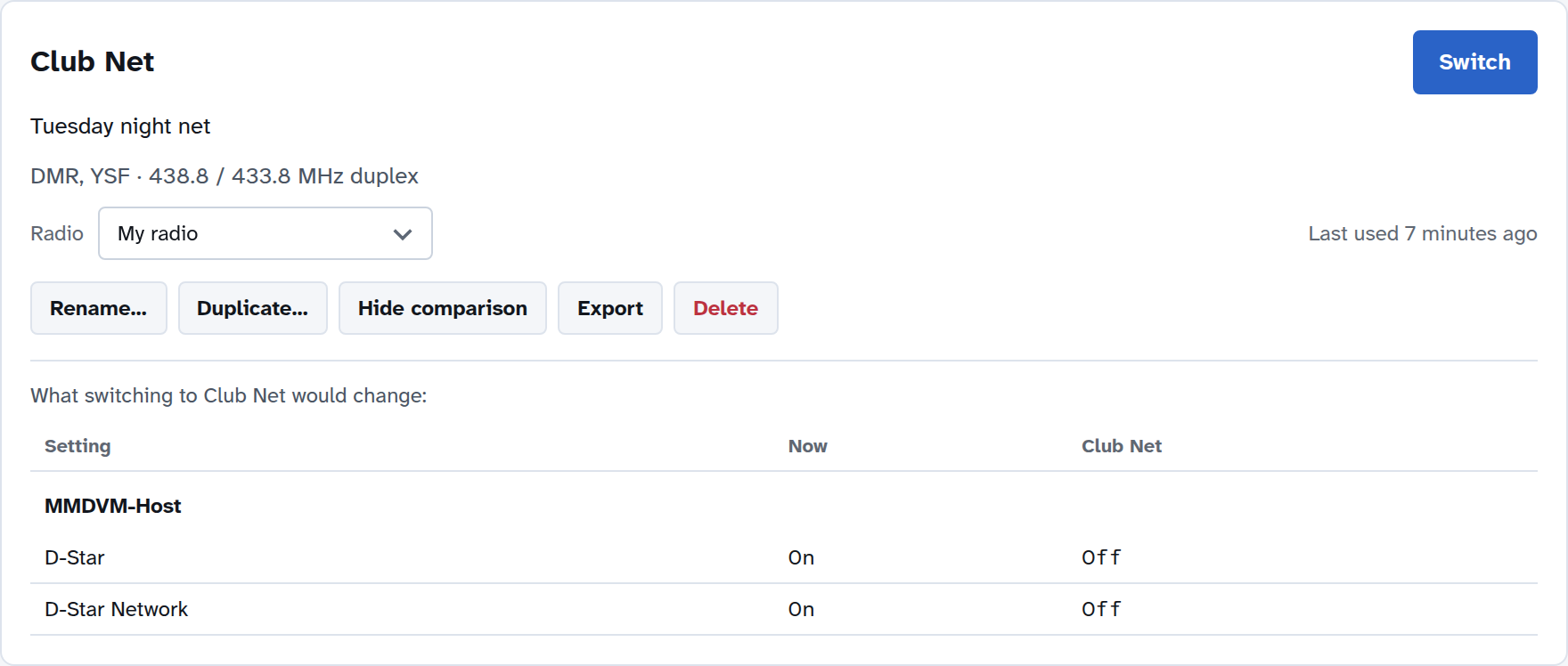
Compare shows what switching to it would change, setting by setting (for the active profile: what you’ve changed since it was saved).
Export downloads it as a file, to keep or to load on another WPSD device.
Delete (not the active profile; it asks first).
At the top: Save current as new profile saves what runs now as a new profile, which becomes the active one, and Import… loads an exported profile. An imported profile never brings Wi-Fi, passwords or keys with it.
Switching
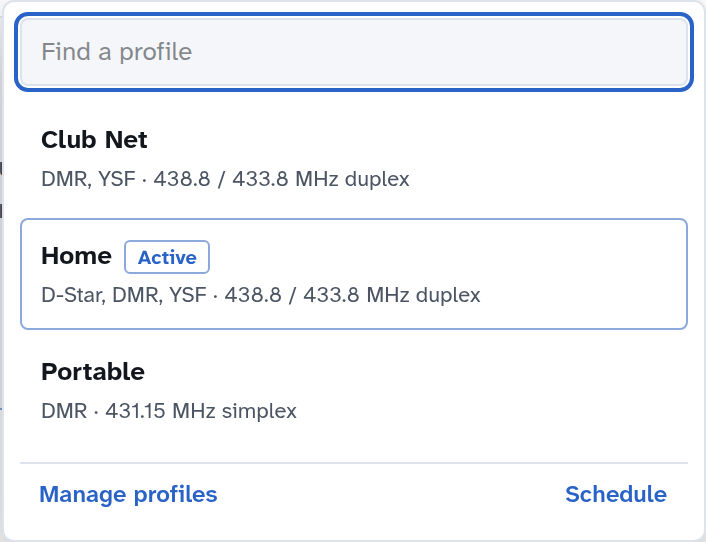
Switch from the profile menu in the top bar, which shows the active profile’s name. Open it, and choose a profile; type to find one in a long list. Or choose Switch on a profile’s card.
The top bar shows the switch as it happens (Switching to Club Net…), and the dashboard keeps running and reconnects. Switching usually takes a few seconds.
While the modem is being calibrated, switching waits until calibration ends.
Changes you haven’t saved
When you change settings in Radio and apply them, they run at once, but they aren’t saved to the profile yet: the profile is now Changed. A dot appears on the profile menu, and the menu offers three choices:
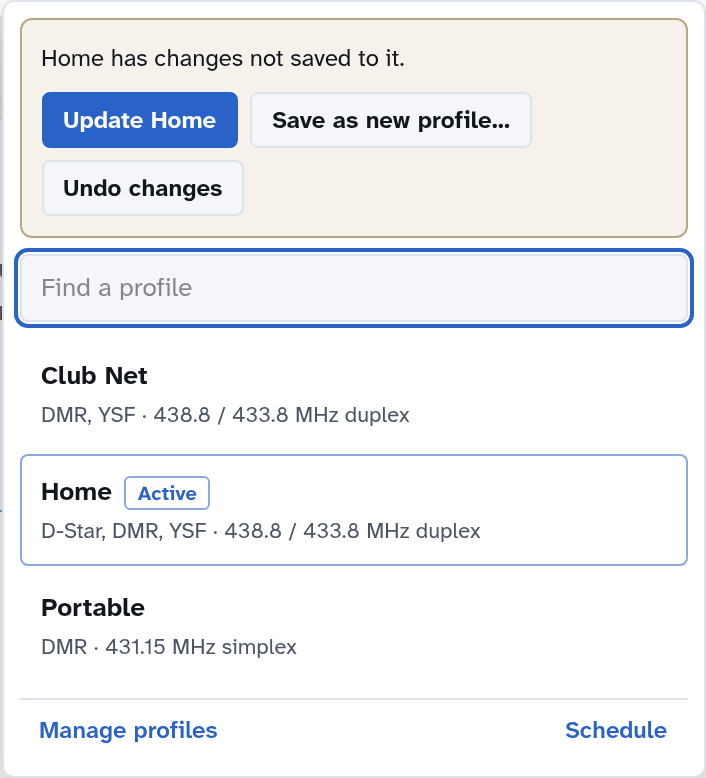
Update Home (your profile’s name): saves the changes to it.
Save as new profile…: keeps the active profile as it was and saves what runs now as a new one.
Undo changes: puts everything back as the profile was saved.
You don’t have to choose straight away: the changes stay running, marked Changed. If you switch profiles while there are unsaved changes, WPSD Palisade asks what to do with them first:
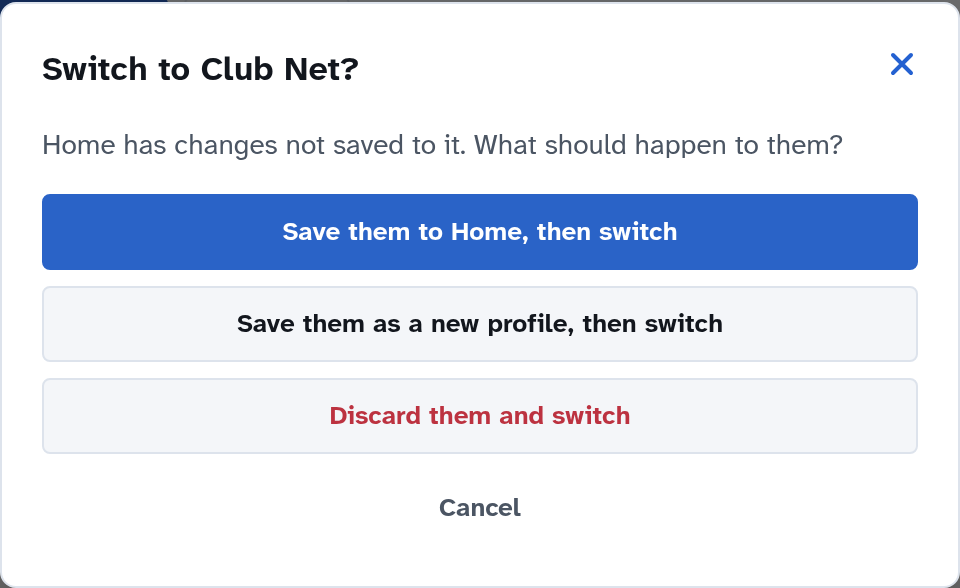
Radios and calibration
Calibration belongs to the modem and the radio you use with it together, so WPSD Palisade keeps it in a radio rather than in a profile. Every profile uses a radio, chosen on its card; you start with one, My radio, and every profile uses it.
If you use the same hotspot with different radios, add one in Modem Calibration (Add another radio…), calibrate it, and choose it on the profiles that use it. Switching to such a profile then brings that radio’s calibration with it. A radio’s offsets are adjusted for the profile’s frequency automatically.
Switching on a schedule
Profiles can switch by themselves, for a weekly net or an event, and back afterwards: see Profile Schedule.
Who sees profiles
Only you, logged in. Visitors to the dashboard see no profile names and can’t switch.
Profile Schedule
The Profile Schedule switches profiles for you at set times: to your club’s profile for the weekly net and back afterwards, to a training profile once a month, or to your portable profile on the day you leave. It’s at the bottom of Radio > Profiles.
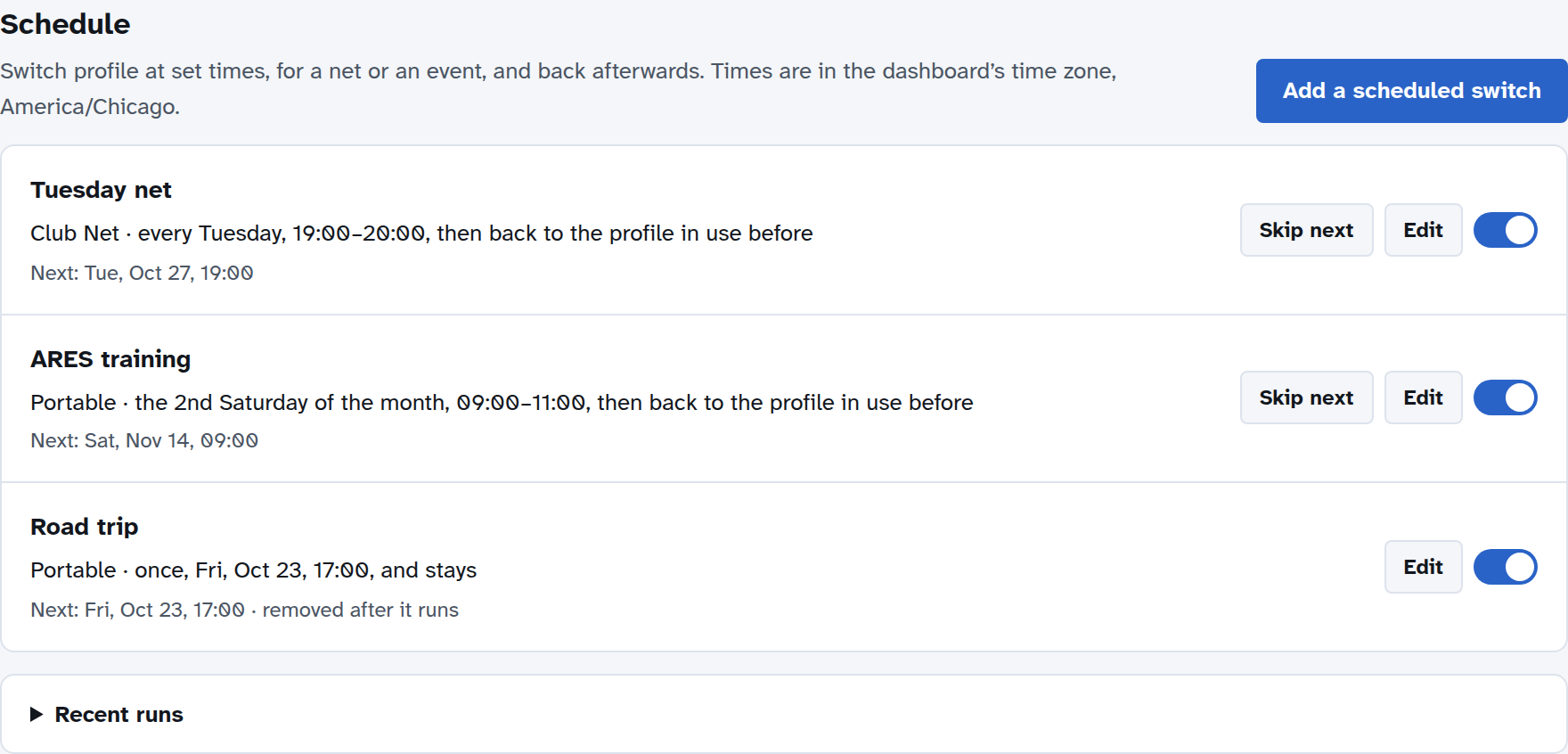
Each scheduled switch shows its profile, when it repeats and its times, and when it next runs. Its switch turns it off and on; Skip next skips its next run only; Edit changes it.
Adding a scheduled switch
Choose Add a scheduled switch.
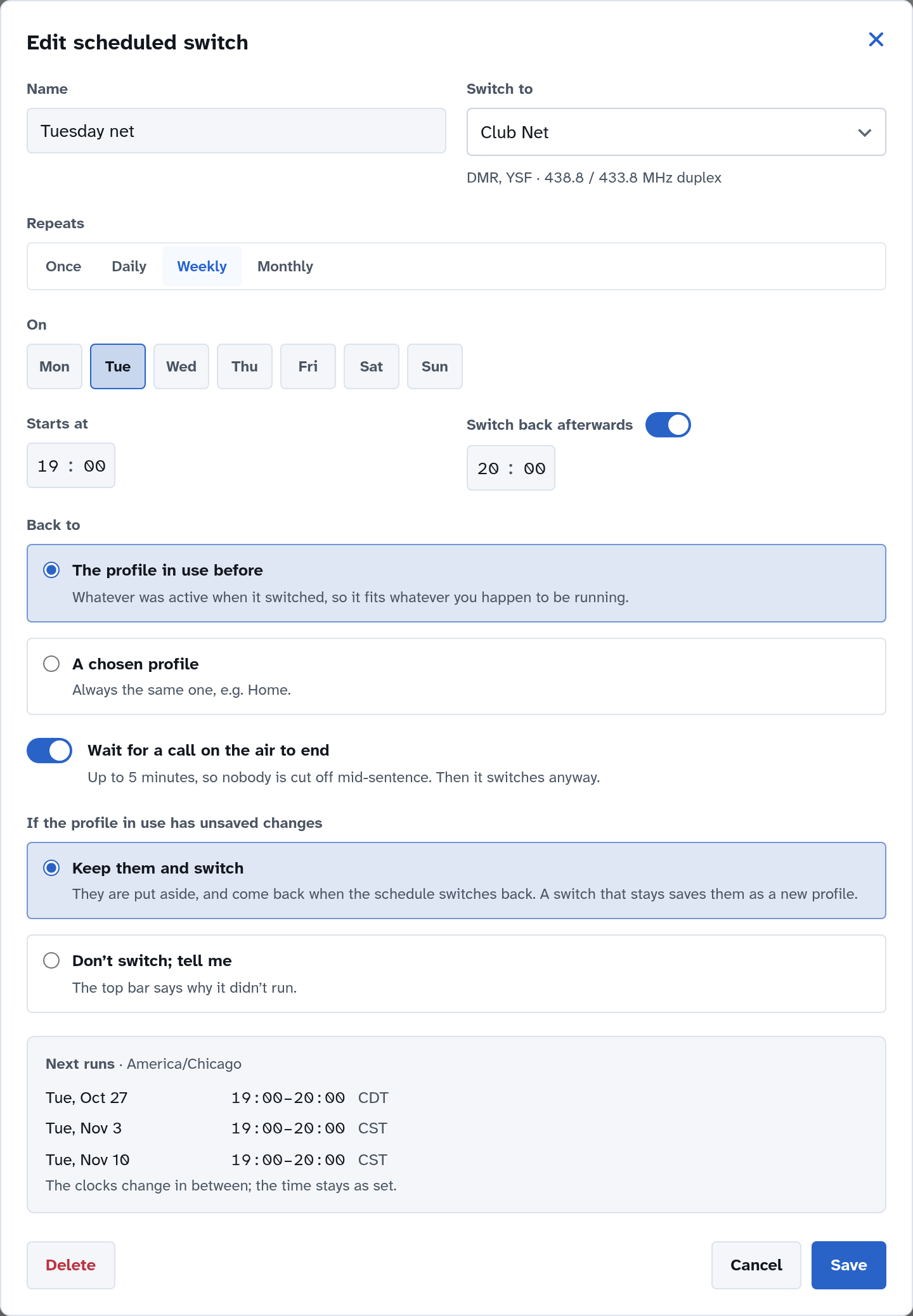
Name: whatever helps you recognize it, such as Tuesday net.
Switch to: the profile to use.
Repeats: Once (on a date; it’s removed after it runs), Daily, Weekly (on the days you choose), or Monthly: a day of the week (the first to fourth, or the last, such as the 2nd Saturday) or a date (such as the 15th; months without that date are passed over).
Starts at: the time to switch.
Switch back afterwards: turn it on, and set when. An end time earlier than the start is the next day (for a net that runs past midnight). Leave it off for a switch that stays, such as the start of a trip.
Back to: the profile in use before (whatever was active when it switched; usually what you want), or a chosen profile.
Wait for a call on the air to end: waits up to 5 minutes rather than cutting someone off, then switches anyway.
If the profile in use has unsaved changes: Keep them and switch puts them aside and brings them back when the schedule switches back (a switch that doesn’t come back saves them as a new profile instead, so nothing is lost); Don’t switch; tell me leaves the profile as it is and tells you why in the top bar.
Next runs shows the next three dates and times, so you can check it does what you mean. Times follow your 12/24-hour preference.
Two scheduled switches can’t overlap: if a new one would, saving it says which one it clashes with, and when.
Times and time zones
Times are in the dashboard’s time zone, set in Preferences. If none is set, they’re in the WPSD device’s own clock (UTC), and the Schedule section says so. A scheduled switch keeps its time when the clocks change: a 7:00 PM net stays at 7:00 PM local time.
Time zone is part of each profile’s preferences, so if your profiles use different time zones, the schedule follows the one in use.
While a scheduled switch runs
The top of Radio > Profiles says which profile is on, until when, and what comes next. Go back now switches back at once; Stay on keeps the scheduled profile and cancels tonight’s switch back.

The profile menu in the top bar shows until and the time, and offers the same two choices:
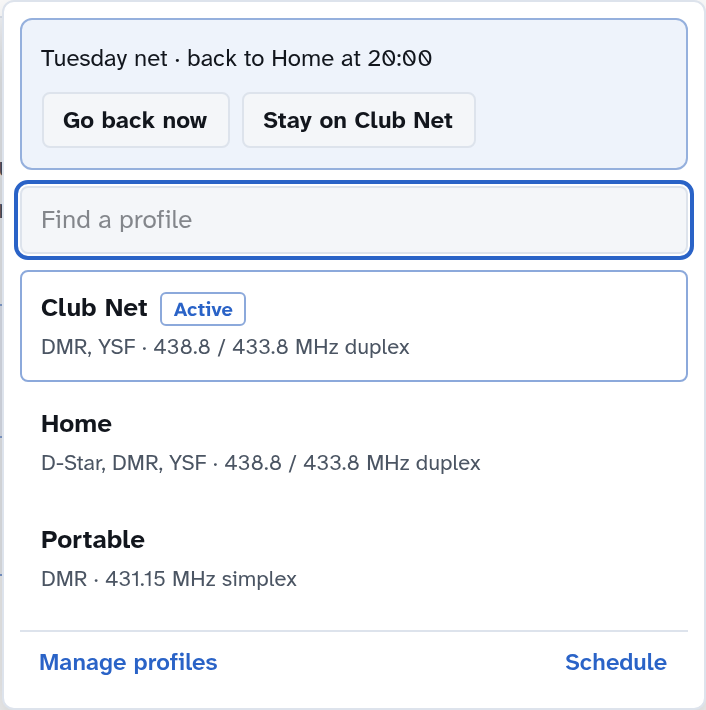
Fifteen minutes before a scheduled switch, the profile menu mentions it, and offers Skip this one. While a switch waits for a call to end, the menu says so.
What it does when things get in the way
You switch profiles yourself during a run: your choice wins. The schedule won’t switch back over it, and tells you so.
A call is on the air: it waits, if you asked it to (up to 5 minutes).
The modem is being calibrated: it waits until calibration ends, and tries again until the run’s end time.
A program doesn’t start in the new profile: it switches back to the profile before, and says so in the top bar.
The WPSD device was off at the start time: if it comes back on during the run, it switches then. If it was off when it should have switched back, it switches back as it starts.
If a scheduled switch didn’t run as set, a notice in the top bar says so; it leads to the Schedule section, which explains why and lets you dismiss it. Recent runs, under the list, keeps the last 30 runs: when each switched, waited or was skipped.
Backups and resets
The schedule is part of your backups. A Device Reset that resets the radio settings clears it.
Preferences
Preferences set how the dashboard looks and what it shows. Open them from Menu > Preferences, or from the Preferences link above Last Heard. There are four pages: Time, Units, Last Heard and This Browser.
Time, Units and Last Heard apply to the dashboard for everyone who views it. They’re part of your profile, so each profile can have its own, and switching profiles switches them too. This Browser’s settings are kept in your browser only, so each person viewing the dashboard can choose their own.
Settings without a Save button take effect as soon as you change them. A switch or choice shows a turning knob while its change is applied, and a message in the corner says when it’s done, or why it couldn’t be; a change that fails goes back to how it was.
Time
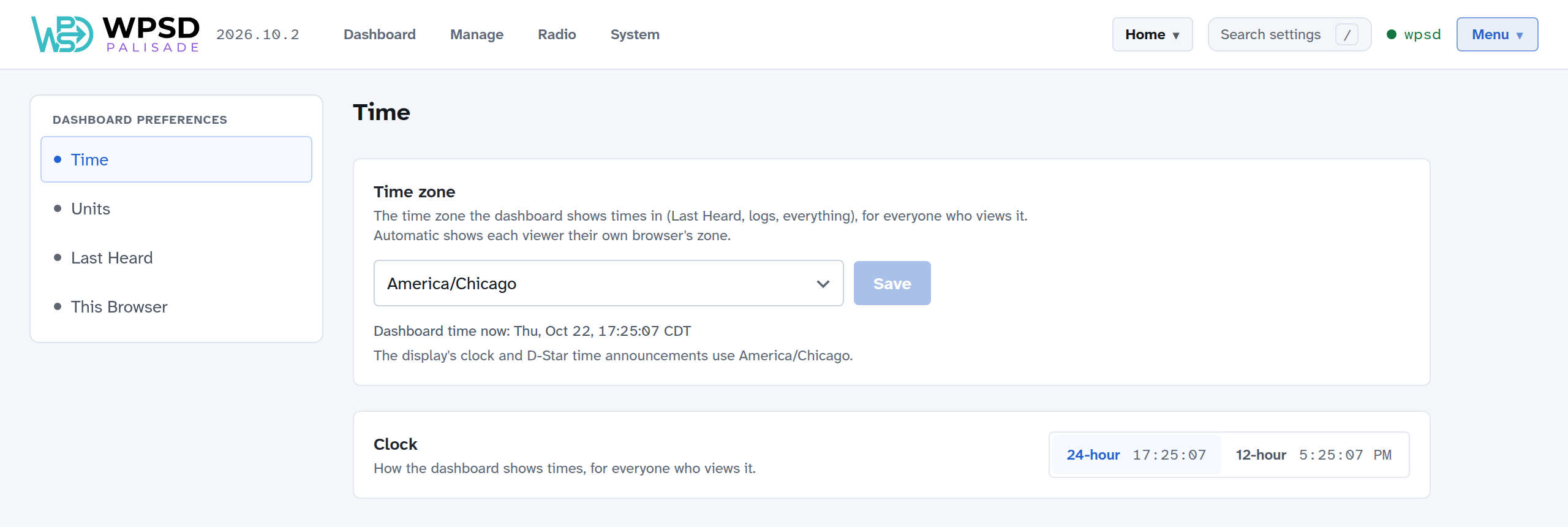
Time zone: the zone the dashboard shows every time in: Last Heard, history, logs, everything. Choose yours and Save. Automatic shows each viewer the zone of their own browser instead. The time zone is also used by a display’s clock, D-Star time announcements and the Profile Schedule.
Clock: 24-hour or 12-hour. Times you type, such as in the Profile Schedule, follow this too.
Note
Your WPSD device’s own clock always runs on UTC; the time zone only decides how times are shown.
Units
Temperature: °F or °C, for the temperatures the dashboard shows (such as the processor’s temperature on System > System Information, which has a quick °F/°C switch of its own).
Last Heard
What the Live panel and Last Heard show.
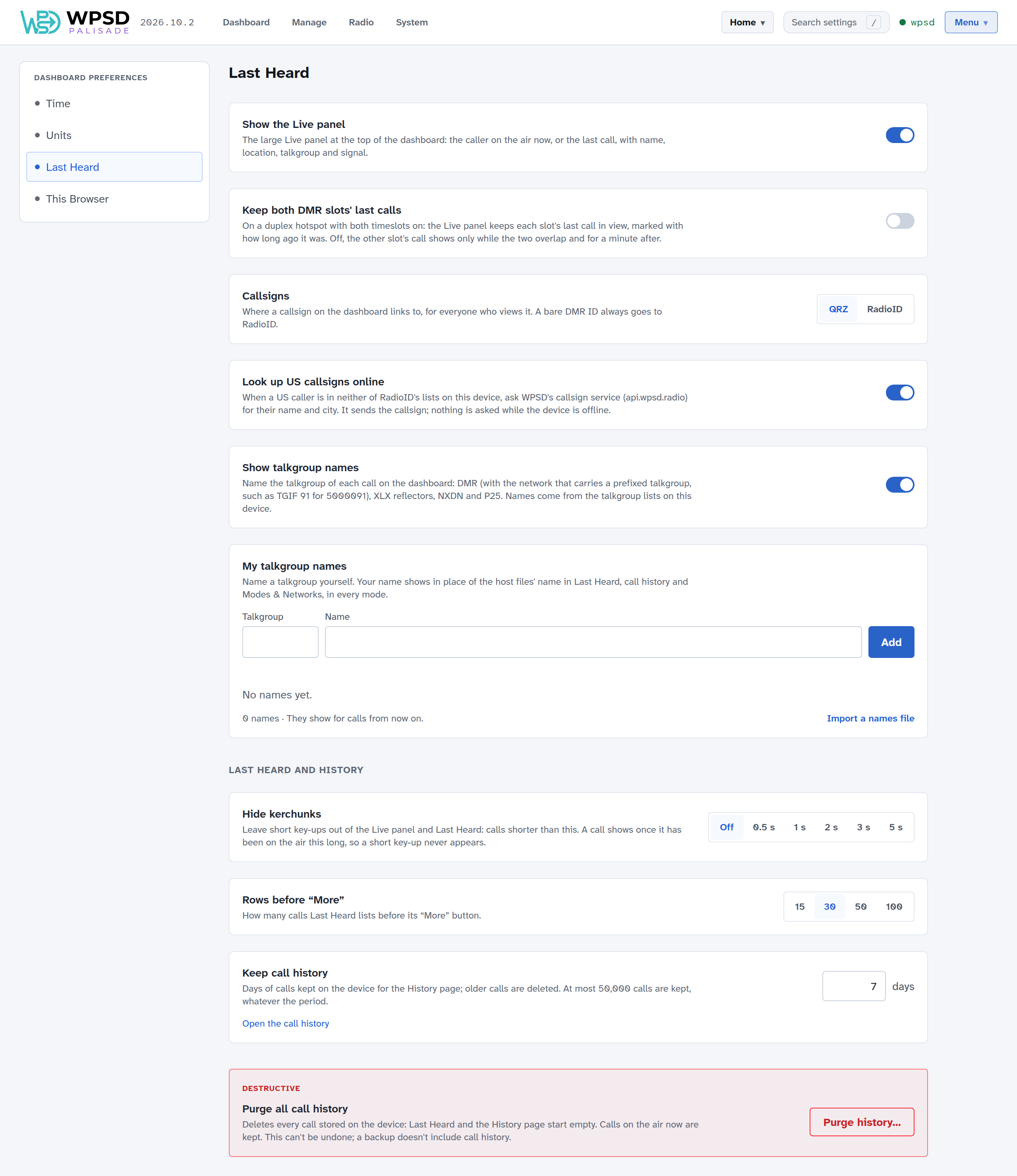
Show the Live panel: the large panel at the top of the dashboard. Turn it off for a list-only dashboard.
Keep both DMR slots’ last calls: on a duplex hotspot with both timeslots on, keeps each slot’s last call in the Live panel. Off, the second slot’s call shows only while both are on the air and for a minute after. (Shown only on hotspots that carry both timeslots.)
Callsigns: where a callsign links to, QRZ or RadioID. A DMR ID with no callsign always goes to RadioID.
Look up US callsigns online: for a US caller not in the WPSD device’s own lists, asks WPSD’s callsign service for their name and city. Only the callsign is sent.
Show talkgroup names: names each call’s talkgroup (DMR, XLX, NXDN and P25) from the lists on your WPSD device. A DMR talkgroup on another network shows that network too, such as TGIF 91 for 5000091.
My talkgroup names: name talkgroups yourself; your names replace the lists’ in Last Heard, history and Modes & Networks. Enter the talkgroup and a name and choose Add, or Import a names file.
Last Heard and History
Hide kerchunks: leaves out calls shorter than the time you choose (Off, or 0.5 to 5 seconds), in the Live panel and Last Heard.
Rows before “More”: how many calls Last Heard lists before its Show more button.
Keep call history: how many days of calls the WPSD device keeps for the History page (at most 50,000 calls, whatever the period). Open the call history goes there.
Purge all call history: deletes every call stored on the WPSD device. Calls on the air now are kept. This can’t be undone, and backups don’t include call history.
This Browser
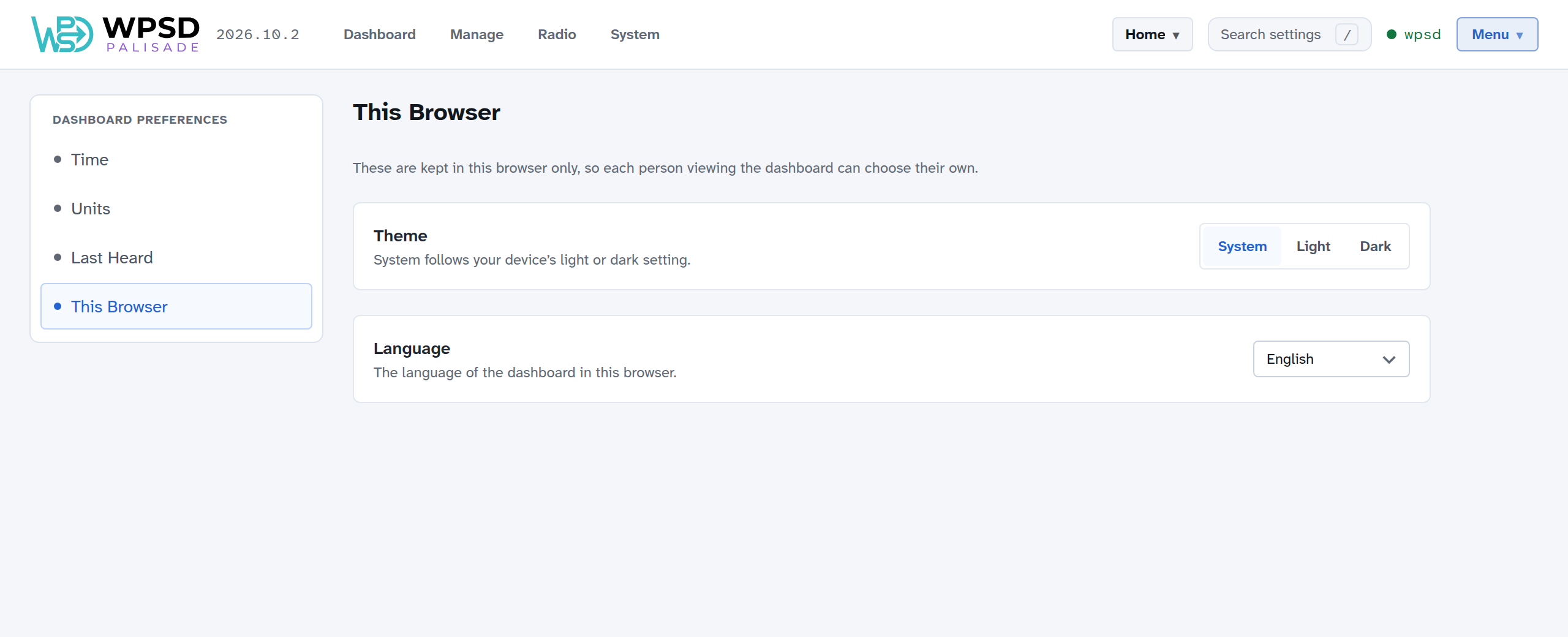
Theme: System follows your device’s light or dark setting; or choose Light or Dark.
Language: the dashboard’s language in this browser.
Radio Settings
Radio in the top bar holds your radio setup: your station, the modem, each mode, and the advanced settings. Everything here is part of the active profile.
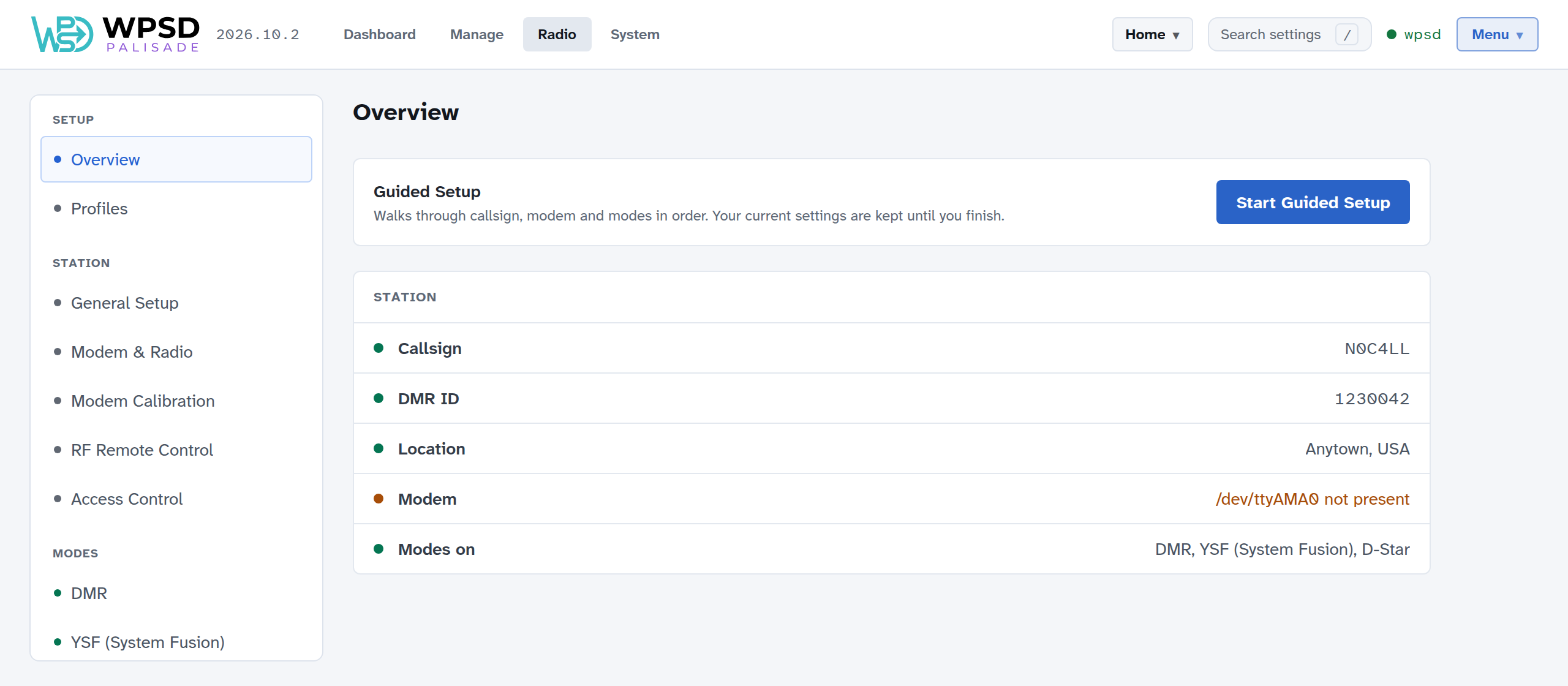
How it’s laid out
The menu on the left groups the pages:
Group |
Pages |
|---|---|
Setup |
Overview: the station at a glance, with anything missing marked, and Start Guided Setup (Guided Setup). Its Modem line says whether a modem answers on the chosen port (the device asks it), not just which port is chosen. Profiles (Profiles). |
Station |
General Setup and Modem & Radio (Station, Modem and Radio), Modem Calibration (Modem Calibration), RF Remote Control (RF Remote Control), Access Control (Access Control) |
Modes |
One page per mode: DMR, YSF (System Fusion), D-Star, P25, NXDN, M17, POCSAG / DAPNET, APRS. A dot shows which modes are on. |
Advanced |
Custom Settings (Custom Settings) |
Search settings in the top bar (or press /) finds any setting by name and takes you to it.
Applying changes
Changes on the Radio pages don’t take effect as you make them: they wait, so you can make several, on several pages, and apply them together.
Make your changes. The Apply button at the top right counts them (Apply 3 changes), on every Radio page.
Choose Apply. A list shows what changes, page by page, and which programs restart. Take out any change you don’t want (Keep … as it is), or go back to editing.
Confirm. Only the programs whose settings changed restart, each once: the WPSD device is off the air for a few seconds.
Discard drops the changes still waiting.
Applied changes run at once, but aren’t saved to the profile yet: see Changes you haven’t saved in Profiles.
Snapshots
Each time you apply changes, a copy of each changed program’s settings is kept as a snapshot, so you can go back. Snapshots, at the top of each Radio page, lists the snapshots of that page’s programs, newest first.
Compare shows what restoring one would change: lines removed and lines that come back. Passwords are hidden.
Restore puts that program’s settings back as they were, at once.
Keep the last sets how many copies are kept; Delete and Delete all remove them.
Profiles are the better way to keep a setup you want to come back to; snapshots are for undoing a change that didn’t work out.
Station, Modem and Radio
Two pages hold what every mode shares: Radio > General Setup (who you are and where) and Radio > Modem & Radio (the hardware and frequencies). Guided Setup fills both in; come here to change them later. Like every Radio page, changes wait for Apply (see Applying changes).
General Setup
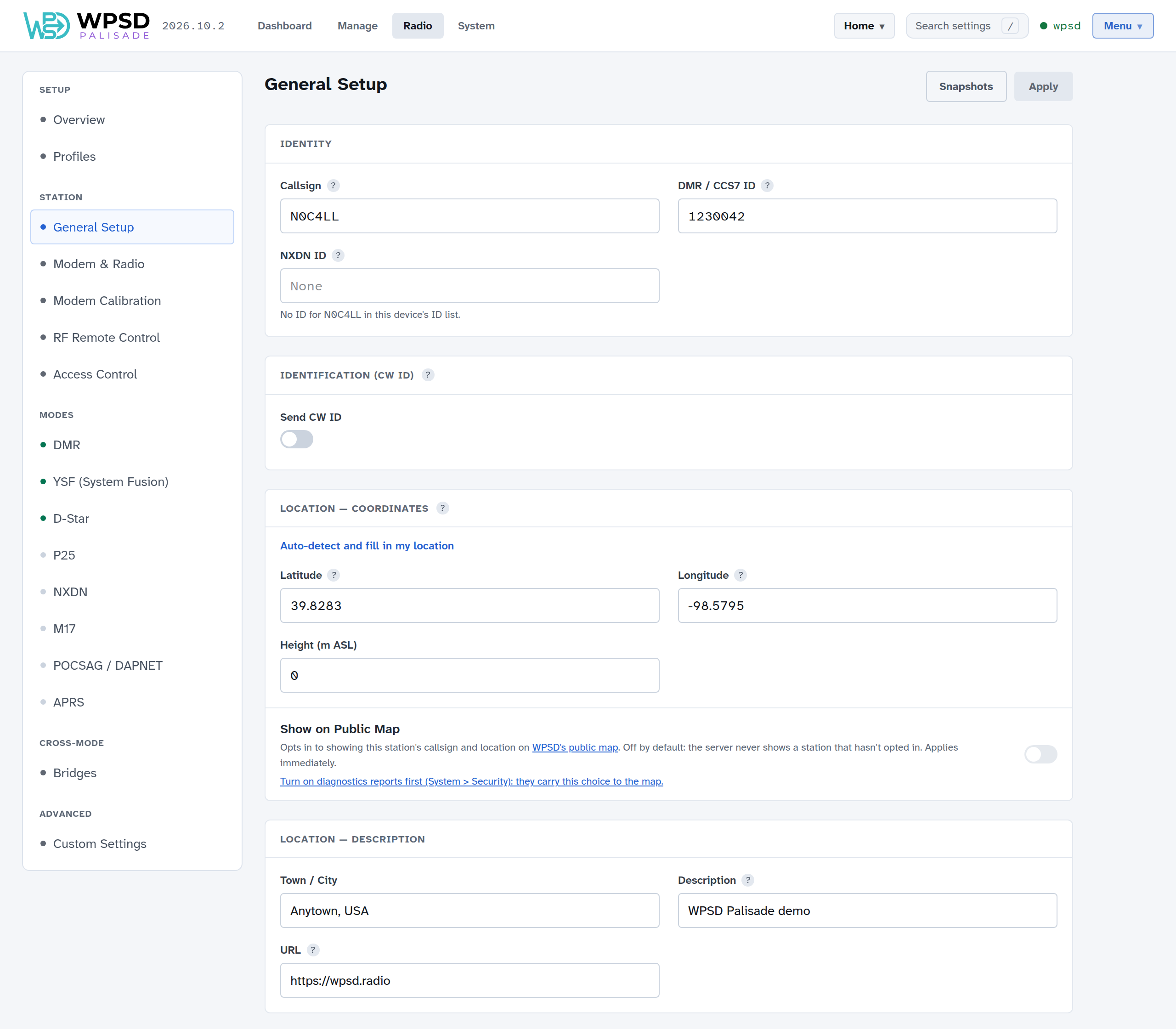
Identity
Callsign: your amateur radio callsign, in capitals, with no suffix. Every mode uses it.
DMR / CCS7 ID: needed for DMR and the DMR bridges. Get one at radioid.net if you don’t have one.
NXDN ID: needed for NXDN and YSF→NXDN. It’s filled in from your callsign when the WPSD device’s NXDN ID list has it.
Identification (CW ID): where your license asks for it, the WPSD device sends your callsign in Morse now and then (Every (minutes), 10 is common). Most hotspot operators don’t need it, so it’s off.
Location
Latitude and Longitude (positive for north and east, negative for south and west) and Height above sea level. Auto-detect and fill in my location asks your browser, or looks it up from the WPSD device’s internet address. Set both to 0 to leave your location out of what the networks show.
Show on Public Map: puts your callsign and location on WPSD’s public map. It’s off unless you turn it on, and takes effect at once.
Town / City, Description and URL (your own site or your QRZ.com page): shown by networks that list stations, such as BrandMeister.
APRS beacons use this location too, unless you use a GPS (see APRS and GPS).
Modem & Radio
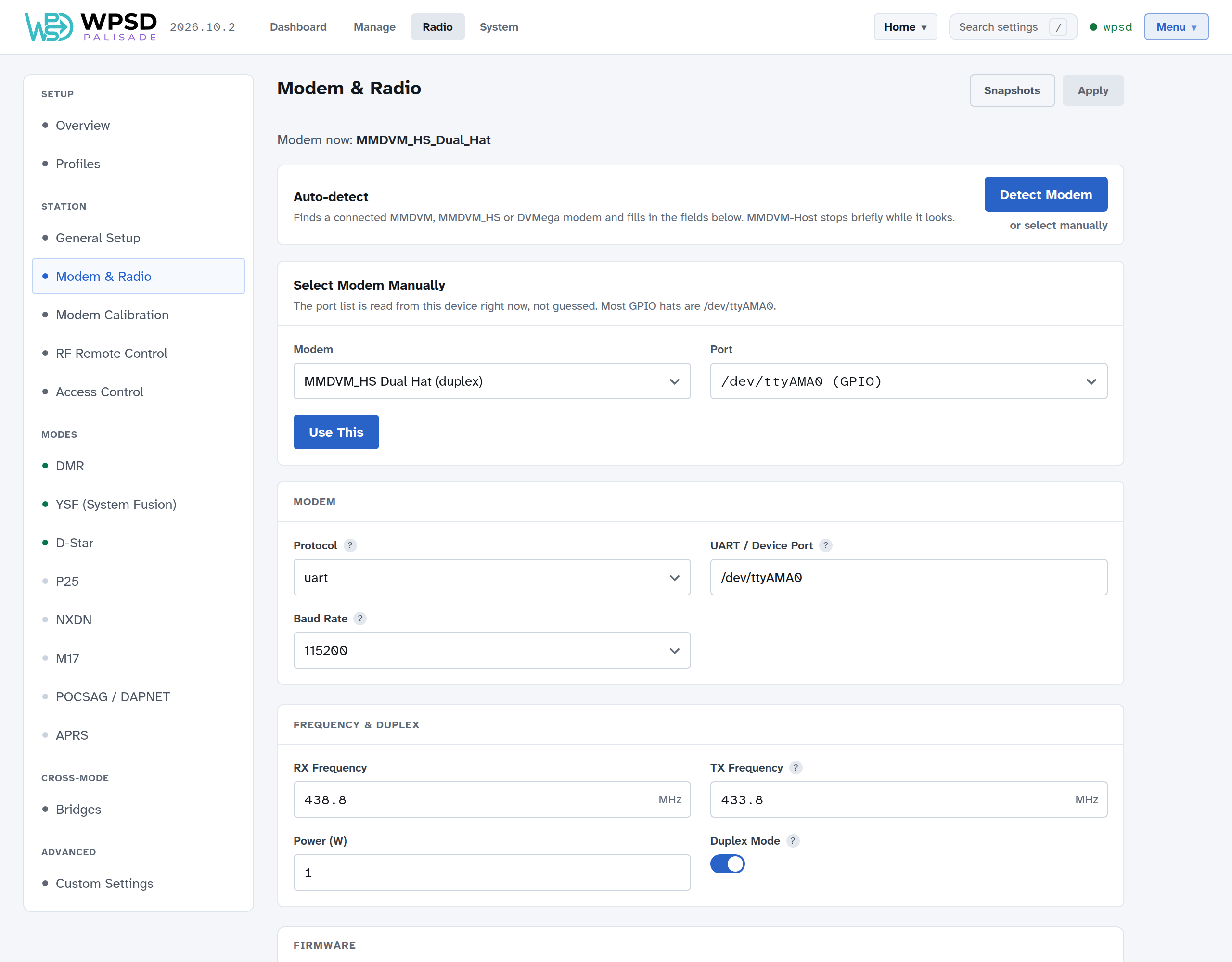
Modem now shows the modem the WPSD device is set for.
Detect Modem finds a connected MMDVM, MMDVM_HS or DVMega modem and fills in the fields below. MMDVM-Host stops briefly while it looks.
Or choose it yourself under Select Modem Manually: the Modem (type to search) and the Port, read from the WPSD device right now. Most boards on the Pi’s pins are on
/dev/ttyAMA0; a modem on USB is usually/dev/ttyACM0or/dev/ttyUSB0. Use This fills in the fields below.
Modem: the Protocol, UART / Device Port and Baud Rate (115200 is right for nearly every modem). Detect Modem and Guided Setup set them; change them only if your modem’s maker says to.
Frequency & Duplex
RX Frequency and TX Frequency, in MHz: the WPSD device’s receive and transmit frequencies. The same for a simplex hotspot; different for a duplex one. Your radio transmits on the WPSD device’s RX frequency and listens on its TX frequency.
Power (W): your transmit power, as networks list it. It doesn’t change the modem’s power.
Duplex Mode: on for a duplex board (two antennas, or a dual-hat) running as a repeater; off for a simplex hotspot. A duplex hotspot carries both DMR timeslots.
Choose frequencies your band plan allows for hotspots. WPSD Palisade won’t accept the amateur satellite sub-bands (145.800-146.000 and 435.000-438.000 MHz), which hotspot modems refuse, or frequencies outside the bands the modems cover (144-148, 219-225, 420-475 and 842-950 MHz).
After changing the modem or frequencies, check Modem Calibration.
Modem firmware
At the bottom of Radio > Modem & Radio, the Firmware card shows which board your modem is, the firmware it runs, and the newest firmware WPSD Palisade has for it. WPSD reads the board and its crystal from the modem’s own answer, so there’s nothing to look up.
WPSD updates modems on the Pi’s GPIO header: MMDVM_HS hats (MMDVM_HS Hat and Dual Hat, ZUMspot, Nano hotSPOT, Nano DV, SkyBridge, EuroNode, D2RG and generic boards), MMDVM repeater boards, and the DVMega Pi hat. A modem on USB is updated with its maker’s tools.
To update, choose Update firmware…, check the board and the versions, and choose Update. The radio is off for about a minute while WPSD downloads the firmware, checks its signature, writes it, reads every block back and starts the modem again. You can leave the page; WPSD carries on, and says when it’s done. Keep the WPSD device powered on until then.
WPSD never updates the firmware by itself: you choose when.
MMDVM_HS older than 1.6: M17 needs 1.6 or newer, and newer firmware fixes bugs in older versions. Until you update, the top of the Modem page, Radio > Overview, the M17 page and Guided Setup’s modem step say so.
WPSD can’t tell exactly which board it is: some boards report the same name. Choose yours from the list the card shows.
A vendor build, or a modem that doesn’t answer: choose Choose the board by hand, then your board. If an update stopped midway, the modem waits in its bootloader, unharmed: choose the board by hand and update it again.
The bootloader didn’t answer: some boards need a jumper set for updates; see the board’s instructions.
The board is locked by its maker: its bootloader refuses to be written. Only the maker can update it.
The firmware comes from WPSD’s update server, signed like WPSD Palisade’s own releases; Source code links to the source it’s built from. WPSD flashes firmware it doesn’t develop: support for a modem’s firmware comes from its makers. After an update, check Modem Calibration.
Below it, Reset the modem (a hat on the GPIO header only) restarts a modem that stops answering.
Modem Calibration
Every WPSD device’s crystal is a little off frequency, so out of the box it may decode your radio poorly: broken audio, calls that drop, or a high BER (bit error rate, the share of the signal received wrong) on the dashboard. Calibration finds the correction that suits your WPSD device and your radio together. It takes a minute or two, with your radio in hand.
Calibrate once when you set up the WPSD device (Guided Setup offers it), and again if you change the modem or the radio, or if BER creeps up.
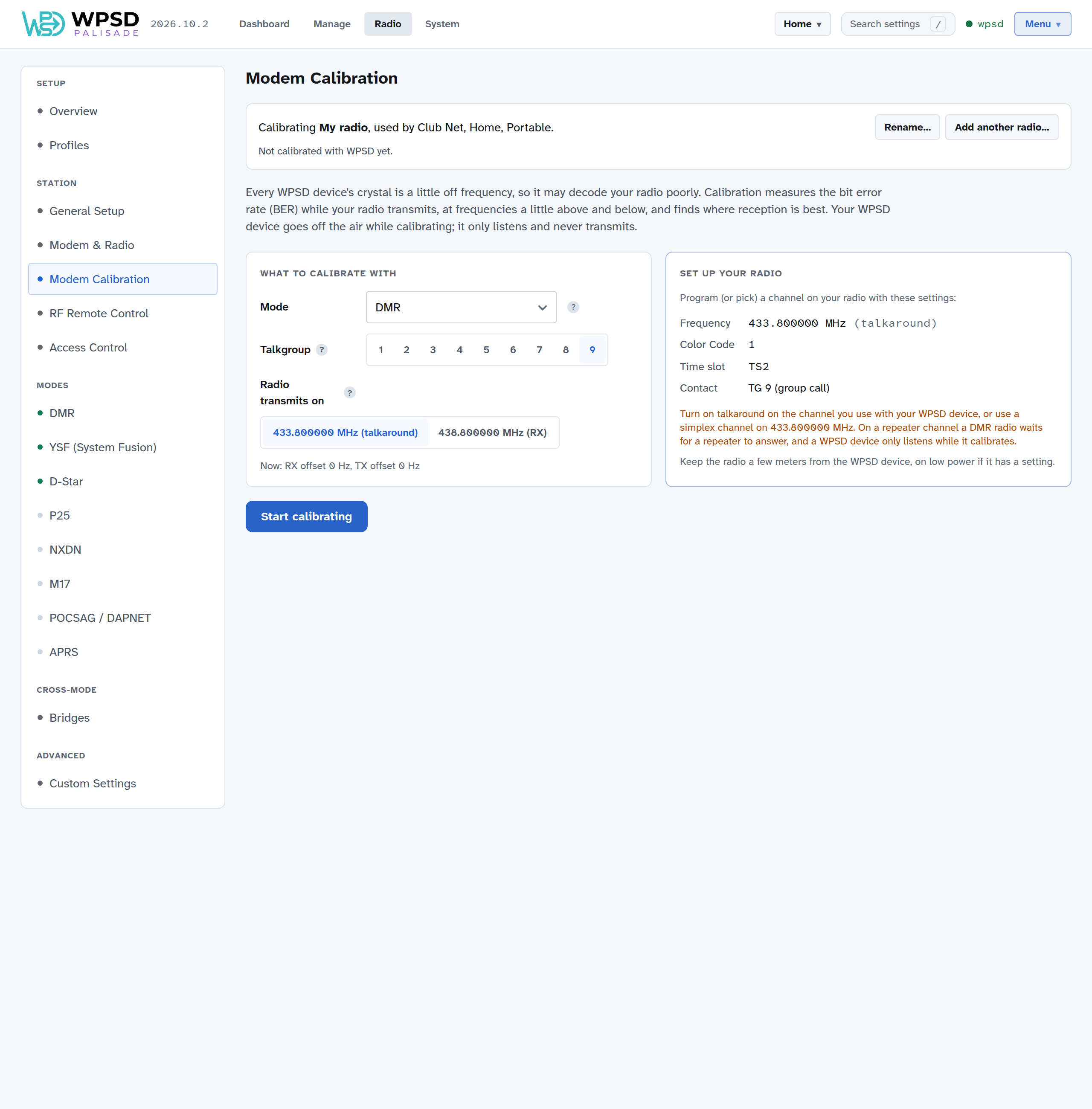
How it works
Calibration measures the BER while your radio transmits, with the WPSD device listening a little above and below its frequency, and finds where reception is best: reception is good across a window and falls off on both sides, and the best correction (the offset) is the middle of that window.
While calibrating, your WPSD device is off the air. It only listens and never transmits.
Calibrating
On Radio > Modem Calibration:
What to calibrate with: choose the Mode your radio will transmit in. DMR gives the sharpest result. In D-Star the modem corrects small frequency errors by itself, so the window looks wider. The result suits every mode, since one crystal sets them all.
For DMR, choose a Talkgroup. Only calls on that talkgroup are counted, so another station on the frequency can’t spoil the result.
On a duplex hotspot, choose which frequency your radio transmits on (Radio transmits on).
Set up your radio: program a channel (or pick one) with the settings shown: frequency, Color Code, time slot and contact for DMR. For DMR, use a simplex channel, or turn on talkaround: on a repeater channel a DMR radio waits for a repeater to answer before it sends voice, and a calibrating hotspot only listens.
Keep the radio a few meters from the WPSD device, on low power if it has a setting, and choose Start calibrating.
Then, under Method:
Automatic: choose Find the best offset, key up your radio and hold PTT (talk, or just hold it). WPSD steps the frequency up and down until it finds the edges where reception gets worse, then picks the middle. If your radio times out, key up again and it carries on where it left off.
Manual: hold PTT and watch the BER, then step the offset with Lower and Higher until it’s lowest. Or click a spot on the chart to listen there.
The chart shows the BER at each offset tried, the good window, and the recommended offset. A cross marks an offset where nothing could be decoded.
When it’s done, the page shows the best offset and its BER, with the new RX offset and TX offset. One crystal sets both frequencies, so the same correction suits both (scaled to each frequency). Choose Save and finish, or Finish without saving to keep what you had. Your WPSD device then starts again.
Tip
If even the best offset reads 1% or more, move the radio closer to the WPSD device (or further away, if it’s very close), and try again. If that doesn’t help, the modem’s RX level may need changing: the page links to Custom Settings for it (see Levels).
Radios
Calibration belongs to the modem and the radio you use with it together, so WPSD Palisade keeps it in a radio, not in a profile. The top of the page shows which radio you’re calibrating and which profiles use it.
If you use the WPSD device with more than one radio, choose Add another radio…, name it, and calibrate it. It starts from the current calibration. The active profile then uses it; other profiles keep theirs, and you can change which radio each profile uses on Radio > Profiles. Rename… renames a radio.
If you fit a different modem, the radio’s card says it was calibrated with another modem: calibrate again for the best results.
Levels
A radio also holds the modem’s levels (such as RX and TX level). Most WPSD devices never need them changed. If yours does, for example on the advice of your modem’s maker, set them in Custom Settings, under MMDVM-Host’s [Modem] section.
Modem firmware
The dashboard’s Modem panel shows your modem’s type and firmware version; hover over it for the full description the modem reports.
WPSD Palisade updates the firmware of modems on the Pi’s GPIO header from Radio > Modem & Radio (see Modem firmware). Calibrate again after an update.
RF Remote Control
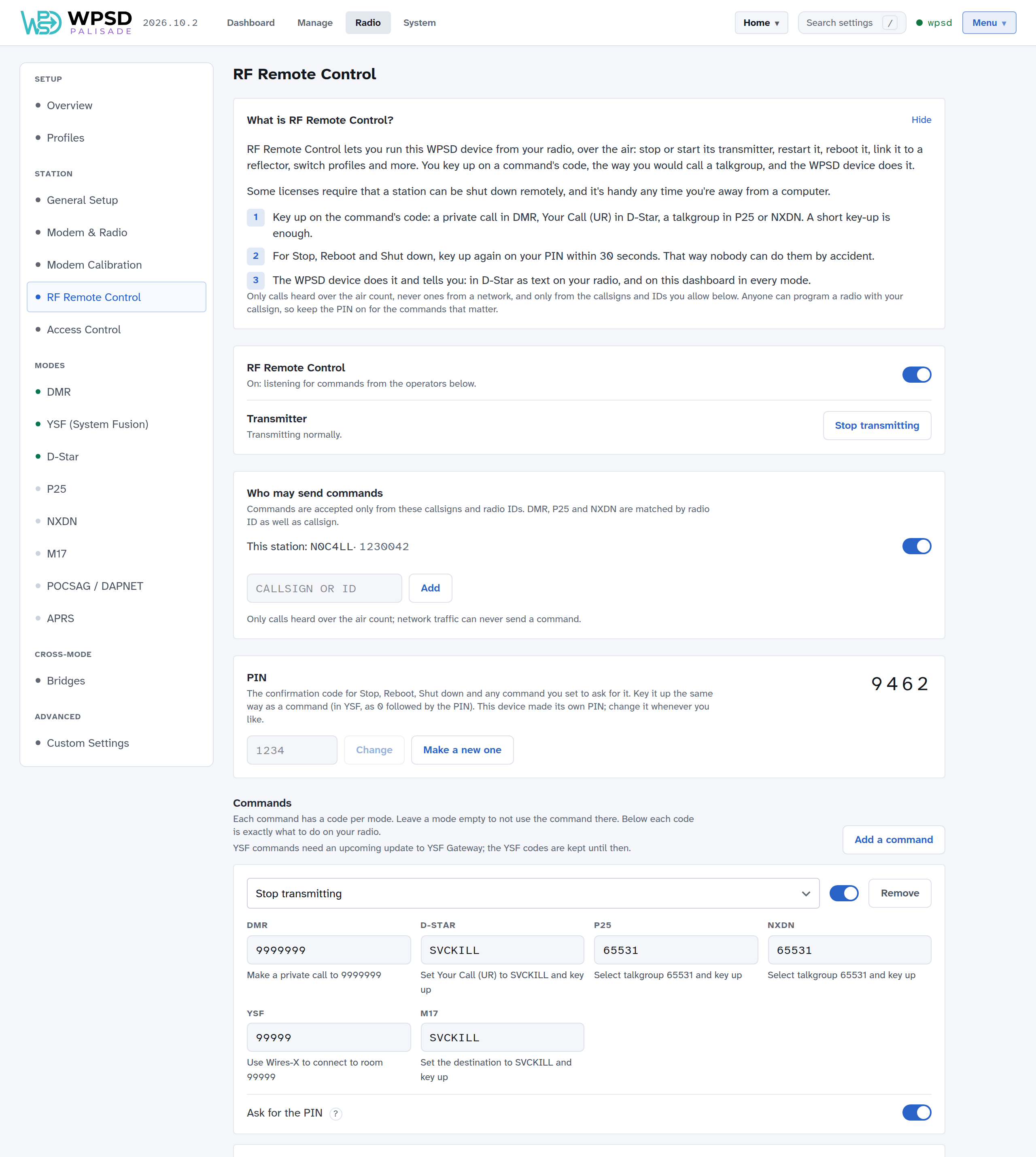
RF Remote Control lets you run your WPSD device from your radio, over the air: stop or start its transmitter, restart it, reboot or shut it down, link a reflector, switch profiles and more. You key up on a command’s code, the way you’d call a talkgroup, and the WPSD device does it.
Some licenses require that a station can be shut down remotely, and it’s handy any time you’re away from a computer. It’s on Radio > RF Remote Control, and it’s the same in every profile.
Sending a command
Key up on the command’s code. A short key-up is enough:
Mode
What to do
DMR
Make a private call to the code
D-Star
Set Your Call (UR) to the code and key up
P25, NXDN
Select the code as a talkgroup and key up
M17
Set the destination to the code and key up
The page shows, under each code, exactly what to do on your radio.
For Stop, Reboot and Shut down, key up again on your PIN within 30 seconds, the same way. That way nobody can do them by accident.
The WPSD device does it and tells you: in D-Star as text on your radio, and on the dashboard in every mode.
Note
YSF commands (connecting to a Wires-X room) need an update to YSF Gateway that’s still to come. The YSF codes are kept until then.
The commands you start with
Command |
DMR |
D-Star |
P25, NXDN |
M17 |
PIN |
|---|---|---|---|---|---|
Stop transmitting |
9999999 |
|
65531 |
|
Yes |
Restart the radio programs |
9999998 |
|
65532 |
|
|
Reboot |
9999997 |
|
65533 |
|
Yes |
Shut down |
9999996 |
|
65534 |
|
Yes |
Start transmitting |
9999995 |
|
65530 |
|
Stop transmitting puts the WPSD device in listen-only: it transmits nothing and its networks are off, but it still hears your radio, so Start transmitting (from the radio, or the button on the page) brings it back.
Add a command to add more. Choose what it does:
Transmitter: stop or start transmitting, restart the radio programs.
Modes: pause or resume a mode.
Links: link a mode to a reflector or talkgroup, unlink a mode, turn a DMR network on or off.
Profiles: switch to a profile. One call changes everything a profile holds.
System: reboot, shut down, update host files, reconnect Wi-Fi.
Paging: send a page.
Tell me: the IP address, the Wi-Fi network, the uptime, or the links.
Then give it a code in each mode you want to use it from (leave a mode empty to not use it there), and choose whether it asks for the PIN. Each command has its own on/off switch. Save when you’re done.
The page checks codes as you type: a code used twice, or one that’s a real talkgroup or reflector, or one the gateway itself acts on.
Who may send commands
Commands are accepted only from the callsigns and radio IDs under Who may send commands: your own station, and any you add. DMR, P25 and NXDN calls are matched by radio ID as well as callsign.
Only calls heard over the air count. A call that comes from a network can never send a command.
The PIN
Your WPSD device made its own 4-digit PIN when it was first set up; it’s shown on the page. Change it, or Make a new one. It guards Stop, Reboot and Shut down, and any command you set to ask for it. In YSF, the PIN is keyed as 0 followed by the PIN.
Warning
Anyone can program a radio with your callsign and ID. Keep the PIN on for the commands that matter.
Try it, the cheat card, and activity
Try it shows what a call would do, without doing anything: choose the mode, who calls, and the code they key up.
Cheat card is a summary of your station’s commands to print and keep with your radio, with or without the PIN.
Activity lists the commands heard: done, failed, waiting for the PIN, or refused, and why.
To stop treating any call as a command, turn RF Remote Control off at the top.
From WPSD (legacy)
When you restore a WPSD (legacy) backup (see Backup and Restore), its remote control settings come with it: whether it was on, its keeper callsign (as a station allowed to send commands), and its codes.
Access Control
Who can use your WPSD device over the air. It’s on Radio > Access Control.
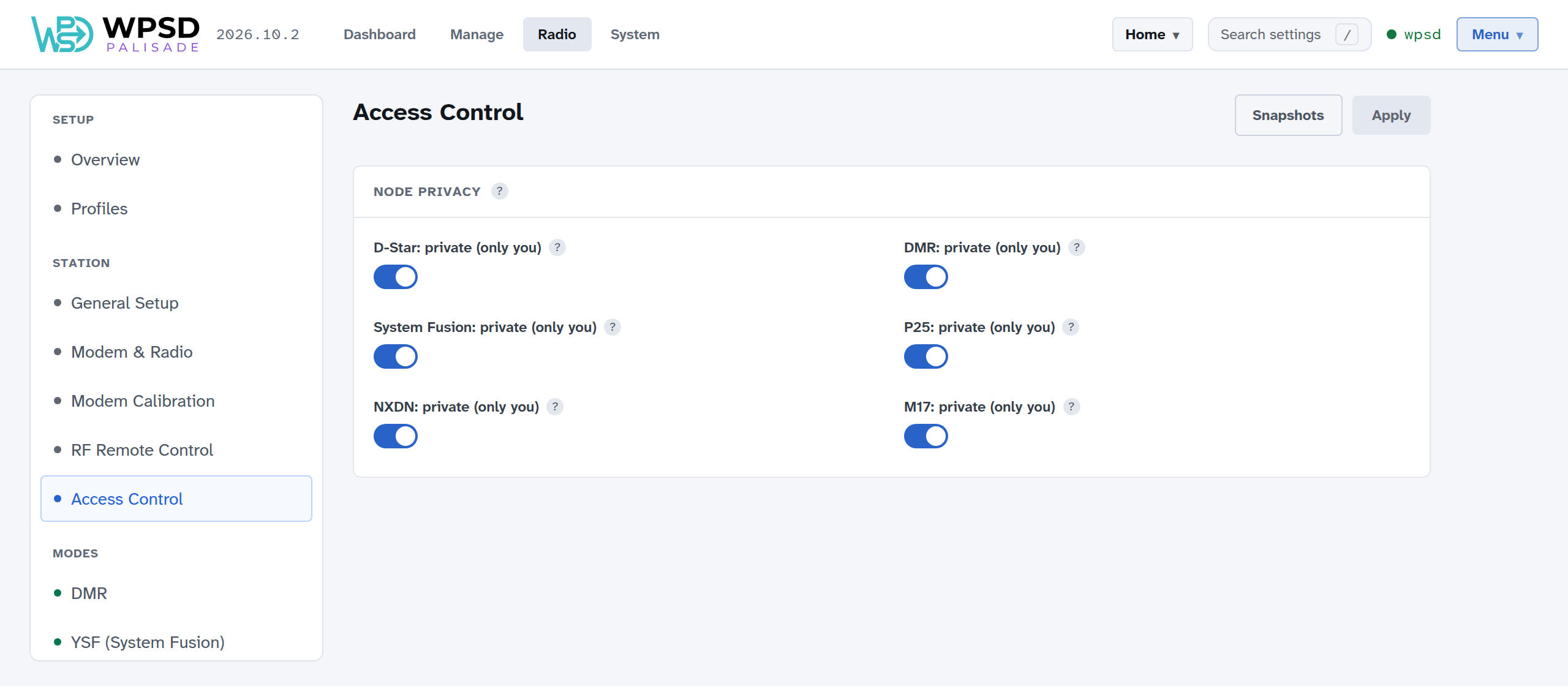
Private use
Each mode is private (only you) unless you change it: only your own callsign and ID can use the WPSD device over the air. That’s right for a personal WPSD device, it may be what your license requires, and it keeps other stations’ radios from keying your WPSD device by mistake.
The same switches are on each mode’s own page (for DMR, Private Node (self only)); changing one changes the other.
Devices and repeaters for other people
If you run a WPSD device for a club or family, or a repeater, turn private off for the modes others use. Then any station heard over the air can use it, like any other repeater.
A repeater also needs to be duplex (see Station, Modem and Radio), and, with more than one operator, may want RF Remote Control set up so that the keepers can shut it down from a radio.
Note
Some licenses don’t allow an unattended station to be open to everyone. Check yours before turning private off.
Custom Settings
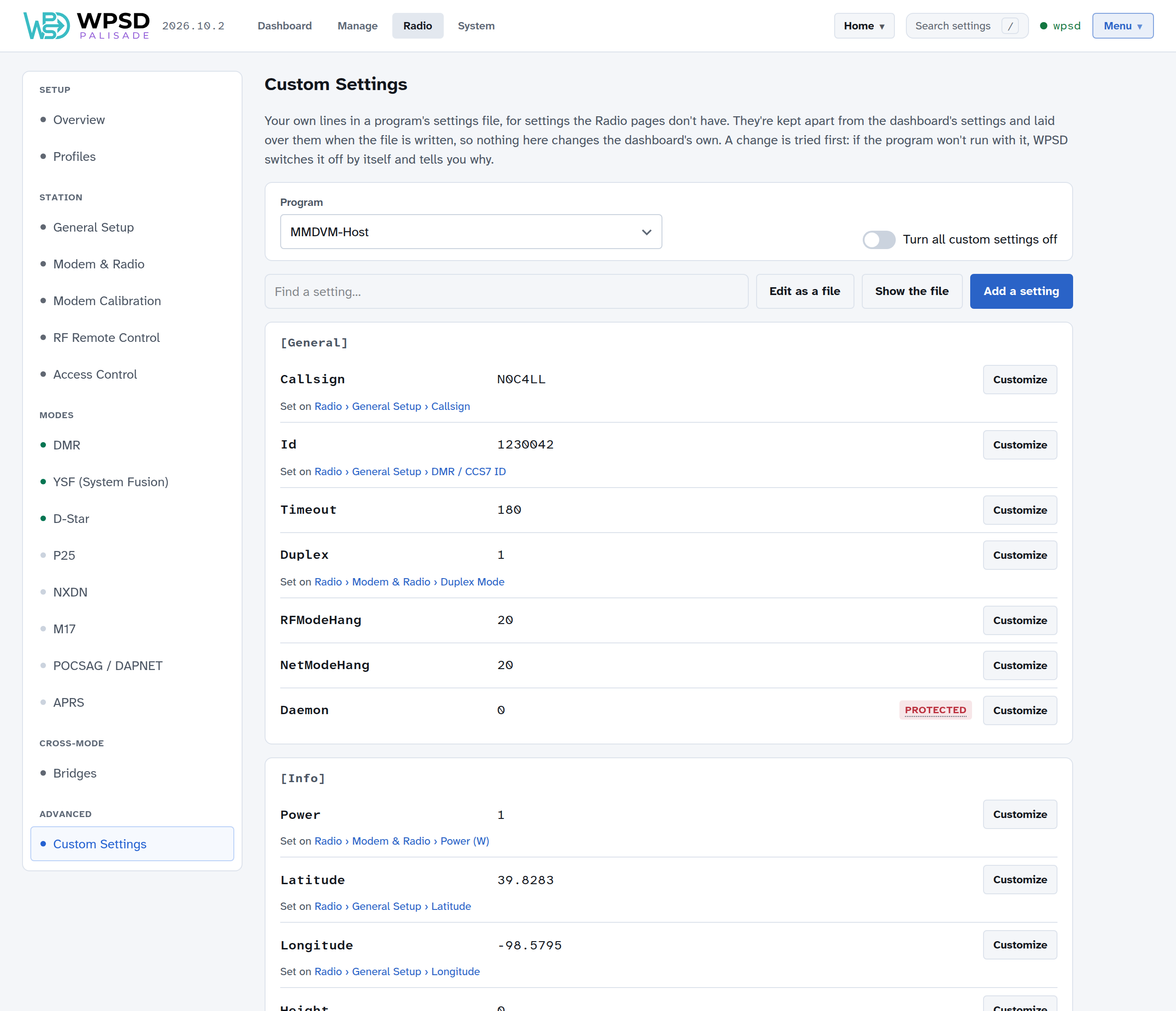
The Radio pages cover the settings most WPSD devices need. For anything else, the radio programs’ own settings that have no place on a page, use Radio > Custom Settings: your own lines in a program’s settings file, kept safe.
How they work
WPSD Palisade writes each program’s settings file (such as MMDVM-Host’s) from your settings in the dashboard, and writes it again whenever you change something. Editing a file by hand doesn’t last: the next change overwrites it.
Custom settings are kept apart from the dashboard’s settings and laid over them every time the file is written. So:
they survive every change you make in Radio, profile switches and restores;
they never change the dashboard’s own settings: turn one off, and the program gets exactly what the dashboard would have written;
you can always see which settings are yours. In the file, each is marked with a
# WPSD custom settingline above it, which helps anyone helping you.
Custom settings are part of each profile, so a profile can have its own.
Changing a setting
Choose the Program. The list shows how many custom settings each has.
Find the setting (type in Find a setting… to narrow the list) and choose Customize. Each setting shows its value now and, if a Radio page sets it, which page: a link takes you there.
Choose Set this value and enter the value, or Leave it out of the file to let the program use its own default.
Add to the changes, then apply, as with every change in Radio (see Radio Settings).
Add a setting adds one the file doesn’t have yet: choose the section and setting from those the program is known to read, or type them.
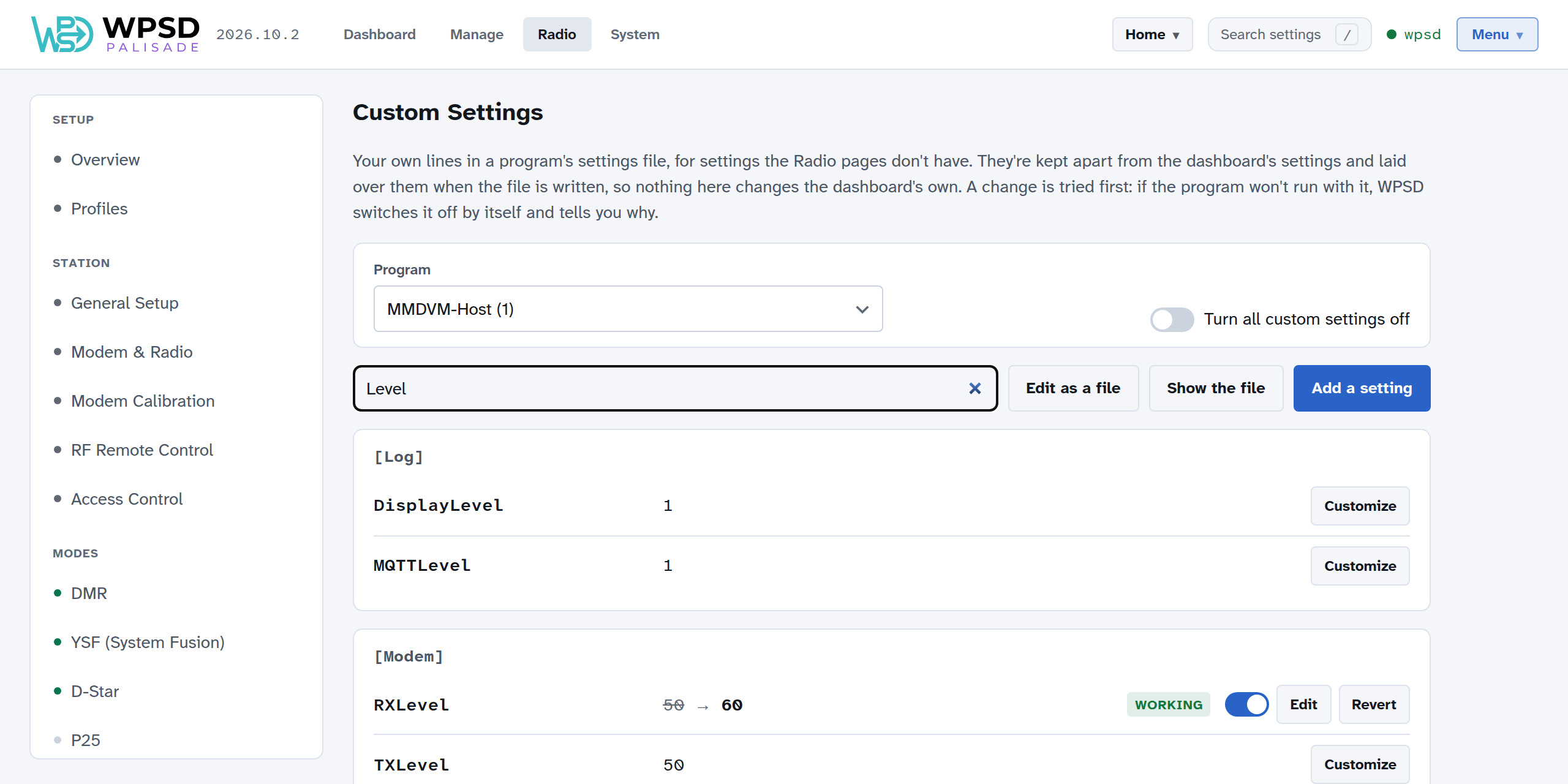
A custom setting shows the dashboard’s value struck through and yours beside it, with its state, a switch to turn it off for now, Edit, and Revert (to remove it).
Checks before you save
Before a change is added, WPSD Palisade checks it:
A value it can’t write (such as one with a line break) isn’t accepted.
A setting the program isn’t known to read is probably a typo: it says so, and suggests the nearest one (did you mean RXFrequency?).
A value of the wrong kind (text where a number goes) or out of range is pointed out.
Some settings WPSD Palisade needs as they are, such as the ones the programs use to talk to each other and to the dashboard, are marked Protected, with what would stop working. You can still change one, after typing its name to confirm.
If a Radio page sets a setting you’ve customized, the page says so: its own value isn’t used while your custom setting is on.
Trying, and rolling back by itself
A change is tried first. When you apply it, the program restarts with it (state Trying), and WPSD Palisade watches it for a short while:
It runs: the setting is Working.
It won’t run (it stops, fails, or logs a new error): WPSD Palisade switches the setting off by itself, puts back what worked, and tells you why, with the program’s own words. The setting stays, marked Switched off, for you to fix or remove.
A setting saved while its program isn’t running takes effect, and is tried, when the program starts.
Later on, if a program keeps failing (after an update, say) and runs once its custom settings are set aside, they’re marked Set aside and you’re told. Try them again one at a time gives each its own trial, so the one that breaks it is found and switched off again, and the others come back.
Seeing the whole file
Show the file shows the file exactly as the program gets it, your settings included. Passwords are blanked.
Edit as a file lets you edit the file as text. What you change becomes custom settings (checked, and tried when applied); the text itself is never written as you typed it. Passwords show empty, and stay as they are if you leave them empty. Review the changes lists them before they’re added.
When something’s wrong
Turn all custom settings off writes every program’s file without them, for troubleshooting. They’re kept; turn the switch off to bring them back.
If the dashboard can’t be reached at all, put an empty file named wpsd-no-custom-settings on the SD card’s boot partition (the part a computer can open) and start the WPSD device: it starts with every custom setting off, and removes the file. Turn the switch off again to bring them back.
Custom Hosts and Talkgroup Names
The lists of reflectors, masters and talkgroups on your WPSD device come from WPSD’s host files, kept current for you (see Host Files). For a server they don’t list, add your own; for a talkgroup they don’t name, or name differently from how you think of it, name it yourself.
Your own reflectors and masters
Each mode’s page in Radio has a Your reflectors section (on DMR, Your masters and XLX reflectors) for servers the host files don’t list: a club master, a private or test reflector. Yours show first in every list on your WPSD device, marked Yours. You can also choose Add your own… at the end of a reflector list.
Choose Add a reflector (or Add a master, Add an XLX reflector) and fill in what it asks:
Mode |
What you enter |
|---|---|
DMR master |
The network whose list it joins (BrandMeister; DMR+, FreeDMR or HBlink; TGIF; SystemX), a name, the server’s hostname or address, and if needed the port (62031 unless said otherwise) and password |
XLX |
Its three-letter or -digit number (such as 950), the server, its default module, and the protocol (DCS or DExtra; DCS if unsure) |
D-Star |
Its name: REF, XRF, DCS or XLX and three letters or digits, such as XRF757, and the server. Pick the module when you link. |
YSF |
Its five-digit number, a name of up to 16 characters, the server, and its description and country |
P25, NXDN |
The talkgroup it’s linked by, a name and the server (port 41000 for P25 and 41400 for NXDN unless said otherwise) |
M17 |
Its designator, such as M17-ABC, and the server (port 17000 unless said otherwise). Pick the module when you link. |
A hostname that doesn’t resolve right now is pointed out, so you can check the spelling, but you can save it anyway. D-Star needs an IPv4 address: a reflector whose hostname has none isn’t used until it does.
Edit or Delete yours at any time. Deleting one that’s in use (as a startup reflector, say) leaves it set there, but it won’t connect until you choose another.
Note
If the host files list a server, pick it from the list instead: theirs is kept up to date for you. If the host files later add one of yours, theirs is used and yours can be deleted.
Your own servers are part of your device, not a profile, and are kept in backups. From a WPSD (legacy) backup, the hosts you’d added by hand come with it.
Naming talkgroups yourself
With Show talkgroup names on in Preferences, the dashboard names each call’s talkgroup from the host files. Under My talkgroup names on the same page, you can name a talkgroup yourself: enter its number and a name and choose Add. Your name shows in place of the host files’ in Last Heard, call history and Modes & Networks, in every mode, for calls from then on.
Import a names file adds names from a text file, one talkgroup per line: its number and its name, separated by a comma or semicolon. Talkgroups you’ve already named keep your names.
Digital Voice Modes
WPSD Palisade supports these modes, each on its own page under Radio:
DMR, with its networks and talkgroup prefixes explained in DMR Networks and Talkgroup Prefixes
POCSAG and DAPNET paging
Cross-Mode bridges between them
APRS and GPS position beacons
Turn a mode on with the switch next to its page’s title, then Apply. Its settings appear once it’s on. A mode that’s on can be paused for a while, without changing its settings, from Manage Instant Mode.
Your WPSD device handles one mode at a time: while it’s busy with a call in one mode, the others wait. Each mode’s Staying in settings say how long it keeps listening after a call before another mode can take over.
DMR
DMR settings are on Radio > DMR. Turn DMR on with the switch next to the page’s title, make your changes, then choose Apply at the top right (see Radio Settings).
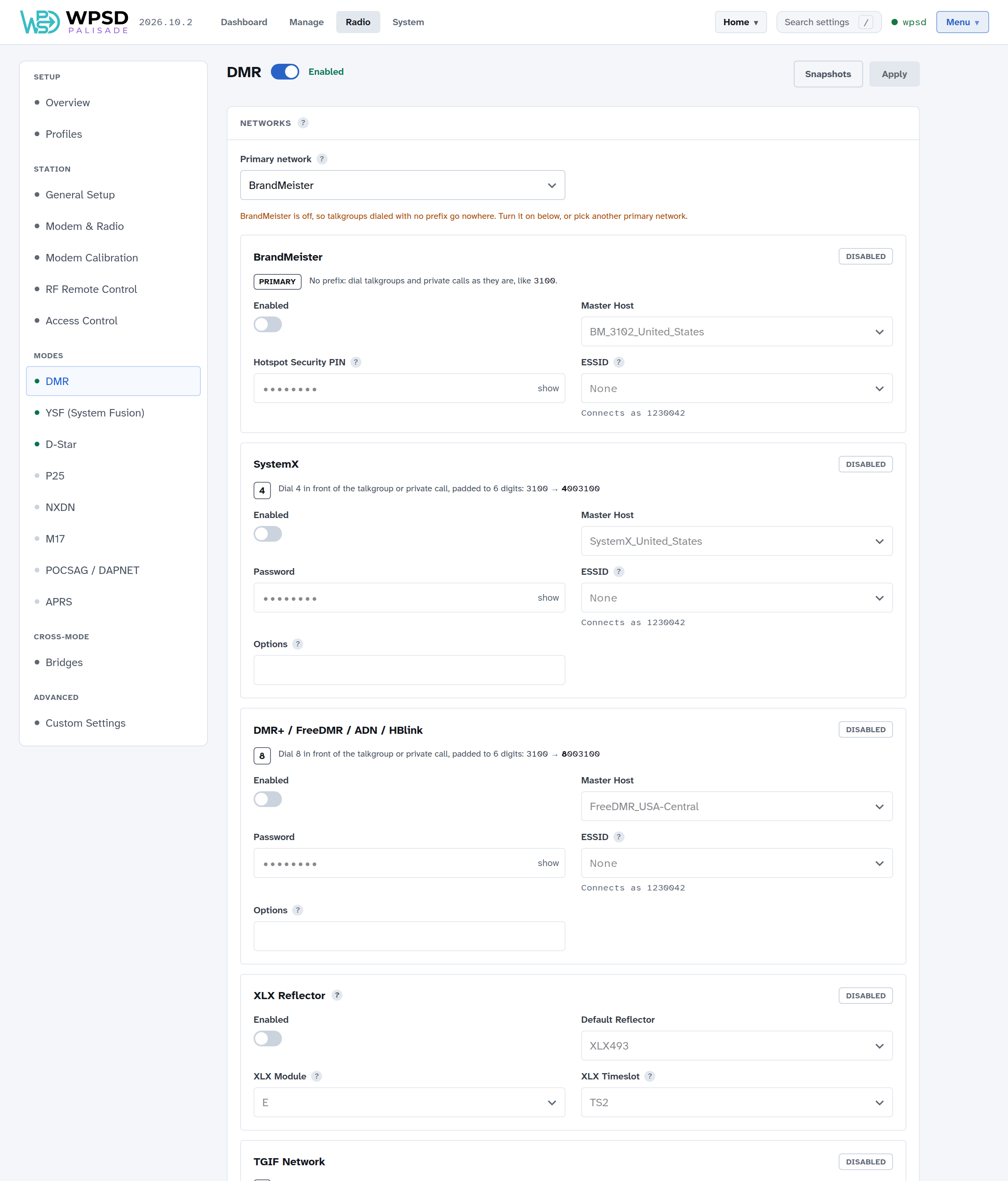
You need a DMR ID, set in Station (or Guided Setup).
Networks
Your WPSD device can connect to several DMR networks at once: BrandMeister, SystemX, DMR+ / FreeDMR / ADN / HBlink, TGIF, an XLX reflector, and one Custom Network of your own. Turn on the ones you use, and for each choose:
Master Host: the network’s server you connect to (type to search the list). Choose one near you.
Password, or for BrandMeister the Hotspot Security PIN you set on your BrandMeister SelfCare page.
Options (SystemX, DMR+ / FreeDMR / ADN / HBlink, and the Custom Network): settings the master reads when you log in, such as the talkgroups to link at startup (
StartRef=4000;TS1_1=31665;TS2_1=3100). Leave it blank unless your master documents some.ESSID: two digits added to your DMR ID on that network, so it can tell your devices apart; see DMR networks and talkgroup prefixes. Connects as shows the ID it will use.
Primary network: talkgroups and private calls you dial with no prefix go to the primary network. Every other network has its own prefix digit, shown on its card (for example Dial 4 in front of the talkgroup … 3100 → 4003100 for SystemX). That way one codeplug reaches every network. When you change the primary network and apply, the WPSD device’s talkgroup rules are rewritten to match. DMR networks and talkgroup prefixes explains prefixes in detail.
XLX Reflector: choose the reflector, its module (the room you talk in; stations on other modules of the same reflector can’t hear you) and the timeslot XLX uses. A simplex hotspot carries timeslot 2 only, so XLX stays there.
Custom Network: a sixth network for a master that isn’t in the lists, such as a private HBlink or FreeDMR server: its name, address, port, password, ESSID and, only if its operator documents them, Options.
Your masters and XLX reflectors: add a server the lists don’t have, such as a club master or a test reflector. It then shows first in every list on your WPSD device. See Custom Hosts and Talkgroup Names.
Timeslots
A duplex hotspot carries both DMR timeslots; a simplex hotspot carries timeslot 2 only. Guided Setup sets these from your modem; change them only if you know your hardware needs something different.
Radio Behavior
Color Code: must match your radio’s channel (1 is common for hotspots).
Private Node (self only): only your own DMR ID can use the WPSD device over the air. On by default; some licenses require it, and it prevents network loops.
Embedded LC Only: sends only the caller and talkgroup inside each voice frame, leaving out the caller’s name details (Talker Alias) and GPS position some radios add. On by default, which avoids garbled caller text on many radios.
Dump Talker Alias Data: writes the Talker Alias and GPS data of received calls to the log, for troubleshooting.
Staying in DMR
While your WPSD device is busy with a DMR call it ignores other modes. After you transmit and After a network call say how long it keeps listening for DMR after a call ends, so replies reach you before another mode takes over. 20 seconds is a good start.
Voice announcements
Spoken messages from the gateway about what it’s linked to. Turn them off for a quiet hotspot, or choose their language.
APRS
Your DMR gateway can send your position and description to APRS-IS; see APRS and GPS.
Cross-mode bridges
Bridges let you talk from DMR to YSF or NXDN, and the other way round. They’re on Radio > Bridges; see Cross-Mode. A bridge that holds DMR off (YSF → DMR, NXDN → DMR) says so on this page, with a link to it.
Changing talkgroups and links
Static and dynamic talkgroups on BrandMeister, TGIF and SystemX, and switching networks off for now, are in Manage.
DMR Networks and Talkgroup Prefixes
This chapter explains how your WPSD device connects to several DMR networks at once, and how your radio reaches each of them.
How it fits together
Two programs handle DMR on your WPSD device:
MMDVM-Host talks to the modem, and so to your radio.
DMRGateway connects to the DMR networks and routes each call between them and MMDVM-Host.
        flowchart LR
    Radio      <--> Modem
    Modem      <--> MMDVMHost["MMDVM-Host"]
    MMDVMHost  <--> GW["DMRGateway"]
    GW         <--> BM["BrandMeister"]
    GW         <--> SX["SystemX"]
    GW         <--> DMRP["DMR+ / FreeDMR"]
    GW         <--> TGIF["TGIF"]
    GW         <--> XLX["XLX"]
Because DMRGateway can hold several network connections at once, you can be on BrandMeister, TGIF and an XLX reflector at the same time, and choose between them from your radio by the talkgroup you dial.
The networks
On Radio > DMR (see DMR) you can turn on:
Network |
Prefix when not primary |
|---|---|
BrandMeister |
2 |
SystemX |
4 |
TGIF |
5 |
XLX reflector |
6 (talkgroup 6 for the reflector; 6 in front to change module) |
Cross-mode bridges (DMR to YSF, DMR to NXDN) |
7 |
DMR+ / FreeDMR / ADN / HBlink |
8 |
Custom Network |
9 |
Talkgroup prefixes
Different networks use the same talkgroup numbers for different things: talkgroup 3100 on one network isn’t the same as 3100 on another. So that one radio can reach them all through one WPSD device, each network except the primary one has a prefix: a digit you dial in front of the talkgroup, with zeros in between to make six digits after it.
The primary network needs no prefix: dial its talkgroups as they are. Choose as primary the network your local repeaters use, so the same contacts in your codeplug work through both.
Tip
Building a prefixed talkgroup
TechChat, talkgroup 321 on DMR+, with BrandMeister as primary:
prefix 8 + 000 + 321 = 8000321.
With SystemX’s prefix 4, its talkgroup 2350 becomes 4002350.
Most prefixed talkgroups are seven digits long. Each network’s card on Radio > DMR shows its prefix and an example, and the dashboard names prefixed talkgroups with their network (for example TGIF 91 for 5000091), if Show talkgroup names is on in Preferences.
When you change the primary network and apply, WPSD Palisade rewrites the talkgroup rules to match.
Your own changes to DMRGateway
The prefixes and rules above are WPSD Palisade’s standard setup. If you need something different, such as your own rewrite rules, add it in Custom Settings rather than editing DMRGateway’s file: custom settings survive every change you make in Radio, can be tried and rolled back, and can differ per profile. The rules themselves are described in DMRGateway Rewrite Rules.
Your own masters and reflectors
Servers that aren’t in the WPSD device’s lists (a club master, a private server) can be added under Your masters and XLX reflectors on Radio > DMR. They show first in every list. See Custom Hosts and Talkgroup Names.
DMR ID collisions and the ESSID
Your DMR ID identifies you, not a particular device. Most networks, BrandMeister especially, can’t tell two devices apart if both connect with exactly the same DMR ID at the same time. That happens as soon as you use more than one thing under your ID together: your WPSD device and a DMR app on your phone, or two hotspots both on BrandMeister. Features that need the network to know which device you mean, Parrot most visibly, then break or misroute.
The ESSID, set per network on Radio > DMR, fixes it: two digits (01 to 99) added to your DMR ID for that network, so your WPSD device connects with a longer ID of its own. Connects as under it shows the result.
Tip
The ESSID is None on every network unless you set one, so your WPSD device uses your plain DMR ID, as a phone app would. If you use a DMR app and a WPSD device at the same time, give the WPSD device its own ESSID.
D-Star
D-Star settings are on Radio > D-Star. Turn it on with the switch next to the title, make your changes, then Apply.
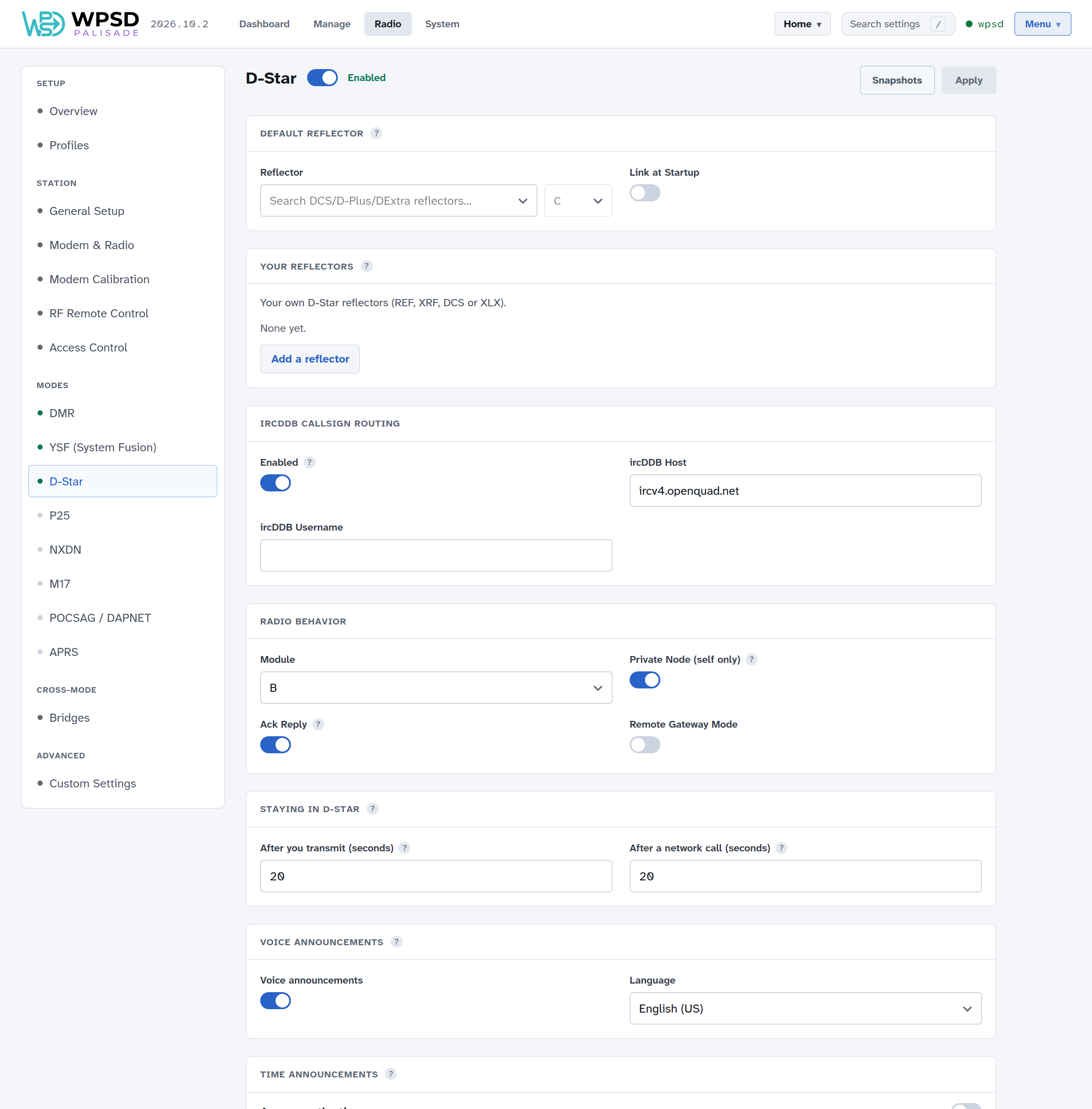
Default Reflector
Reflector: a DCS, D-Plus (REF) or DExtra (XRF) reflector and its module to link to automatically. Leave it empty for no automatic link.
Link at Startup: link it as the WPSD device starts.
Your reflectors: add reflectors the lists don’t have; see Custom Hosts and Talkgroup Names.
ircDDB Callsign Routing
Connects to ircDDB so other stations can reach you by callsign routing. Set the host and your username here if you use it.
Radio Behavior
Module: your WPSD device’s D-Star module letter (B is usual for 70 cm).
Private Node (self only): only your own callsign can use the WPSD device in D-Star. On by default.
Ack Reply: sends a short reply after each of your transmissions, with how well it was received.
Remote Gateway Mode: an MMDVM-Host option for special gateway setups; leave it off unless yours calls for it.
Staying in D-Star
How long the WPSD device keeps listening for D-Star after you transmit, and after a network call, before another mode can take it. 20 seconds is a good start.
Voice and time announcements
Voice announcements: spoken messages about what the gateway is linked to; turn them off for a quiet hotspot, or choose their language.
Time announcements: the WPSD device speaks the time on your module at the interval you choose, like a repeater’s talking clock. Its own program, D-Star Time Server, runs only when you turn this on.
APRS
Your D-Star gateway can send your station’s position and description to APRS-IS; see APRS and GPS. Its map object keeps D-Star’s usual symbol.
Linking now
To link a module to another reflector now, without changing these settings, use Manage D-Star. From your radio, set your URCALL to the usual D-Star link and unlink commands.
YSF (System Fusion)
System Fusion settings are on Radio > YSF (System Fusion). Turn it on with the switch next to the title, make your changes, then Apply.
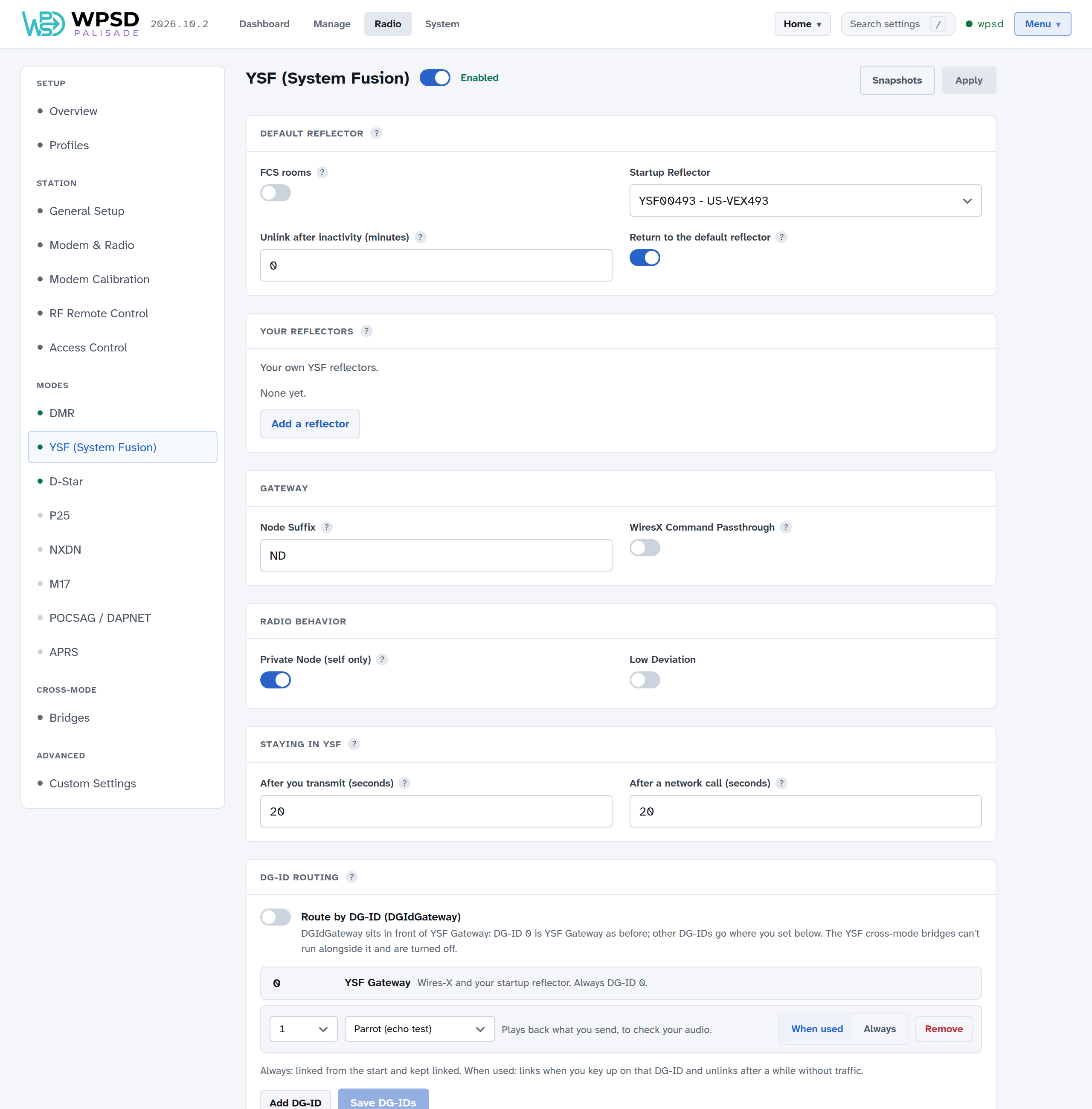
Default Reflector
Startup Reflector: the reflector or room your WPSD device links to when it starts, and goes back to after inactivity. Leave it empty for no automatic link.
FCS rooms: also offer FCS rooms, not just YSF reflectors. Off, FCS rooms don’t appear in the lists.
Unlink after inactivity (minutes): unlinks after this long without your own transmissions (traffic from the reflector doesn’t count). 0 stays linked.
Return to the default reflector: after the inactivity time, link the default reflector again instead of unlinking.
Your reflectors: add YSF reflectors the lists don’t have; see Custom Hosts and Talkgroup Names.
Gateway
Node Suffix: one or two characters added to your callsign on the air.
WiresX Command Passthrough: passes Wires-X commands from your radio through to a cross-mode bridge, if one is on.
Radio Behavior
Private Node (self only): only your own callsign can use the WPSD device in System Fusion. On by default.
Low Deviation: for radios that need lower deviation; leave it off unless yours does.
Staying in YSF
How long the WPSD device keeps listening for YSF after you transmit, and after a network call, before another mode can take it. 20 seconds is a good start.
DG-ID routing
With Route by DG-ID on, the DG-ID set on your radio chooses where you talk. DG-ID 0 is YSF Gateway as before (Wires-X and your startup reflector); each other DG-ID you add goes to its own reflector, room or the parrot, and is either linked Always (from the start) or When used (when you key up on it, unlinking after a while without traffic). Add DG-IDs with Add DG-ID, then Save DG-IDs.
The YSF cross-mode bridges can’t run alongside DG-ID routing, and are turned off while it’s on. The dashboard’s Modes & Networks panel shows which DG-ID is in use.
Cross-mode bridges
YSF to DMR, YSF to NXDN and YSF to P25 are on Radio > Bridges; see Cross-Mode. While one of them is on, this page shows it, and a bridge that holds YSF off (DMR → YSF) says so here, with a link to it.
APRS
YSF Gateway, and DG-ID routing when on, each send their own beacon with their own SSID; see APRS and GPS.
Linking now
To link a different reflector or room now, without changing these settings, use Manage YSF / FCS.
P25
P25 settings are on Radio > P25. Turn it on with the switch next to the title, make your changes, then Apply.
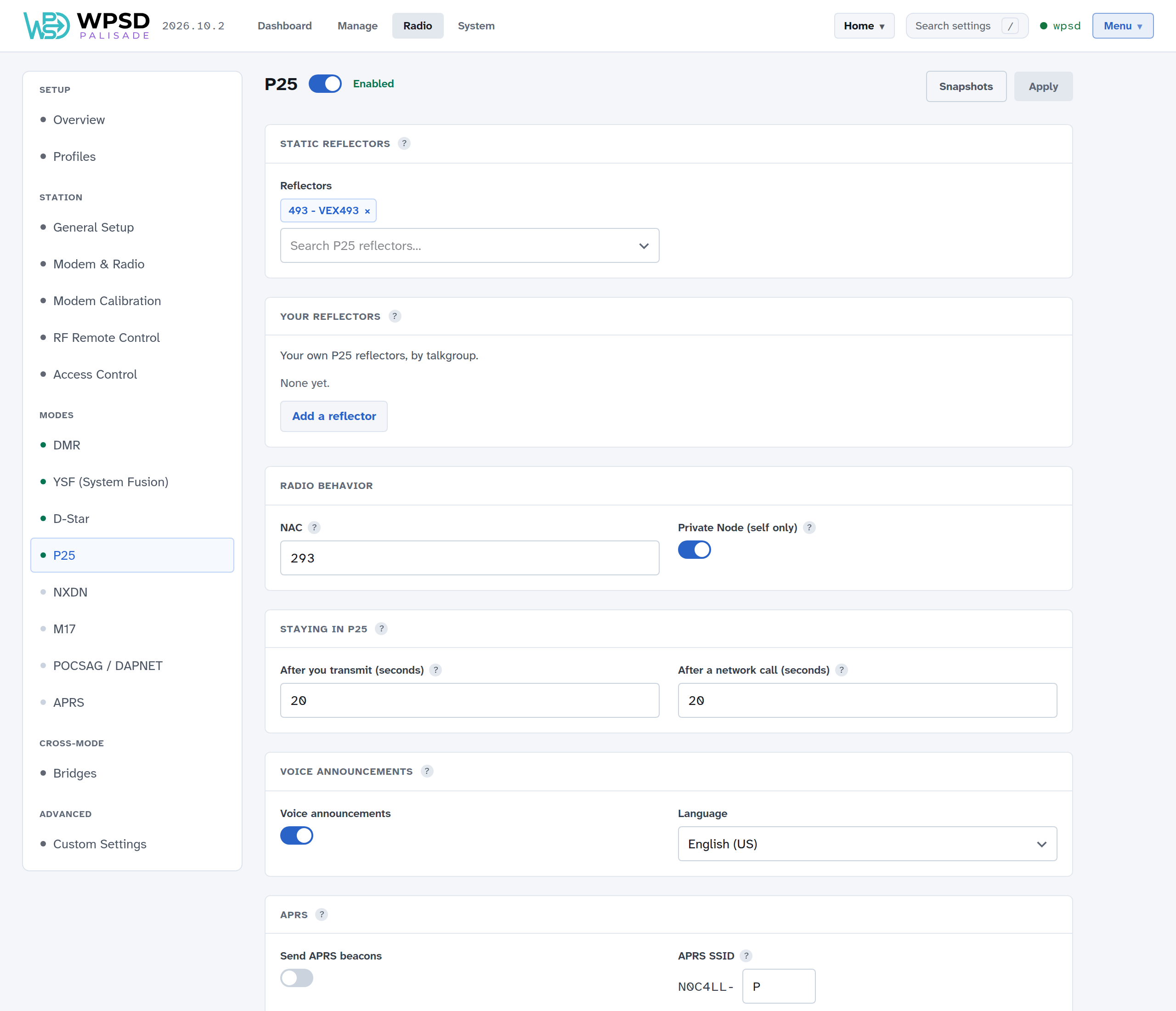
Static Reflectors
Reflectors linked at startup and kept linked. Unlike a single default reflector, P25 can keep several linked at once; choose each from the list.
Your reflectors: add P25 reflectors the lists don’t have; see Custom Hosts and Talkgroup Names.
Radio Behavior
NAC: the Network Access Code, P25’s equivalent of a color code (293 unless you use another). Your radio must match it.
Private Node (self only): only your own ID can use the WPSD device in P25. On by default.
Staying in P25, voice announcements, APRS
As for the other modes: how long the WPSD device stays in P25 after a call (20 seconds is a good start), spoken link messages and their language, and the APRS beacon (see APRS and GPS).
Linking and unlinking
Link another reflector now from Manage P25. From your radio, dial the reflector’s number as a talkgroup to link it, and talkgroup 9999 to unlink.
NXDN
NXDN settings are on Radio > NXDN. Turn it on with the switch next to the title, make your changes, then Apply.
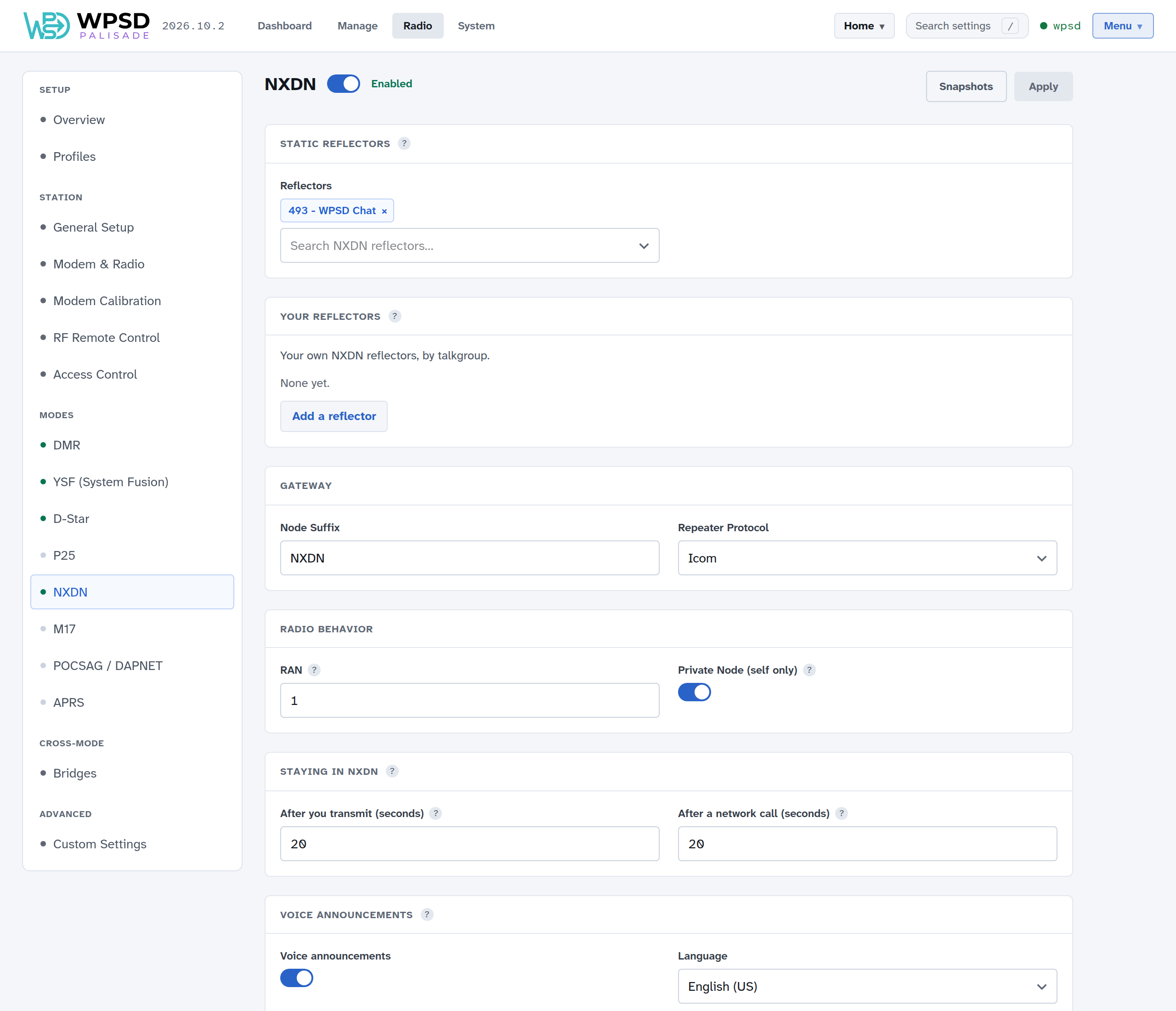
Static Reflectors
Reflectors linked at startup and kept linked; NXDN can keep several linked at once.
Your reflectors: add NXDN reflectors the lists don’t have; see Custom Hosts and Talkgroup Names.
Gateway
Node Suffix: characters added to your callsign on the network.
Repeater Protocol: how the gateway talks to MMDVM-Host; leave the default unless told otherwise.
Radio Behavior
RAN: the Radio Access Number, NXDN’s equivalent of a color code (1 to 64). Your radio must match it.
Private Node (self only): only your own ID can use the WPSD device in NXDN. On by default.
Staying in NXDN, voice announcements, APRS
How long the WPSD device stays in NXDN after a call (20 seconds is a good start), spoken link messages and their language, and the APRS beacon (see APRS and GPS).
Linking and unlinking
Link another reflector now from Manage NXDN. From your radio, dial the reflector’s number as a talkgroup to link it, and talkgroup 9999 to unlink.
M17
M17 is an open digital voice mode. Its settings are on Radio > M17. Turn it on with the switch next to the title, make your changes, then Apply.
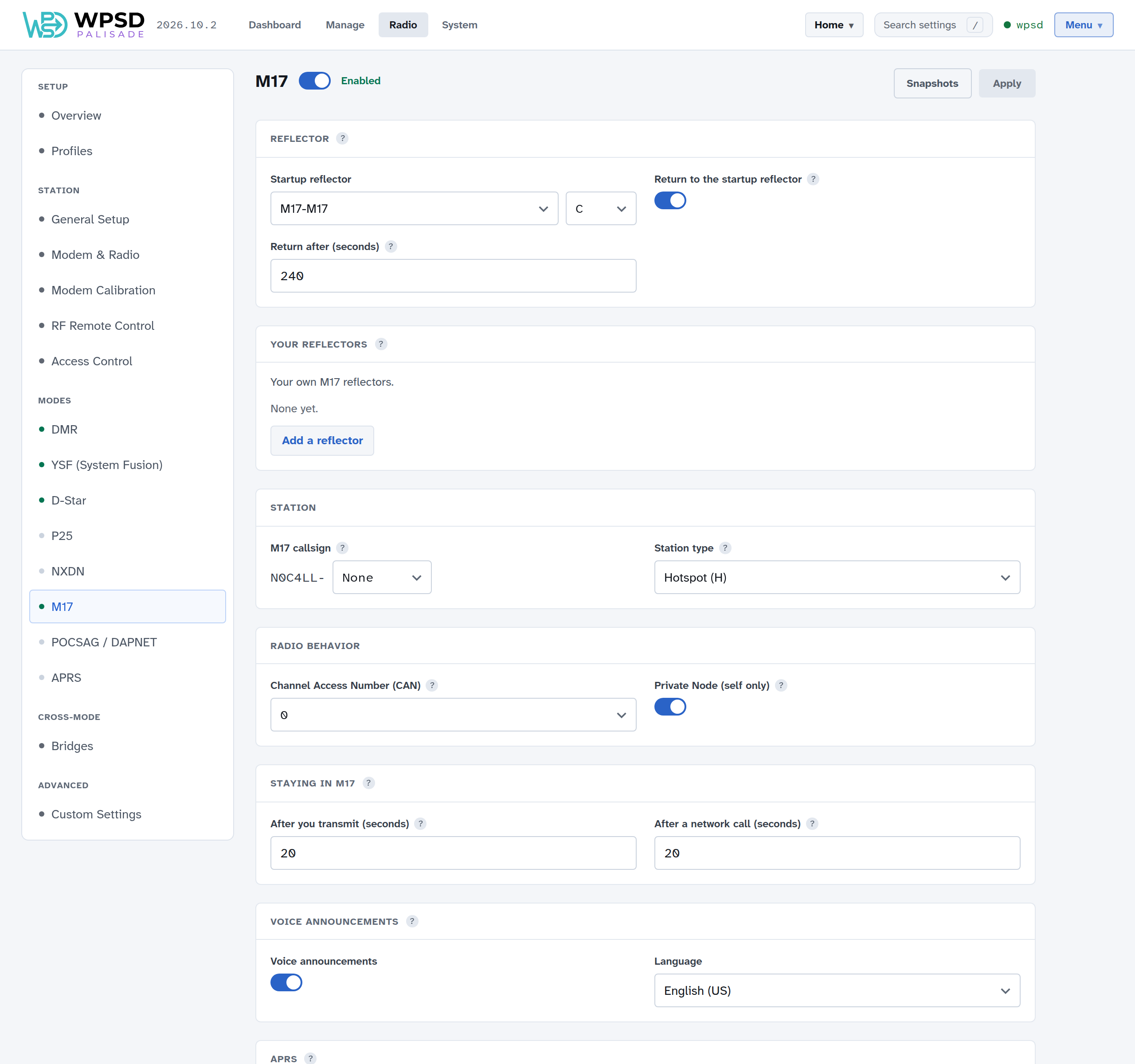
Reflector
Startup reflector: the reflector and module your WPSD device links to when it starts.
Return to the startup reflector and Return after (seconds): after this long without traffic, go back to the startup reflector (or unlink, if none is set). 240 seconds is a good start.
Your reflectors: add M17 reflectors the lists don’t have; see Custom Hosts and Talkgroup Names.
Station
M17 callsign: your callsign as M17 sends it, from your station settings, with an optional station ID (0 to 9) to tell your WPSD devices apart.
Station type: the letter M17 adds to show what kind of station this is (Hotspot (H) for a WPSD device).
Radio Behavior
Channel Access Number (CAN): M17’s equivalent of a color code, 0 to 15. Your radio must use the same CAN.
Private Node (self only): only your own callsign can use the WPSD device in M17. On by default.
Staying in M17, voice announcements, APRS
How long the WPSD device stays in M17 after a call (20 seconds is a good start), spoken link messages and their language, and the APRS beacon (see APRS and GPS).
Linking now
Link another reflector and module now from Manage M17.
POCSAG and DAPNET
Your WPSD device can also be a paging transmitter: it sends POCSAG pages to pagers, from the DAPNET paging network or from your dashboard.
Setting it up
Radio > POCSAG / DAPNET: turn it on with the switch next to the title, make your changes, then Apply.
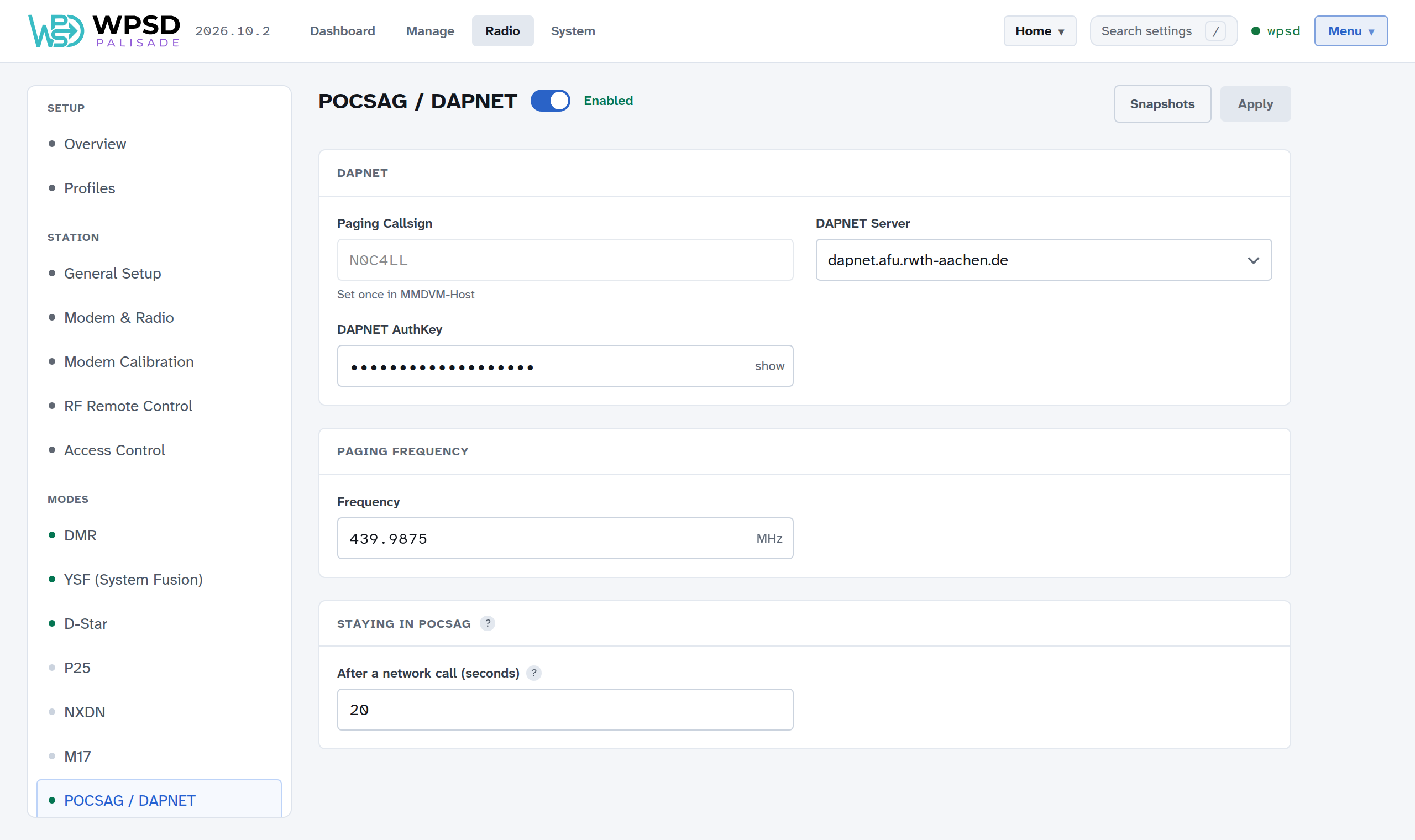
DAPNET
Paging Callsign: your station callsign, set once in your station settings.
DAPNET Server: the DAPNET core to connect to.
DAPNET AuthKey: the key DAPNET gives your transmitter when you register it on the DAPNET website.
Paging Frequency: the frequency pages go out on (439.9875 MHz in much of the world; check your pagers and your country’s band plan).
Staying in POCSAG: after a page from the network goes out, how long the WPSD device stays on paging, so a run of pages goes out together. 20 seconds is a good start.
Sending pages
Manage Paging sends pages: over the air from your WPSD device to a pager you choose, or through DAPNET to pagers anywhere (with your DAPNET login added). Keep your pagers there under Saved pagers.
Cross-Mode
Cross-mode bridges let a radio in one mode talk on another mode’s network: a DMR radio on System Fusion rooms, or a System Fusion radio on DMR talkgroups.
The bridges
All six are on one page, Radio > Bridges, grouped by the radio you hold.
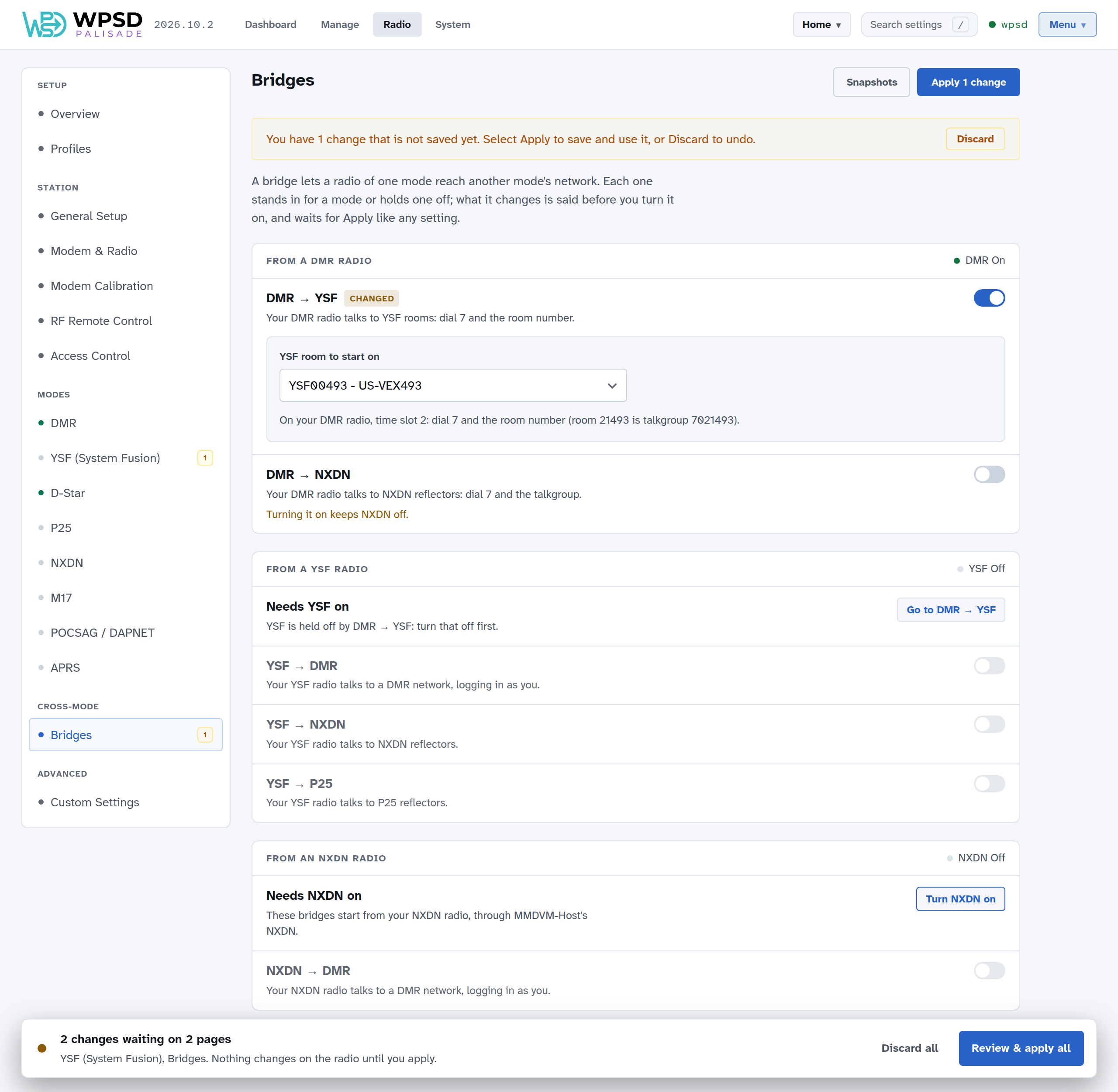
Bridge |
Needs on |
Holds off |
Its settings |
|---|---|---|---|
DMR → YSF |
DMR |
YSF |
the YSF room to start on |
DMR → NXDN |
DMR |
NXDN |
the NXDN reflectors to link |
YSF → DMR |
YSF |
DMR |
DMR network, master, password, startup talkgroup, ESSID |
YSF → NXDN |
YSF |
NXDN |
the NXDN talkgroup to start on |
YSF → P25 |
YSF |
P25 |
the P25 talkgroup to start on |
NXDN → DMR |
NXDN |
DMR |
DMR network, master, password, startup talkgroup, ESSID, and the NXDN talkgroup your radio uses |
A bridge stands in for a mode, so that mode is off while the bridge is on. Some bridges can’t run together, and the YSF bridges can’t run alongside DG-ID routing (see YSF). You don’t have to remember any of this: the page works it out as you click.
Before you turn a bridge on, it says what that will change: Turning it on turns off YSF, or keeps P25 off for a mode that’s off already.
When you turn it on, its settings open under its switch, and what it changes elsewhere waits with it for Apply. The review lists each of those changes with the reason.
A mode a bridge holds off says so on its own page (YSF is off while DMR → YSF is on), with a link to the bridge; its switch stays off until the bridge is.
Turning a bridge off gives back the mode it held off, if that mode was on before.
Turning a mode off turns off the bridges that start from it.
A group whose mode is off says so, with a button to turn that mode on.
The same rules hold however settings change: a profile switch, a restore or a backup from WPSD (legacy) can’t leave a combination that can’t work. The dashboard’s Modes & Networks panel shows a mode a bridge carries as on, via the bridge.
YSF → DMR and NXDN → DMR
These two log into a DMR network themselves, as you, so they have their own network, master, password (for BrandMeister, your Hotspot Security PIN) and startup talkgroup. MMDVM-Host’s DMR is off while either is on, so it’s always clear which way DMR goes.
If both are on, on the same network, give one of them its own ESSID (see DMR networks): the network would otherwise drop one, as it would any two connections with the same ID. The page says so, and Apply waits until they differ.
DMR → YSF
System Fusion, and Wires-X in particular, are Yaesu’s own; DMR → YSF lets a DMR radio reach the open parts of it: YSF reflectors and FCS rooms.
Both DMR bridges are reached with prefix 7 on timeslot 2: dial 7 and the YSF reflector’s number, padded to six digits. Radio > DMR shows an example under the bridge’s switch.
Talk on a reflector: for YSF00013 (GB-CQ-WORLD), use talkgroup
7000013.Link a reflector: key up briefly on its talkgroup (
70xxxxx, its number padded with zeros).Unlink: key up briefly on talkgroup
7000000. It can take a couple of tries.
There’s no spoken confirmation when you link or unlink from the radio: watch the dashboard, or link from Manage YSF / FCS instead, which is easier. Choose None as YSF’s startup reflector if you’d rather link only when you want to.
Important
YSF reflectors are numbered consistently, so they map cleanly onto DMR talkgroups. FCS rooms don’t: the talkgroup that reaches one can change whenever the room list changes. To use an FCS room, link it from Manage, then watch the dashboard for someone talking on it to see which talkgroup it arrives on.
DMR → NXDN
Like DMR → YSF: dial 7 and the NXDN talkgroup, padded to six digits, on timeslot 2. NXDN talkgroup 65000 is 7065000.
APRS and GPS
Your WPSD device can put your station on APRS maps: each mode’s gateway sends a beacon with your position and a short description to APRS-IS, the Internet side of APRS. With a GPS receiver plugged in, the beacons follow you as you move.
Turning APRS on
APRS has its own page, Radio > APRS. Turn it on with the switch next to the title, then Apply.
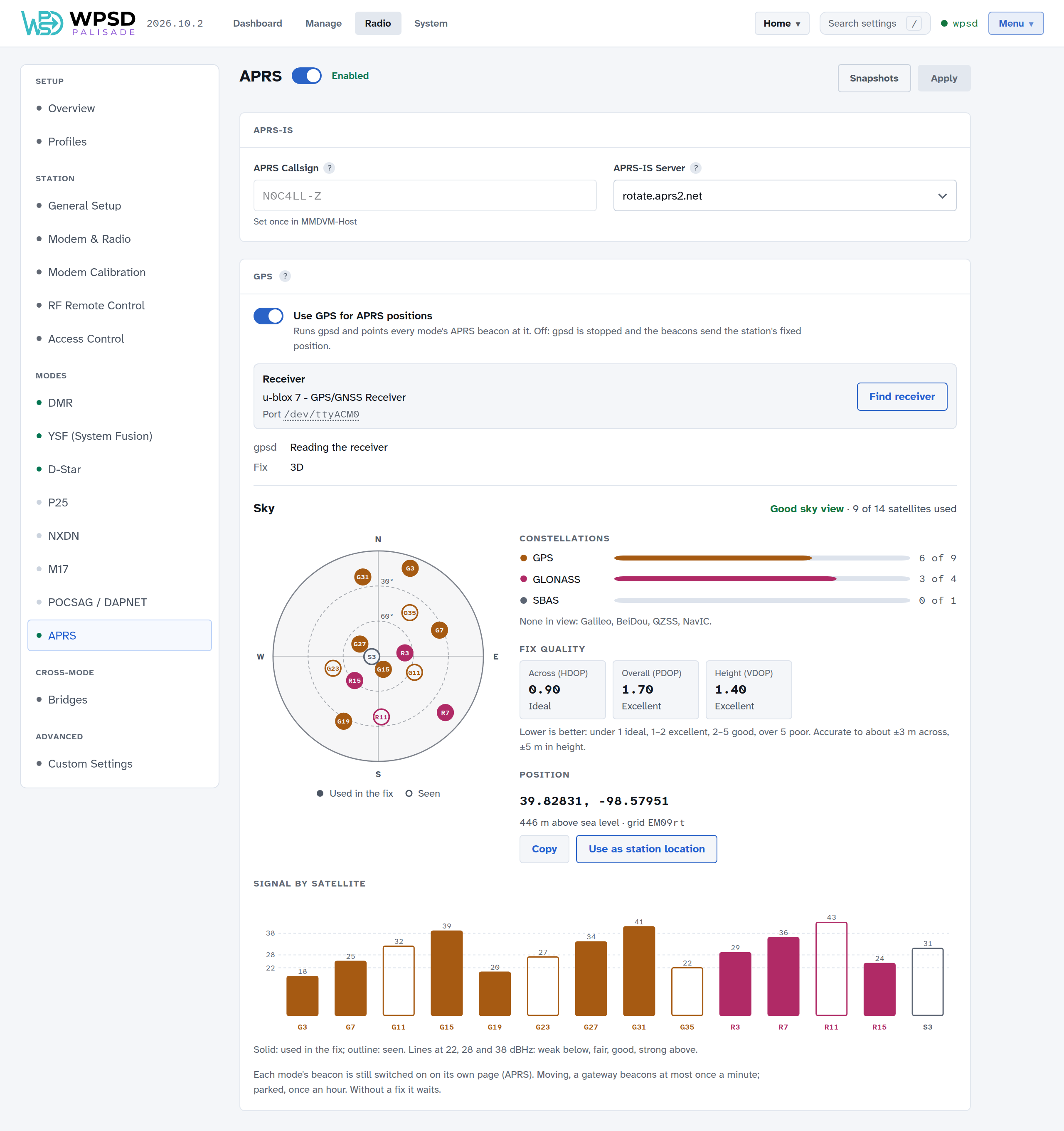
APRS Callsign: the callsign your WPSD device logs in to APRS-IS with. Your APRS-IS passcode is worked out from it and set for you.
APRS-IS Server: rotate.aprs2.net, the public APRS-IS rotation, suits nearly everyone.
Each mode’s beacon
Each mode sends its own beacon, switched on in that mode’s page (APRS section on Radio > DMR, YSF, D-Star, P25, NXDN and M17):
Send APRS beacons: on or off for that mode.
APRS SSID: what follows your callsign in that mode’s beacon (N0C4LL-D for DMR, for example): one or two letters or digits, different for each mode so each shows on the maps as its own station. WPSD Palisade refuses an SSID another station on your WPSD device already uses. D-Star beacons use your D-Star module’s letter.
APRS description: the text after the mode and frequency, up to 40 characters.
APRS symbol: the icon your beacon shows on APRS maps. Choose symbol shows them all; symbols from the alternate table can carry an overlay, a letter or digit drawn on top.
With DG-ID routing on, YSF has two beacons, YSF Gateway’s and DG-ID routing’s, each with its own SSID.
The dashboard’s Modes & Networks panel shows which modes are beaconing and the APRS-IS server your WPSD device is on.
Your position
Without GPS, every beacon sends your station’s fixed position: the latitude and longitude in Station. Set them to 0,0 to leave your location out.
GPS
Plug a USB GPS receiver into your WPSD device, then in the GPS section of Radio > APRS:
Turn on Use GPS for APRS positions.
Choose Find receiver: WPSD Palisade listens on each USB port for a GPS receiver and names the one it finds (it never writes to your modem’s or display’s port).
Apply.
The Receiver box names your receiver and the port it’s on. gpsd (the program that reads it) and Fix (2D or 3D once it knows where it is) show its state.
Sky
Once the receiver has a fix, Sky shows what it sees:
The sky view: each satellite where it is in the sky (north at the top, the horizon at the edge); filled are used in the fix, outlined only seen.
Constellations: how many satellites of each system (GPS, GLONASS, Galileo, BeiDou and others) are used and seen.
Fix quality: HDOP (across), PDOP (overall) and VDOP (height). Lower is better: under 1 ideal, 1–2 excellent, 2–5 good, over 5 poor.
Position: your latitude, longitude, height above sea level and grid square. Copy copies it; Use as station location puts the latitude and longitude into your station settings (not the height: that setting is your antenna’s height above ground).
Signal by satellite: each satellite’s signal strength.
With GPS on, a beacon goes out when you’ve moved, at most once a minute, and once an hour while you’re parked. Without a fix, it waits. Each mode’s beacon is still switched on and off on its own page.
System
System in the top bar holds everything about the device itself, as opposed to your radio setup: its network, security, logs, displays and upkeep. Settings here are the same for every profile; switching profiles never changes them.
Only you, logged in, see the System pages.
Settings without a Save button take effect as soon as you change them. A switch or choice shows a turning knob while its change is applied, and a message in the corner says when it’s done, or why it couldn’t be; a change that fails goes back to how it was.
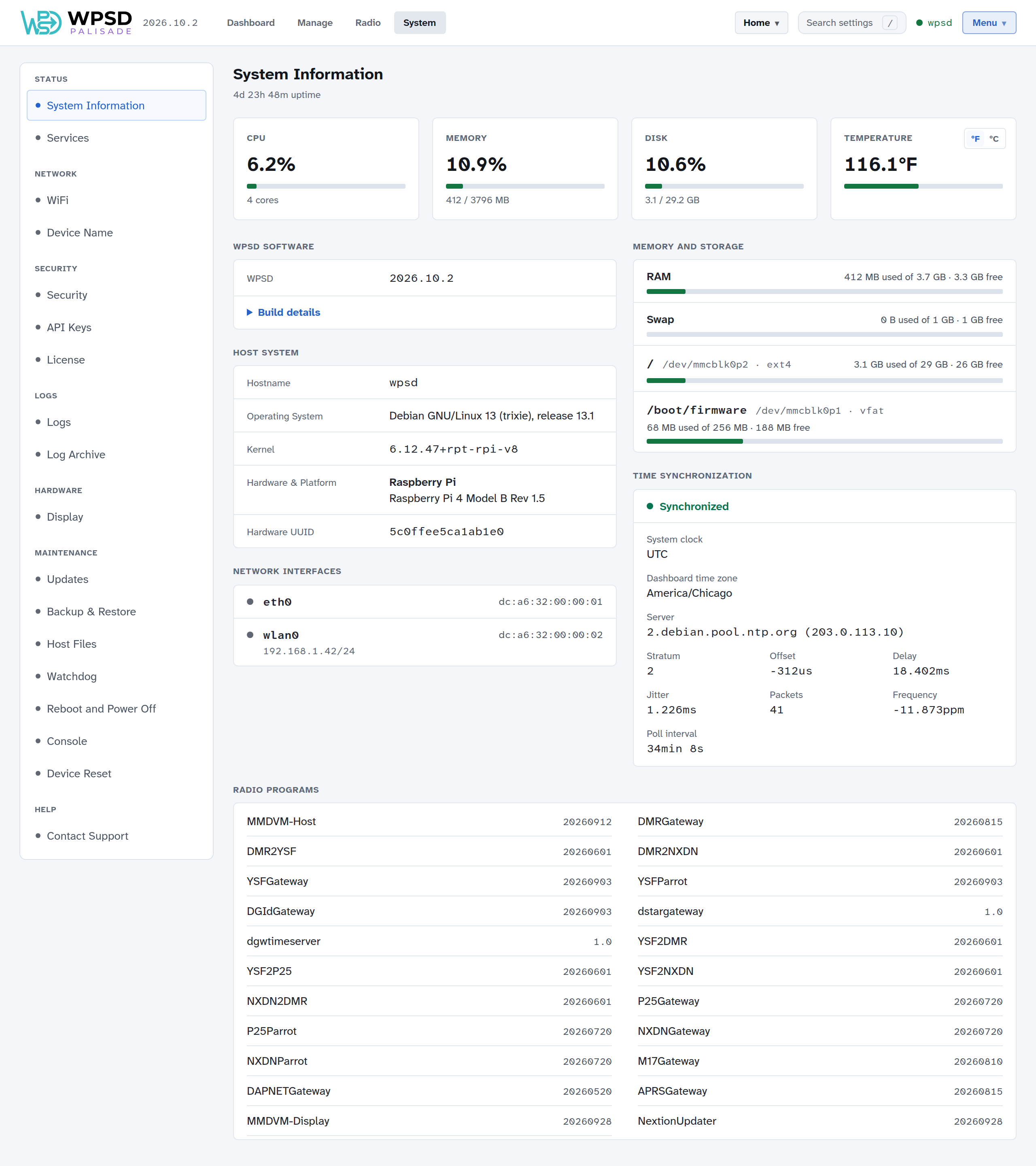
The menu on the left groups the pages:
Group |
Pages |
|---|---|
Status |
System Information: the hardware, operating system, memory, storage, network interfaces and time synchronization at a glance. Services: the programs WPSD runs (Services and Watchdog). |
Network |
WiFi and Device Name (Wi-Fi and Device Name) |
Security |
Security and API Keys (Security and Keys), License (License) |
Logs |
Logs and Log Archive (Logs) |
Hardware |
Display (Displays) |
Maintenance |
Updates (Updates), Backup & Restore (Backup and Restore), Host Files (Host Files), Watchdog (Services and Watchdog), Reboot and Power Off (Restart and Shut Down), Console (Console) and Device Reset (Device Reset) |
Help |
Contact Support (Contact Support) |
System Information
The four cards at the top show how busy the device is: CPU, memory, disk and temperature (choose °F or °C on the card). Below them:
WPSD Software: the release of WPSD Palisade the device runs, the same number as in the top bar and on Updates. Base system appears below it when a WPSD-only update has put WPSD ahead of the operating system it runs on; the next full release brings them level. Build details lists the commits and build times and the image the card was first written from; Copy build details puts them on the clipboard for a bug report. A Development build chip marks a build that isn’t a release.
Host System: the hostname, operating system, kernel, the board, and its hardware UUID.
Network Interfaces: each interface, whether it’s up, and its address.
Memory and Storage: RAM, swap, and each partition of the SD card.
Time Synchronization: whether the clock is synchronized over the network, and to which server. Most digital voice networks turn away a device whose clock is wrong, so check this first if networks won’t connect after the WPSD device has been off (see Common Symptoms).
Radio Programs: the versions of the radio programs installed.
Updates
System > Updates keeps your WPSD device current, in two separate sections:
WPSD Palisade: new releases of the whole system: WPSD, the radio programs, and the Debian they were tested on, together. A release is installed beside the running system and tried with one restart; if it doesn’t come up healthy, the WPSD device goes back to the one it had, by itself.
Operating System: Debian’s own security fixes and Raspberry Pi’s kernel and firmware updates, installed into the running system, as on any Debian computer.
Both install by themselves only in their update window, which you choose, and never during a call.
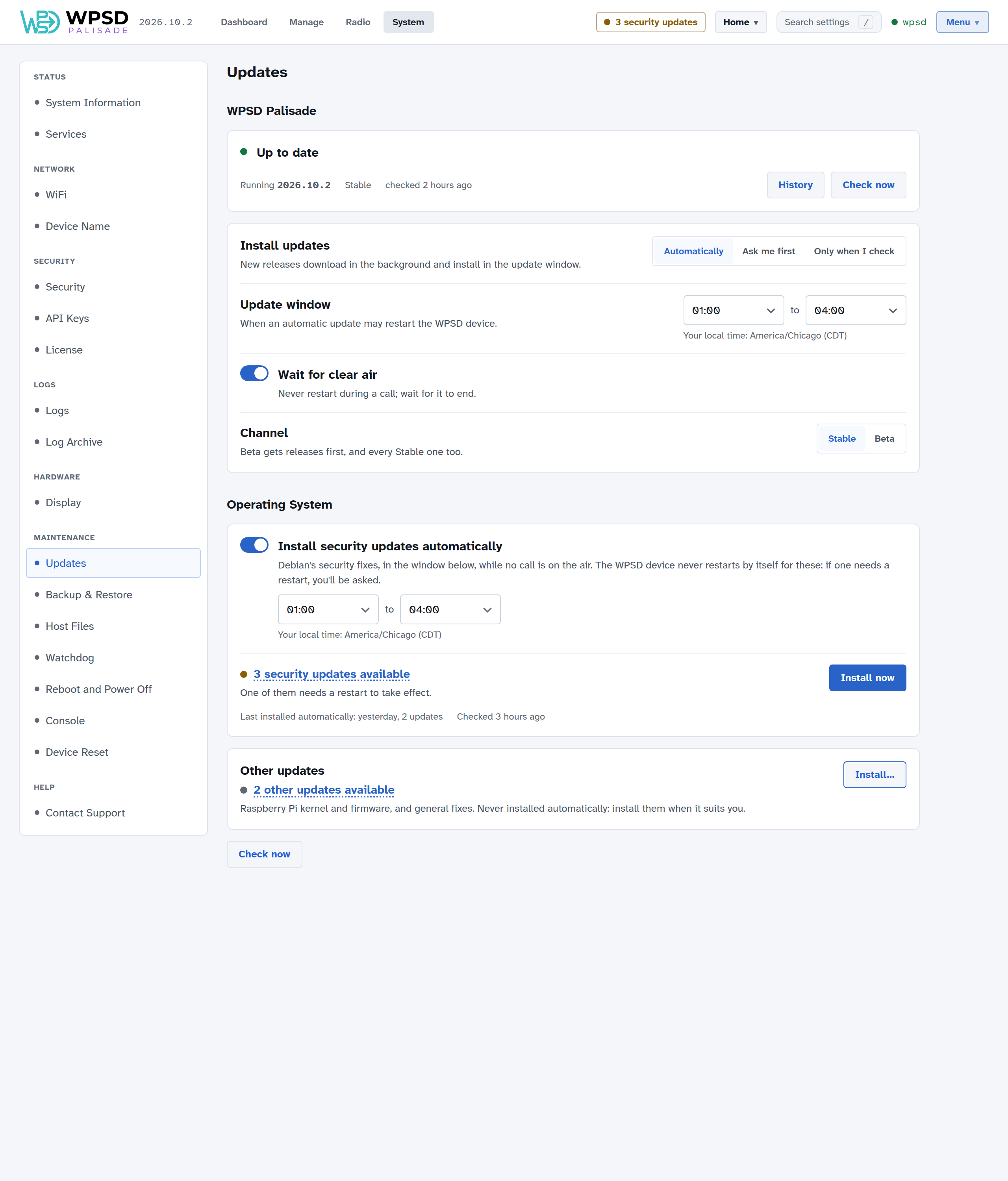
WPSD Palisade releases
Versions and channels
Releases are numbered by the year and month they were built, then a count: 2026.11.0 is the first release built in November 2026, 2026.11.1 the next. A higher number is always newer, and a number is never reused. The section shows the release you are running.
Every release is tested before it reaches you, and comes on a channel:
Channel |
What you get |
|---|---|
Stable (the default) |
Releases that have been on Beta first. Choose this for a WPSD device you rely on. |
Beta |
Releases a little earlier, and every Stable one too. Choose this to help find problems before everyone else meets them. |
A new release may reach some WPSD devices a few days before others, so that a problem shows up on few. Yours may say Up to date while a friend’s already has the new one; it will be offered to you shortly.
Most releases change only WPSD itself (the dashboard, wpsd-helper and the radio programs) and come as a small WPSD-only update: about 20 MB, switched in place with no restart; the radio is off for a few seconds while the programs restart. Releases that change Debian, the kernel or the system come whole: about 430 MB, written beside the running system, with one restart. Your WPSD device picks the right one by itself; the review says which it is.
Moving from Beta back to Stable never goes back a version: the WPSD device keeps the release it has until Stable has a newer one. Right after a channel opens, it can have nothing released on it yet; the page says so, and you keep the release you have.
Install updates
Choose how releases are installed:
Automatically (the default): new releases download in the background and install in the update window.
Ask me first: new releases download in the background, then wait for you. The top bar says WPSD update ready.
Only when I check: nothing is looked for or downloaded until you choose Check now.
Update window: when an automatic update may restart the WPSD device; the default is 1:00 to 4:00 in the morning. Pick the start and end from the lists; they’re shown the way your Preferences show times (12- or 24-hour), and they’re your local time: the dashboard’s time zone if you chose one in Preferences, otherwise your browser’s, named under the window. A window may run past midnight (for example 23:00 to 2:00).
Wait for clear air: never restart during a call; the update waits for it to end.
A release is ready
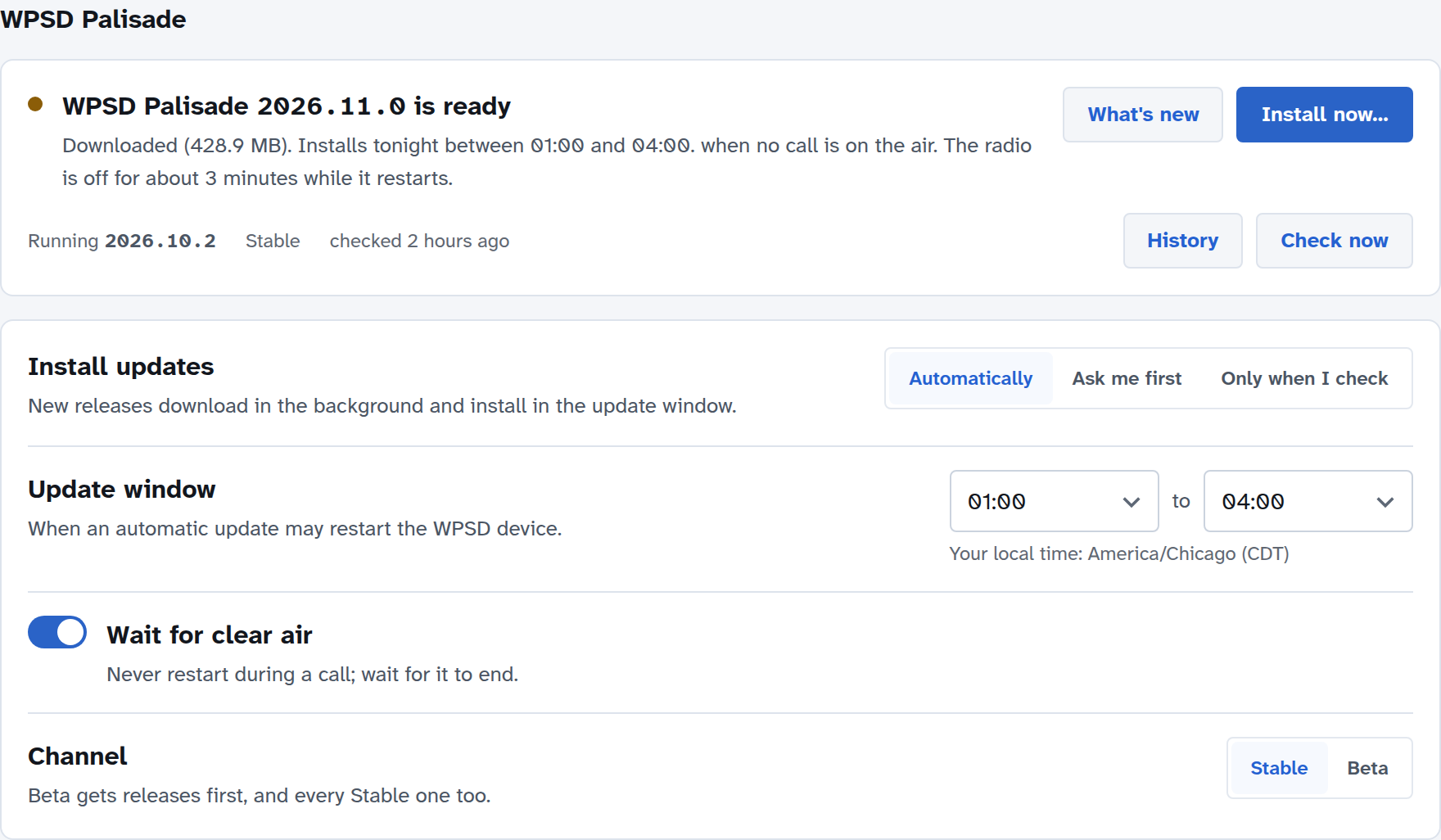
When a release has downloaded, the section says so and when it will install. What’s new and Install now… both open the review: the version you have and the new one, its size, what’s new in it, and that it needs one restart (the radio is off for about 3 minutes). Install now starts it straight away (after the current call, with Wait for the air to be clear); in Automatic, Tonight in the window leaves it for the window.
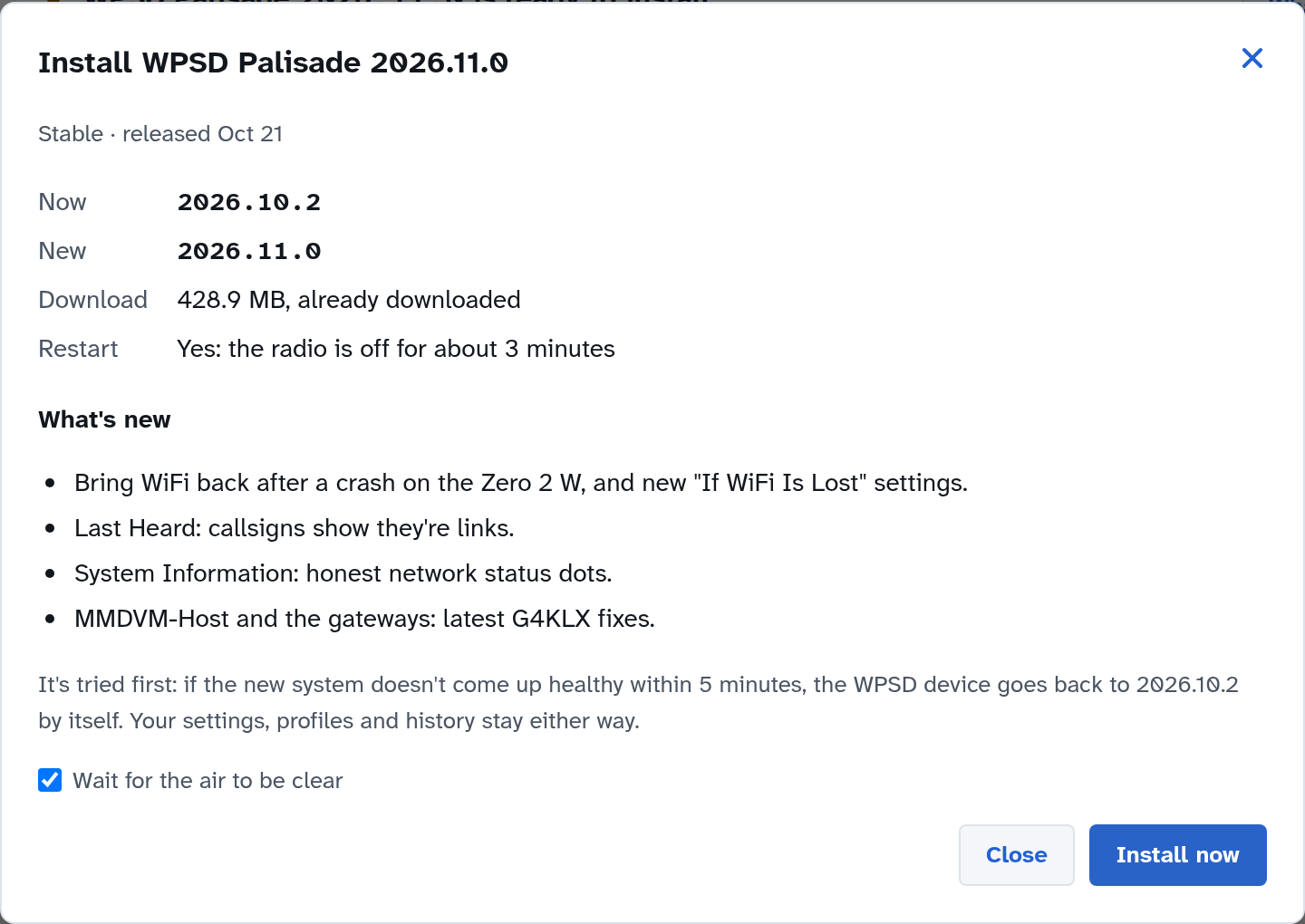
A new Debian release inside
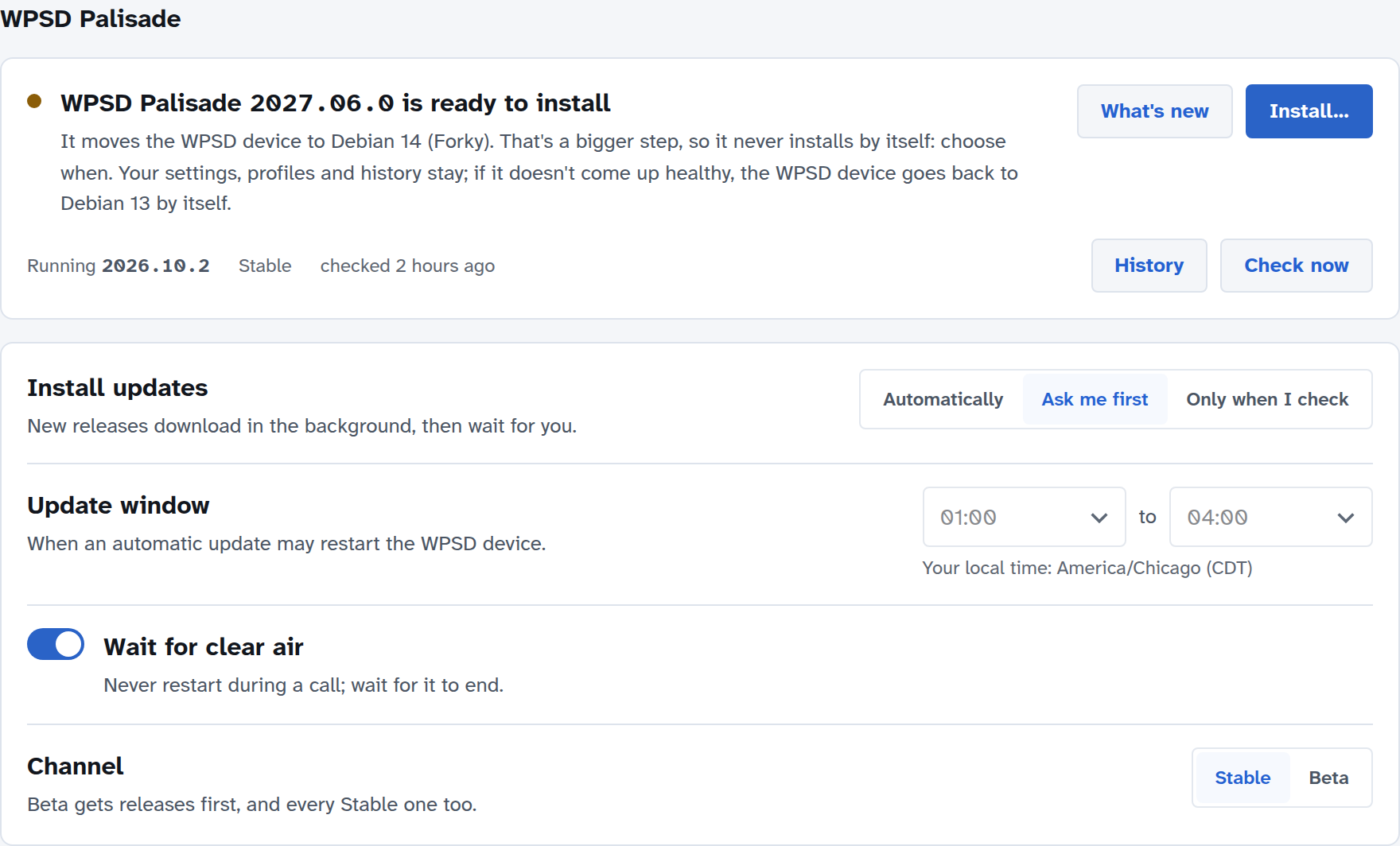
Some releases move the WPSD device to a new Debian release, the kind of change that used to need a fresh SD card. Not any more: it installs like any other release, and your settings, profiles and history stay. Because it’s a bigger step, it never installs by itself, even in Automatic: choose when.
While a release installs
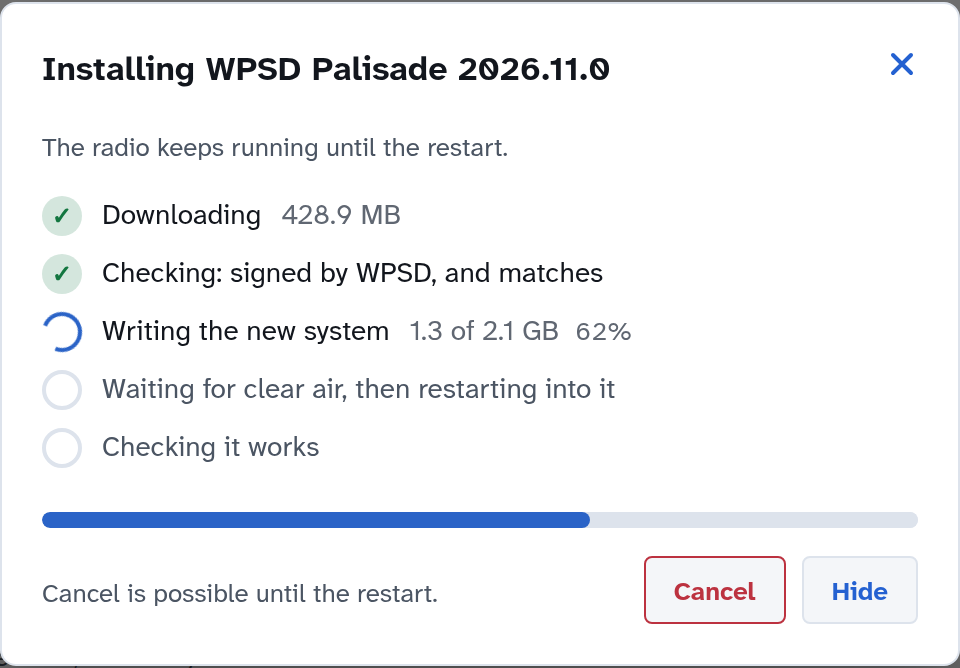
Downloading and Checking: the release is checked against WPSD’s signature before anything is written; a damaged or tampered download is refused.
Writing the new system beside the running one. The radio keeps running; this takes several minutes on a small Pi.
Waiting for clear air, then restarting into it. The radio is off until the new system is up.
Checking it works: WPSD has to come up and stay up, and the WPSD device has to be back on the network if it was before. Then the new release is kept.
A WPSD-only release has the same steps without the restart: Unpacking instead of writing the new system, then restarting the programs, then the same check. If WPSD doesn’t come up healthy, the WPSD device puts the previous WPSD back by itself, within a few minutes at most.
You can close the window: the install carries on, and the page (from any browser) shows the same step. Cancel works until the restart. While the WPSD device restarts the page loses it for a few minutes and reconnects by itself; when the release is kept, it says Now running WPSD Palisade 2026.11.0.
An OLED or Nextion display shows Updating WPSD… and the version while the WPSD device restarts into a new release and starts it, and Update failed / Going back… if it has to go back.
If a release doesn’t stay
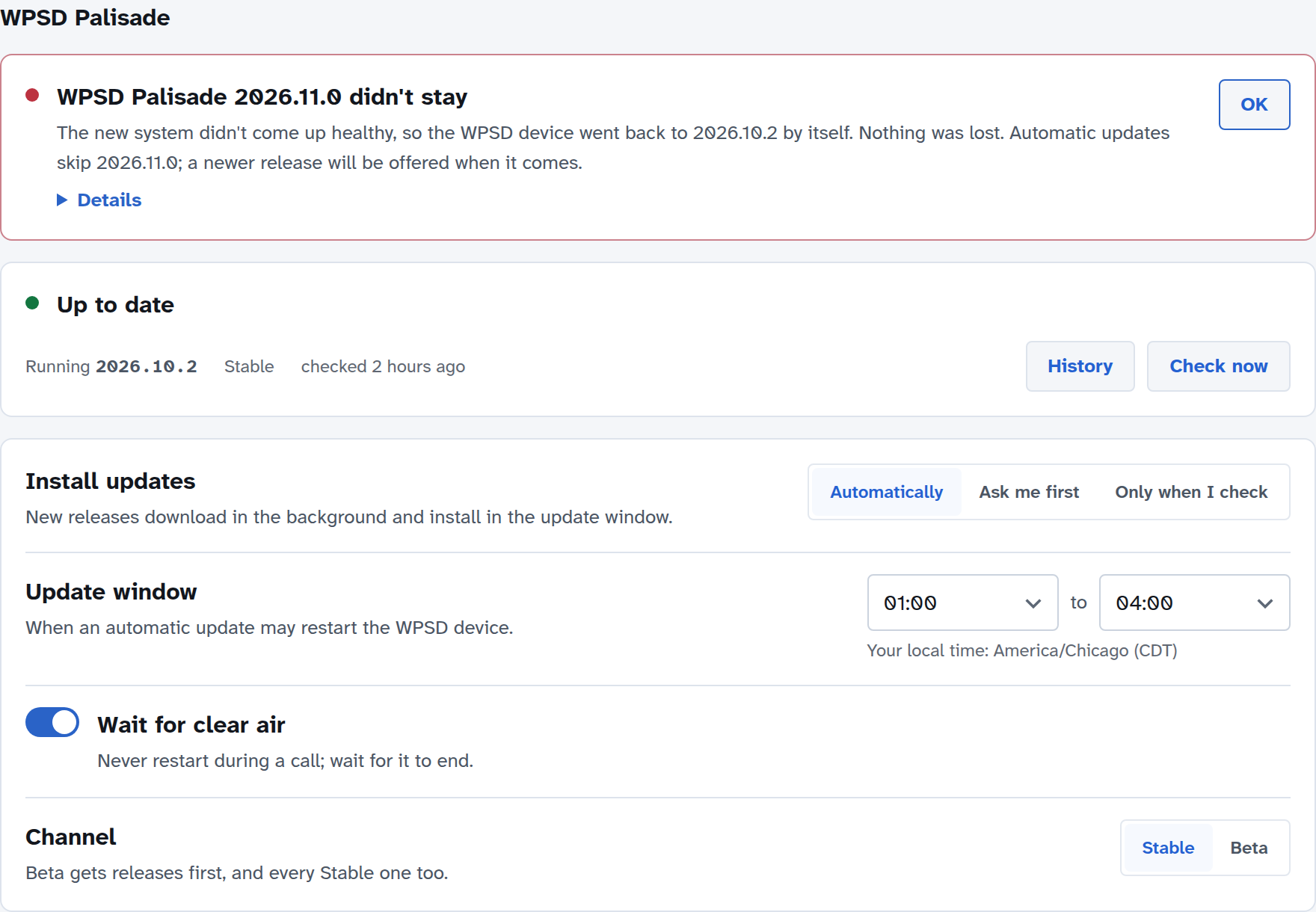
If the new release doesn’t come up healthy within 5 minutes (or the power goes off while it starts), the WPSD device restarts into the release it had, by itself. Nothing is lost. The page and the top bar say so in red until you choose OK, and Details says what went wrong. Automatic updates skip that release from then on; a newer one is offered when it comes.
History lists every release installed on this WPSD device, when, and whether it was kept.
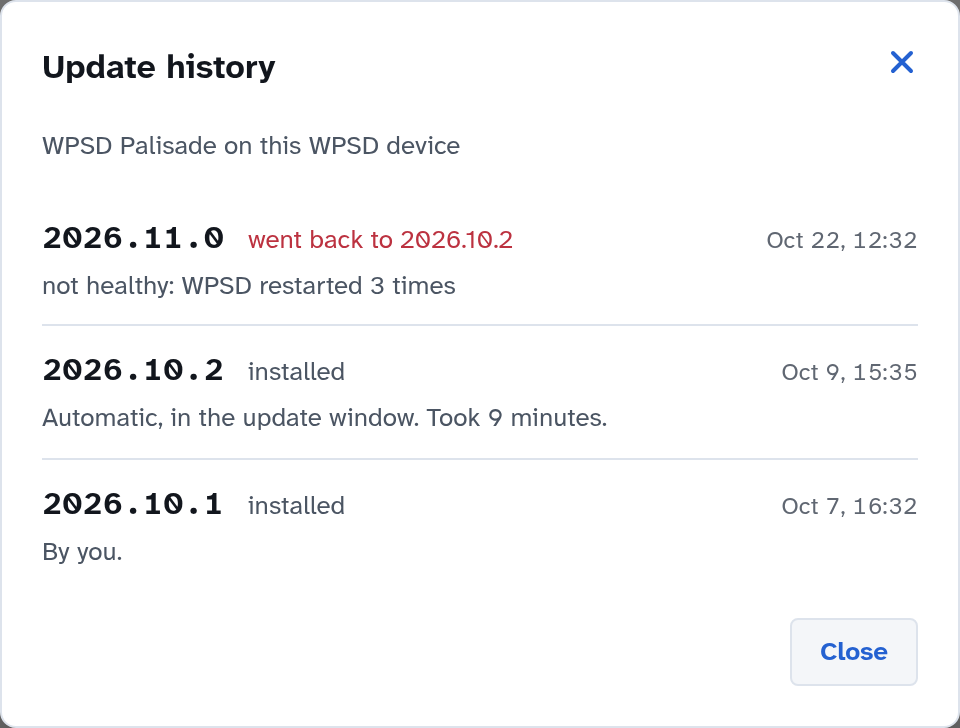
Older cards
A card made before updates came in (only cards from before the first public release) can’t install releases in place. The section says so: back up, flash the current image once, and restore; from then on, releases install by themselves.
Operating System updates
WPSD Palisade looks for Debian and Raspberry Pi updates every day and lists them here. The two sections never work at the same time: when both are due, the WPSD Palisade release goes first.
Security updates
With Install security updates automatically on, security updates from Debian’s security team install in the window below it (by default 1:00 to 4:00, your local time, as for releases), while no call is on the air. The device never restarts by itself for these: if an update needs a restart, you’re asked (see Restarting after an update).
Turn it off, and updates are still looked for every day and shown here; you install them.
The card shows how many security updates are waiting, how many of them need a restart, when the last automatic install ran, and when updates were last looked for. Install now installs them straight away.
Other updates
Raspberry Pi kernel and firmware updates and general fixes are listed under Other updates. They’re never installed automatically: choose Install… when it suits you.
Warning
Kernel and firmware updates have, rarely, upset an add-on board. Make a backup first if the WPSD device matters today.
Choose a count (such as 3 security updates available) to see the list: each package, its new version, the size to download, and which ones need a restart.
Check now looks for updates straight away. It takes a few minutes, and you can leave the page meanwhile.
While updates install
The radio keeps running while updates install. A progress window shows each step; you can close it and the install carries on, shown on the page and in the top bar.
Programs using an updated library restart on their own, between calls.
If an install fails for lack of space, the page says how much is needed and how much is free, and offers Free up space, which clears downloaded update files.
Restarting after an update
Some updates (a new kernel, for example) take effect only after the device restarts. The page then shows Restart needed and why, and Restart… offers:
Restart now: the radio is off for about a minute.
Schedule it: at a time you pick from the list, at a quiet time. With Wait for the air to be clear it waits, up to an hour, for no call to be on the air. A scheduled restart can be changed or canceled from the page.
Not now: you’ll be reminded; the update takes effect at the next restart.
The top-bar notice
While something here needs you, the top bar shows one notice, the most pressing: Update didn’t stay (in red), Installing WPSD update or Installing updates, Restart needed, WPSD update ready (a release waiting for you), then the number of security updates waiting (or, more quietly, other updates). Select it to open this page. A release waiting for its window in Automatic needs nothing from you, so it shows no notice.
On a computer that isn’t a WPSD device (a development machine), updates are the operating system’s to manage, and the page says so.
Backup and Restore
A backup holds everything that makes your WPSD device yours: radio settings, profiles and your radios’ calibration, saved Wi-Fi networks, the device name, your login and your API keys. Keep one somewhere safe, off the WPSD device, and you can put it all back on this WPSD device or a new one in a minute.
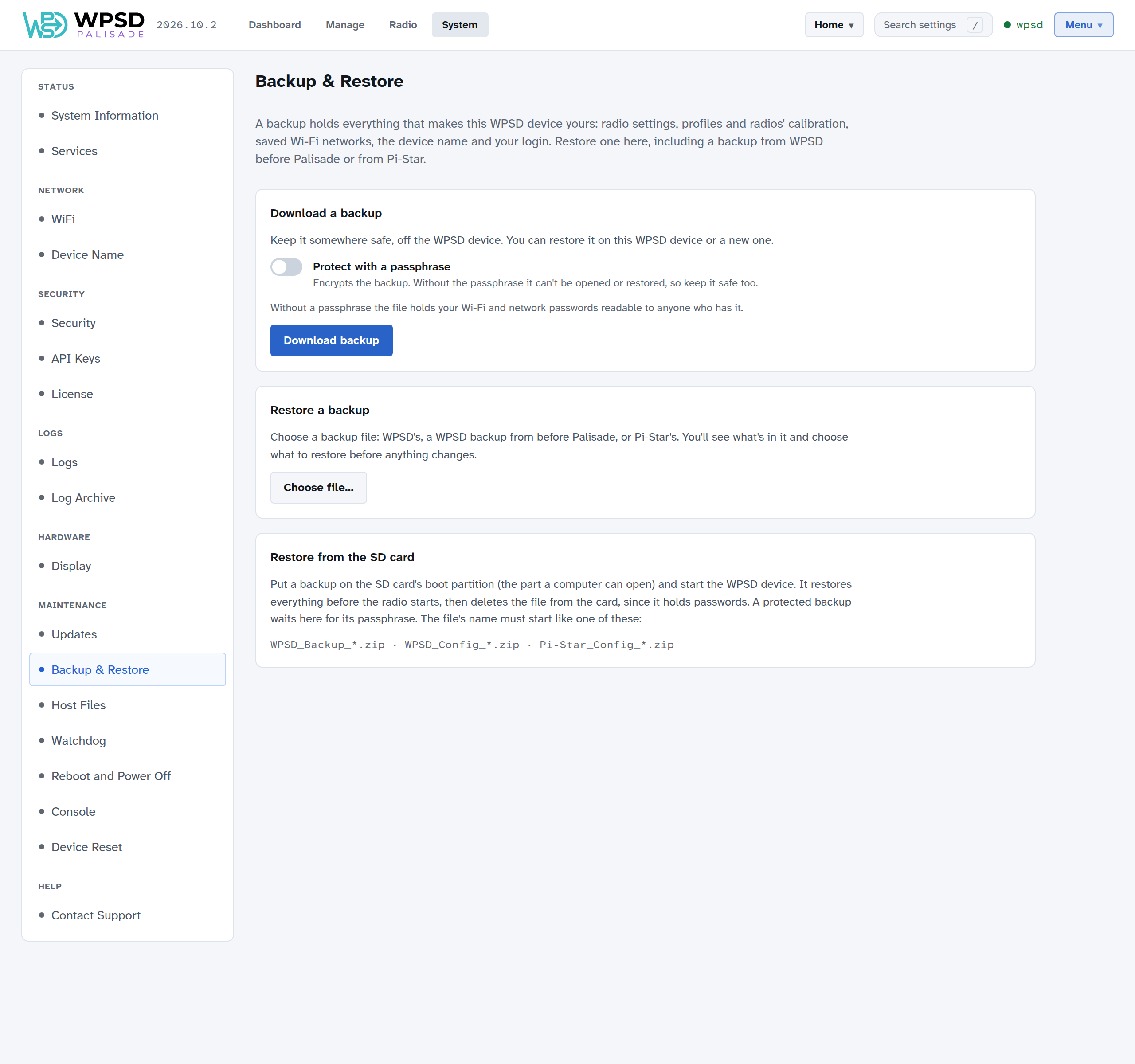
Making a backup
On System > Backup & Restore, under Download a backup:
Turn on Protect with a passphrase and enter a passphrase of 8 characters or more, twice. This encrypts the backup.
Choose Download backup. Your browser saves the file.
Warning
Without a passphrase, the file holds your Wi-Fi and network passwords readable to anyone who has it. With one, the backup can’t be opened or restored without the passphrase, so keep the passphrase safe too.
Make a new backup after big changes, and before installing kernel or firmware updates (see Updates).
Restoring
Under Restore a backup, choose Choose file… and pick the backup. A protected backup asks for its passphrase first.
Nothing changes yet: WPSD Palisade reads the file and shows what’s in it, part by part, so you can choose what to restore:
Radio settings: the callsign and modes in the backup. Only the programs whose settings change restart.
Profiles, and which one becomes active.
Saved Wi-Fi networks.
Device name: if it differs from now, the dashboard moves to the backup’s name, followed by
.local.Login & security: replaces your login with the backup’s owner password, and restores the SSH settings and keys.
Choose Restore…, confirm, and the chosen parts are restored. The page then lists what changed. If any program didn’t start afterwards, it names them: check them in Services.
Backups from WPSD (legacy) and Pi-Star
You can restore a backup made with WPSD (legacy), or a Pi-Star backup, the same way. Before you restore, the page shows How this backup carries over:
Carried over: settings that mean the same in WPSD Palisade.
Adjusted for Palisade: settings changed to fit how WPSD Palisade works.
Kept for later: things WPSD Palisade keeps but doesn’t use yet.
Not carried over: things that have no place in WPSD Palisade.
Read the list before you restore: it says what to check afterwards.
Restoring from the SD card
You can restore without reaching the dashboard at all, such as on a freshly written card:
Put the backup file on the SD card’s boot partition (the part a computer can open). Its name must start like one of these:
WPSD_Backup_*.zip(WPSD Palisade),WPSD_Config_*.zip(WPSD (legacy)) orPi-Star_Config_*.zip.Put the card in the WPSD device and start it.
The WPSD device restores everything before the radio starts, then deletes the file from the card, since it holds passwords. The dashboard then shows what was restored, with See what changed.
A protected backup can’t be opened at startup: it waits, and the dashboard asks for its passphrase (A backup from the SD card is waiting).
Device Reset
System > Device Reset puts your WPSD device back to a known state: give up ownership, start the radio settings over, or erase everything back to how the image shipped. Before anything happens, it shows exactly what goes and what stays.
Before you reset, think about something smaller: a snapshot undoes a change that didn’t work out, a profile brings back a setup, and Custom Settings can all be turned off at once.
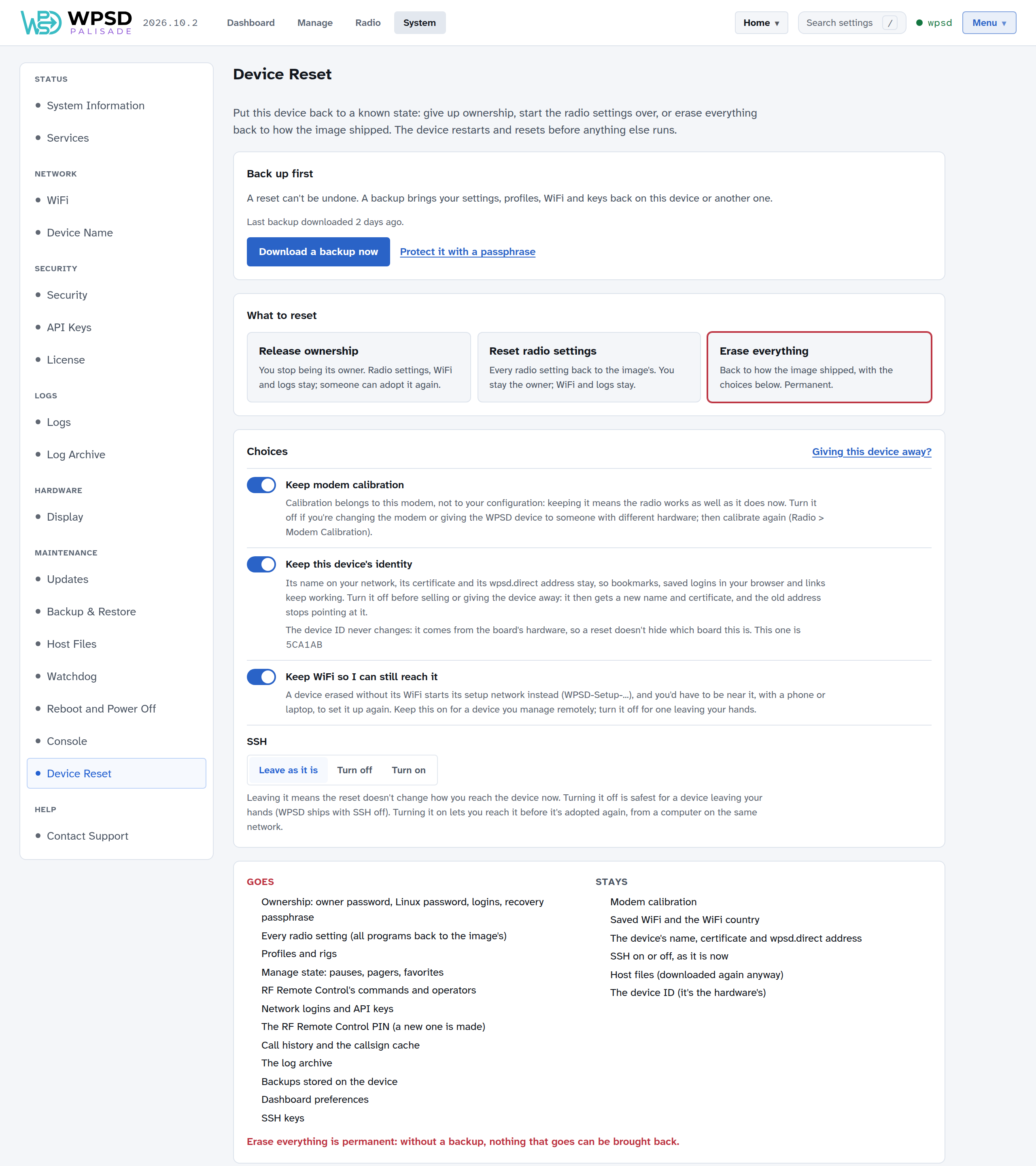
Back up first
A reset can’t be undone. The page says when you last downloaded a backup; Download a backup now makes one (see Backup and Restore). A backup brings your settings, profiles, Wi-Fi and keys back, on this WPSD device or another one.
The three levels
Level |
What goes |
What stays |
|---|---|---|
Release ownership |
You as the owner: the owner password, the password for SSH and the Console, logins on every browser, and the recovery passphrase |
Everything else: radio settings, Wi-Fi, logs, SSH keys, the device’s name |
Reset radio settings |
Every radio setting (all programs back to the image’s), profiles and radios, Manage’s pauses and favorites, RF Remote Control’s commands, network logins and API keys; calibration if you choose |
You as the owner, Wi-Fi, call history, preferences, the device’s name, SSH keys, the RF Remote Control PIN; calibration if you keep it |
Erase everything |
All of the above, and ownership, call history, the log archive, backups stored on the WPSD device, preferences, SSH keys (a new RF Remote Control PIN is made); calibration, identity and Wi-Fi if you choose |
Whatever you choose to keep, the host files (downloaded again anyway) and the device ID |
After Release ownership, the WPSD device can be adopted again, by you or someone else (see First Boot). It’s what the wpsd-reset file does when you forget your password.
Choices
For Reset radio settings and Erase everything:
Keep modem calibration: calibration belongs to the modem, not to your settings, so keeping it means the radio works as well as it does now. Turn it off if you’re changing the modem, or giving the WPSD device to someone with different hardware; then calibrate again.
For Erase everything:
Keep this device’s identity: its name on your network, its certificate and its wpsd.direct address stay, so bookmarks, logins saved in your browser and links keep working. Turn it off before selling or giving the WPSD device away: it then gets a new name and certificate, and the old wpsd.direct address stops pointing at it.
Keep Wi-Fi so I can still reach it: an erased hotspot without its Wi-Fi starts its setup network, and you’d have to be near it, with a phone or laptop, to set it up again. Keep it on for a WPSD device you manage from afar; turn it off for one leaving your hands.
SSH: leave it as it is, turn it off (safest for a WPSD device leaving your hands; WPSD ships with SSH off), or turn it on (to reach it from your network before it’s adopted again).
Giving this device away? sets all of them for that: calibration, identity and Wi-Fi go, and SSH is turned off.
The device ID never changes: it comes from the board’s hardware, so a reset doesn’t hide which board this is.
Resetting
Choose the level, and your choices.
Read what goes and what stays.
Tick I have a backup, or I don’t need one. For Erase everything, also type the device’s name or your station callsign.
Enter your owner password, and confirm.
The WPSD device restarts to do it, before anything else runs, so the dashboard is gone for a minute or two. Don’t unplug it meanwhile. The page reloads when the WPSD device is back, if it can still be reached at the same address. A display on the WPSD device shows Resetting meanwhile.
Without the dashboard
If you can’t reach the dashboard, put an empty file on the SD card’s boot partition (the part a computer can open) and start the WPSD device:
File |
Does |
|---|---|
|
Release ownership |
|
Reset radio settings, keeping calibration |
|
Erase everything, keeping calibration, identity and Wi-Fi, with SSH as it is |
The WPSD device does it before anything else starts.
Note
Device Reset needs an image made since it was added: a WPSD device started from an older image says Not available on this device. Write a newer image to use it.
Displays
A small screen on your WPSD device can show who’s talking, the mode and the network, without a phone or computer. System > Display sets it up.
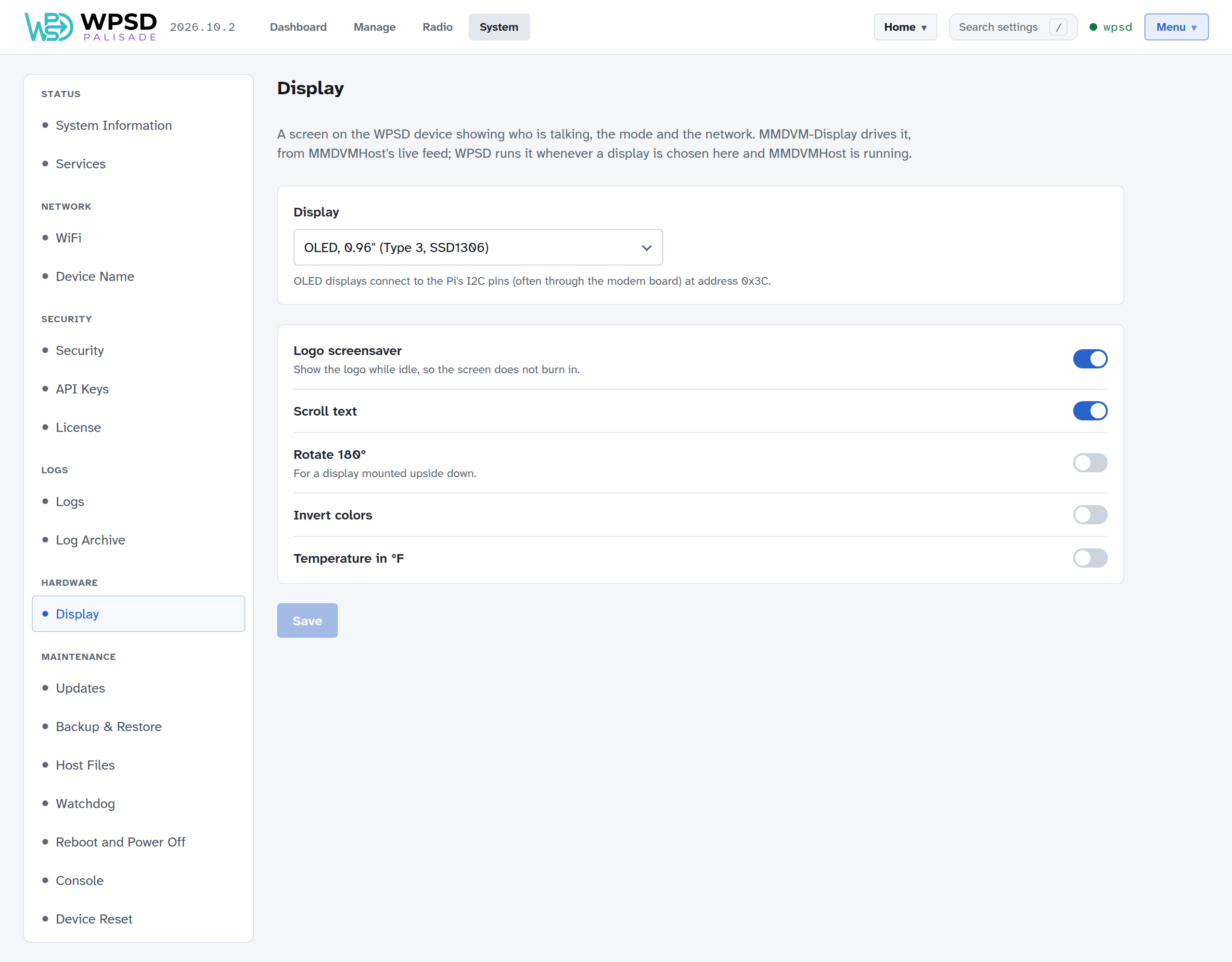
Choose your screen under Display, adjust its settings, and Save. The display restarts with the new settings. MMDVM-Display drives the screen, from MMDVM-Host’s live feed; WPSD Palisade runs it whenever a display is chosen and MMDVM-Host is running.
Guided Setup looks for a display and chooses it for you: an OLED on the Pi’s pins, or a Nextion on a USB adapter.
The displays
Display |
Connected to |
|---|---|
OLED, 0.96” (Type 3, SSD1306) |
The Pi’s I2C pins, often through the modem board, at address 0x3C |
OLED, 1.3” (Type 6, SH1106) |
The same |
Nextion |
The modem board, or a serial port on the Pi (such as a USB adapter) |
HD44780 character LCD (I2C) |
The Pi’s I2C pins, on a PCF8574 backpack |
TFT Serial (Surenoo) |
The modem board, or a serial port on the Pi |
LCDproc |
An LCDproc server, on the WPSD device or elsewhere |
Choose None if you have no display.
Settings
OLED:
Logo screensaver: show the logo while idle, so the screen doesn’t burn in.
Scroll text. The 1.3” display doesn’t scroll.
Rotate 180°, for a display mounted upside down, and Invert colors.
Nextion:
Port: Modem board if the screen is wired to the modem, or the Pi’s serial port it’s on, and the Speed for a serial port.
Screen layout: must match the screen file loaded on your Nextion (G4KLX, ON7LDS or ON7LDS DIY).
Caller details (ON7LDS layouts): the modes whose pages show who’s calling, with their callsign, name, city, state and country, and on DMR the talkgroup’s name. Every mode is chosen at first. The WPSD device looks callers up in RadioID’s lists, and names talkgroups as the dashboard does, prefixed talkgroups included. Screens made for the NextionDriver of WPSD (legacy) show them in the same places, with no NextionDriver, groups file or user file needed.
Brightness and Idle brightness.
Show the clock while idle, and Clock in UTC.
Screen file: load a new layout into the screen; see Loading a screen file.
HD44780: the Size (columns × rows) and the backpack’s I2C address. Most backpacks are at 0x27 (or 0x3F for the PCF8574A); i2cdetect -y 1 in the Console shows yours.
LCDproc: the server’s address and port, Dim while idle, and the clock.
Every display can show the temperature in °F instead of °C.
Note
The display’s clock follows the time zone the dashboard uses, set in Preferences, unless Clock in UTC is on. If the dashboard follows each viewer’s browser, the display shows UTC.
Loading a screen file into a Nextion
A Nextion’s layout is a compiled screen file (.tft). With a Nextion chosen and saved, the Screen file section shows which screen it is and gets a new layout into it.
Detected: WPSD asks the screen which it is: its model (such as
NX4832K035), size, resolution, firmware and memory. Check again asks once more. If it doesn’t answer, check the wiring and the Port; after a load that stopped midway, see below.WPSD screens: WPSD’s own screens, listed for your screen’s model (Show all lists the others).
Your own file: drop or choose a
.tftmade for your exact screen model. WPSD keeps your five newest files. A file made for another screen size is refused before anything is sent.
A screen on a USB serial adapter (or the Pi’s own serial pins): Load screen file… loads it from the page in a few minutes, at 115200 bps. The screen is blank while it loads; the radio keeps working, and you can leave the page.
A screen on the modem board: the modem passes data to the screen at a fixed 9600 bps, so loading a screen file that way would take well over an hour. WPSD doesn’t; instead, Download the file and load it from the screen’s SD card:
Copy the
.tftalone onto a FAT32 microSD card (32 GB or smaller).Switch the WPSD device off, put the card in the screen’s slot, and switch it on. The screen shows its progress.
When it’s done, switch off, take the card out, and switch on again.
A load that stops midway doesn’t harm the screen, but the screen then waits for the rest of the file and answers nothing: switch the WPSD device off and on (unplug it, so the screen loses power), then load the file again. A Nextion can’t send its current layout back, so keep a copy of any screen file you might want again.
Wi-Fi and Device Name
System > WiFi manages the Wi-Fi networks your WPSD device joins. System > Device Name sets the name it’s known by on your network.
Wi-Fi
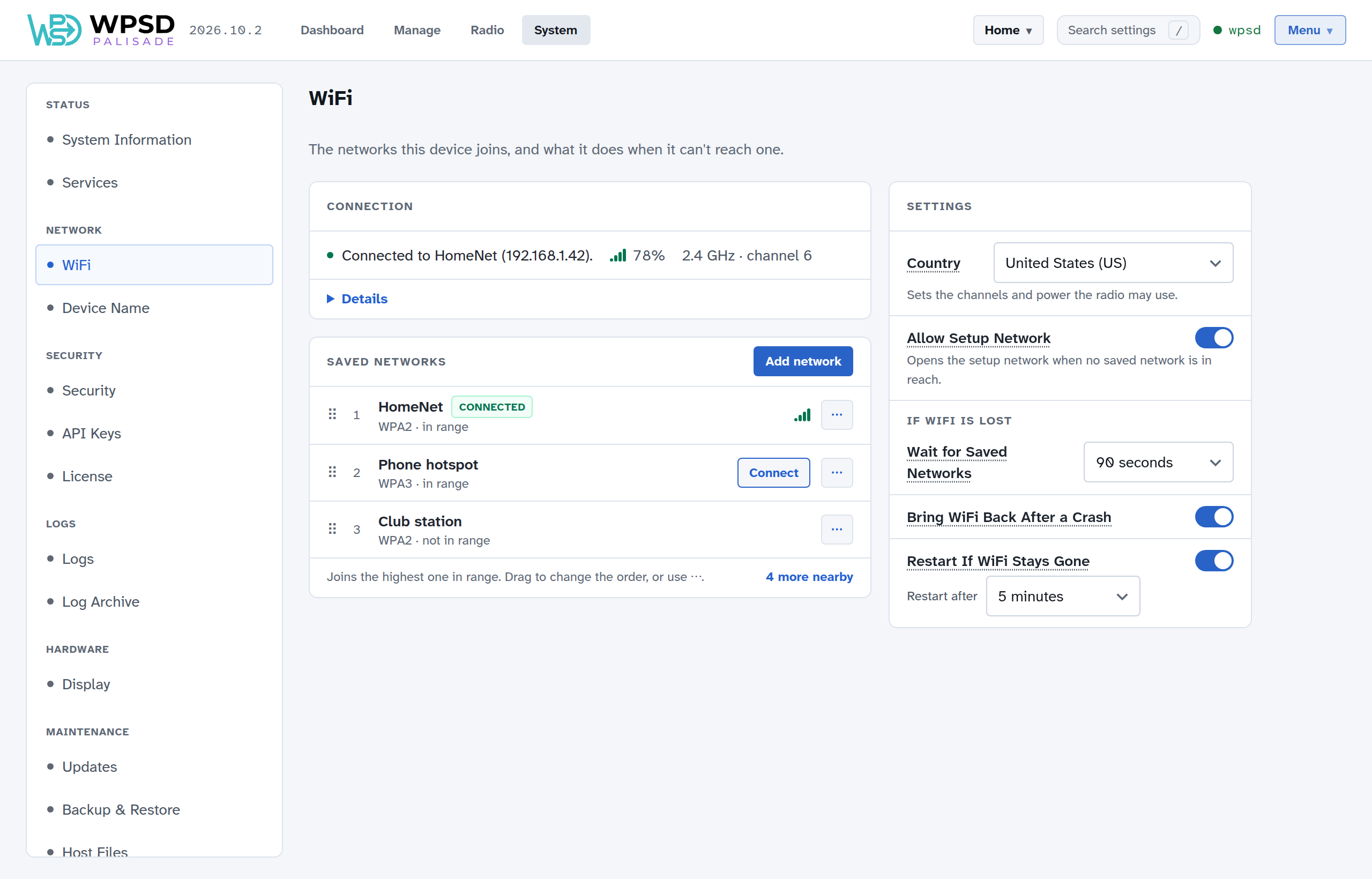
Connection shows the network in use, its signal and channel. Details opens the rest: link speed, addresses, the access point, transmit power and traffic. If the WPSD device is online through Ethernet instead, it says so.
Saved networks
The WPSD device joins any saved network in range. When several are in range, it joins the one highest in the list. Each network says whether it’s in range; Connect switches to one now. Its ⋯ menu also moves it up or down the list, or forgets it (after asking). On a computer you can drag a network by its handle to a new place.
Note
If the page reaches the WPSD device over Wi-Fi, switching networks or forgetting the one in use cuts the page off. The page says where to find the dashboard afterwards. If a switch fails, the WPSD device goes back to the network it was on.
Adding a network
Add network opens one window for every way to add a network:
Nearby lists the networks in range. Choose one, enter its password, and Save and connect (or Save only, to join it later, such as your phone’s hotspot before a trip).
By name adds a network that isn’t in range, or a hidden one (tick Hidden network).
From a file takes a NetworkManager profile (
.nmconnectionfile), such as one exported from another Linux computer. Use it for enterprise networks (with a username as well as a password), which can’t be set up any other way here.
If connecting fails, the page says why: the password wasn’t accepted, the network isn’t in range, it gave the WPSD device no address, and so on.
Settings
The settings beside the networks take effect as soon as you change them; there’s no Save button (see System). Hover over or tap a setting’s name for the full explanation.
Country is the country the WPSD device is in. It sets which channels and how much transmit power the Wi-Fi may use; with the wrong country, the WPSD device may not see your network at all.
With Allow Setup Network on, a WPSD device that can’t reach any saved network starts an open network named WPSD-Setup-…, so you can set up Wi-Fi wherever you take it: join it from your phone, and the setup page opens. While the setup network is up, the WPSD device takes it down for a moment every 3 minutes to look for its saved networks, unless someone has the setup page open.
Turn it off only if the WPSD device never leaves a network it already knows. Then a WPSD device that loses its network only retries its saved networks, and until one comes back it can be reached only over Ethernet, or by putting a .nmconnection file on the SD card’s boot partition. (A WPSD device with no saved network at all still starts the setup network; otherwise it could never be set up.)
Your WPSD device also has a protected recovery network, described in Security.
If WiFi is lost
Wait for Saved Networks (90 seconds unless you change it): after the WPSD device starts, or after its Wi-Fi comes back, how long your saved networks get to connect before the setup or recovery network starts. On a weak signal a network can take a while to show up; a longer wait keeps the setup network from starting while the WPSD device is still joining.
Bring WiFi Back After a Crash (on): on some Raspberry Pi models, the Zero 2 W in particular, the Wi-Fi chip can crash on a weak signal and its Wi-Fi disappears. The WPSD device reloads it, usually within a minute, and joins your network again.
Restart If WiFi Stays Gone (on, after 5 minutes): the last resort when Wi-Fi does not come back. The WPSD device waits for any call on the air to end first, and never restarts while it is online over Ethernet.
Device name
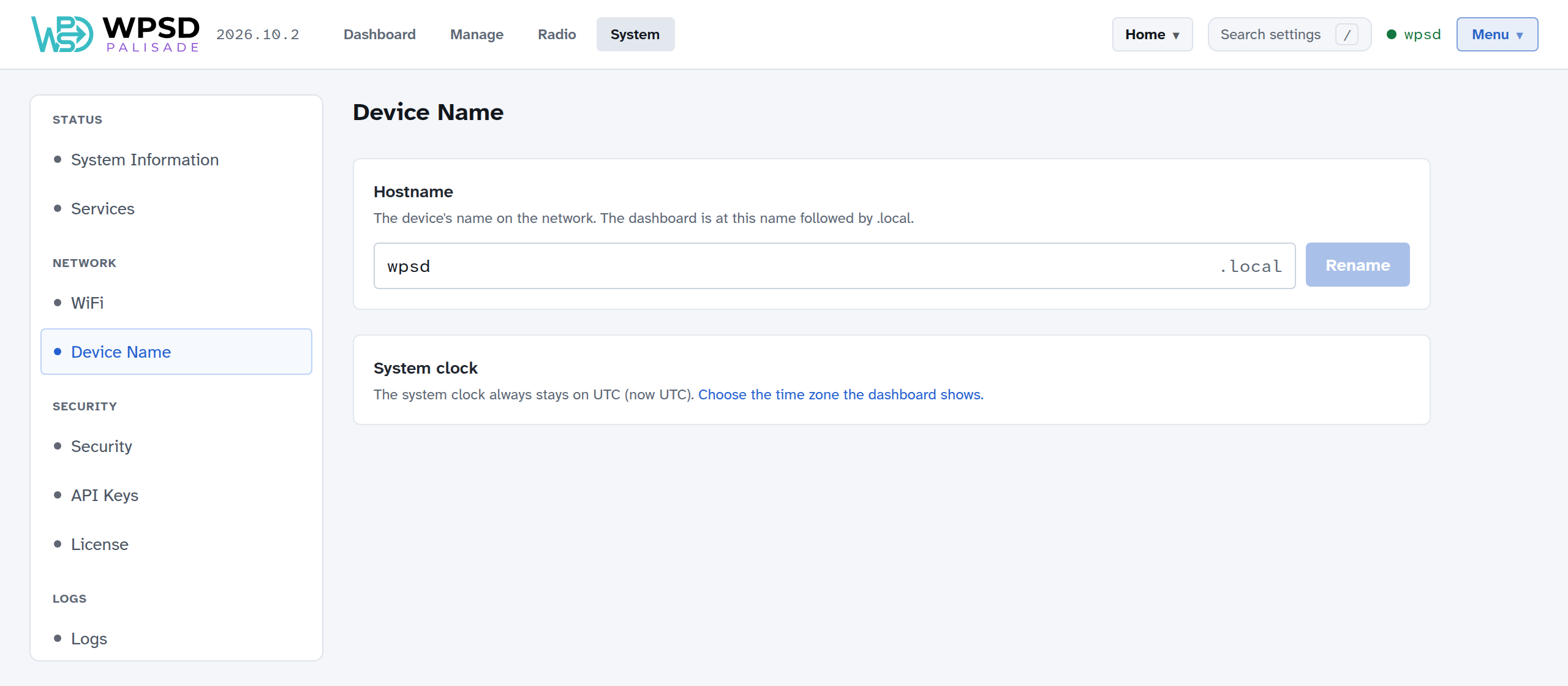
The device name (hostname) is your WPSD device’s name on the network: the dashboard is at that name followed by .local, such as http://wpsd.local. Use lowercase letters, digits and dashes, up to 63, not starting or ending with a dash.
Enter a new name and choose Rename. The dashboard moves to the new address, and you log in there again. Some things, such as your router’s list of devices, only pick up the new name after a restart: the page offers to reboot once the WPSD device is renamed.
Give each WPSD device its own name if you have more than one on the same network.
Tip
If .local addresses don’t open on your network (some routers, guest networks and phones don’t support them), open find.wpsd.direct on a phone or computer on the same network, or find the WPSD device’s address in your router’s list of connected devices and use that instead.
The system clock always stays on UTC. The time zone the dashboard shows is in Preferences.
Security and Keys
System > Security sets who can watch and change your WPSD device, and how you get in. System > API Keys holds your keys for the networks’ own services.
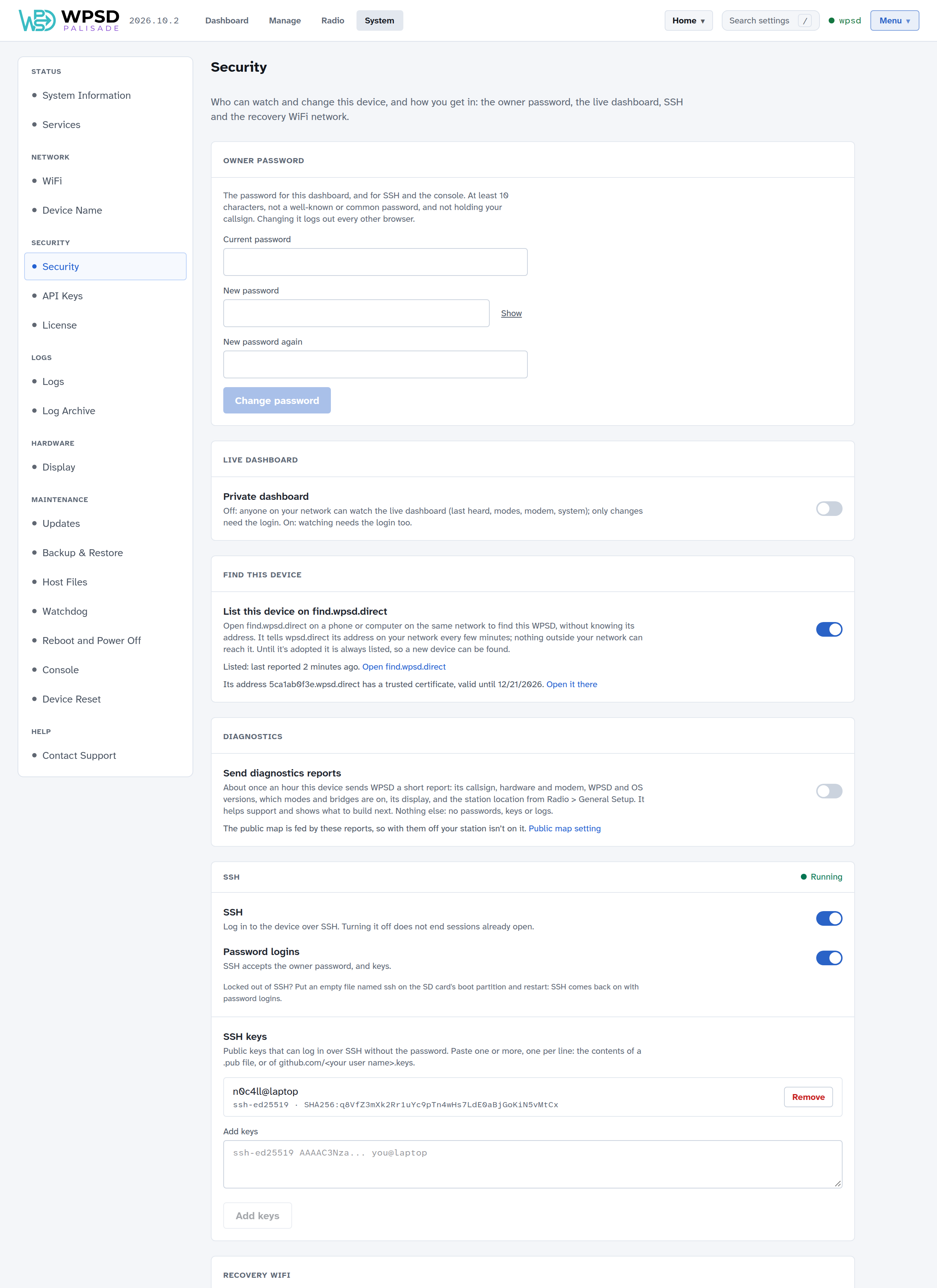
Owner password
One password, the owner password, logs you in to the dashboard, to SSH and to the Console. You set it when you first set up the WPSD device.
To change it, enter the current password and the new one twice, then Change password. It needs at least 10 characters. Changing it logs out every other browser.
Passwords WPSD refuses
Whoever tries to break into a WPSD device tries the obvious first, so WPSD refuses those passwords, and says why as you type:
Well-known defaults of similar software and of the systems WPSD devices run on, which owners often carry over.
Placeholders from WPSD’s own settings, such as the sample passwords in its settings files.
Common amateur radio words, the first guesses against a radio device.
The 10,000 most common passwords from leaked password lists.
Your own details: a password holding your callsign, DMR ID, the WPSD device’s name, or “wpsd”. Anyone can look those up.
Each counts in any mix of upper and lower case, with or without dashes, with common letter swaps (p@ssw0rd), and with digits or symbols added at either end (dragon2024!). A few unrelated words make a password that’s both strong and easy to remember. The first-boot file and the First Boot Configurator follow the same rules.
A password you set before these rules keeps working; the next change follows them.
Private dashboard
With Private dashboard off, anyone on your network can watch the live dashboard (Last Heard, modes, modem, system); only changes need the login. Turn it on, and watching needs the login too.
Find this device
With List this device on find.wpsd.direct on, you (or anyone on your network) can find the WPSD device by opening find.wpsd.direct on a phone or computer on the same network, without knowing its address (see First Boot).
To make that work, the WPSD device tells wpsd.direct its address on your network every few minutes, and whenever it changes: its name, its ID, its local addresses, the dashboard’s ports, its WPSD Palisade version and whether it’s adopted. Nothing outside your network can reach those addresses, and find.wpsd.direct only shows them to browsers on the same network as the WPSD device. Each WPSD device signs what it sends with a key of its own, which never leaves it and grants nothing on the WPSD device itself.
The section shows when the WPSD device last reported, and any problem reaching wpsd.direct.
Its own address and certificate. A listed hotspot also gets an address of its own, <id>.wpsd.direct (the ID is ten characters, starting with the six in its setup network’s name), pointing at it on your network, and a certificate for that address from Let’s Encrypt. Opened there, the dashboard shows no browser warning. Getting the certificate takes a few minutes the first time; the WPSD device renews it by itself. The section shows its state: being ordered, or valid until a date, with a link to open the dashboard there.
Note
While wpsd.direct is being tested, hotspots get test certificates, which browsers don’t trust yet: the section says so, and the find page keeps linking to the WPSD device’s address on your network. Nothing needs doing when that changes.
Turn it off, and the WPSD device asks wpsd.direct to drop it and stops reporting. Until a WPSD device is adopted, it’s always listed, so a new one can be found.
Diagnostics
With Send diagnostics reports on (the default), the WPSD device sends WPSD a short report about once an hour: its callsign, hardware and modem, WPSD and operating system versions, which modes and cross-mode bridges are on, its display, and the station location from Radio > General Setup. It helps WPSD support and shows what to build next. No passwords, keys or logs go with it.
The public User Map is fed by these reports. Your station only appears on it if you also switch on Show on Public Map in Radio > General Setup, and turning reports off also takes it off the map (one last report tells the map). While reports are off, the map setting can’t be switched on.
SSH
SSH lets you log in to the device from a terminal on your computer.
SSH turns the SSH server on or off. A new WPSD device ships with SSH off; turn it on here, in wpsd-firstboot.toml, or (to recover a WPSD device you can’t reach) with an
sshfile on the SD card’s boot partition. Turning it off doesn’t end sessions already open. The Console needs SSH on.Password logins: on, SSH accepts the owner password, and keys. Off, it accepts keys only. Add a key before turning password logins off.
SSH keys: public keys that can log in without the password. Paste one or more, one per line, into Add keys: the contents of a
.pubfile, or ofgithub.com/<your user name>.keys. Each key is listed with its comment and fingerprint, with Remove.
Tip
Locked out of SSH? Put an empty file named ssh on the SD card’s boot partition (the part a computer can open) and restart: SSH comes back on, with password logins.
Recovery Wi-Fi
If the WPSD device can’t join any saved Wi-Fi network, it raises its own network, named WPSD-Recovery- and the device’s ID, protected by the passphrase shown here. Join it from your phone or computer to reach the dashboard and fix the Wi-Fi (see Wi-Fi and Device Name).
The passphrase is hidden until you show it; Copy copies it, and Change sets your own. Keep it somewhere you can find it without the WPSD device.
API keys
System > API Keys holds your keys for BrandMeister, TGIF, SystemX and DAPNET. Manage uses them to change talkgroups, and DAPNET’s to send messages.
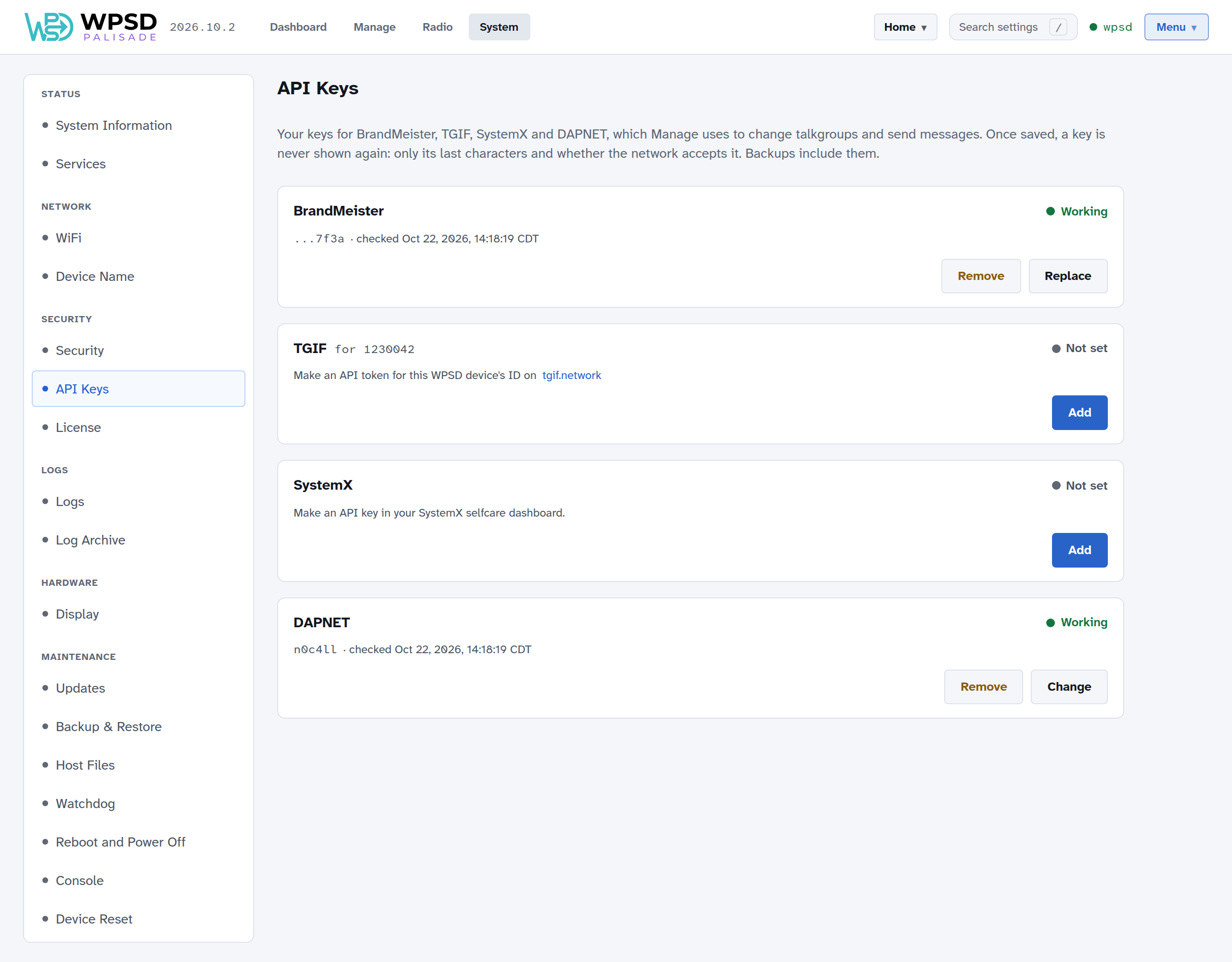
Each card says where to get the key:
Network |
What to enter |
Where to get it |
|---|---|---|
BrandMeister |
API key |
BrandMeister SelfCare: Profile > API Keys |
TGIF |
API token |
tgif.network, for this WPSD device’s DMR ID (shown on the card) |
SystemX |
API key |
Your SystemX selfcare dashboard |
DAPNET |
Username, password, transmitter group and your pager’s RIC |
Your DAPNET login, from hampager.de |
Add (or Replace), paste the key, then Save and check: the WPSD device asks the network whether it accepts the key, and the card shows Working, Rejected, or Couldn’t check (offline). Keys are checked again whenever Manage uses them.
Once saved, a key is never shown again, not even to you: only its last characters and whether the network accepts it. Backups include them; profiles don’t (API keys are the same in every profile).
License
WPSD Palisade runs while your WPSD device holds a valid license. The device renews it by itself about once an hour over the internet; System > License shows where it stands.
Free for 14 days
A new WPSD device runs as soon as it is online: the first time it checks in, it gets 14 free days on its own, with nothing to send and nobody to wait for. System > License says Free for 14 days and how many days are left. Free days are once per device: reflashing it doesn’t start them again, though during them a fresh SD card carries on with the days left.
The top bar stays quiet until the last 3 days, then says how many free days are left. System > License then shows What comes next:
Buy a license. Contact WPSD opens Contact Support: write that you’d like a license for this device. The message carries the device’s details, so there’s nothing to look up.
Ask for more time. Once per device, with a note if you like. The WPSD team answers, and the device picks up the extra days at its next check-in.
When the free days are over, the radio stops and the top bar says Free days are over. Settings, Last Heard and network setup stay just as they were. The same choices are on System > License, with a third:
Already have a license, or testing for WPSD? Send the code shown there, such as
WX7K-3PQD, to the WPSD team (W0CHP) with your callsign. Once it is approved, the device picks up its license within 15 minutes and starts on its own; Check now asks at once.
Attaching a device
A device that has used its free days (or any new device, while the WPSD team has free days switched off) shows a code on System > License and keeps its radio off until the code is approved, as above. The top bar says License needed until then, and an OLED or Nextion display shows License needed.
While it runs
The page shows who the license belongs to, what it includes (Operation, and Testing builds for testers), and the date it is valid until. That date moves forward with every renewal: 30 days ahead for a paid license, 7 for a tester’s. If the license server can’t be reached under its main name, the device tries its backup names on other domains by itself.
If the device can’t renew for a day or more (no internet, or the license was ended), the top bar says License ends in N days once the end is within 7 days. Check the device’s internet connection: it renews on its own as soon as it can reach the license server. When the date passes, the radio stops until the license is renewed.
Testers
A tester’s license also has an end date for the testing period. Under More testing time, ask for an extension, with a note on what you are testing if you like; the WPSD team approves it, and the device picks it up within a day.
The testing update channel (see Updates) needs a tester’s license: Testing appears in the channel choices once the device holds one. Stable and beta don’t need it.
A disabled device
The WPSD team can disable a device, for example one that is being misused or has been compromised. A disabled device stops at its next check-in (within the hour when it is online), even with a license that doesn’t expire, and stays off until it is enabled again: a fresh SD card doesn’t change that.
While it is disabled, its radio, sudo and SSH are off, and the dashboard shows only a notice with two things you can still do once logged in:
Write to WPSD support. The same form as Contact Support: if you think it’s a mistake, say so; the answer comes by email.
Change networks. The device must be online to hear that it has been enabled again. If you moved or have a new router, set up the network there, or plug in Ethernet. If it can’t reach any network, it opens its setup network as on first boot.
Once it is enabled again, the device starts by itself at its next check-in, and SSH comes back on if it was on before.
Things to know
A license is for one device. It is tied to the board, not the SD card: a card moved to another Raspberry Pi needs that Pi attached. A licensed device that was reflashed shows a new code; once it is approved, it keeps its license.
Licenses aren’t transferable between people. If you sell or give away a device, tell the WPSD team so its license is ended; the new owner attaches it again.
sudo (administrator commands over SSH or the Console) works only while the device holds a valid license.
Requests to WPSD’s own servers (updates, modem firmware, host files, callsign lookups, diagnostics) carry the device’s license, so those servers know it is licensed. Requests to anyone else never do.
Contact Support
System > Contact Support sends a message to WPSD support straight from the WPSD device. The answer comes by email.
Write what you were doing, what happened and what you expected. Give your email address, or nobody can write back; your name is optional.
With every message the WPSD device sends its callsign, WPSD version, board, modem and license state, so you needn’t look them up. Each message is signed with the device’s own key (the same one find.wpsd.direct uses), so it can’t be faked.
The diagnostics file
Send a diagnostics file (on by default) also sends:
the device’s recent logs, up to two days of them;
its settings files, with every password, key and token taken out first: network passwords, APRS passcodes, API keys and the like never leave the device.
It helps find the cause much faster. It is kept 90 days, then deleted. The whole file is at most 5 MB; the device sends fewer days of logs when it would be larger.
Things to know
At most 5 messages a day from one WPSD device. For more, email wp-support@wpsd.radio.
The device needs to be online: if it isn’t, the form says so and nothing is sent.
A disabled WPSD device shows the same form on its notice.
See WPSD’s privacy page for what is kept and for how long.
Console
System > Console opens a terminal on your WPSD device, in the browser: a shell for anything the pages don’t cover.
The Console logs in over SSH on the WPSD device itself, with no password to type. It needs SSH on: if it’s off, the page offers Turn SSH on. Turning SSH on also lets SSH clients on your network log in, as set in Security.
Each login, here or over SSH, starts with a summary of the WPSD device: its release, station and profile, whether the radio is running, the modem and frequencies, the network, health, and updates. Anything that needs you shows in amber or red.
Editing the radio programs’ settings files by hand doesn’t work and isn’t supported: WPSD writes them from its own settings and replaces your changes. Use the dashboard; for settings it has no page for, use Custom Settings.
Ctrl+Shift+C copies the selection; Ctrl+Shift+V pastes.
sudoasks for the owner password.Choose the color scheme and text size at the top.
If the session ends (you typed exit, or the connection dropped), choose Reconnect. Logging out of the dashboard closes the Console too.
Warning
When the dashboard is on plain HTTP, what you type in the Console, sudo passwords included, crosses your network unencrypted, as the dashboard login does. The page marks this Not encrypted.
Caution
The Console gives you the whole system. Settings you change by editing files are overwritten by WPSD Palisade: it writes the radio programs’ configuration from its own settings. Make changes in the pages, or in Custom Settings.
Services and Watchdog
Your WPSD device is a set of programs working together: MMDVM-Host drives the modem, and a gateway for each mode connects it to that mode’s networks. System > Services shows them; System > Watchdog keeps them running.
Services
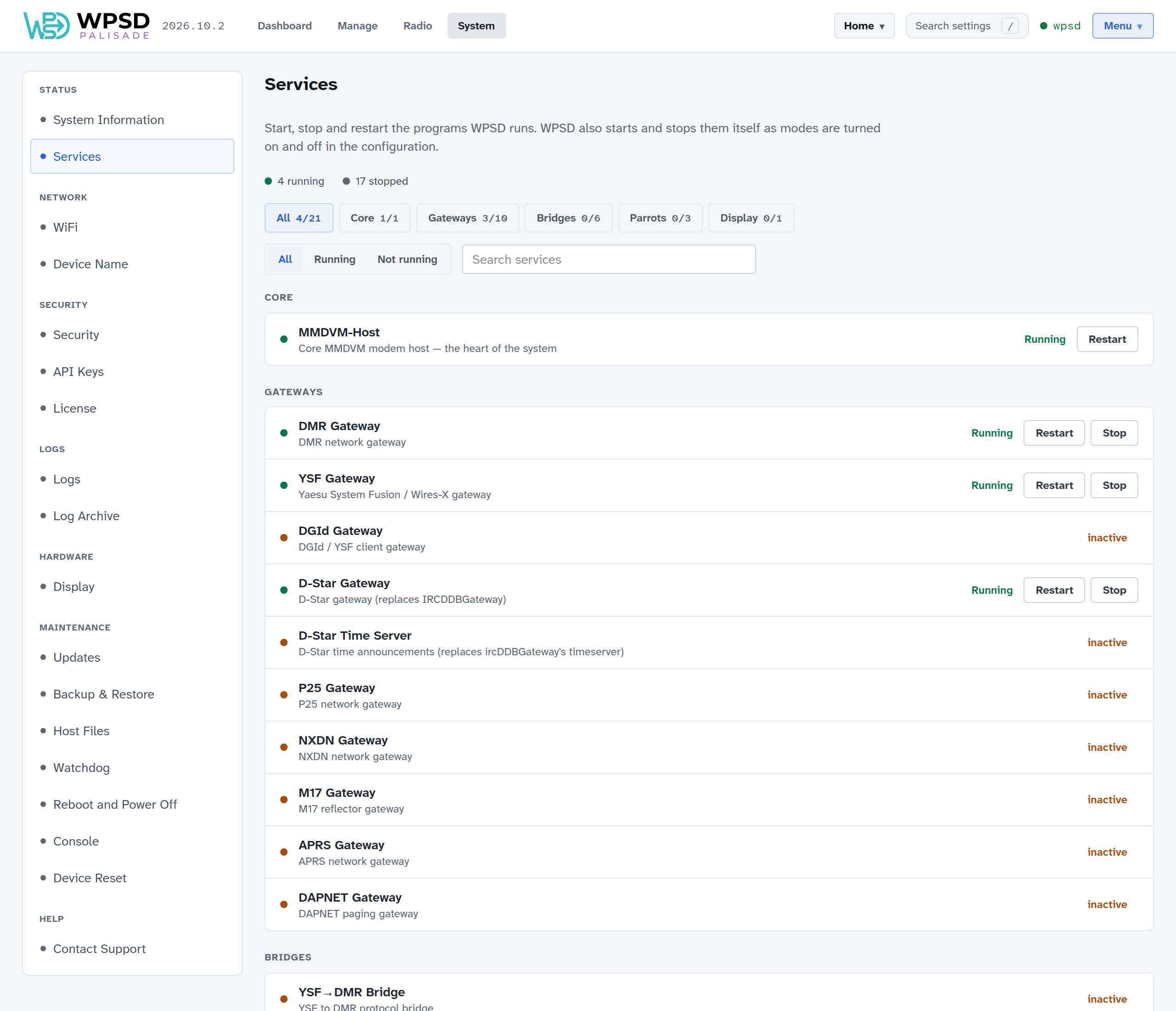
WPSD Palisade starts and stops the programs itself as you turn modes on and off in Radio, so you rarely need this page. It’s for seeing what runs, and restarting a program that misbehaves.
The programs are grouped:
Group |
Programs |
|---|---|
Core |
MMDVM-Host, which drives the modem and so your radio: every mode goes through it. |
Gateways |
One per mode, connecting MMDVM-Host to that mode’s networks: DMR Gateway, YSF Gateway, DGId Gateway (YSF DG-ID routing), D-Star Gateway and D-Star Time Server (spoken time announcements), P25 Gateway, NXDN Gateway, M17 Gateway, APRS Gateway and DAPNET Gateway (paging). |
Bridges |
The cross-mode bridges, such as YSF→DMR. |
Parrots |
The YSF, P25 and NXDN parrots, which play back what you say. |
Display |
MMDVM-Display, for a display on the WPSD device. |
Filter by group, by Running or Not running, or search by name. Each running program has Restart and Stop, and a stopped one has Start. MMDVM-Host, at the core, can be restarted but not stopped.
Note
Stopping a program here doesn’t turn its mode off. To turn a mode off, turn it off on its page in Radio.
A program shown as Failed stopped by itself: its log says why.
The watchdog
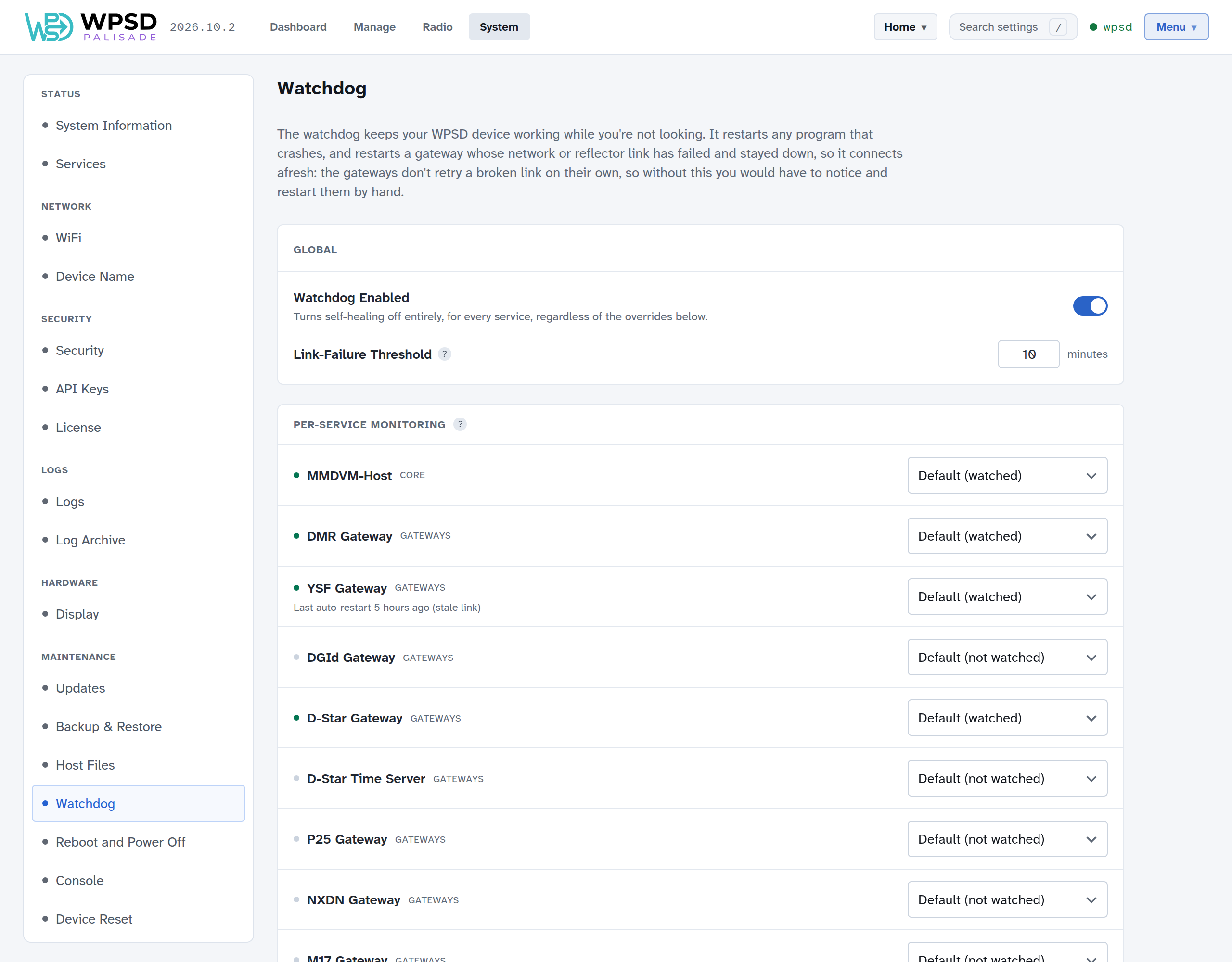
The watchdog keeps your WPSD device working while you’re not looking. It watches the programs you use and:
restarts any that crash;
restarts a gateway whose network or reflector link has failed and stayed down, to make it connect afresh. The gateways don’t retry a broken link on their own once it drops, so without this you’d have to notice and restart them by hand.
Watchdog Enabled turns all of this on or off. Link-Failure Threshold is how long, in minutes, a gateway may report a failed link before the watchdog restarts it.
Under Per-Service Monitoring, each program is watched by default if it’s enabled (turn a mode on, and its programs are watched). Choose Always Watch or Never Watch to override that for one program. Each program shows when the watchdog last restarted it, and why (crash or stale link).
If the watchdog has had to restart a program several times in a short while, it stops trying and marks it as backed off, needing attention. Look at the program’s log to find out why, fix the cause, then choose Reset to let the watchdog watch it again.
Logs
Every program on your WPSD device writes a log of what it does: each call, each network connection, and every error. When something doesn’t work, its log almost always says why. System > Logs shows them live; System > Log Archive sets how they’re kept.
The log viewer
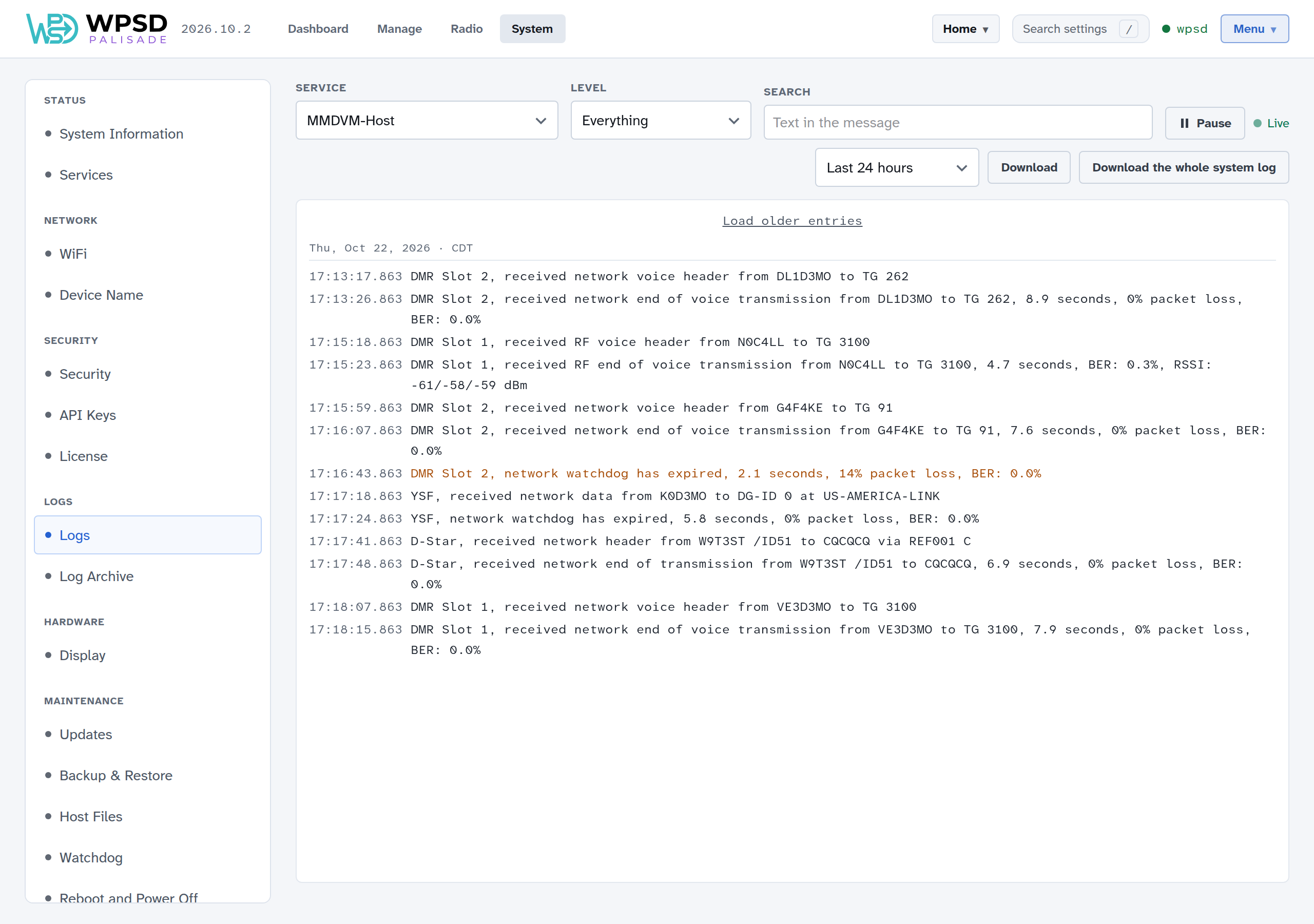
Choose a log under Service (or from the buttons shown before you choose), and the viewer shows its latest entries and follows it live as new lines arrive.
Level: show everything, or only information, warnings or errors. Warnings are shown in amber, errors in red.
Search: only lines containing some text, such as a callsign or talkgroup.
Pause stops the view moving so you can read; nothing logged meanwhile is missed, and Resume shows it.
Load older entries at the top goes further back.
Which log to read
Problem with |
Read |
|---|---|
Your radio and the WPSD device: no audio, not keying up, BER |
MMDVM-Host |
A DMR network or talkgroup |
DMR Gateway (and MMDVM-Host) |
YSF reflectors and rooms |
YSF Gateway, or DGId Gateway with DG-ID routing |
D-Star reflectors |
D-Star Gateway |
P25, NXDN or M17 |
P25 Gateway, NXDN Gateway or M17 Gateway |
Cross-mode |
The bridge, such as YSF→DMR Bridge |
APRS or paging |
APRS Gateway or DAPNET Gateway |
The dashboard itself, settings, profiles |
WPSD |
Wi-Fi |
NetworkManager and WPSD network helper |
Anything else |
System log (everything) or Kernel messages |
Downloading logs
To send logs to someone helping you, choose a period under the log (Last hour, Last 24 hours, Last 7 days or Everything kept), then:
Download saves the chosen log;
Download the whole system log saves every program’s log.
Both keep the level and search you’ve set; clear them first to download everything.
Note
Logs hold your callsign, the callsigns you’ve heard and your network’s addresses. Look through them before posting them publicly.
The log archive
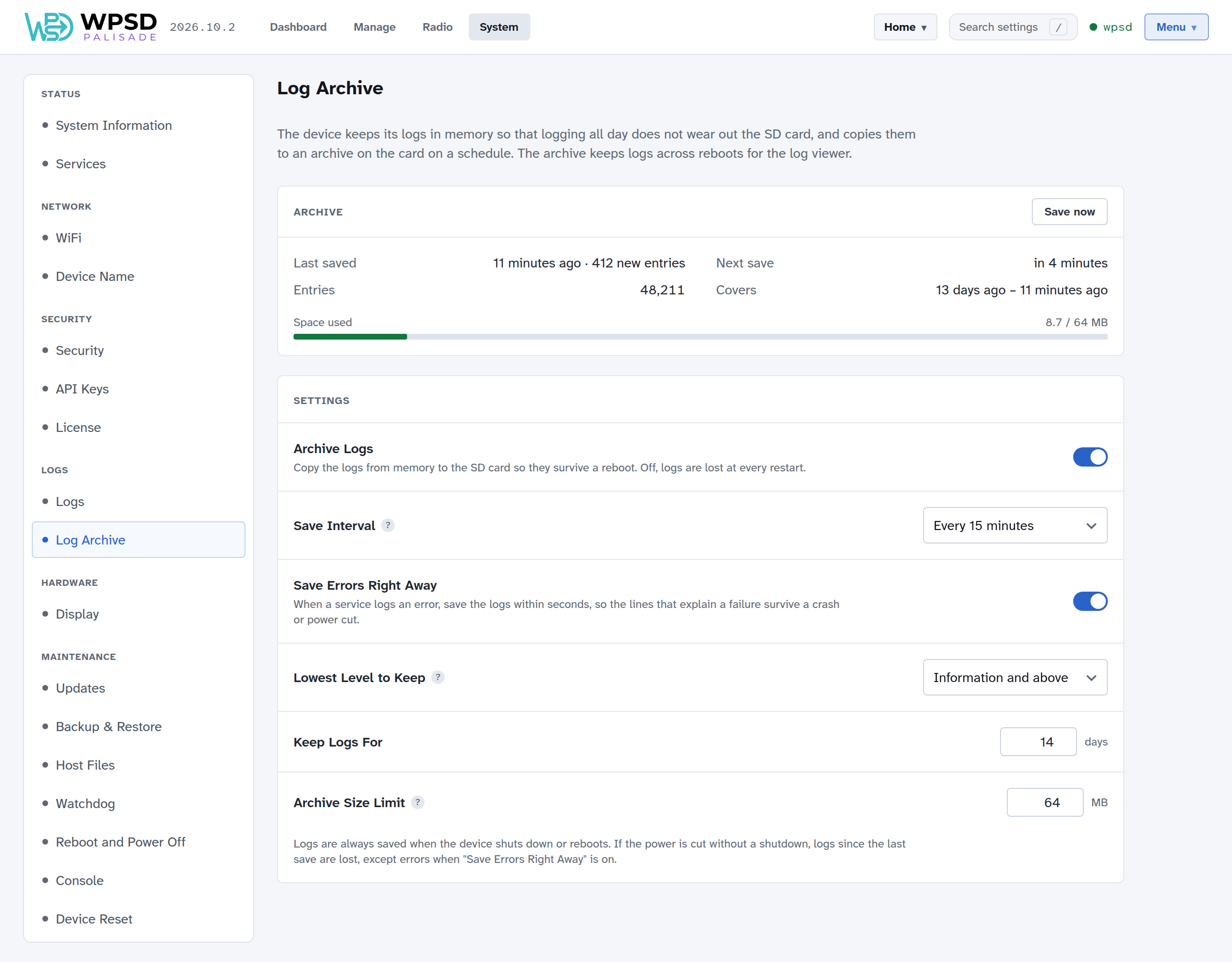
The WPSD device keeps its logs in memory, so that logging all day doesn’t wear out the SD card, and copies them to an archive on the card on a schedule. The archive keeps logs across restarts, for the log viewer.
The Archive card shows when the logs were last saved, when they’ll be saved next, how many entries the archive holds and how far back, and the space used. Save now saves straight away.
Setting |
What it does |
|---|---|
Archive Logs |
Copy the logs to the SD card so they survive a restart. Off, logs are lost at every restart. |
Save Interval |
How often the logs are copied to the card. Less often means less wear on the card, and more lost if the power is cut without a shutdown. |
Save Errors Right Away |
When a program logs an error, save the logs within seconds, so the lines that explain a failure survive a crash or power cut. |
Lowest Level to Keep |
Messages less important than this aren’t archived. They stay in memory until the next restart. |
Keep Logs For |
Days to keep. |
Archive Size Limit |
When the archive reaches this size, the oldest entries are removed first. |
Logs are always saved when the WPSD device shuts down or restarts from the dashboard (see Restart and Shut Down). If the power is cut without a shutdown, logs since the last save are lost, except errors when Save Errors Right Away is on.
Host Files
To list reflectors, masters and talkgroups, and to show who’s calling, your WPSD device keeps host files: the lists every gateway uses of reflectors and hosts, talkgroups, and radio IDs, for DMR, YSF, D-Star, P25 and NXDN. System > Host Files keeps them up to date.
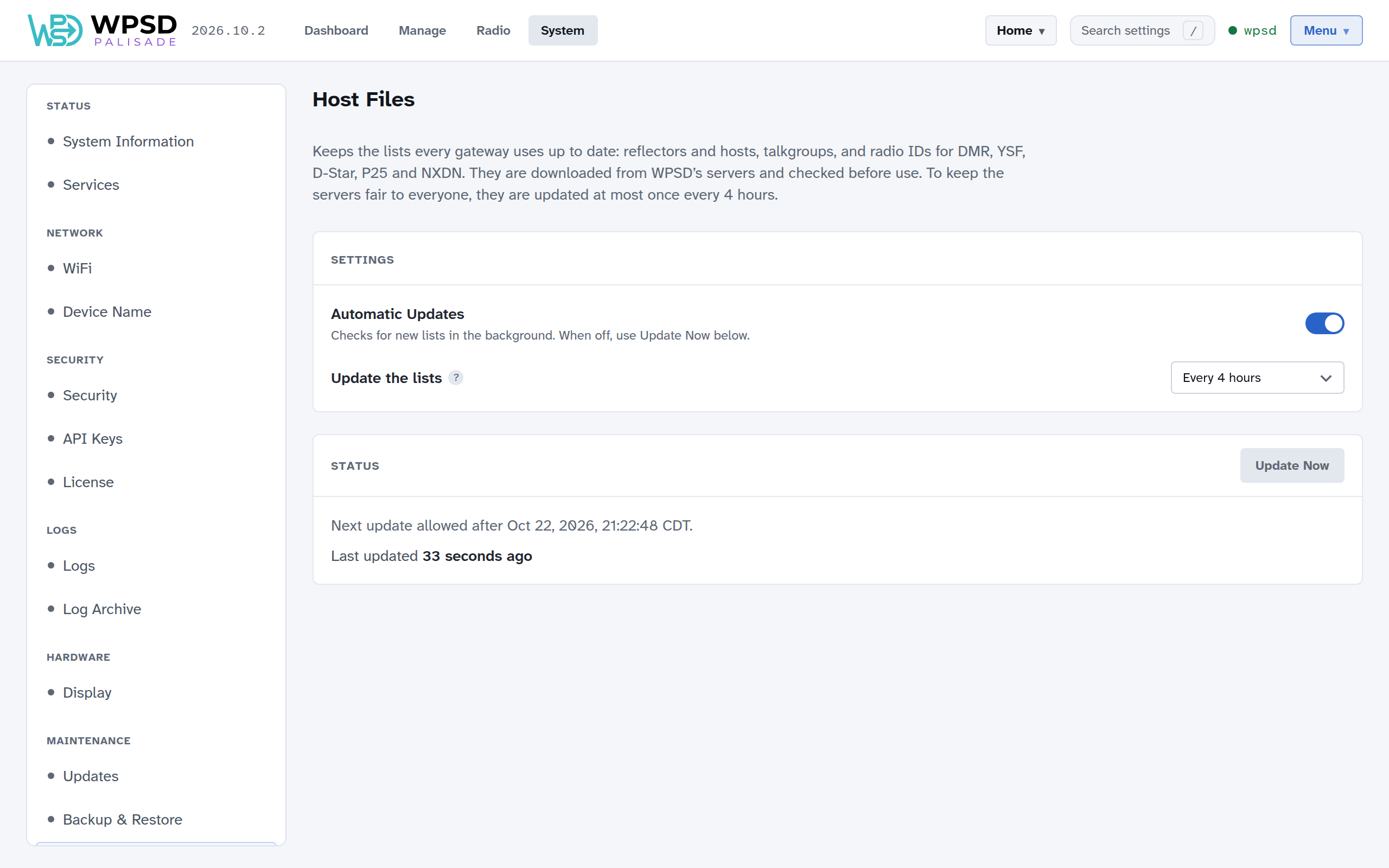
The lists are downloaded from WPSD’s servers and checked before use, so a damaged download never replaces a good list.
Automatic Updates: checks for new lists in the background. Leave it on.
Update the lists: how often. Every 4 hours is the most often allowed.
Update Now fetches new lists straight away, if the last update was more than 4 hours ago. The Status card says when the next update is allowed.
Note
To keep the servers fair to everyone, the lists are updated at most once every 4 hours, Update Now included. New lists every 4 hours are plenty: reflectors and talkgroups don’t change faster than that.
A reflector or master has gone from the list
The lists are checked regularly, and a reflector or master that doesn’t answer at that moment is left out until it’s reachable again. If yours has gone, it’s usually back within a few hours.
To use a server that’s never in the lists (a club master, a private reflector), add it yourself: see Custom Hosts and Talkgroup Names. Your own entries are kept separately, so updates never remove them.
Restart and Shut Down
System > Reboot and Power Off restarts your WPSD device, or shuts it down safely before you unplug it. Either way, the running programs stop cleanly and the log archive is saved first.
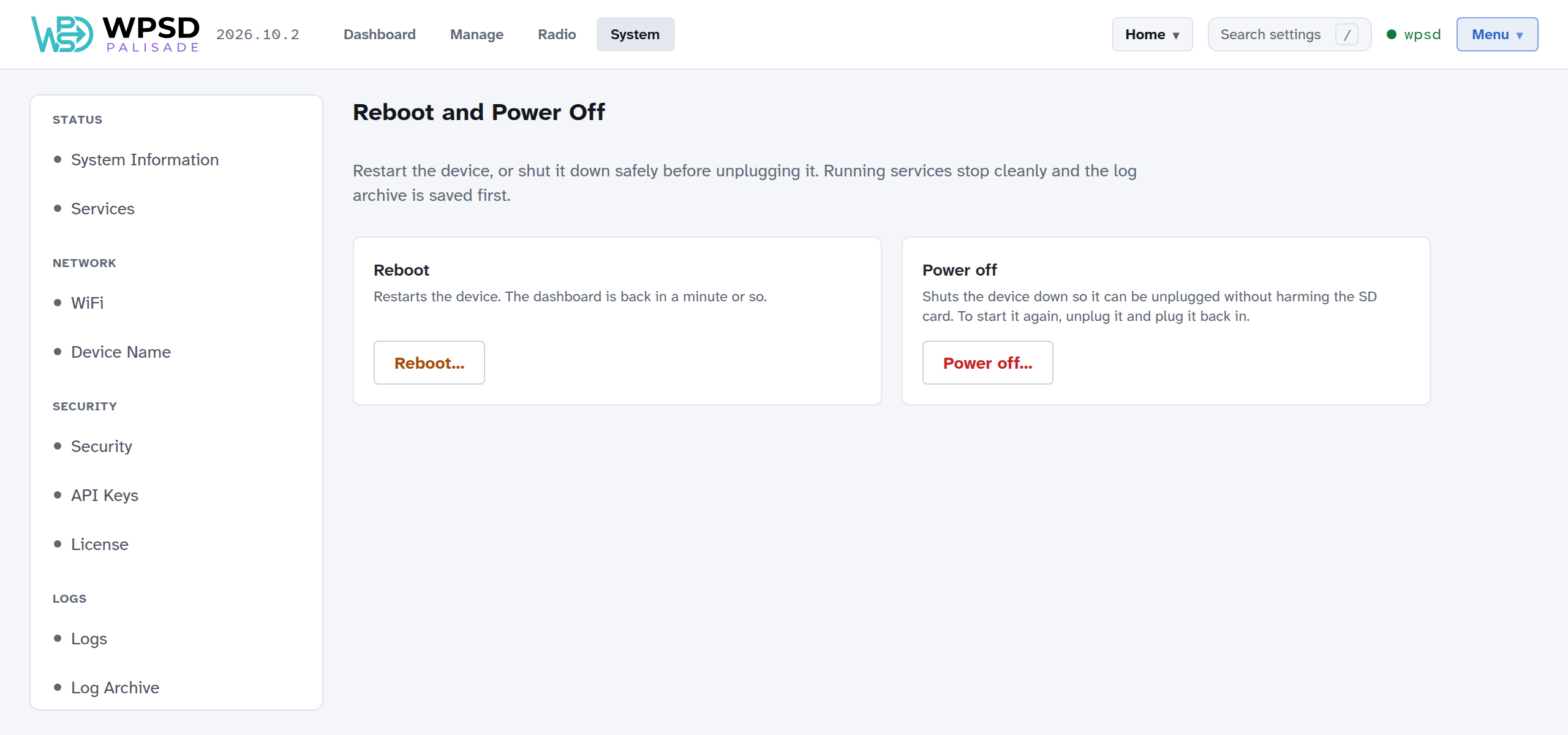
Reboot
Reboot…, then confirm: the WPSD device restarts and the dashboard is back in a minute or so. The page waits and reloads by itself when the WPSD device is back. If it takes more than 3 minutes, check the WPSD device’s power and network.
Power off
Power off…, then confirm. Wait until the green activity light on the Pi stops blinking (about 20 seconds), then unplug it.
To start it again, unplug it and plug it back in.
Warning
Always shut down from here before unplugging. Pulling the power while the WPSD device is running can damage the SD card, and loses logs since the last save.
Troubleshooting
Something isn’t working, and you want it fixed. Start here.
Important
The logs almost always say what’s wrong. Every program on your WPSD device logs what it does, and System > Logs shows those logs live (see Logs). Most problems can be solved in a minute by reading the log of the program involved, and it’s the first thing anyone helping you will ask for.
Where to look first
The dashboard’s side panel. Radio Status says whether the WPSD device can talk to its modem; Modes & Networks shows each mode as Idle, Linked, Partial or Failed (see The Dashboard). That tells you whether the trouble is between your radio and the WPSD device, or between the WPSD device and a network.
The log of the program involved. Your radio and the modem: MMDVM-Host. A network: that mode’s gateway, such as DMR Gateway. The table in Logs lists them all.
Watch the log while it fails. Open the log, then do what fails (key up, link a reflector, change a talkgroup) and watch what’s logged at that moment.
Read the line, not just the color. A timeout, a rejected password and an unknown talkgroup are different problems with different fixes.
Look up the symptom in Common Symptoms.
Asking for help
If you’re still stuck, download the logs (Download the whole system log, for the last hour or day, in Logs) and bring them with you, with what you did and what happened. See Getting Help.
Common Symptoms
Find the closest match. Each entry says which log to read first (see Logs) and what’s usually behind it. It’s a starting point: read the actual log line, since different errors that look alike have different fixes.
No audio, broken audio, or high BER
Read: MMDVM-Host
The modem isn’t set right: check Radio > Modem & Radio (or run Guided Setup again).
The WPSD device isn’t calibrated for your radio: see Modem Calibration.
Your radio’s channel doesn’t match the WPSD device: frequency, Color Code, timeslot (timeslot 2 on a simplex hotspot), talkgroup. That’s radio programming, not the WPSD device: see Zero to Hero for your radio.
The WPSD device doesn’t hear my radio, or won’t transmit
Read: MMDVM-Host
The same causes as above, first.
The mode is paused: resume it in Manage.
On DMR with Private Node on, only your own DMR ID can use the WPSD device: check the ID set in your radio matches the one in Station.
On a duplex hotspot, your radio must transmit on the WPSD device’s RX frequency and receive on its TX frequency.
Radio Status shows Failed or Offline
Read: MMDVM-Host
This is between the WPSD device and its modem, before any network is involved.
The modem isn’t chosen, or the wrong one is: check Radio > Modem & Radio.
A loose board or cable: shut down (see Restart and Shut Down), reseat the modem, and start again.
A mode shows Failed or Partial
Read: that mode’s gateway, such as DMR Gateway. The reason is almost always in the log.
The clock is wrong. Most networks turn away a WPSD device whose clock is far off. Check Time Synchronization in System Information: once the WPSD device is online, it synchronizes within a minute or two.
Wrong password or ID for that network: the log shows the network refusing the login, not a timeout. Check the network’s settings on its page in Radio, such as the BrandMeister Hotspot Security PIN.
Partial (DMR): some of your DMR networks are linked and some have failed. Read DMR Gateway’s log for the one that failed.
The network can’t be reached from where you are: some guest, hotel and mobile networks block what digital voice networks need. Try another connection, such as your phone’s hotspot.
The server you chose is down: choose another in the mode’s settings.
The watchdog restarts a gateway whose link stays down, so a link that drops often comes back by itself.
I can’t link a reflector or talkgroup
Read: that mode’s gateway.
The reflector isn’t in the list. A reflector or master that didn’t answer when the lists were last checked is left out until it’s reachable again; it’s usually back within hours (see Host Files). For a server that’s never in the lists, add it in Custom Hosts.
The talkgroup doesn’t exist on that network, or needs a prefix: see DMR networks and talkgroup prefixes.
Changing BrandMeister, TGIF or SystemX talkgroups from Manage needs that network’s API key: see API keys. If the key shows Rejected, make a new one.
Parrot or private calls work only sometimes
Read: DMR Gateway
You’re probably connected to the same network twice with the same DMR ID, such as from your WPSD device and a DMR app on your phone at the same time. The network can’t tell them apart, so calls meant for one reach the other. Give your WPSD device its own ESSID: see DMR ID collisions and the ESSID.
The same call is heard twice
Read: that mode’s gateway.
You’re linked to the same talkgroup or reflector two ways at once, such as a static talkgroup and a dynamic link to the same one, or a reflector reached both directly and through a cross-mode bridge. Remove one in Manage.
I can’t reach the dashboard
There’s no log to read from the dashboard when you can’t reach it: this is almost always the network, not the WPSD device.
Its
.localname doesn’t open. Some routers, guest networks and many phones don’t support.localnames. Open find.wpsd.direct on a phone or computer on the same network instead (see First Boot), or use the address your router’s list of connected devices shows. Reserving that address for the WPSD device in your router keeps it the same.find.wpsd.direct finds nothing. Use a phone or computer on the same Wi-Fi (not mobile data), with no VPN or iCloud Private Relay; give a WPSD device you just started two or three minutes. Its owner may have turned the listing off (Security).
The WPSD device isn’t on your Wi-Fi. If it can’t join any saved network, it starts its setup network (
WPSD-Setup-…) or its recovery network (WPSD-Recovery-…): join it from your phone and fix the Wi-Fi. See Wi-Fi and Device Name.It dropped off the network and came back a minute or two later, or restarted by itself. On a weak signal, the Wi-Fi chip in some Raspberry Pi models (the Zero 2 W in particular) can crash while joining an access point, and its Wi-Fi disappears. WPSD notices and brings the Wi-Fi back by reloading it. If that fails for five minutes, the WPSD device restarts, waiting for any call on the air to end first, and never while it is online over Ethernet. Both can be changed under If WiFi is lost in Wi-Fi and Device Name. If this happens often, move the WPSD device closer to your router or access point.
You renamed it: the dashboard is at the new name followed by
.local.The dashboard asks you to log in just to watch: Private dashboard is on (see Security).
Callers’ names or talkgroup names are missing
Callers’ names come from the WPSD device’s own lists of radio IDs, kept current by Host Files: check that the lists have updated recently. For US callers missing from them, turn on Look up US callsigns online in Preferences.
Talkgroup names need Show talkgroup names in Preferences. To name a talkgroup yourself, add it under My talkgroup names.
Updates won’t install
Read: the page itself first: Updates says why an install failed.
Not enough space: choose Free up space to clear downloaded update files.
The check failed: usually no internet connection at that moment. Check now tries again.
A WPSD Palisade release didn’t stay: the WPSD device went back to the release it had; Details says why, and the release is skipped from then on. See If a release doesn’t stay.
A download keeps stopping: it carries on from where it stopped, by itself, each time it tries again; a weak WiFi link makes it slow, not wrong (every download is checked before it’s used).
Something’s wrong after a restore
Read the restore’s report (the page shows it after a restore, or See what changed after one from the SD card). It lists what was carried over, adjusted, kept for later or not carried over, and any program that didn’t start.
A program that didn’t start: read its log, and see Services.
A backup from WPSD (legacy) or Pi-Star: check the settings in the Adjusted for Palisade and Not carried over lists by hand.
A program keeps restarting, or won’t start
Read: that program’s log, at the lines just before it stopped.
If the watchdog has backed off from restarting it, the Watchdog page says so: find the cause in the log, fix it, then choose Reset there.
If you’ve added Custom Settings for that program, a wrong one can stop it starting: turn them off and see whether it starts.
MMDVM-Host: see Radio Status shows Failed or Offline.
Still stuck? See Getting Help, and bring the logs with you.
Frequently Asked Questions
Questions and statements that come up again and again, answered for WPSD Palisade, with where to read more. For WPSD (legacy), see its FAQ.
Essentials
Is there a user guide?
You’re reading it. It covers WPSD Palisade; WPSD (legacy) keeps its own manual.
Help! WPSD doesn’t work!
Start with Troubleshooting: the log of the program giving you trouble almost always says what’s wrong. Then read how to get WPSD help the right way, and bring your logs with you (see Getting Help).
I used WPSD (legacy). Where’s the Configuration page?
It’s split into pages, one per subject. Radio holds your station, the modem and each mode; Manage links reflectors and changes talkgroups as you operate; System holds the device itself. Search settings in the top bar (or press /) finds any setting by name and takes you to it. See The Dashboard and Radio Settings.
Your settings can come with you: restore your WPSD (legacy) backup on System > Backup & Restore. Before anything changes, the page shows what carries over, what’s adjusted, and what doesn’t. See Backup and Restore.
How do I find my WPSD on my network?
Open find.wpsd.direct on a phone or computer on the same network: it shows your WPSD device with a link to it (on a busy network, type its ID first). It works without knowing the WPSD device’s address, and where .local names don’t. See Finding your WPSD device and, to turn the listing off, Security.
A reflector, host or master I use has disappeared from the list!
WPSD’s host files are checked for availability before they reach your WPSD device: a reflector that doesn’t answer at that moment is left out. It comes back by itself once it answers again, usually within hours. See Host Files.
I added a reflector or master to a host file by hand, and my change was wiped out!
Expected: the host files are replaced each time they’re updated, in every mode. Add your own servers on each mode’s page in Radio, under Your reflectors (on DMR, Your masters and XLX reflectors). They’re kept apart from the downloaded lists, survive every update, and show first in every list. See Custom Hosts and Talkgroup Names.
I edited a program’s settings file by hand, and my change disappeared!
Also expected: WPSD Palisade writes each program’s settings file from the dashboard’s settings, and writes it again at every change. Put your change in Custom Settings instead: it’s kept, tried first, and switched off by itself if the program won’t run with it.
Why does the top bar say updates are waiting?
Your WPSD device keeps itself current in two ways. WPSD Palisade releases (the whole system, tested together) download in the background and, in Automatically, install in your update window (1:00 to 4:00 in the morning by default, your local time), between calls; in Ask me first the top bar says WPSD update ready until you choose. Operating system updates: security fixes install by themselves in their own window if Install security updates automatically is on; Raspberry Pi kernel and firmware updates wait for you to choose Install, and if one needs a restart, you choose when. See Updates.
Leave the WPSD device powered on, and updates take care of themselves.
What do the version numbers mean? Which channel should I use?
WPSD Palisade releases are numbered by the year and month they were built, then a count: 2026.11.0 is the first release of November 2026, 2026.11.1 the next. A higher number is always newer, and a number is never reused. It is the one number you’ll see: in the dashboard’s top bar, on System Information and Updates, and in the image’s file name. Unlike WPSD (legacy), which changed a little every day, Palisade comes in tested releases. Most releases are small WPSD-only updates that need no restart; those that change Debian or the kernel come whole, with one restart.
Each release reaches Beta first and Stable (the default) after it has proved itself there. Use Stable for a WPSD device you rely on, Beta to get releases earlier and help find problems. A release may reach some WPSD devices a few days before others, so Up to date while a friend has a newer one is normal. Choose the channel on Updates.
Do I have to flash a new card for a new Debian release?
No. With WPSD (legacy), moving to a new Debian release (Bullseye, Bookworm, Trixie) meant a fresh image. WPSD Palisade releases include their Debian, and a release that moves to a new one installs like any other, keeping your settings, profiles and history. It never installs by itself: you choose when. Only cards made before updates came in need flashing once (see Updates).
An update “didn’t stay”. What happened?
Every new release is tried first: the WPSD device restarts into it and checks that WPSD comes up, stays up, and is back on the network. If not within 5 minutes (or the power goes off while it starts), it goes back to the release it had, by itself, and nothing is lost. Details on Updates says what went wrong. Automatic updates skip that release; a newer one is offered when it comes. If it keeps happening, see Getting Help.
I broke something! How do I get back?
Start with the smallest step that undoes it:
A change you just applied: restore a snapshot of that program’s settings.
A setup you liked: switch back to its profile, or choose Undo changes in the profile menu.
A custom setting: turn it off, or turn all custom settings off (Custom Settings).
Everything: restore a backup, or use System > Device Reset, which can reset the radio settings or erase the WPSD device back to how the image shipped (Device Reset).
http://wpsd.local doesn’t load!
Your network almost certainly doesn’t support .local names (mDNS): common with some routers, guest or isolated Wi-Fi, and many Android devices. It doesn’t mean the WPSD device isn’t running. Open find.wpsd.direct instead, on a phone or computer on the same network: it finds your WPSD device and links to it. Or find its address in your router’s list of connected devices and open https:// followed by that address. Reserving that address for the WPSD device in your router (a DHCP reservation) keeps it from changing.
A new WPSD device isn’t wpsd.local but wpsd- and its ID, such as wpsd-5ca1ab.local.
If you renamed the WPSD device, it’s at its new name followed by .local. See Wi-Fi and Device Name.
A mode shows Failed, and everything looks set up right!
Check the clock first. Many digital voice networks turn away a device whose clock is far off, and a Raspberry Pi has no battery-backed clock: after a power cut it has to set its clock from the internet. System > System Information shows whether the clock is synchronized. Once the WPSD device has a working internet connection, it synchronizes within a minute or two.
If the clock is fine, read the gateway’s log: a refused password and an unreachable server look different there. See Common Symptoms.
WPSD (legacy) did X, and WPSD Palisade doesn’t!
WPSD Palisade is a new dashboard and a new way of running the WPSD device, not WPSD (legacy) restyled. Many things moved, were renamed, or are done differently, and matching the old version feature for feature was never the aim. If something seems missing, search this guide (or Search settings on the dashboard) for how WPSD Palisade does it, before assuming it’s gone.
Callers’ names or talkgroup names don’t show!
Every Raspberry Pi WPSD Palisade runs on can show them. Talkgroup names need Show talkgroup names on in Preferences, and the large caller panel needs Show the Live panel. Names come from the lists on your WPSD device, kept current by Host Files: check those have updated. For a US callsign missing from those lists, Look up US callsigns online asks WPSD’s callsign service. See Common Symptoms.
Hardware and compatibility
Do you have disk images for other hardware?
If it isn’t listed, there’s no image for it. WPSD Palisade’s image is built and tested for the Raspberry Pi models listed in Gathering the Hardware.
Does the original Pi Zero W (or Pi 1, Pi 2) work?
No. WPSD Palisade is 64-bit only, and those boards are 32-bit. If you like the Zero’s size, use a Pi Zero 2 W.
Does WPSD Palisade work on the Raspberry Pi 5?
Yes, as well as the Pi 4, Pi 3 and Pi Zero 2 W. See Gathering the Hardware.
Are the images ZUMradio, DVMEGA and BridgeCom put on their products the same as WPSD’s?
Yes. These vendors use the same WPSD images on their devices, made to each vendor’s requirements.
What are the “official” images for ZUMradio, BridgeCom, DVMEGA and others?
Images the vendors sanction as the official software for their devices. We work with them directly and make these images to their specifications: they’re the exact images the vendors install and ship.
Will WPSD Palisade work on my brand of hotspot?
We work directly with these commercial hotspot makers, and build images to their specifications:
DVMEGA (the original DVMEGA, from the Netherlands)
ZUMradio (USA)
BridgeCom (USA)
Any other WPSD device built on one of the supported Raspberry Pi models with an MMDVM modem board, on the Pi’s pins or on USB, will very likely work too, home-built ones included. The WPSD community helps with home-built hotspots. The modem boards known to work are listed in Gathering the Hardware; see also the recommended boards below.
Why don’t you have images for brand X?
We prefer to work directly with established commercial hotspot makers, and there are few really good ones. Their hardware and parts are of high quality, better than most of what crosses our benches, which makes for a better experience with both the software and the hardware.
Many other “brands” aren’t really brands: they’re small batches assembled from commodity parts, often around cloned modem designs (the “JumboSpot” and its many copies, and poor copies of DB9MAT/DF2ET/DO7EN and ZUM boards), which are of lower quality and less reliable. Those makers also don’t reach out to work with us, as the others have.
I want to build my own WPSD device. Which modem boards do you recommend?
Boards by DVMEGA (the Netherlands), ZUMradio (USA), LoneStar (by N5B0C, USA) and BI7JTA (China) are the best-quality boards we know of, and the ones we use ourselves.
Note
There are two companies using the DVMEGA name. The original, genuine DVMEGA is at dvmega.nl and sells through authorized resellers; we work with them directly. “DvMega LTD” in the UK is a different company, whose products we don’t know or use.
How do I update my modem’s firmware?
On Radio > Modem & Radio, the Firmware card shows what your modem runs and the newest firmware for it; choose Update firmware…. It takes about a minute, with the radio off. WPSD updates modems on the Pi’s GPIO header; a USB modem is updated with its maker’s tools. A board locked by its maker can only be updated by the maker. See Modem firmware, and calibrate again afterwards (Modem Calibration).
My TGIFspot’s Nextion display doesn’t do what it used to!
TGIFspots with Nextion displays ship with their own software changes, which drive some of the display’s extra functions. Those changes aren’t part of WPSD Palisade, so on WPSD Palisade the display works as a standard Nextion. Load a standard Nextion screen file, and choose its layout on System > Display (Displays). Beyond that, you’re on your own with these displays.
My Nextion shows the date in the wrong order (27/01/20 instead of 01/27/20)!
WPSD Palisade sets the system locale to en_GB.UTF-8 on purpose, so dates and times are formatted the same, unambiguously, on every device. A Nextion screen layout that shows the date in the “wrong” order for you has that order built in, instead of rendering the date itself. Ask the layout’s author to fix it, or use a better-written layout. Changing the system locale isn’t supported.
Dashboard and use
Why does my browser say the connection isn’t private?
Your WPSD device encrypts the dashboard (HTTPS) with a certificate it made for itself, and browsers warn about any certificate that isn’t from a public authority. It’s safe to continue (often under Advanced), and the warning doesn’t come back for that address. A listed hotspot also gets its own address, <id>.wpsd.direct, with a certificate browsers trust; while wpsd.direct is being tested those are test certificates, so the warning still shows. See Security.
Can I use the dashboard on my phone?
Yes, all of it. On a phone, the dashboard puts the calls first, and every page adapts to the screen: you can set up, manage and maintain your WPSD device from a phone as well as from a computer.
Can I use the dashboard on a screen plugged into the WPSD device’s HDMI port?
No: WPSD Palisade is an appliance, like your Wi-Fi router, and its dashboard is used from a web browser on another device. Many browsers can cast a page to a TV or other screen. For a screen on the WPSD device itself, see Displays; for a big view of the call on the air, use the Live panel’s full screen (The Dashboard).
A monitor plugged into the HDMI port shows the WPSD device’s console screen: the addresses to open the dashboard at, or, before it’s set up or when it can’t reach your network, what to do next. It stays current as that changes.
Can I listen to QSOs without a radio?
No. Your WPSD device connects your radio to the networks; you need the radio to hear them.
Some stations are too loud or too quiet. Can WPSD adjust the volume?
No, and it isn’t a missing feature: your WPSD device never handles audio at all. Digital voice modes carry data, not sound; audio exists only inside your radio and the other station’s, which encode and decode it. Adjust the volume on your radio. See Where your audio actually goes.
Can I change the colors of the Live panel?
The dashboard follows your device’s light or dark setting, or the one you choose for this browser in Preferences. Beyond that, its look is fixed.
I changed my callsign, name or address, and the dashboard still shows my old details!
The dashboard looks a caller up in this order:
The WPSD device’s own copy of the DMR ID and NXDN ID lists, from RadioID.net. If the caller is there, that’s what’s shown.
If not, and it’s a US callsign, WPSD’s callsign service, built from FCC data (if Look up US callsigns online is on in Preferences).
Otherwise, no name or location is shown.
So if your details are old:
Update your registration at RadioID.net. This is the most common cause: updating the FCC or your country’s regulator doesn’t update RadioID.net; you have to do it yourself.
For a US callsign that RadioID.net doesn’t list, the callsign service can take several days to catch up with FCC changes.
QRZ.com isn’t used for these lookups, so QRZ showing your new details doesn’t change them. (QRZ is only where a callsign on the dashboard can link to.)
DMR
Why can’t I pick a single DMR master from one long list?
Your WPSD device connects to DMR through DMRGateway, so it can be on several networks at once: BrandMeister, SystemX, DMR+, TGIF, XLX and a custom one. Turn on the networks you use on Radio > DMR, and choose each one’s master. For a master that isn’t listed, use the Custom Network or add your own master. See DMR and DMR Networks and Talkgroup Prefixes.
How do I use DMR timeslot 1, or both timeslots?
Only duplex modems carry two timeslots. Simplex modems, which are most of them, carry timeslot 2 only. With a duplex modem, run Guided Setup: when it detects one, it turns on Duplex Mode and both timeslots. To set them by hand, see Duplex Mode in Station, Modem and Radio and Timeslots in DMR.
Do I have to use the talkgroup prefixes (4, 5, 6, 7, 8, 9)?
Only for networks other than your primary network: its talkgroups are dialed as they are. Choose as primary the network your codeplug is set up for, and dial the others with their prefix. See DMR Networks and Talkgroup Prefixes.
My codeplug has no prefixes, and I don’t want to change it!
Make the network your codeplug is for the primary network: no prefixes needed for it. If you need routing the standard rules don’t give, add your own rules (DMRGateway Rewrite Rules).
What happened to Node Type (Private, Semi-Public) and the Access List?
Radio > Access Control has a private (only you) switch for each mode. On, only your own callsign and ID can use the WPSD device over the air in that mode; that’s the default, and right for nearly everyone. Off, any station heard over the air can use it. There’s no access list on the dashboard. See Access Control.
I run a repeater or public hotspot. How do I open it to everyone?
Turn private off on Radio > Access Control for the modes others use; no list of IDs is needed. Check your license allows an open station first, and consider setting up RF Remote Control so the keepers can shut it down from a radio.
Parrot on BrandMeister doesn’t work reliably!
If you’re also connected to BrandMeister from a DMR app on your phone or computer at the same time, that’s almost certainly why. Both connect with your plain DMR ID, BrandMeister can’t tell them apart, and Parrot and other calls go to the wrong one. Give your WPSD device its own ESSID on Radio > DMR, so it connects as a separate device, or disconnect the app while using the WPSD device. See DMR ID collisions and the ESSID.
Features and changes
Can you add feature X for me?
No. We don’t take feature requests: the WPSD team decides what WPSD Palisade does next.
Will EchoLink, SvxLink or AllStarLink be added?
There are no plans for it.
How do I change WPSD’s code to do X?
You don’t: WPSD Palisade’s code isn’t open to changes. For settings the pages don’t have, use Custom Settings, which is supported.
My changes to WPSD’s own files keep being overwritten!
By design. WPSD Palisade runs on many WPSD devices and keeps them all on the same, supported software, so its own files can be replaced as shipped at any time. We don’t support modified installations, or help keep your changes from being overwritten. Settings belong in Custom Settings.
Software I installed keeps disappearing!
Don’t install anything into WPSD’s own folders: /opt/wpsd, /usr/local/bin and /usr/local/sbin are WPSD’s, and can be replaced as shipped at any time. Use a folder of your own under /opt.
Warning
We don’t support third-party software or changes to WPSD installations: you’re on your own. WPSD Palisade is an appliance as shipped. Please don’t ask for help with third-party software in WPSD’s support channels.
Zero to Hero
Or: How to get your first “beep”
Since some hams come to WPSD Palisade as their first digital experience, here are some work plans that will take you from unboxing, to that first “beep” when your radio connects (as opposed to the “boop” when it does not.) There is a world beyond just that beep, but sometimes getting off the starting block is less than straightforward.
This page will be the nexus for those work plans, as they are developed. Each page is written around a specific radio. Often, the instructions will also hold for others with the same mode or manufacturer. These will be noted as they are identified.
Specific Radios:
Zero to Hero: Anytone AT-878UVII
The radio I used for this was the Anytone AT-878UVII, but the 868UV and the UVII-Plus version should be the same. A lot of this applies to DMR radios in general. Their operation confuses people who may be more familiar with “select a frequency, get contact” methods.
There are several parts that you must set up correctly for everything to work the way you want it to.
You may have heard the term CPS, “Code Plug Software.” Before discussing CPS, read what a code plug is.
Hold your Horses (USB)
DO NOT PLUG THE USB CABLE INTO YOUR COMPUTER YET. Programming cables like this one use an FTDI chip, and if Windows sees the device before you’ve installed the correct driver, it’ll often silently install its own generic one — which then conflicts with (or blocks) the proper FTDI driver you install in the next section, and the CPS software won’t be able to find your radio’s COM port. Installing the driver first avoids that entirely. You won’t thank me now, but you would undoubtedly cuss me later if I did not warn you.
Start from Zero
I have detailed these instructions starting from a factory-clean reset. You can easily be confused by partially setting items and setting others incorrectly. If you are new at this, do yourself a favor and do a factory reinitialization.
Turn the radio off, hold down the PTT and P1 (just under the PTT) buttons, and turn the radio on. Do not release the buttons until you see:
“Are you sure you want to initialize radio?”
Press the green button to confirm.
Allow the radio to reset itself and “Confirm” the date without setting it. Do yourself a second favor by not doing additional customization until later, so you do not feel bad about wiping it out with another reset if you mess things up.
Before anyone rushes to argue about wiping their radio, if you’re already “moved in” with local channels, follow the instructions through the next three steps to “Import Intial Code Plug.” Save that as your backup, and then come back here and “Start from Zero.” Once you know what you are doing, you can re-load your backup and try adding your Hotspot setup.
Install USB Driver
This step is where people who did not heed my advice will have gone wrong. Some computers already have the proper drivers for the USB cable. It will not hurt to follow these instructions either way.
Many USB cables made to interface with devices have a small chip inside the USB plug, called an FTDI interface. FTDI is a product of Future Technology Devices International and many suppliers use these chips in their cables.
Virtual COM port (VCP) drivers cause the radio attached to the USB cable (via the FTDI chip) to appear as an additional COM port available to the computer. The CPS can access the radio in the same way as it would access a standard COM port. Go to the FTDI site and download the Virtual COM Port drivers. Open the archive in Windows and execute the CDM212364_Setup.exe installer within. Complete the installation and return here.
Install the CPS
Turn on your radio and go to Menu -> Settings -> Device Info. Scroll down to see your firmware version.
Download the Code Plug Software from Bridgecom’s wesbite. At the time of this writing, the most recent is “AnyTone AT-D878UVII PLUS - CPS V3.02 & Firmware V3.02,” but you should download the version corresponding to the firmware on your radio. Right-click the archive and select “Extract all.” Open the new folder, which is likely similar to D878UVII PLUS Vn.nn official release nnnn.
Open the folder with “CPS” in the name, such as D878UVII Vn.nn CPS nnnnnn. Execute the installer within, complete the installation, and return here.
Import Intial Code Plug
Plug your cable into your radio, and plug the USB into the computer. Turn the radio on and allow it to finish booting. Run the CPS, which is likely available as an icon on your desktop named “D878UVII_n.nn.”
Menu -> Set -> Set COM: There should only be a single COM port listed. If there is more than one, unplug all peripherals from your computer except for the Radio connected to the USB cable.
Program -> Read From Radio
When the CPS finishes reading, File -> Save and navigate somewhere you can remember. Save the initial CPS as something descriptive like
D878UVII_Stock.
We’ll now proceed with the creation of your new code plug.
Create New Code Plug
We’ll follow these steps in order:
Create Radio ID
Import Talkgroups
Create Channels
Create Zones
The order here is important: Channels reference a Contact (talkgroup) and a Radio ID Name by picking them from lists that must already exist, so both need to be created before you get to Channels — otherwise you’ll be creating Channels with nothing to point them at, and have to circle back anyway.
Radio ID
First, you must add your radio ID so the network will know who you are. In the tree on the left, expand Digital and then select Radio ID List. You can have multiple IDs here, but we will use just one. Double-click on the 1 in the “No.” column.
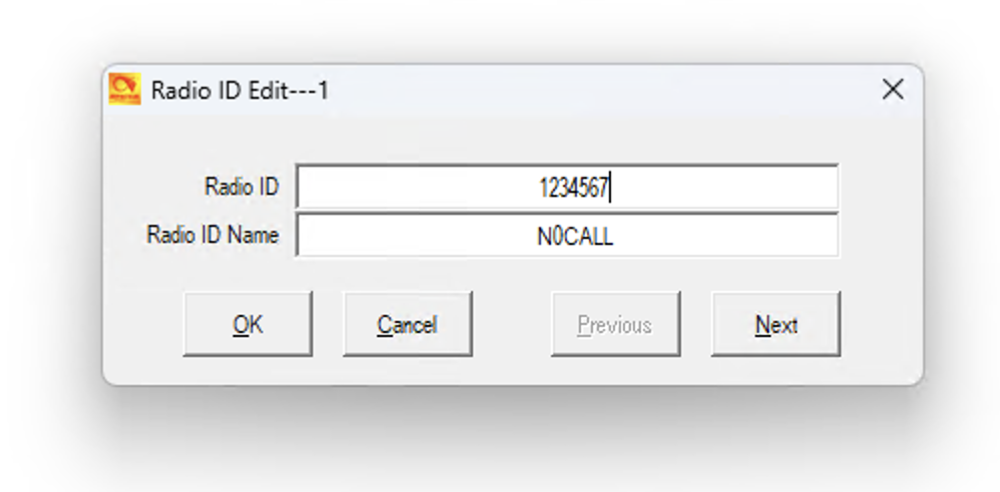
Change the Radio ID to the ID you were given previously on RadioID.net the same one set in your hotspot’s station settings (Radio > General Setup, or Guided Setup). Change the Radio ID Name to your callsign.
Create Talk Groups
Rather than creating Talk Groups from scratch, we will import them. The defacto DMR network for PTT talkgroup activation is BrandMeister, and the easiest way to get them all is to download them already in the Anytone format from the WPSD website. Download the AnyTone Contact TG Format file; it is updated daily.
After downloading the file:
Select Tool -> Import.
Click the Talk Groups button.
Navigate to and select the downloaded
BM-TGs_Anytone-Format.csvfile.
Once the import is complete, select the Contact/Talk Groups section and view the list.
Create Channels
A channel is where we finally start getting into more familiar territory. In the Common Settings section, open Channel. Here, you can see some default channels or none at all. Before hurrying to program anything else, bear with me and slow down. Delete your channels by right-clicking and selecting “Delete” on the lines that are there.
Double-click in the “No.” column on 1. You have two ways to set this up depending on whether you have a simplex or duplex hotspot.
Simplex Hotspots
Channel Name: Give it any name you like. In this example, we will use “WPSD Simplex.”
Receive/Transmit Frequency: Use whatever frequency you applied to your hotspot.
Channel Type: Set this to Digital.
Transmit Power: Generally, this is set to “Low,” especially if you are in the same room as your hotspot.
DMR Mode: Leave this on DMO/Simplex.
Digital Settings:
Contact: Click the button to display the talk groups you imported earlier. Scroll to the bottom, then up a few lines, and you will see “TG9 Local.” Double-click on that, and the button will change to “TG9 Local.”
Radio ID: Select the Radio ID Name you set up previously.
Color Code: Leave this on 1.
Slot: Set this to Slot2.
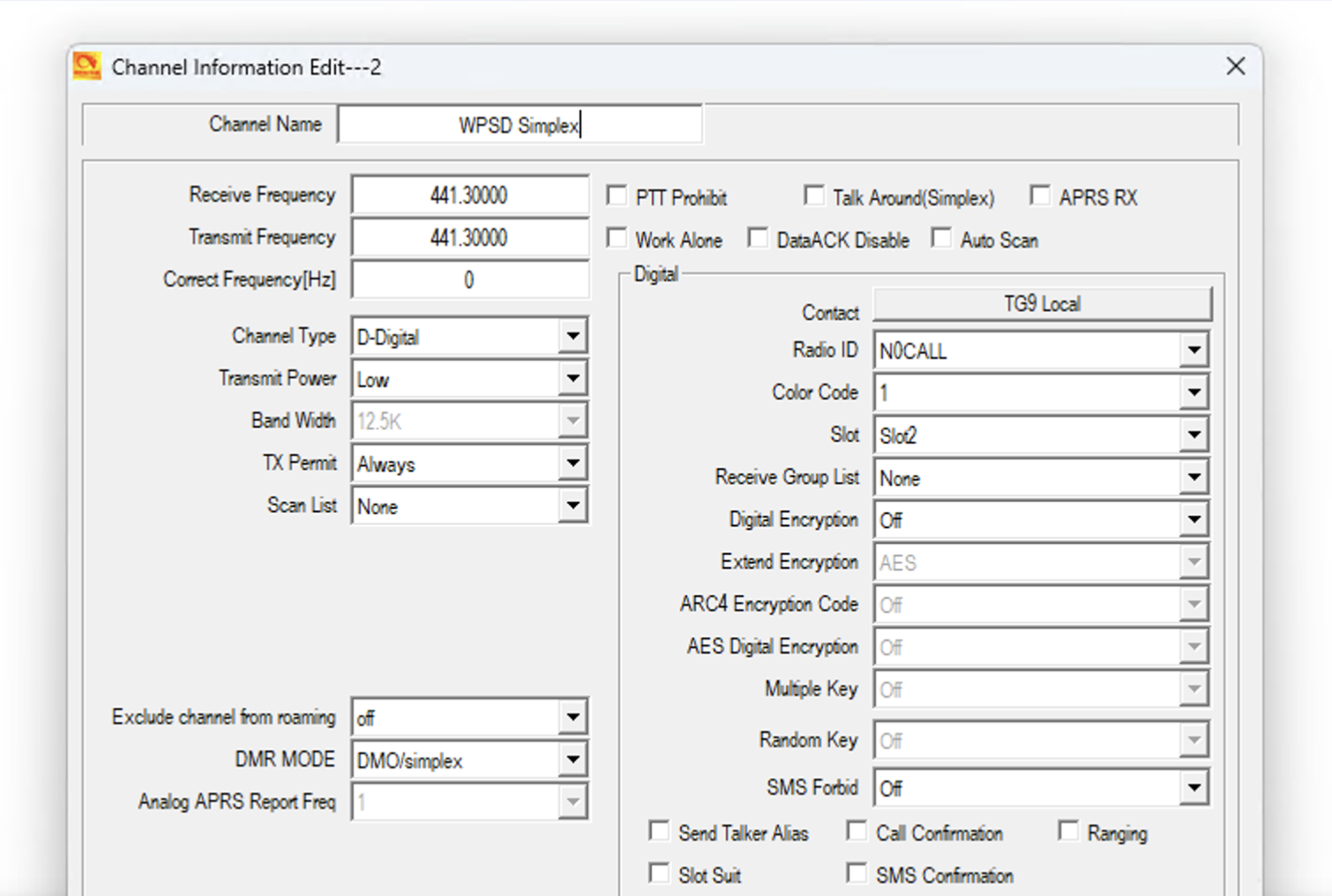
Leave the rest on defaults and click Ok.
Duplex Hotspots
Channel Name: Give it any name you like. In this example, we will use “WPSD Duplex.”
Receive Frequency: Use whatever frequency your hotspot is set to use on transmit*.
Transmit Frequency: Use whatever frequency your hotspot is set to use on receive*.
* Make sure these frequencies are the opposite of how you set your hotspot.
Channel Type: Set this to Digital.
t Transmit Power: Generally, this is set to “Low,” especially if you are in the same room as your hotspot.
DMR Mode: Change this to “Repeater.”
Digital Settings:
Contact: Click the button, and the talk groups you imported earlier will be displayed somewhat haphazardly. Scroll to the bottom, then up a few lines, and you will see “TG9 Local.” Double-click on that, and the button will change to “TG9 Local.”
Radio ID: Select the Radio ID Name you set up previously.
Color Code: Leave this on 1.
Slot: Set this to Slot1.
Create Zones
Again in Common Settings select Zone.
Double-click in the “No.” column on 1.
There should only be one channel on the left side. Highlight and move it to the right with the “>>” button.
Click “Ok” to finish.
Save Your Code Plug
File -> Save and navigate somewhere you can remember. Save your new CPS as something descriptive like D878UVII_Hotspot.
Load Your Code Plug
Now, load up your new code plug: Program -> Write to Radio. Once you have finished, and assuming you have followed the instructions in other sections correctly, you should be able to connect to your hotspot.
Disconnect your radio from USB, and if you followed the instructions to start with no other entries, you should be able to connect to your hotspot on TG9 Local. If you’d like to test without bothering anyone else, select Menu, Talk Group, Manual Dial, and enter 310997. This talk group is a special one called a Parrot. If you key up and speak, you should hear your voice back after a moment when you release the PTT.
You may use this method to connect to any other talk group by direct dial or use the List button to scroll through all the talk groups and find an interesting one.
Other Networks
Want to get into networks like FreeDMR, TGIF, and others? Build on what you’ve learned here and see where it takes you.
Special Thanks, by AA0NT
I do want to give thanks to Mike W2FBI for his help translating the past part of the Monolith that I was staring at like a monkey. It was ONE step, but I have to admit that, sadly, it took me several days to get past it the first time. DMR radios are very much a “once you know, you know” thing, but it looks pretty convoluted to most newcomers.
Zero to Hero: Yaesu FT5DR
The radio I used for this was the Yaesu FT5DR, but there may be enough similarities to allow you to use these instructions with many of the contemporary Yaesu Digital handhelds.
There are several parts that you must set up correctly for everything to work the way you want it to.
You may have heard the term CPS, “Code Plug Software.” Before discussing CPS, read what a code plug is. I own and use RT Systems, Inc. “YPS-FT5D Programming Software Only for the Yaesu FT-5DR radio.” This tutorial will use that software for the examples, but other products should be similar. Generally, Yaesu and the software for it do not use the term Code Plug, but you should know what it is. A single entry on your radio in Yaesu-speak is a “Channel.”
According to RT Systems: “The Programmer cannot make the radio do anything that it cannot do from the face of the unit. It makes it easier to set options for the existing functions.” This statement is accurate; however, managing solely from the radio will quickly become cumbersome.
I have borrowed some sections of this tutorial from the FT5DHelp Programmer Help PDF from RT Systems. See that document for more good information.
Hold your Horses (USB)
DO NOT PLUG THE USB CABLE INTO YOUR COMPUTER YET. If Windows or MacOS sees the cable before you’ve installed the correct driver, it’ll often silently install a generic one — which then conflicts with (or blocks) the proper driver you install in the next section, and the CPS won’t be able to find your radio’s COM port. Installing the driver first avoids that entirely. You won’t thank me now, but you would undoubtedly cuss me later if I did not warn you.
Install USB Driver
This step is where people who did not heed my advice will have gone wrong. Some computers already have the proper drivers for the USB cable. It will not hurt to follow these instructions either way.
Many USB cables are more than just cables; they have circuitry to assist with interface tasks. The RT Systems cable is one such cable. Virtual COM port (VCP) drivers cause the radio attached to the USB cable to appear as an additional COM port available to the computer. The CPS can access the radio in the same way as it would access a standard COM port.
To use this cable under Windows or MacOS, please install the driver on their support page.
Other cables may work; I will not address them here. You should have received a genuine cable when you purchased the software.
Install the RT Systems Programming Software
Install the software as indicated by the supplier. If you need assistance with the software, please see RT Systems’ Support Pages. They also have a Knowledge Base as well as a selection of How To Videos.
Import Intial Program
It is always a good practice to import and save your existing setup from the radio before beginning with additions. This process allows you to return to a known state if you mess something up.
Open the application. Your last code plug may be visible if you have previously used the application. Start with what is in your radio now: Close the tab on your former code plug and select File > New for a blank slate.
From the menu, select Communications> Get data from radio. Next:
Plug the RTSystems USB-68 or the Yaesu SCU-18/19 cable into the DATA jack on the side of the radio.
Press and hold the [Fmenu] while turning the radio on.
Verify the radio displays CLONE.
Click the OK button.
Press and release the SEND button to begin the transfer.
After a couple of minutes, the application will finish transferring the data. The software will tell you to turn off the radio and disconnect the cable. To prevent any timeouts, do that now.
We’ll now create your new code plug (or perform edits to your former one).
Create Hotspot Channel
If you are familiar with DMR or commercial radios, you know that the process is to:
Create Radio ID
Import Talkgroups
Create Channels
Create Zones
Observe that list, think, “That it’s a lot of work for one channel,” then put it out of your mind. Next, congratulate yourself for buying a Yaesu and not having to mess with that.
Your setup now looks like a spreadsheet. If you have programmed your radio previously, it may have many channels. A stock Yaesu will have a couple of generic channels.
Either insert a new channel where you want it or start on an empty channel. You will be adding:
Receive Frequency
Transmit Frequency
Offset Frequency
Offset Direction
Operating Mode
Name
First, enter your Receive Frequency. Remember that this is the Transmit Frequency shown by your hotspot. Be sure not to cross those up in your head. Hit Tab to go to “Transmit Frequency.” Notice that almost everything else has been pre-populated. There’s another point for Yaesu and RT Systems.
If your hotspot “Offset Direction” is “Plus” and is 5.00 MHz, which is somewhat standard, you can leave what’s in there now. If you went off on your own, change these columns accordingly.
Change the operating mode to “DN” for Digital Narrow. Uncheck the box in the AMS column; there’s no need to auto-negotiate the mode with your hotspot.
Finally, give your channel a name like “WPSD.” This name will display on your radio when in use.
Save Your Program
Select File > Save As from the menu and navigate to where you would like to save the file, give it a name you will remember, and “Save.”
Load Your Program (Send to Radio)
From the menu, select Communication > Send Data to Radio.
Plug the RTSystems USB-68 or the Yaesu SCU-18/19 cable into the DATA jack on the side of the radio.
Press and hold the [Fmenu] key while turning on the radio.
Verify the radio displays CLONE.
Press the [RECEIVE] key on the radio.
Verify that the radio shows WAIT
Click OK to start transferring the data.
After a couple of minutes, the software will finish transferring the data. The software will tell you to turn off the radio and disconnect the cable. Do that, and then turn your radio back on and select your hotspot channel. Try to avoid kerchunking; I know you were about to.
Connect to a Reflector
In your hotspot’s dashboard, go to Manage > YSF / FCS, choose YSF00001 - Parrot and Link. Now identify yourself: your voice should come back to you in a few seconds.
Other Networks
Once you have verified your setup with a Parrot, browse the rest of the Reflectors and see what you find. One of the more common reflectors is YSF32453 - US-KCWide - AMERICA-KCW. If you are searching via the drop-down box, you’ll need to search by the “Description” column, so as you type “AMERICA_KC,” you should see it.
There are two places to choose a reflector. Radio > YSF (System Fusion), under Default Reflector, sets the one your hotspot links to whenever it starts. Manage > YSF / FCS links or unlinks for now: when your hotspot restarts, it goes back to the default reflector. See YSF and Manage.
Specific Modes:
Zero to Hero: D-Star (applies to all radios)
There are numerous D-Star ‘getting-started’ guides available via your favorite search engine. This description focuses on the unique differences associated with using a WPSD D-Star node.
Add your WPSD D-Star node to your radio
Tip
If your WPSD node is simplex, make sure to set DUP+ or DUP- with an offset of zero (0). Turning DUP ‘off’ does not work because ICOM radios expect D-Star to be used only on repeaters and that repeaters always use DUP+ or DUP-, even with an offset of zero. If you turn DUP ‘off’, the radio thinks you are not talking to a repeater and thus it will not use D-Star.
You can add your node to your radio’s memories in one of two ways:
As a D-Star repeater
As a regular memory entry
If you use D-Star repeater memories (DV), don’t forget to include your node’s GPS location; it is useful when trying to find “near repeaters”.
If you use a regular memories, you will want to create separate entries as follows (where ^ indicates a space; all fields are always 8 spaces, and all commands such as link, unlink, echo and info are in the eighth position):
usage |
URCALL or MYCALL |
RPT1 |
RPT2 |
|---|---|---|---|
Simplex |
|
|
|
Use Repeater |
|
|
|
Echo |
|
|
|
Information |
|
|
|
Unlink |
|
|
|
In the above example, N0SIGN is your WPSD’s callsign (your callsign) and “B” is the module set on Radio > D-Star (B is usual for 70 cm).
You will also probably want one line for each repeater you link to, whose contents depends on that repeater’s callsign.
Using your node
Use your node as you would any other D-Star repeater.
Keep in mind that the D-Star parameters can be set to either connect to a reflector on boot/restart and/or to determine how long a reflector stays connected before being dropped.
Connecting to Reflectors
Aside from connecting to repeaters, you will probably want to connect to one of the many reflectors available, see the XLX Reflector List on the Digital (Ham) Radio Lists page at W0CHP.radio.
There are actually a number of different types of reflectors out there, and not all of them support D-Star. Of the ones that support D-Star, those listed as DCS, D-Plus or DExtra are an older type of reflector typically dedicated to D-Star.
The other type, XLX, is a multiprotocol reflector that, given the right hardware by the owner, may support different digital voice modes, even on the same module and allow communication (called transcoding) between whem.
Reflectors typically support a number of channels called modules. Modules are typically identified by a suffix of A to Z appended to the reflector callsign. e.g. Module C on XLX reflector 301 would be XLX301C. When planning on connecting to a reflector, it’s always worth checking out the reflector’s webpage or dashboard to see what modules are in use, what modes they support, what they are used for, and whether they support transcoding between different modes.
With WPSD there are three ways to establish a link to a reflector:
Using the dashboard’s Manage page
Using a link command programmed into your radio,
Using DTMF commands via you radio’s keypad and
The dashboard
The easiest way is the dashboard: go to Manage > D-Star, choose the reflector and module, and choose Link (or Unlink). See Manage.
Once the hotspot is connected, use the Use Repeater memory (the one with CQCQCQ^^ and both RPT1 and RPT2 filled out) to talk over the link.
Use the same process to Unlink from the reflector.
This may be the only way to disconnect from a reflector if the reflector is busy and there is no time between transmissions to get your commands in via the radio.
Radio Link Command
This requires you to program into one of your radio’s memories an entry similar to the Use Repeater entry above, but with a URCALL of the reflector callsign with the letter “L” in the 8th position. (e.g. XLX301CL which will link your hotspot to XLX reflector 301 module C.) To make the link, you just keyup using that memory. Once the hotspot is linked then you switch back to the Use Repeater memory (the one with CQCQCQ^^ and both RPT1 and RPT2 filled out) to talk over the link. Use the ^^^^^^^U memory to unlink from the repeater.
DTMF Linking
WPSD also supports using DTMF from your radio’s keypad. To transmit the DTMF code, set your radio to the Use Repeater memory, hold down the PTT button and press the appropriate keys on the keypad. Release the PTT once done. WPSD will respond with a voice prompt if your command was accepted.
The commands are:
Type |
DTMF Key |
Format |
Description |
|---|---|---|---|
Unlink |
# |
|
Unlink the hotspot from the reflector |
Info |
00 |
|
Obtain info about the link. WPSD will respond with the callsign and module of the linked reflector if linked, or with unlinked. |
XLX |
A |
|
Connect to a XLX reflector |
DCS |
D |
|
Connect to a DCS reflector |
D-Plus |
* |
|
Connect to a REF reflector |
DExtra |
|
|
Connect to a DExtra reflector |
In place of zz you can also use DTMF keys A, B, C or D to access the first four modules.
Getting Help
Troubleshoot it yourself first. Every program on your WPSD device keeps a log, and System > Logs shows them live. The log of the program giving you trouble almost always says what’s wrong. Look before you ask.
Read the Frequently Asked Questions, and for WPSD (legacy), its FAQ.
Contact support from your WPSD device. System > Contact Support (see Contact Support) reaches WPSD support directly, with your device’s details attached. Say what you did and what happened, and read how to ask for help the right way first. If support asks for logs, Download the whole system log on System > Logs (see Logs).
WPSD users run a Facebook Group and a Discord Server, where operators help one another. They’re user communities, not WPSD support.
XLX 493, module E is the WPSD chat module. It’s bridged with BrandMeister: call talkgroup 3170603.
Glossary
APRS
Automatic Packet Reporting System A network for sharing positions and short messages. Your WPSD device can send its position to APRS-IS, the internet side of APRS. See APRS and GPS.
BER
Bit Error Rate The share of a digital signal received wrong, as a percentage. Below about 1% is good. A high BER from your own radio usually means the WPSD device needs calibrating.
Code Plug
While somewhat generically used for digital radio and even FM VHF and UHF radios, people who talk about DMR radios especially throw the term CPS about it like it’s salt.
Radios used crystals to control the frequencies, and sometimes, users applied internal jumpers for the various options. Later, builders moved the internal jumpers to a jack on the back of the radio. A “plug” with wire jumpers plugged into the jack enabled these options. These became the original code plugs. Later, builders and manufacturers controlled more things using these code plugs, such as tone encode/decode selection.
Later, as radios became microprocessor-controlled, the external code plugs moved inside the radio as programmed information. The term has, unfortunately, remained with us. The code plug contains the operating frequencies, tone selections, timeout values, system IDs, etc. In some instances, some parts of the radio definition itself are in the code plug. These days, the code plug is just a relatively small file transferred to the radio with Code Plug Software.
Custom Setting
A line of your own in a radio program’s settings file, for a setting the Radio pages don’t have. Kept apart from the dashboard’s settings and tried before it’s kept. See Custom Settings.
D-Star
Digital Smart Technologies for Amateur Radio A digital voice and data protocol specification for Amateur Radio by the Japan Amateur Radio League published in 2001. D-Star implements GFSK modulation in a 6kHz wide channel.
DMR
Digital Mobile Radio An ETSI standard digital radio specification for professional, commercial, and private radio users published in 2005. Implements 4-level FSK modulation in a 12.5kHz wide channel using TDMA, effectively ‘doubling’ channel capacity.
Duplex
Receiving and transmitting on two different frequencies at once, as a repeater does. A duplex hotspot needs a duplex (dual) modem board, and carries both DMR timeslots. Compare Simplex.
Dynamic Talkgroup/Reflector
A talkgroup or reflector you’re linked to for now, typically because you keyed up on it, rather than one set to stay linked. On most networks a dynamic talkgroup drops after a while with no activity. See Manage.
ESSID
Two digits (01 to 99) added to your DMR ID on a network, so that network can tell your WPSD device apart from your other devices. See DMR networks.
ETSI
European Telecommunications Standards Institute The European Telecommunications Standards Institute is an independent, not-for-profit, standardization organization in the field of information and communications.
find.wpsd.direct
The page that finds your WPSD device on your own network: open it on a phone or computer on the same network. See First Boot and Security.
FSK
Frequency-shift keying Frequency-shift keying is a frequency modulation scheme in which digital information is encoded on a carrier signal by periodically shifting the frequency of the carrier between several discrete frequencies.
GFSK
Gaussian frequency-shift keying Rather than directly modulating the frequency with the digital data symbols, “instantaneously” changing the frequency at the beginning of each symbol period, Gaussian frequency-shift keying filters the data pulses with a Gaussian filter to make the transitions smoother.
Host Files
The lists of reflectors, masters, talkgroups and radio IDs the gateways use, downloaded from WPSD’s servers and kept current. See Host Files.
Hotspot
An SBC flashed with a hotspot image (for example, WPSD), with either a simplex or duplex hotspot board (HAT) connected to the Internet. Hotspots usually have radios built in, typically with an ADF7021 RF chip and one or two SMA antenna connectors or an onboard ceramic antenna.
Kerchunk
A very short key-up, with no voice: to check a hotspot or repeater hears you, or to link a talkgroup. The dashboard can hide them.
Live Panel
The large panel at the top of the dashboard showing the call on the air now, or the last one. See The Dashboard.
M17
An open digital voice and data protocol for amateur radio, using the open Codec 2 voice codec. Implements 4-level FSK in a 9kHz wide channel.
MMDVM
Multi-Mode Digital Voice Modem MMDVM hardware and software are at the core of most digital mode hotspots on the market. The success of the MMDVM Project comes from different people and projects going back to the earliest days on D-STAR. MMDVM now supports D-Star, DMR, YSF, P25, NXDN, M17, POCSAG, and analog.
Node
A simplex hotspot, using an MMDVM modem board and an external radio. The modem board does not include an RF chip and typically connects to a higher-power mobile radio.
NXDN
Next Generation Digital Narrowband A digital voice and data radio protocol developed jointly by Icom and Kenwood for public land mobile radio systems, published in 2005. NXDN implements 4-level FSK modulation in either a 12.5kHz or 6.25kHz wide channel.
Offset
The correction, in Hz, that makes up for a modem’s crystal being slightly off frequency. Found by calibration, separately for receive (RX) and transmit (TX).
P25
Project 25 Also known as APCO-25, is a set of digital voice and data radio protocols developed by public safety professionals starting in 1989. Implements C4FM 4-level FSK in a 12.5kHz wide channel (Phase I).
POCSAG
A paging protocol. Your WPSD device can send pages to pagers through DAPNET, the amateur paging network. See POCSAG / DAPNET.
Prefix
A digit you dial in front of a DMR talkgroup to reach it on a network other than your primary one, such as 5 for TGIF. See DMR networks.
Primary Network
The DMR network whose talkgroups you dial as they are, with no prefix.
Profile
A saved radio setup: modes, networks, frequencies, talkgroups and reflectors, and the dashboard’s preferences. Switch between them in a few seconds. See Profiles.
Radio (calibration)
In WPSD Palisade, the radio you use with your WPSD device, as it holds that pair’s calibration. Each profile uses one. See Profiles.
Reflector
A server that links many hotspots and repeaters into one conversation, like a conference call. D-Star, YSF, P25, NXDN, M17 and XLX use reflectors; DMR networks mostly use talkgroups.
Repeater
A duplex hotspot, using an MMDVM modem board and two external radios or attached to a repeater or repeater controller. The modem board does not include an RF chip and typically connects to an existing repeater or repeater controller.
SBC
A single-board computer A common example of an SBC is the ubiquitous Raspberry Pi.
Simplex
Receiving and transmitting on the same frequency, taking turns. Most hotspots are simplex, and carry DMR timeslot 2 only. Compare Duplex.
Snapshot
A copy of a program’s settings, kept each time you apply changes, so you can go back. See Radio Settings.
Static Talkgroup/Reflector
A talkgroup or reflector set to stay linked, so its traffic always reaches your WPSD device, whether or not you’ve keyed up on it. It acts like a scan list in some radios. Set them in Manage or on the mode’s Radio page.
Talkgroup
A numbered channel on a digital network that everyone on it can call and hear, by subject or by area (such as 91 for worldwide or 3100 for the USA on BrandMeister).
Timeslot
DMR shares each frequency between two calls at once by taking turns, in two timeslots (TS1 and TS2). A simplex hotspot uses timeslot 2.
Watchdog
The part of WPSD Palisade that restarts a radio program that crashes, or a gateway whose link has stayed down. See Services and Watchdog.
WPSD
“WPSD Plausibly Stands for Divergence”
WPSD is the name of the software suite and project. WPSD Palisade is the current version, which this guide covers; WPSD (legacy) is the earlier version, with its own manual.
Hint
WPSD = WPSD Plausibly Stands for Divergence
wpsd.direct address
A listed WPSD device’s own address, <id>.wpsd.direct (ten characters, starting with the six in its setup network’s name). It points at the WPSD device on your network and comes with a certificate from Let’s Encrypt. See Security.
YSF
Yaesu System Fusion A digital voice and data protocol specification developed by Yaesu for Amateur Radio in 2013. Implements C4FM 4-level FSK in a 16kHz wide channel.
Reference
Detailed material for when you need it: the rules behind DMR routing, and the API for your own programs.
DMRGateway Rewrite Rules: how calls are routed between DMR networks, and how to add your own rules.
The API: reading your WPSD device’s activity, and controlling it, from your own programs.
DMRGateway Rewrite Rules
DMR networks reuse each other’s talkgroup numbers, so DMRGateway decides which network each call goes to by its rewrite rules. WPSD Palisade writes a standard set for you: your primary network’s talkgroups need no prefix, and every other network has its prefix digit (see DMR Networks and Talkgroup Prefixes). When you change the primary network and apply, the rules are rewritten to match.
Most people never need to touch them. This page is for when you do: a talkgroup you want to reach with a different number, a network the standard rules don’t cover, or a private master with its own numbering.
Tip
This reference is based on Jonathan Naylor’s documentation for DMRGateway. If a rule doesn’t behave as described here, check there for changes.
Adding your own rules
Add rules in Custom Settings, under the program DMRGateway. Don’t edit the file by hand: WPSD Palisade writes it again at every change, and a hand edit is lost.
Each network is a
[DMR Network N]section in the file; itsName=line says which network it is. Show the file in Custom Settings shows them all, with the rules WPSD Palisade already writes.Each rule is its own setting, named after its type and a number:
TGRewrite0,TGRewrite1and so on. To add a rule, use Add a setting with the next number not yet used in that section, such asTGRewrite5.To change one of the standard rules, customize it; to drop one, choose Leave it out of the file.
Your rules are tried when you apply them, like every custom setting: if DMRGateway won’t run with them, they’re switched off by themselves.
DMRGateway only passes traffic to a network that a rule sends it to.
Rule types
In the examples, the number after each rule name is left out for clarity (TGRewrite= stands for TGRewrite0=, TGRewrite1= and so on).
TGRewrite
Translates one talkgroup to another, and can change the timeslot. It also routes a talkgroup and timeslot to a particular network. From is the call as it comes from your radio (through MMDVM-Host); to is how it goes out to the network. The rule works in both directions.
TGRewrite=fromSlot,fromTG,toSlot,toTG,range
Translate a group call to talkgroup 8 into talkgroup 9 on this network:
[DMR Network 1]
TGRewrite=2,8,2,9,1
Send a group call to 9990 on timeslot 1 to network 1, and on timeslot 2 to network 2:
[DMR Network 1]
TGRewrite=1,9990,2,9990,1

[DMR Network 2]
TGRewrite=2,9990,2,9990,1
With a range above 1, a whole block of talkgroups is translated: this is how prefixes work. TGRewrite=2,5000001,2,1,999999 sends 5000001 to 5999999 on timeslot 2 to this network as 1 to 999999.
PCRewrite
Like TGRewrite, for private calls, and only from your radio to the network. Typically used to give a network’s reflector control numbers their own range, so they don’t clash, and to send GPS reports and private calls to a particular network.
PCRewrite=fromSlot,fromId,toSlot,toId,range
Send private calls on timeslot 2 to 94000-94999 to network 1 as 4000-4999, and 84000-84999 to network 2 as 4000-4999:
[DMR Network 1]
PCRewrite=2,94000,2,4000,1000

[DMR Network 2]
PCRewrite=2,84000,2,4000,1000
SrcRewrite
Rewrites the source of a call coming from the network, so it reaches your radio as a different ID. Network to radio only.
SrcRewrite=fromSlot,fromId,toSlot,toTG,range
Make reflector announcements from 4000-5000 on network 1 heard on talkgroup 9, timeslot 2:
[DMR Network 1]
SrcRewrite=2,4000,2,9,1001
TypeRewrite
Turns a group call into a private call. Radio to network only.
TypeRewrite=fromSlot,fromId,toSlot,toId
A group call to 9990 on timeslot 1 becomes a private call to 9990 (an echo service that expects private calls), and the SrcRewrite lets the reply back:
[DMR Network 1]
TypeRewrite=1,9990,1,9990
SrcRewrite=1,9990,1,9990,1
PassAllTG and PassAllPC
Pass every talkgroup (PassAllTG) or every private call (PassAllPC) on a timeslot that no other rule matches, in both directions. Only one network can have them: in WPSD Palisade’s standard rules, it’s the primary network, which is why its talkgroups need no prefix.
PassAllTG=slot
PassAllPC=slot
[DMR Network 2]
PassAllTG=1
PassAllTG=2
PassAllPC=1
PassAllPC=2
TGDynRewrite
Maps a block of dynamic talkgroups onto a single talkgroup, with spoken confirmations and control by private call. Designed for one particular network’s dynamic talkgroups, and of limited use elsewhere.
TGDynRewrite=slot,startTG,disconnectPC,statusPC,commsTG,count
TGDynRewrite=2,23500,4000,5000,9,100
All on timeslot 2:
23500 and 100: the dynamic talkgroups 23500 to 23599. Make a private call to one of them to select it; you hear a confirmation.
4000: a private call here disconnects the dynamic talkgroup, with a confirmation.
5000: a private call here tells you which one is selected.
9: the talkgroup you talk on to reach the selected one, and where the confirmations are heard.
Private calls are used because many radios can dial them from the keypad.
IdRewrite
Rewrites your radio’s DMR ID to a different one on the network, and back for calls from the network. Use it to keep a single DMR ID in your radio while presenting another to a network.
IdRewrite=radioId,networkId
IdRewrite=5059876,1001234
Your radio’s 5059876 reaches the network as 1001234.
The API
Everything the dashboard shows and does goes through WPSD Palisade’s API, and the same API is open to your own programs: a club website showing who’s on the air, a home-automation panel, a script that switches profiles.
The API documentation on your WPSD device
Your WPSD device documents its own API, always matching the version it runs: open http://wpsd.local/api/docs/ (with your WPSD device’s name or address). It lists every endpoint, what it takes and what it returns, and lets you try them from the browser.
All endpoints are under /api/v1/.
Who can use what
Endpoints |
Who |
|---|---|
The live data the dashboard shows: Last Heard and call history ( |
Anyone on your network, without logging in, like the dashboard itself. With Private dashboard on (see Security), only after logging in. |
Every change, and everything else (settings, profiles, keys, logs) |
Only you, logged in |
Settings read without logging in |
Passwords and keys are blanked |
The API answers only on your network: it isn’t reachable from the internet unless you open your router to it, which you shouldn’t.
Reading Last Heard from another computer
The calls the dashboard lists, newest last:
curl http://wpsd.local/api/v1/mqtt/lastheard
Each call has its mode, callsign, target (talkgroup or reflector), duration, BER and more. For the stored history, newest first, with filters by callsign, mode and time, use /api/v1/mqtt/history; /api/v1/mqtt/history/export gives it as CSV.
To follow calls as they happen, /api/v1/mqtt/stream is a Server-Sent Events stream of calls, links, mode and status changes: the same feed the dashboard’s Live panel uses.
Logging in from a script
Endpoints that need the owner’s login take the dashboard’s session cookie. Log in once with your owner password, keep the cookie, and send it with each request:
curl -c cookies.txt -H 'Content-Type: application/json' \
     -d '{"password":"your owner password"}' http://wpsd.local/api/v1/auth/login
curl -b cookies.txt http://wpsd.local/api/v1/profiles
Five wrong passwords from one address lock that address out for a minute, then longer each time.
Warning
A script holding your owner password can change anything on the WPSD device. Keep it on a computer you trust, and don’t put the password in a script you share.
Copyright
Copyright © 2023–2026 Chip Cuccio (W0CHP). All rights reserved.
WPSD Palisade and this guide are proprietary. You may print this guide, or save a copy, for your own use; no part of it may be republished or distributed without written permission.
Raspberry Pi is a trademark of Raspberry Pi Ltd. Other product and company names in this guide belong to their owners.