The Dashboard
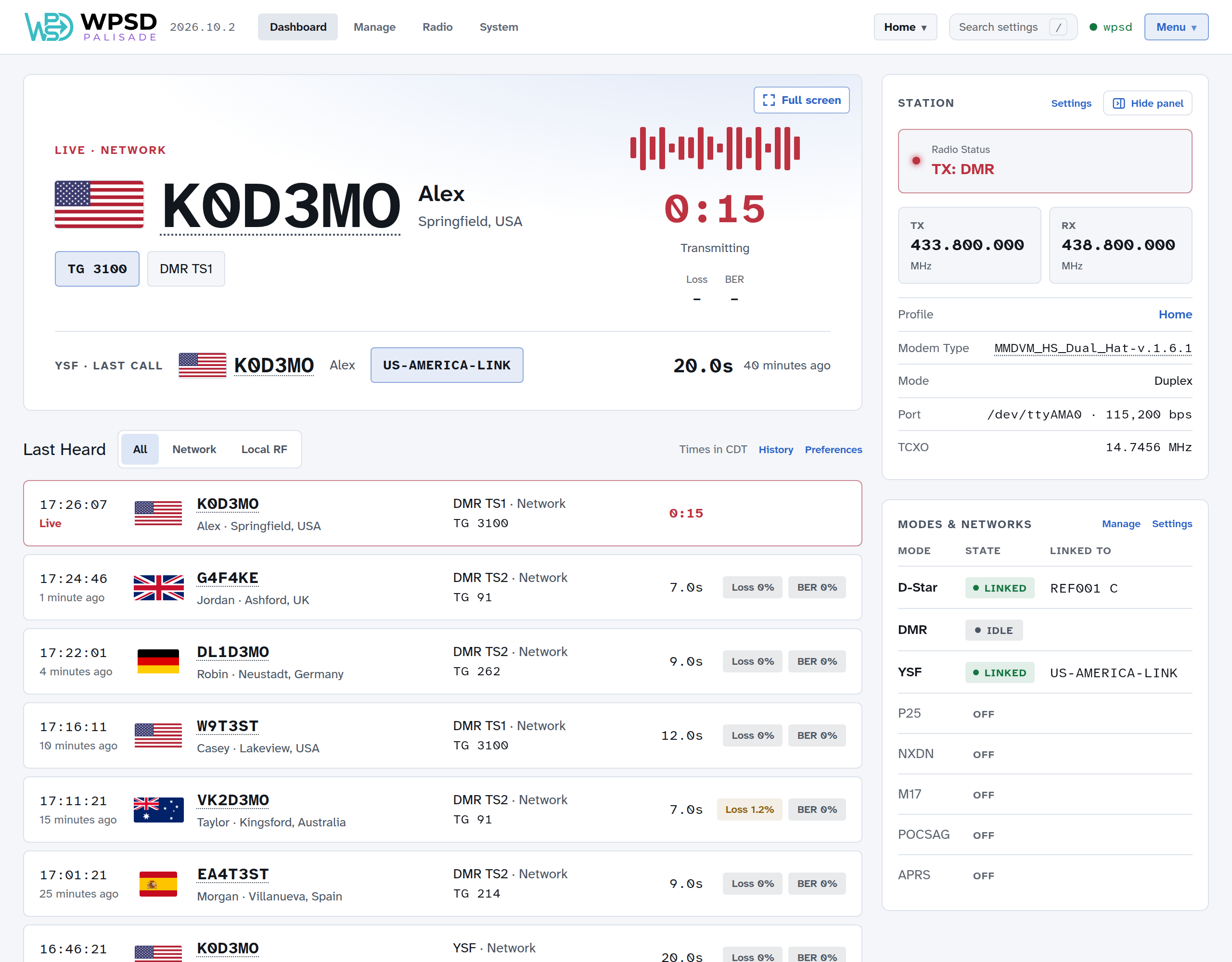
The dashboard is WPSD Palisade’s home page: who is on the air now, what you’ve heard recently, and how your WPSD device is doing. Open it in a browser at your WPSD device’s address (https://wpsd-<id>.local, where <id> is your WPSD device’s own code, unless you renamed it); Dashboard in the top bar always brings you back.
The Live panel
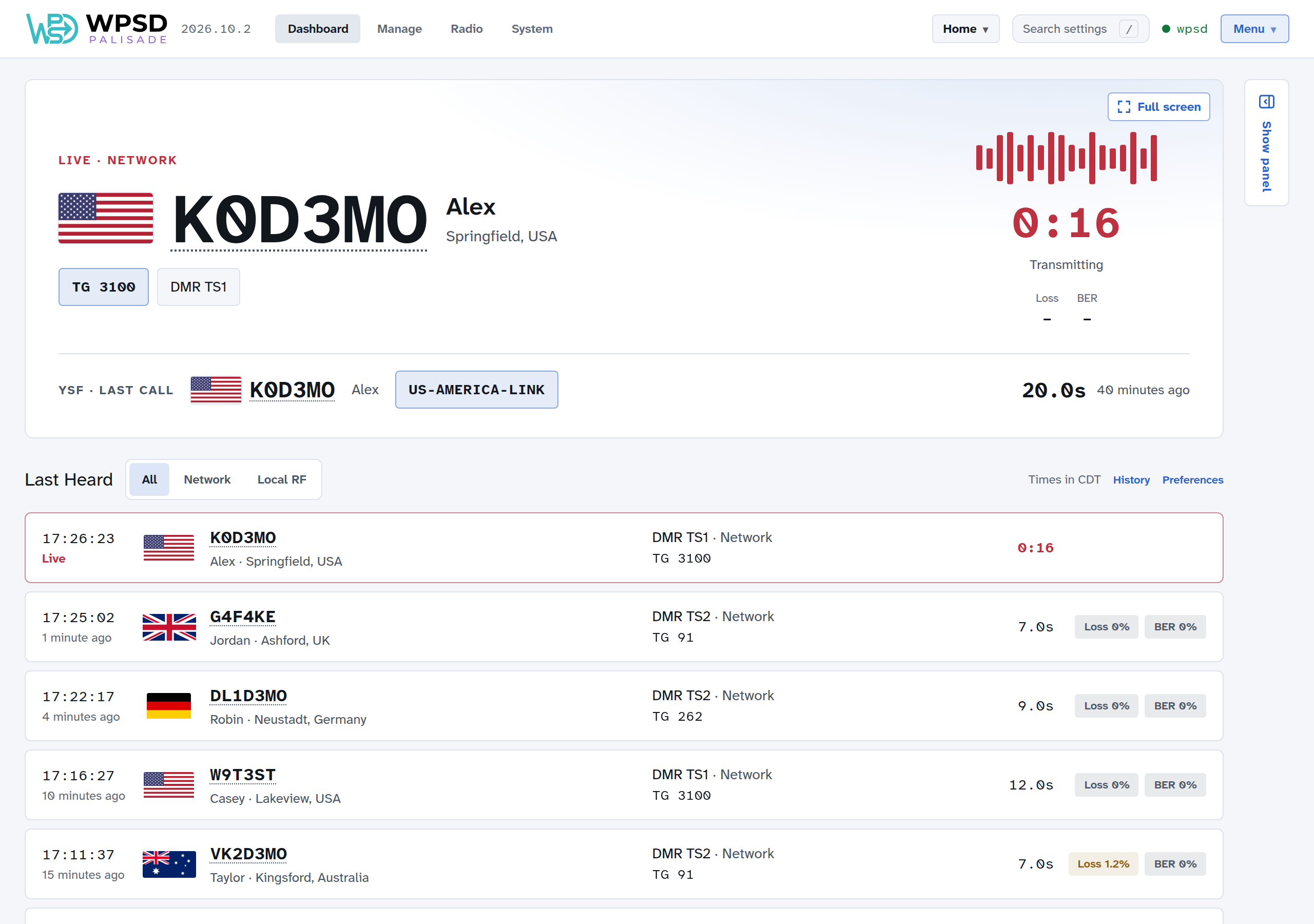
The large panel at the top shows the call on the air now, or the last call heard.
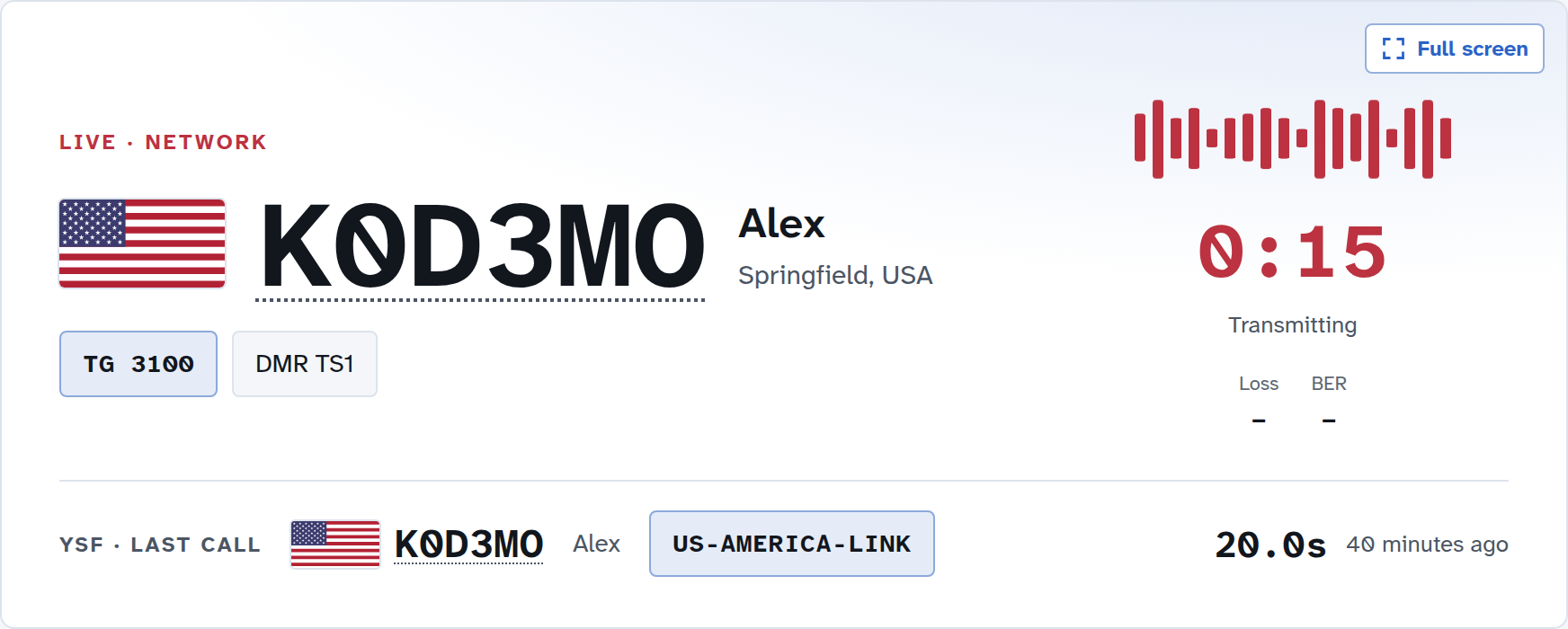
LIVE while someone is talking, Last call once they’ve finished.
Network for calls coming from the Internet, which the WPSD device transmits to your radio; Local RF for calls from a radio near you, which the WPSD device receives and sends to the network.
The caller’s flag, callsign, name and location. Hover over a flag to see the country’s name. The callsign is a link to the caller’s page on QRZ or RadioID, whichever you chose in Preferences.
The talkgroup or reflector and the mode (with the DMR timeslot).
How long the call has run, and once it ends, its Loss (network calls: the share of the call that didn’t arrive) and BER (bit error rate: how cleanly the radio signal was received). They are plain gray when fine, and turn amber or red only when there is a problem.
Both DMR timeslots
A duplex hotspot carries two DMR timeslots, so two calls can be on the air at once. The call that started first stays large; the other appears on a line underneath. When the first call ends, the one still on the air moves up.
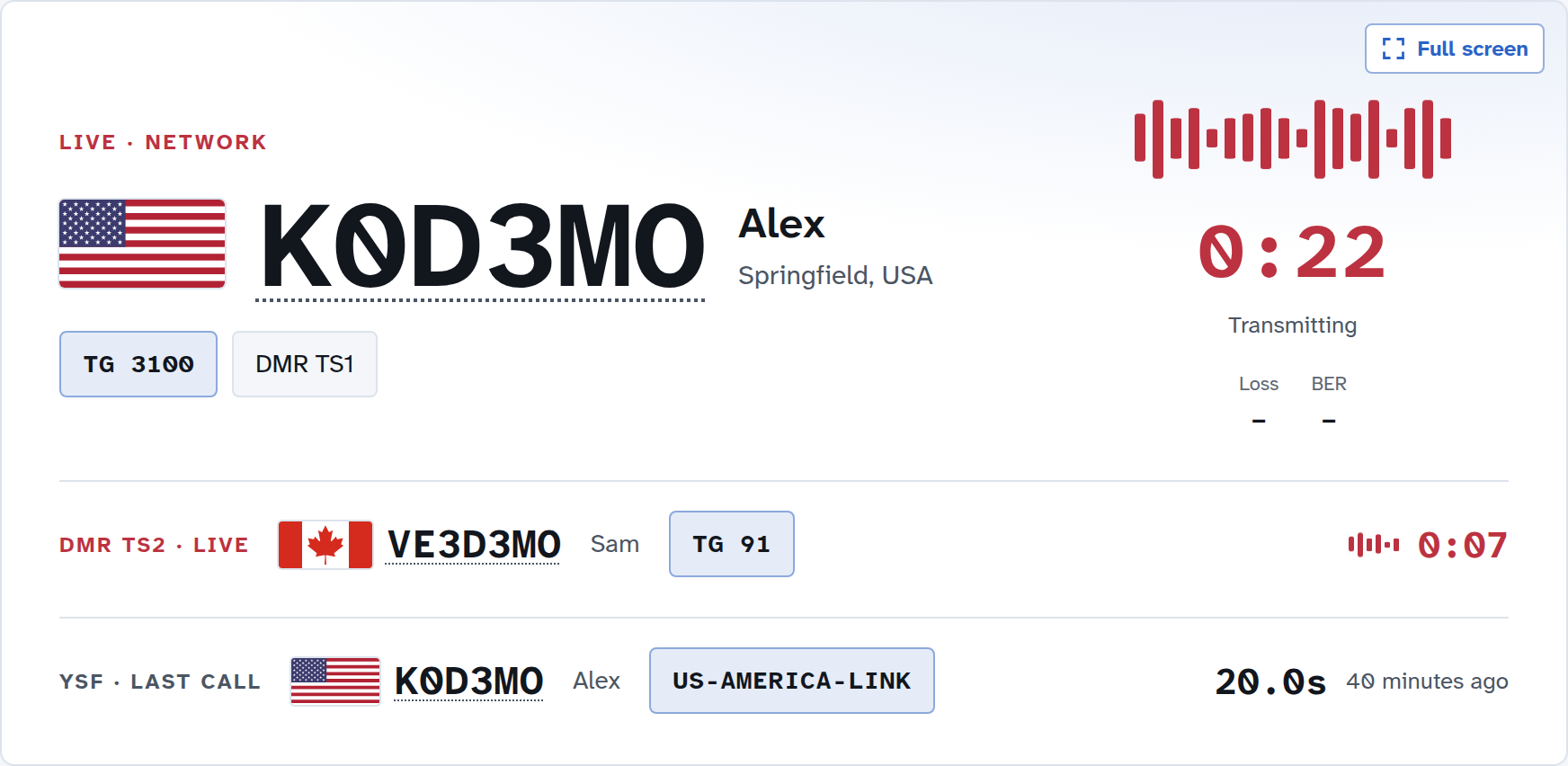
By default the second line goes away a minute after its call ends. To keep each slot’s last call in view, turn on Keep both DMR slots’ last calls in Preferences (offered on duplex hotspots with both timeslots on).
Several modes
With more than one mode on, the Live panel also keeps the last call in another mode in view, on its own line. How many calls it shows depends on your modem:
Simplex modem: two, the newest call in each of the two modes heard most recently.
Duplex modem with DMR on: three, both DMR timeslots and the newest call in any other mode.
Duplex modem without DMR: one, the newest call.
The pictures above show a duplex modem with DMR, YSF and D-Star on. The order follows the calls, never the mode or timeslot: a call on the air comes before one that has ended, the one that started first stays large, and of calls that have ended, the one that ended last leads. Each line names its mode, such as DMR TS1 or YSF. Calls in other modes are in Last Heard, below.
Full screen
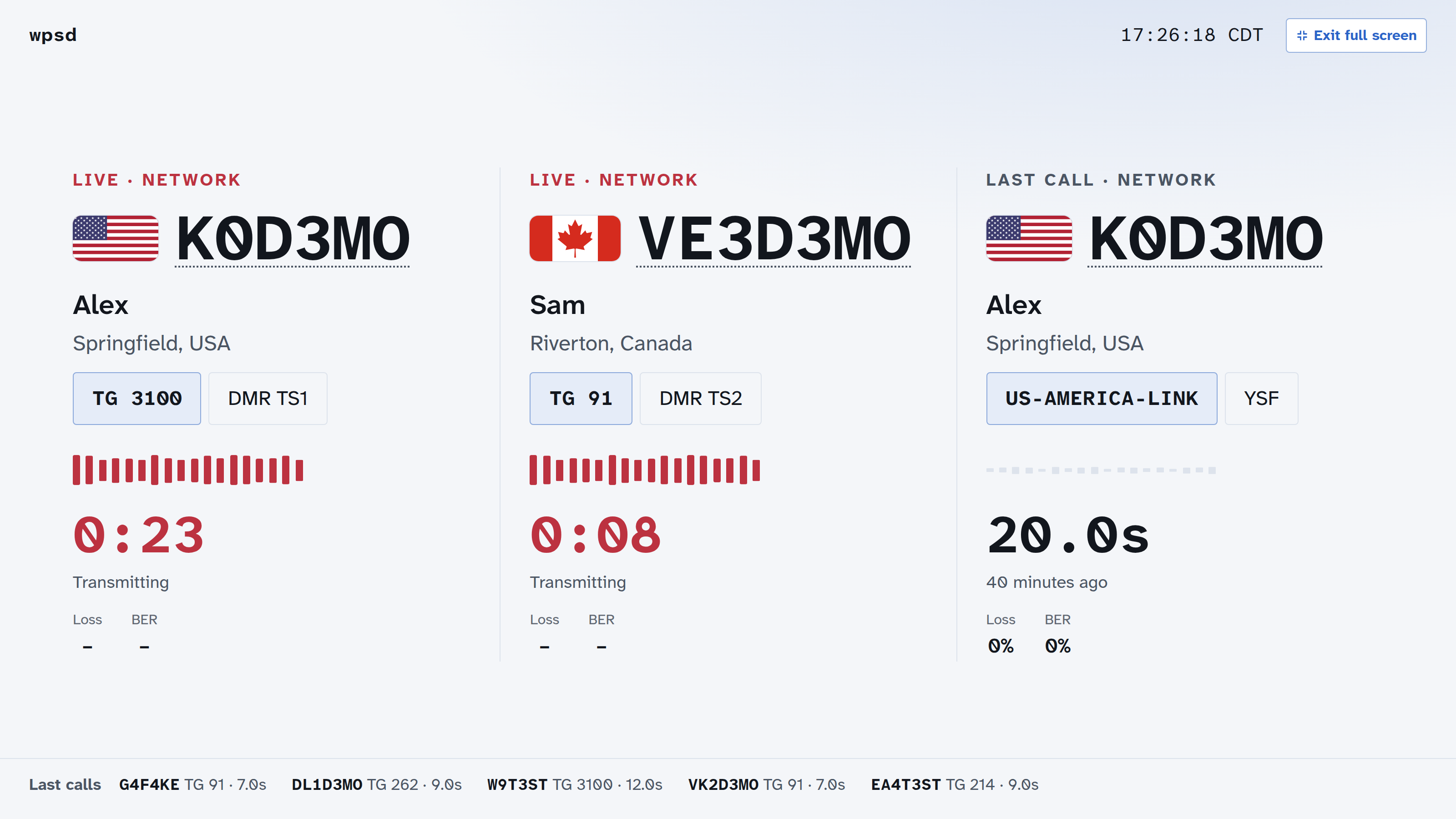
Full screen, at the top right of the Live panel, fills the screen with it, for a monitor in the shack: its calls large and side by side, your WPSD device’s name and the time at the top, and the last few calls along the bottom. Exit full screen or the Esc key returns.
Short key-ups (“kerchunks”)
Very short transmissions (a quick key-up to check a repeater) can fill the list. Hide kerchunks in Preferences leaves out calls shorter than the time you choose. A call on the air only appears once it has lasted that long, so a kerchunk never flashes up and disappears.
Last Heard
Below the Live panel, Last Heard lists the latest calls, newest first.
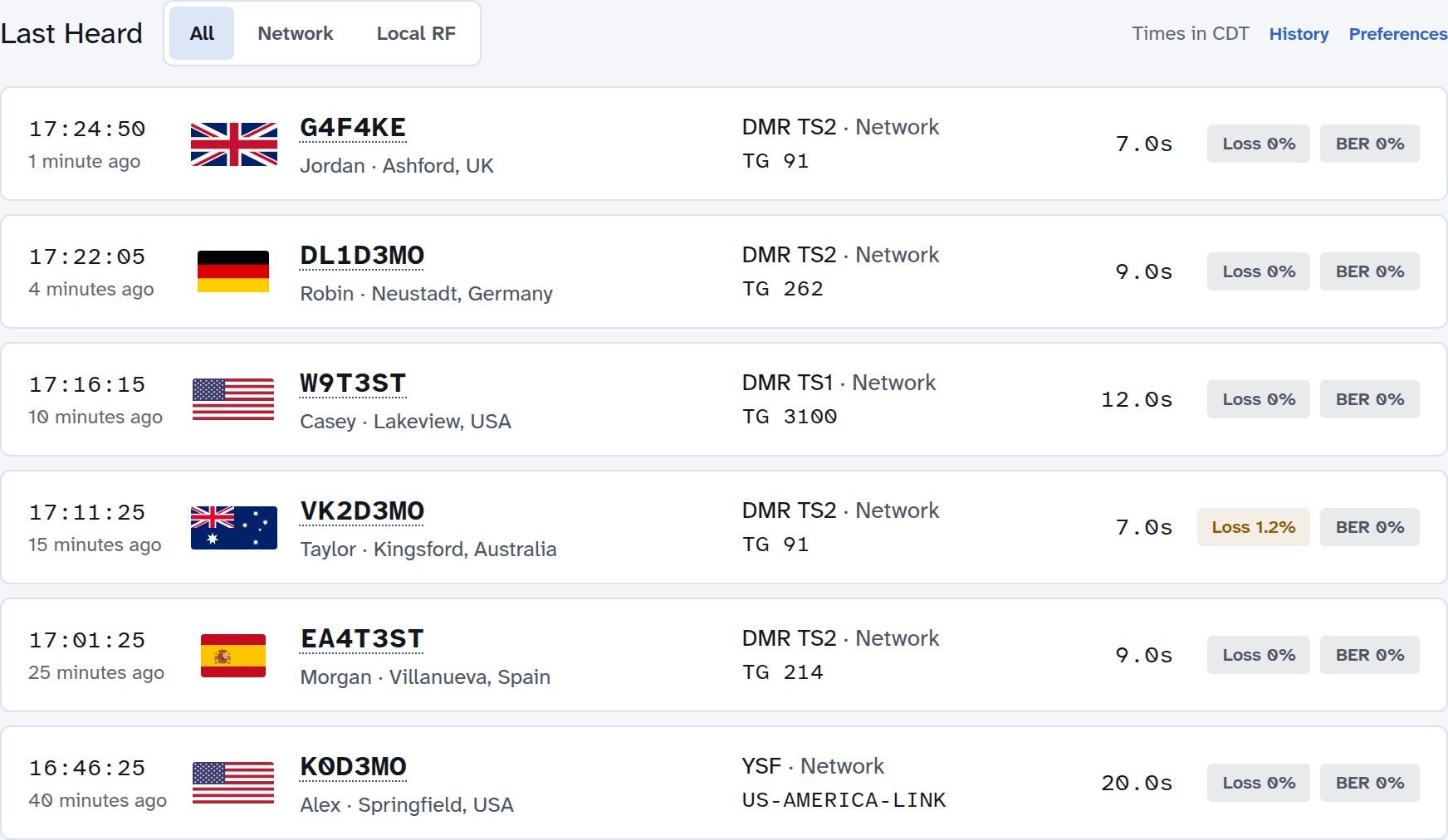
All, Network and Local RF choose which calls to show.
Each row shows when the call started (and how long ago), who it was, the mode and talkgroup, how long it lasted, and its Loss and BER.
A caller who calls repeatedly on the same talkgroup appears once, at their latest call.
Times are in the time zone shown above the list (Times in CDT, for example); choose it in Preferences.
Show more opens the rest of the list. How many rows show first is a preference too.
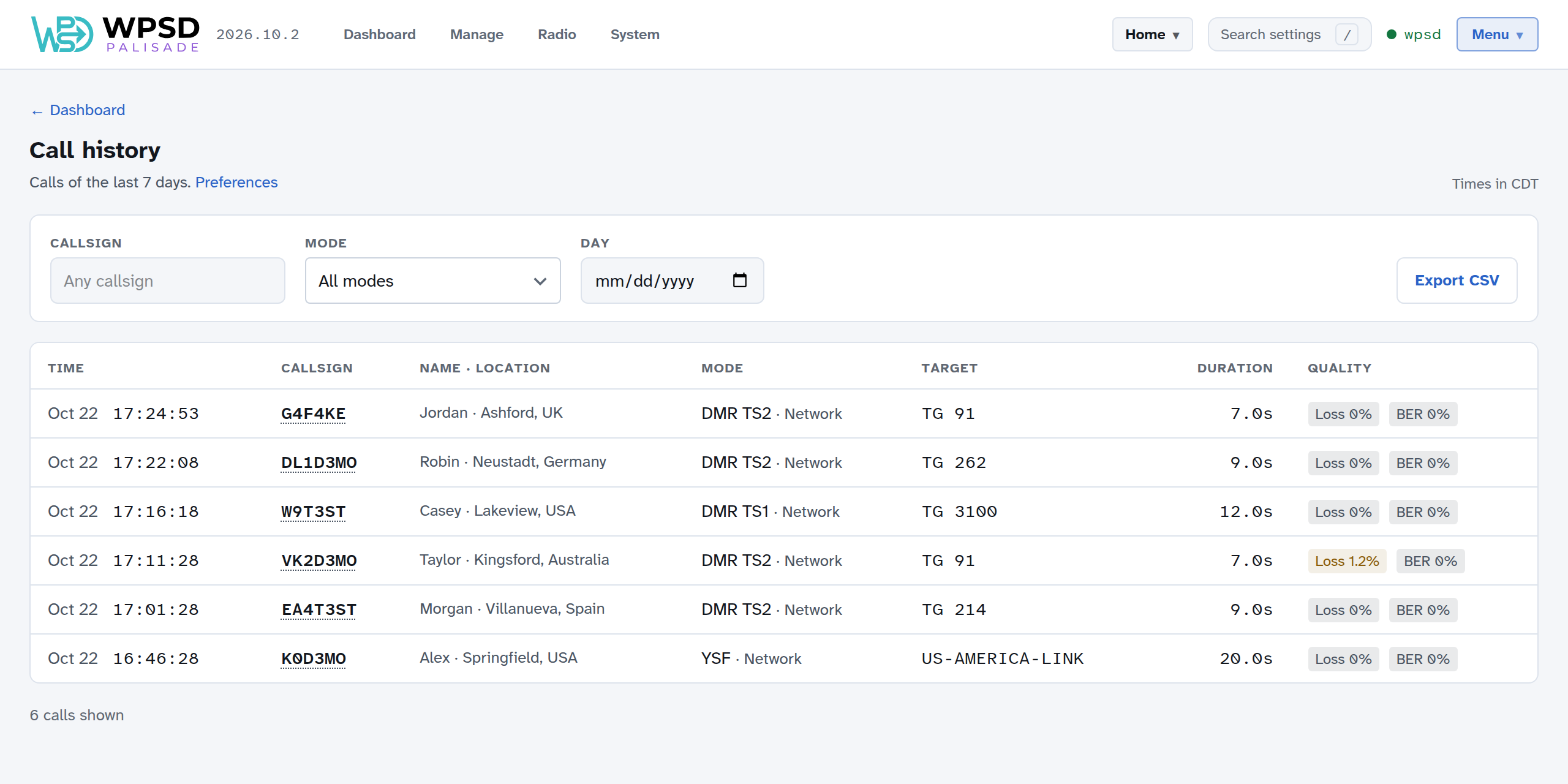
History
History, above the list, opens every call kept on the WPSD device (the last 7 days unless you change it in Preferences). Search by callsign, mode or day, and Export CSV to download the calls as a spreadsheet.
The side panel
The panel on the right shows your WPSD device at a glance.
Station
Radio Status: what the WPSD device is doing: Idle, Standby in a mode, RX (receiving from a radio) or TX (transmitting a network call), or a problem such as Failed or Offline.
TX and RX frequencies (one, TX / RX, on a simplex hotspot).
Profile: the profile in use (see Profiles).
Modem Type and its firmware, Mode (Duplex or Simplex), Port and speed, and the modem’s TCXO (reference crystal).
Modes & Networks lists every mode and its state: Off, Paused, Idle (on but not linked), Linked (with the reflector or network it’s linked to), Partial (some DMR networks linked, some failed), or Failed. Manage opens the Manage pages, where you link and unlink.
Hiding it
Hide panel slides the side panel away and gives the calls the whole width; a slim Show panel tab stays on the right edge to bring it back. Your browser remembers the choice.
The top bar

Dashboard, Manage, Radio and System: the four parts of WPSD Palisade.
The profile in use (here Home): open it to switch profiles; see Profiles. While a scheduled switch runs it also says until when.
Search settings (or press
/or Ctrl+K): find any setting by name and go straight to it.Your WPSD device’s name, in green while your browser is connected to it. If the connection drops it shows Reconnecting…, then Offline; the page catches up by itself when the WPSD device is back.
Menu: Preferences, Security, restarting or shutting down the WPSD device, and logging out.
Notices appear here when something needs you, such as updates waiting (see Updates).
On long pages, a Back to top button appears at the bottom right.
What visitors see
Anyone on your network can open the dashboard and see the calls, without logging in. Visitors see no profile names and can’t change anything; they’re asked to log in for Manage, Radio and System. To keep the whole dashboard private, turn on Private dashboard in Security.