Custom Settings
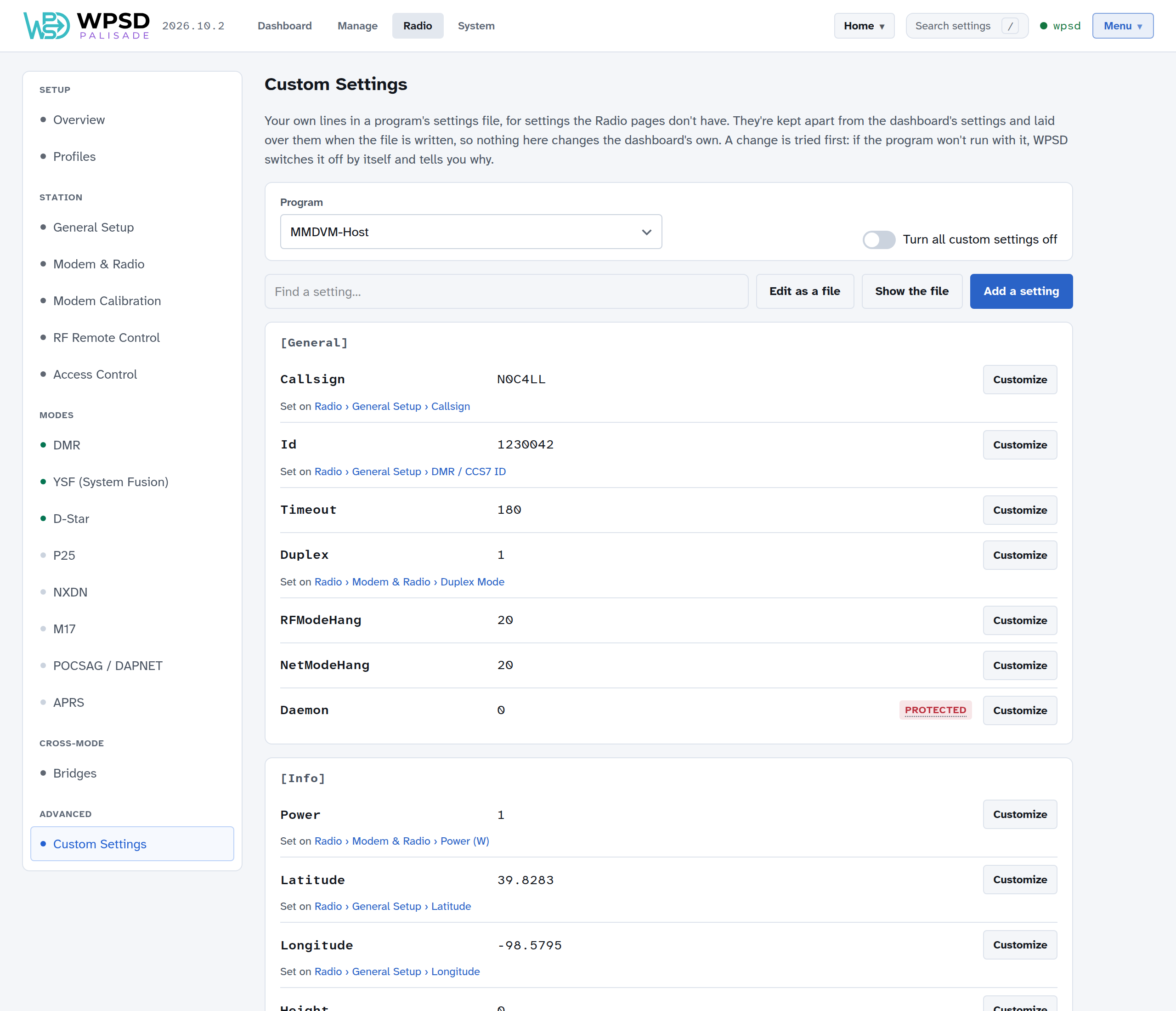
The Radio pages cover the settings most WPSD devices need. For anything else, the radio programs’ own settings that have no place on a page, use Radio > Custom Settings: your own lines in a program’s settings file, kept safe.
How they work
WPSD Palisade writes each program’s settings file (such as MMDVM-Host’s) from your settings in the dashboard, and writes it again whenever you change something. Editing a file by hand doesn’t last: the next change overwrites it.
Custom settings are kept apart from the dashboard’s settings and laid over them every time the file is written. So:
they survive every change you make in Radio, profile switches and restores;
they never change the dashboard’s own settings: turn one off, and the program gets exactly what the dashboard would have written;
you can always see which settings are yours. In the file, each is marked with a
# WPSD custom settingline above it, which helps anyone helping you.
Custom settings are part of each profile, so a profile can have its own.
Changing a setting
Choose the Program. The list shows how many custom settings each has.
Find the setting (type in Find a setting… to narrow the list) and choose Customize. Each setting shows its value now and, if a Radio page sets it, which page: a link takes you there.
Choose Set this value and enter the value, or Leave it out of the file to let the program use its own default.
Add to the changes, then apply, as with every change in Radio (see Radio Settings).
Add a setting adds one the file doesn’t have yet: choose the section and setting from those the program is known to read, or type them.
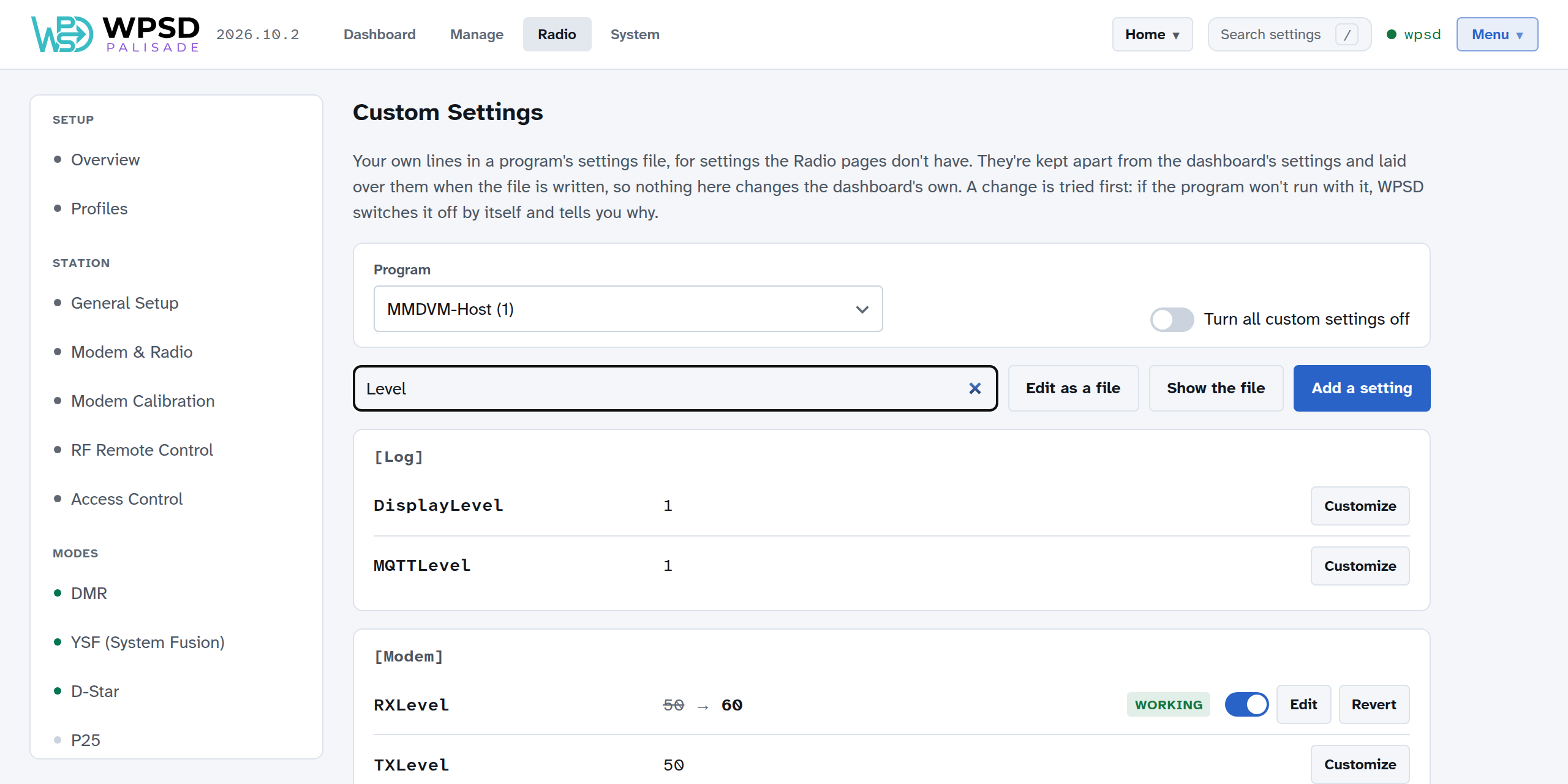
A custom setting shows the dashboard’s value struck through and yours beside it, with its state, a switch to turn it off for now, Edit, and Revert (to remove it).
Checks before you save
Before a change is added, WPSD Palisade checks it:
A value it can’t write (such as one with a line break) isn’t accepted.
A setting the program isn’t known to read is probably a typo: it says so, and suggests the nearest one (did you mean RXFrequency?).
A value of the wrong kind (text where a number goes) or out of range is pointed out.
Some settings WPSD Palisade needs as they are, such as the ones the programs use to talk to each other and to the dashboard, are marked Protected, with what would stop working. You can still change one, after typing its name to confirm.
If a Radio page sets a setting you’ve customized, the page says so: its own value isn’t used while your custom setting is on.
Trying, and rolling back by itself
A change is tried first. When you apply it, the program restarts with it (state Trying), and WPSD Palisade watches it for a short while:
It runs: the setting is Working.
It won’t run (it stops, fails, or logs a new error): WPSD Palisade switches the setting off by itself, puts back what worked, and tells you why, with the program’s own words. The setting stays, marked Switched off, for you to fix or remove.
A setting saved while its program isn’t running takes effect, and is tried, when the program starts.
Later on, if a program keeps failing (after an update, say) and runs once its custom settings are set aside, they’re marked Set aside and you’re told. Try them again one at a time gives each its own trial, so the one that breaks it is found and switched off again, and the others come back.
Seeing the whole file
Show the file shows the file exactly as the program gets it, your settings included. Passwords are blanked.
Edit as a file lets you edit the file as text. What you change becomes custom settings (checked, and tried when applied); the text itself is never written as you typed it. Passwords show empty, and stay as they are if you leave them empty. Review the changes lists them before they’re added.
When something’s wrong
Turn all custom settings off writes every program’s file without them, for troubleshooting. They’re kept; turn the switch off to bring them back.
If the dashboard can’t be reached at all, put an empty file named wpsd-no-custom-settings on the SD card’s boot partition (the part a computer can open) and start the WPSD device: it starts with every custom setting off, and removes the file. Turn the switch off again to bring them back.