Wi-Fi and Device Name
System > WiFi manages the Wi-Fi networks your WPSD device joins. System > Device Name sets the name it’s known by on your network.
Wi-Fi
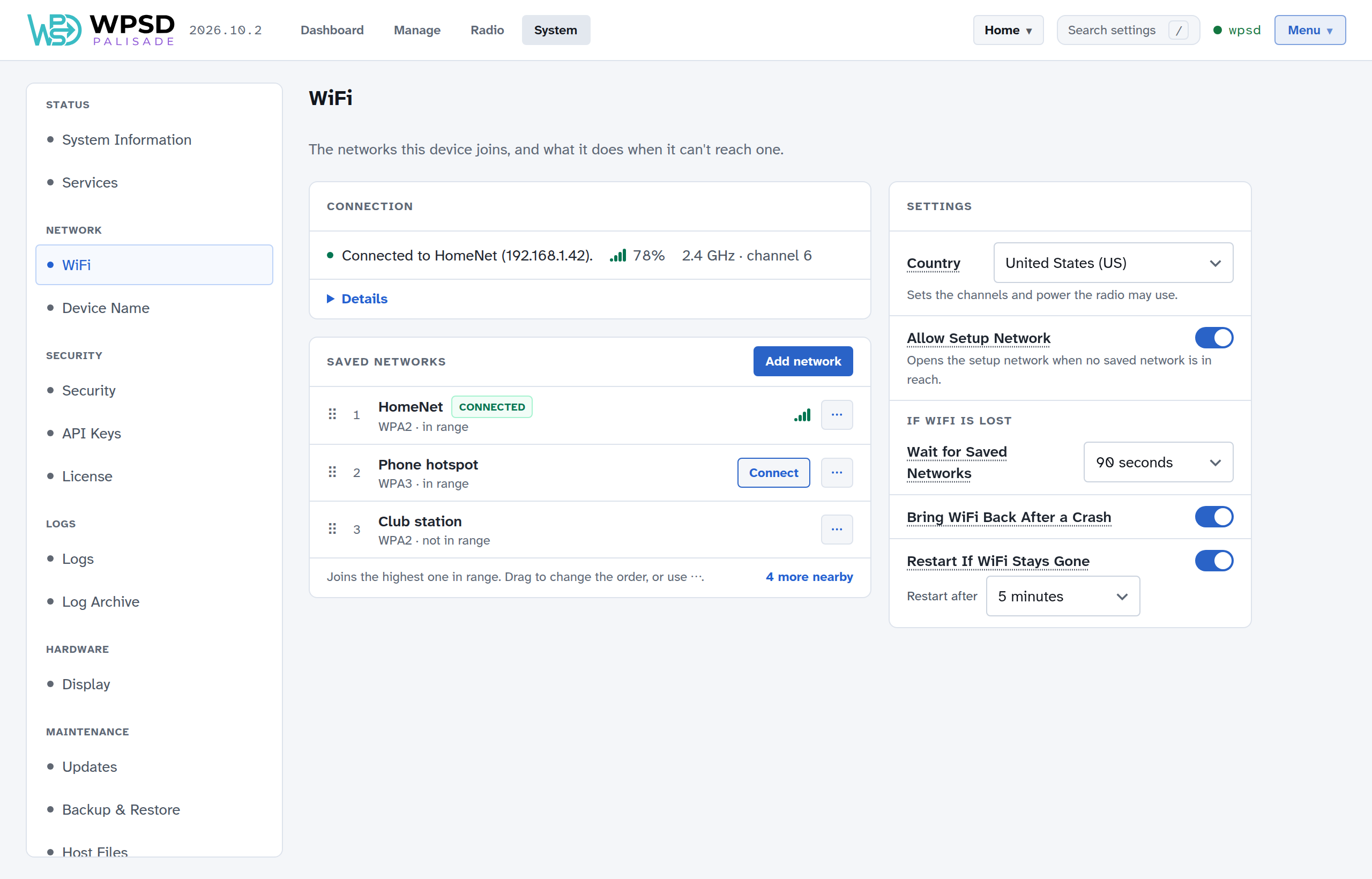
Connection shows the network in use, its signal and channel. Details opens the rest: link speed, addresses, the access point, transmit power and traffic. If the WPSD device is online through Ethernet instead, it says so.
Saved networks
The WPSD device joins any saved network in range. When several are in range, it joins the one highest in the list. Each network says whether it’s in range; Connect switches to one now. Its ⋯ menu also moves it up or down the list, or forgets it (after asking). On a computer you can drag a network by its handle to a new place.
Note
If the page reaches the WPSD device over Wi-Fi, switching networks or forgetting the one in use cuts the page off. The page says where to find the dashboard afterwards. If a switch fails, the WPSD device goes back to the network it was on.
Adding a network
Add network opens one window for every way to add a network:
Nearby lists the networks in range. Choose one, enter its password, and Save and connect (or Save only, to join it later, such as your phone’s hotspot before a trip).
By name adds a network that isn’t in range, or a hidden one (tick Hidden network).
From a file takes a NetworkManager profile (
.nmconnectionfile), such as one exported from another Linux computer. Use it for enterprise networks (with a username as well as a password), which can’t be set up any other way here.
If connecting fails, the page says why: the password wasn’t accepted, the network isn’t in range, it gave the WPSD device no address, and so on.
Settings
The settings beside the networks take effect as soon as you change them; there’s no Save button (see System). Hover over or tap a setting’s name for the full explanation.
Country is the country the WPSD device is in. It sets which channels and how much transmit power the Wi-Fi may use; with the wrong country, the WPSD device may not see your network at all.
With Allow Setup Network on, a WPSD device that can’t reach any saved network starts an open network named WPSD-Setup-…, so you can set up Wi-Fi wherever you take it: join it from your phone, and the setup page opens. While the setup network is up, the WPSD device takes it down for a moment every 3 minutes to look for its saved networks, unless someone has the setup page open.
Turn it off only if the WPSD device never leaves a network it already knows. Then a WPSD device that loses its network only retries its saved networks, and until one comes back it can be reached only over Ethernet, or by putting a .nmconnection file on the SD card’s boot partition. (A WPSD device with no saved network at all still starts the setup network; otherwise it could never be set up.)
Your WPSD device also has a protected recovery network, described in Security.
If WiFi is lost
Wait for Saved Networks (90 seconds unless you change it): after the WPSD device starts, or after its Wi-Fi comes back, how long your saved networks get to connect before the setup or recovery network starts. On a weak signal a network can take a while to show up; a longer wait keeps the setup network from starting while the WPSD device is still joining.
Bring WiFi Back After a Crash (on): on some Raspberry Pi models, the Zero 2 W in particular, the Wi-Fi chip can crash on a weak signal and its Wi-Fi disappears. The WPSD device reloads it, usually within a minute, and joins your network again.
Restart If WiFi Stays Gone (on, after 5 minutes): the last resort when Wi-Fi does not come back. The WPSD device waits for any call on the air to end first, and never restarts while it is online over Ethernet.
Device name
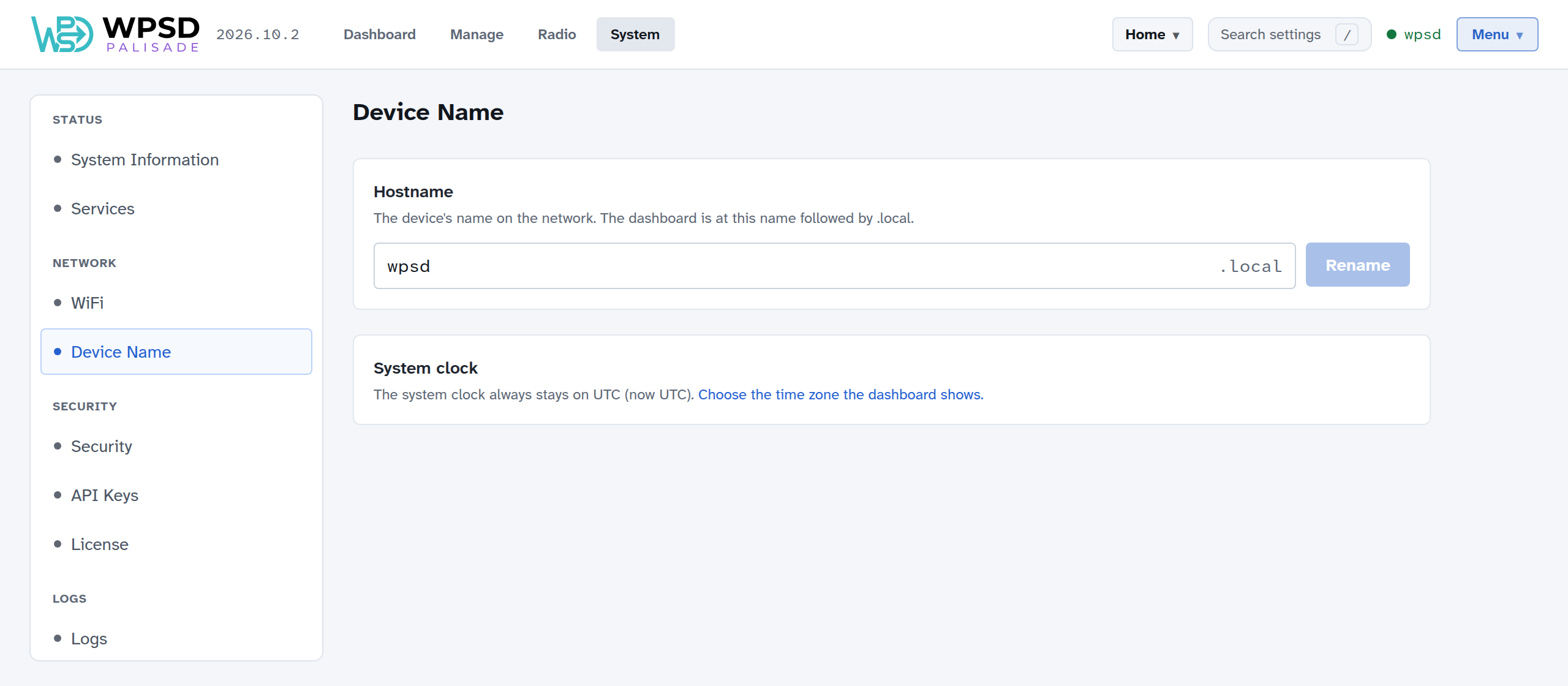
The device name (hostname) is your WPSD device’s name on the network: the dashboard is at that name followed by .local, such as http://wpsd.local. Use lowercase letters, digits and dashes, up to 63, not starting or ending with a dash.
Enter a new name and choose Rename. The dashboard moves to the new address, and you log in there again. Some things, such as your router’s list of devices, only pick up the new name after a restart: the page offers to reboot once the WPSD device is renamed.
Give each WPSD device its own name if you have more than one on the same network.
Tip
If .local addresses don’t open on your network (some routers, guest networks and phones don’t support them), open find.wpsd.direct on a phone or computer on the same network, or find the WPSD device’s address in your router’s list of connected devices and use that instead.
The system clock always stays on UTC. The time zone the dashboard shows is in Preferences.