Guided Setup
Guided Setup takes you through everything a new WPSD device needs, one step at a time: your station, the modem, a display, the modes you use, and calibration. It’s the quickest way to get on the air.
You can start it:
right after adopting your WPSD device: choose Guided setup on the welcome page;
from the dashboard while the device isn’t set up yet: choose Set it up in the bar at the top or in the Waiting for setup panel;
at any time from Radio > Overview: choose Start Guided Setup.
Nothing changes on your WPSD device until the last step, where you review and apply. Cancel setup, at the top, leaves without changing anything. Running it again later is fine: it starts from your current settings.
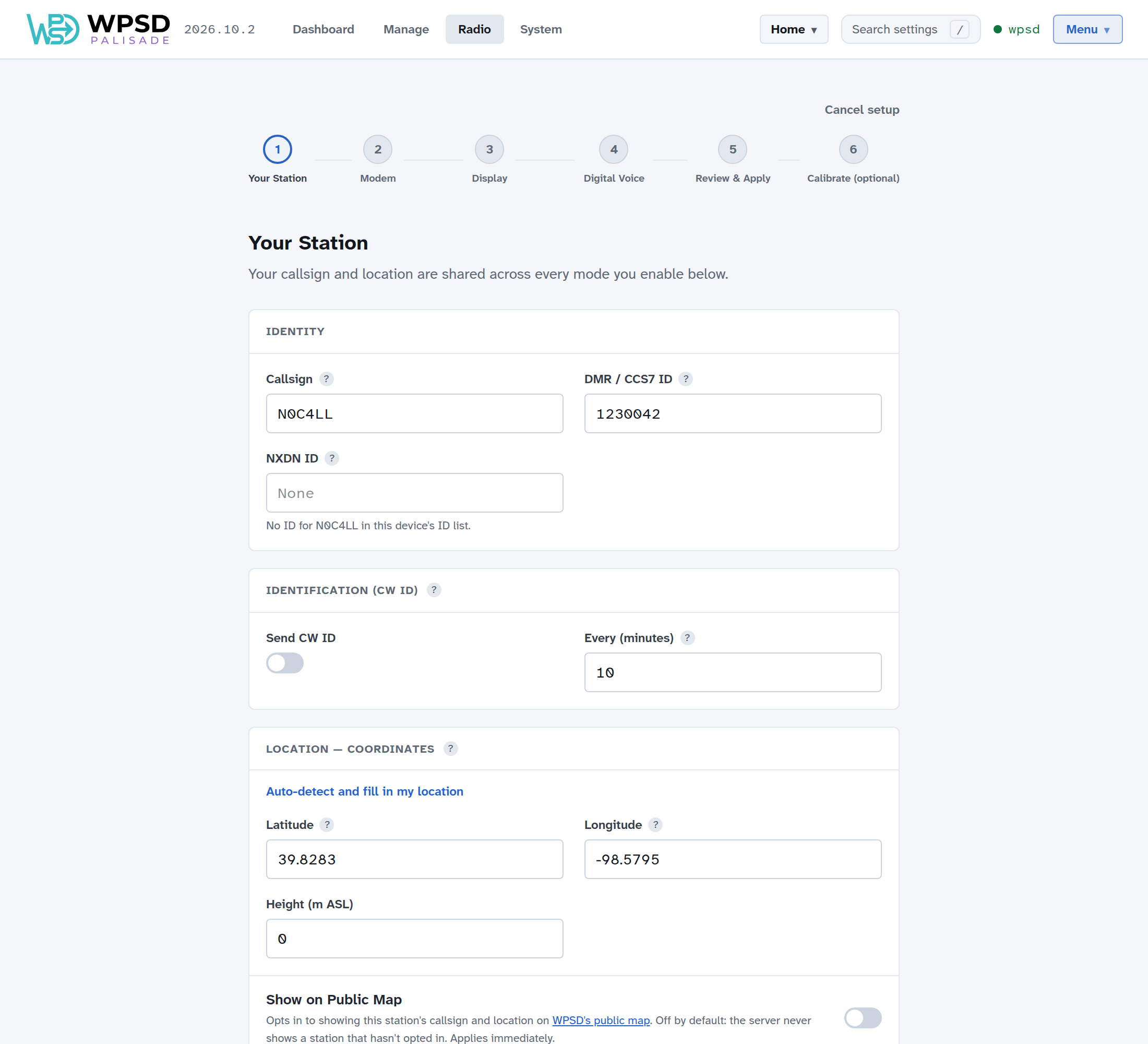
1. Your Station
Your callsign and location are shared by every mode you turn on.
Callsign: your amateur radio callsign.
DMR / CCS7 ID: your DMR ID, needed for DMR (get one from RadioID). The ? next to each field explains it.
NXDN ID: filled in for you from the WPSD device’s ID list when your callsign has one.
Identification (CW ID): sends your callsign in Morse code every so many minutes. Leave it off unless your license requires it.
Location: your latitude and longitude, used for APRS and the public map. Auto-detect and fill in my location asks your browser for your position; you can also type them. Then your town or city and a short description.
Show on Public Map: puts your callsign and location on WPSD’s public map. It is off unless you turn it on, and takes effect at once.
2. Modem
Tell WPSD Palisade which modem it has and which frequencies to use.
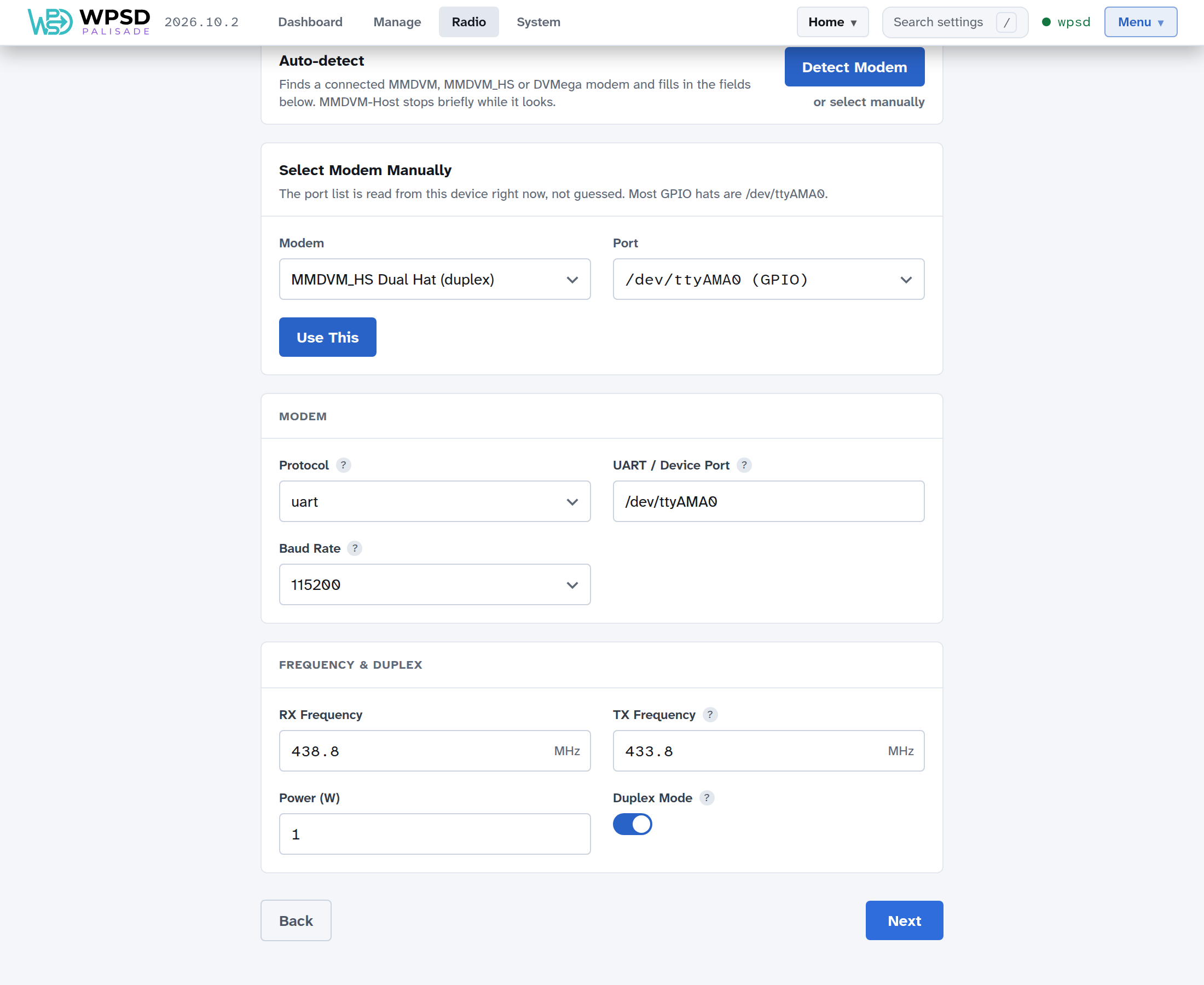
Choose Detect Modem. WPSD Palisade looks for a connected MMDVM, MMDVM_HS or DVMega modem and fills in the fields for you. (If the radio programs are already running, they stop for a moment while it looks.)
If it finds nothing, or more than one, choose or select manually and pick your modem and its port from the lists. Most modems that sit on the Raspberry Pi’s pins are on
/dev/ttyAMA0.Set the RX Frequency and TX Frequency. On a simplex hotspot (one antenna) they are the same. On a duplex board (two antennas), turn Duplex Mode on: the two frequencies then differ, and if they were the same, WPSD Palisade moves the transmit frequency a few MHz away for you. Change it to suit your band plan.
Tip
Choose a frequency in your country’s band plan for digital hotspots, away from repeater inputs and outputs and from satellite segments.
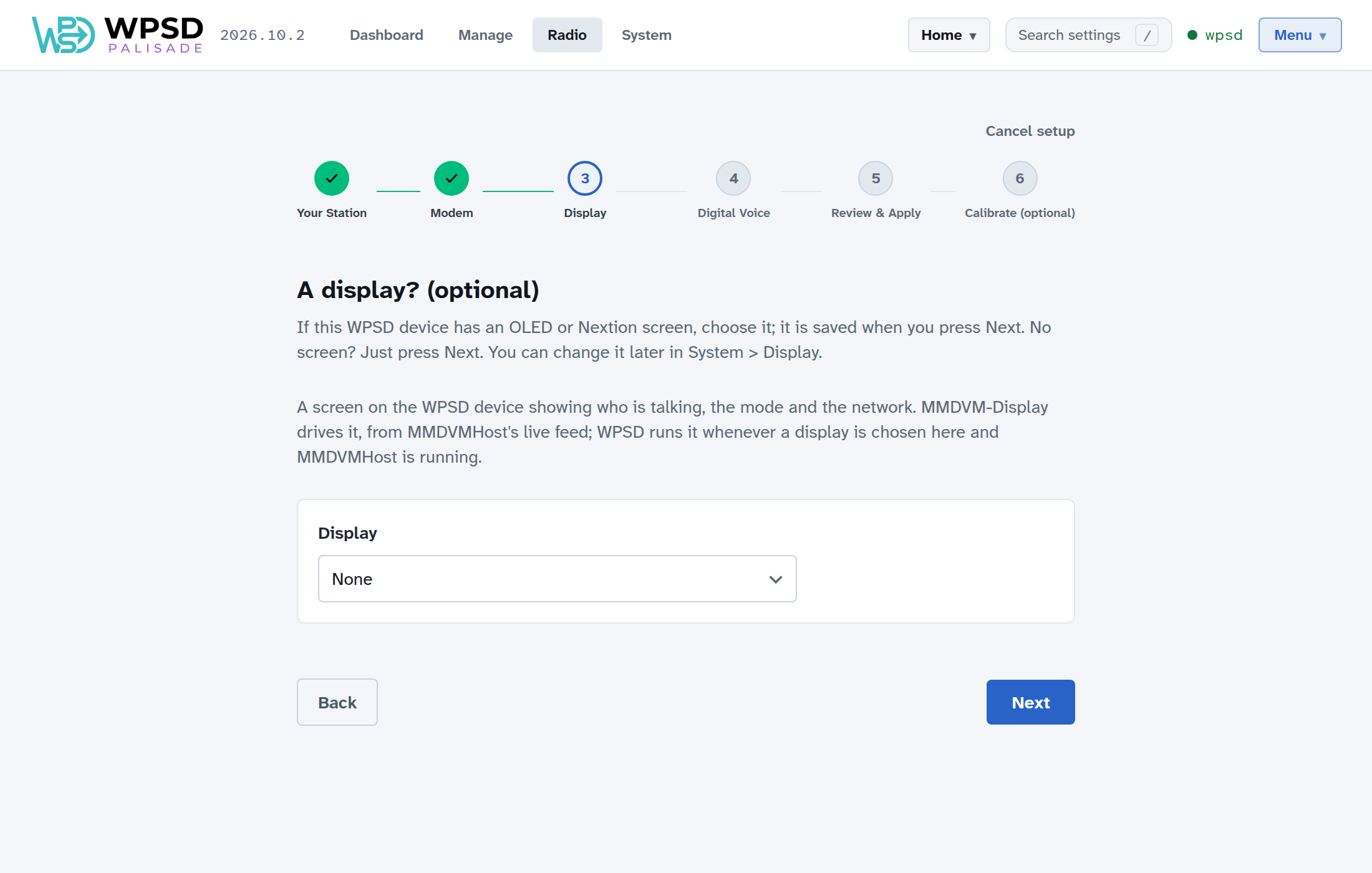
3. Display
If your WPSD device has a small screen (an OLED or Nextion display), choose it here; it’s saved when you choose Next. No screen? Choose Next. You can change it later in System > Display.
4. Digital Voice
Turn on the modes you use; a new image has none on. Each mode you turn on opens its main settings: where to connect at startup, and for DMR, which networks.
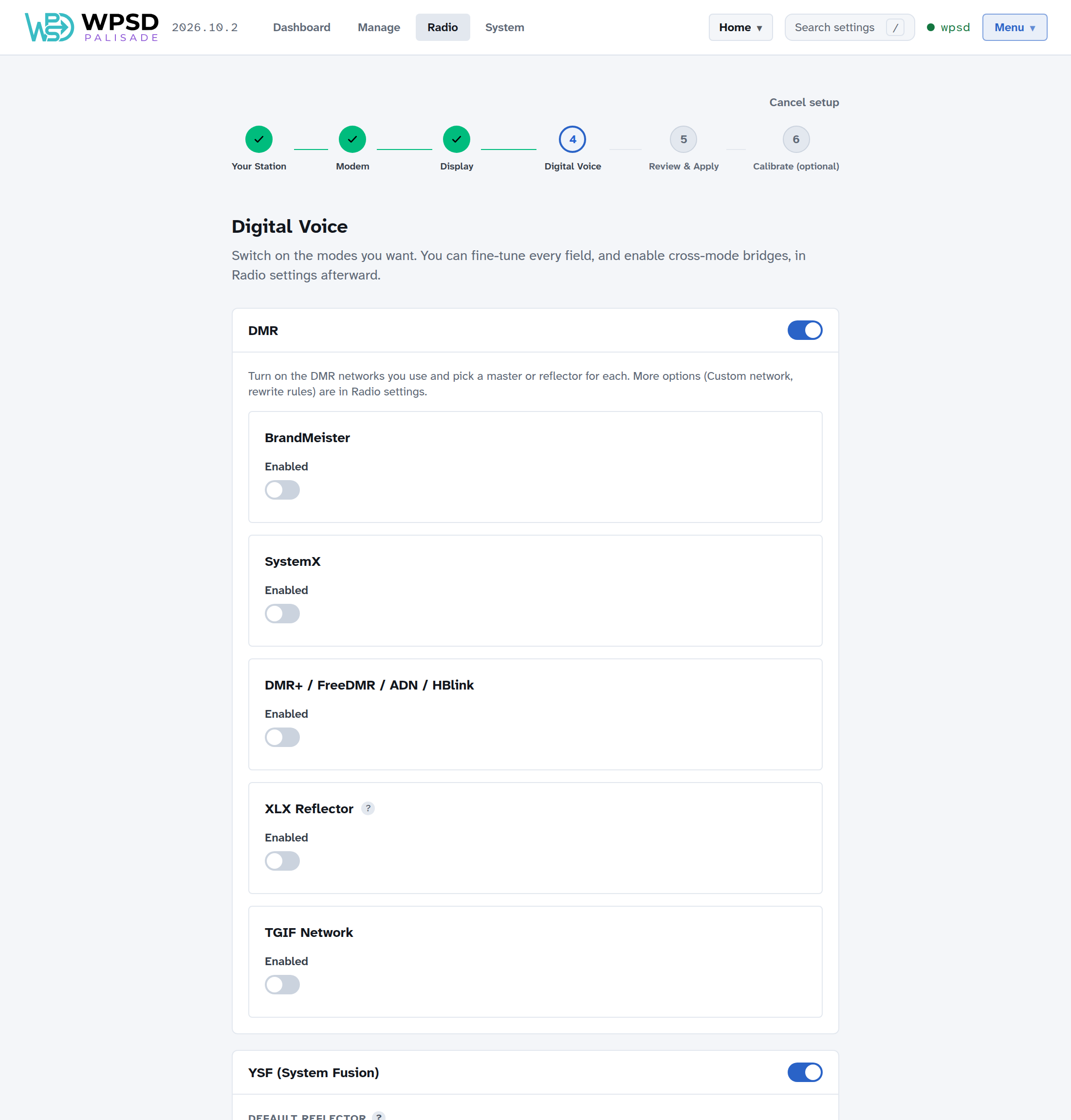
DMR lists each network you can use: BrandMeister, SystemX, DMR+ / FreeDMR / ADN / HBlink, XLX, and TGIF. Turn on the ones you use and choose a master or reflector for each.
BrandMeister: choose the Master Host nearest you, and enter your Hotspot Security PIN (set it on your BrandMeister account’s SelfCare page).
ESSID: if you run more than one WPSD device or radio on the same DMR ID, give each its own two-digit ESSID; Connects as shows the ID it will use.
YSF (System Fusion), D-Star, P25, NXDN and M17 each have a switch, and once on, their startup reflector or room. Cross-mode bridges (such as DMR to YSF) are set up later on Radio > Bridges, and paging and APRS on their own Radio pages.
5. Review & Apply
Review lists every setting you changed, in plain language. Nothing has changed yet.
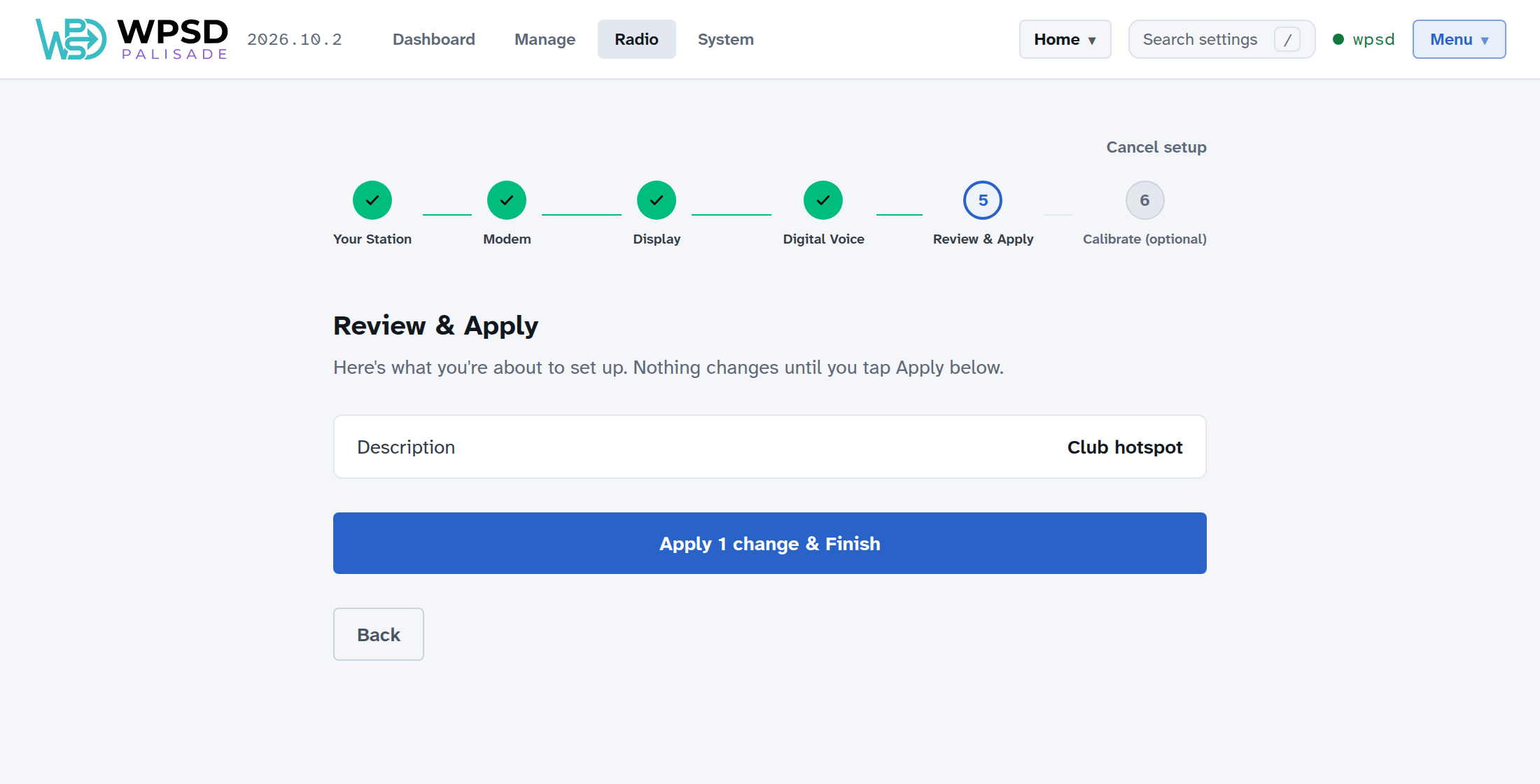
Choose Apply & Finish (it says how many changes). The radio programs whose settings changed restart, which takes a few seconds.
6. Calibrate (optional)
Calibration tunes the WPSD device to your radio for the cleanest reception, and takes a minute or two with your radio in hand. You can do it now, or choose Skip for now and do it any time later in Modem Calibration.
Done
Your station is set up. Your setup is saved as a profile: give it a name (for example Home), then choose Go to Dashboard, or Open Radio settings to fine-tune anything further.
Profiles let you keep several setups and switch between them in seconds; see Profiles.