Security and Keys
System > Security sets who can watch and change your WPSD device, and how you get in. System > API Keys holds your keys for the networks’ own services.
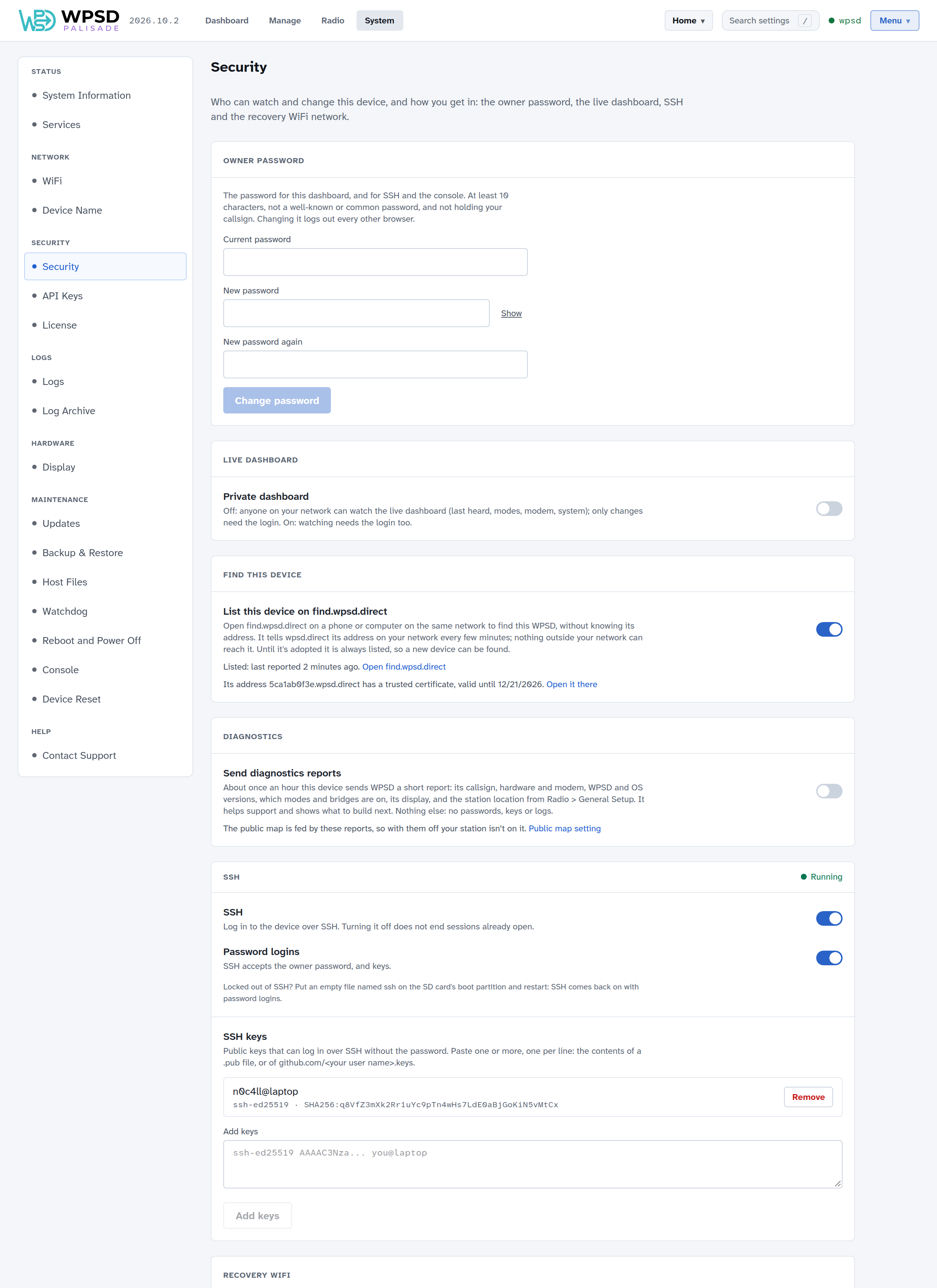
Owner password
One password, the owner password, logs you in to the dashboard, to SSH and to the Console. You set it when you first set up the WPSD device.
To change it, enter the current password and the new one twice, then Change password. It needs at least 10 characters. Changing it logs out every other browser.
Passwords WPSD refuses
Whoever tries to break into a WPSD device tries the obvious first, so WPSD refuses those passwords, and says why as you type:
Well-known defaults of similar software and of the systems WPSD devices run on, which owners often carry over.
Placeholders from WPSD’s own settings, such as the sample passwords in its settings files.
Common amateur radio words, the first guesses against a radio device.
The 10,000 most common passwords from leaked password lists.
Your own details: a password holding your callsign, DMR ID, the WPSD device’s name, or “wpsd”. Anyone can look those up.
Each counts in any mix of upper and lower case, with or without dashes, with common letter swaps (p@ssw0rd), and with digits or symbols added at either end (dragon2024!). A few unrelated words make a password that’s both strong and easy to remember. The first-boot file and the First Boot Configurator follow the same rules.
A password you set before these rules keeps working; the next change follows them.
Private dashboard
With Private dashboard off, anyone on your network can watch the live dashboard (Last Heard, modes, modem, system); only changes need the login. Turn it on, and watching needs the login too.
Find this device
With List this device on find.wpsd.direct on, you (or anyone on your network) can find the WPSD device by opening find.wpsd.direct on a phone or computer on the same network, without knowing its address (see First Boot).
To make that work, the WPSD device tells wpsd.direct its address on your network every few minutes, and whenever it changes: its name, its ID, its local addresses, the dashboard’s ports, its WPSD Palisade version and whether it’s adopted. Nothing outside your network can reach those addresses, and find.wpsd.direct only shows them to browsers on the same network as the WPSD device. Each WPSD device signs what it sends with a key of its own, which never leaves it and grants nothing on the WPSD device itself.
The section shows when the WPSD device last reported, and any problem reaching wpsd.direct.
Its own address and certificate. A listed hotspot also gets an address of its own, <id>.wpsd.direct (the ID is ten characters, starting with the six in its setup network’s name), pointing at it on your network, and a certificate for that address from Let’s Encrypt. Opened there, the dashboard shows no browser warning. Getting the certificate takes a few minutes the first time; the WPSD device renews it by itself. The section shows its state: being ordered, or valid until a date, with a link to open the dashboard there.
Note
While wpsd.direct is being tested, hotspots get test certificates, which browsers don’t trust yet: the section says so, and the find page keeps linking to the WPSD device’s address on your network. Nothing needs doing when that changes.
Turn it off, and the WPSD device asks wpsd.direct to drop it and stops reporting. Until a WPSD device is adopted, it’s always listed, so a new one can be found.
Diagnostics
With Send diagnostics reports on (the default), the WPSD device sends WPSD a short report about once an hour: its callsign, hardware and modem, WPSD and operating system versions, which modes and cross-mode bridges are on, its display, and the station location from Radio > General Setup. It helps WPSD support and shows what to build next. No passwords, keys or logs go with it.
The public User Map is fed by these reports. Your station only appears on it if you also switch on Show on Public Map in Radio > General Setup, and turning reports off also takes it off the map (one last report tells the map). While reports are off, the map setting can’t be switched on.
SSH
SSH lets you log in to the device from a terminal on your computer.
SSH turns the SSH server on or off. A new WPSD device ships with SSH off; turn it on here, in wpsd-firstboot.toml, or (to recover a WPSD device you can’t reach) with an
sshfile on the SD card’s boot partition. Turning it off doesn’t end sessions already open. The Console needs SSH on.Password logins: on, SSH accepts the owner password, and keys. Off, it accepts keys only. Add a key before turning password logins off.
SSH keys: public keys that can log in without the password. Paste one or more, one per line, into Add keys: the contents of a
.pubfile, or ofgithub.com/<your user name>.keys. Each key is listed with its comment and fingerprint, with Remove.
Tip
Locked out of SSH? Put an empty file named ssh on the SD card’s boot partition (the part a computer can open) and restart: SSH comes back on, with password logins.
Recovery Wi-Fi
If the WPSD device can’t join any saved Wi-Fi network, it raises its own network, named WPSD-Recovery- and the device’s ID, protected by the passphrase shown here. Join it from your phone or computer to reach the dashboard and fix the Wi-Fi (see Wi-Fi and Device Name).
The passphrase is hidden until you show it; Copy copies it, and Change sets your own. Keep it somewhere you can find it without the WPSD device.
API keys
System > API Keys holds your keys for BrandMeister, TGIF, SystemX and DAPNET. Manage uses them to change talkgroups, and DAPNET’s to send messages.
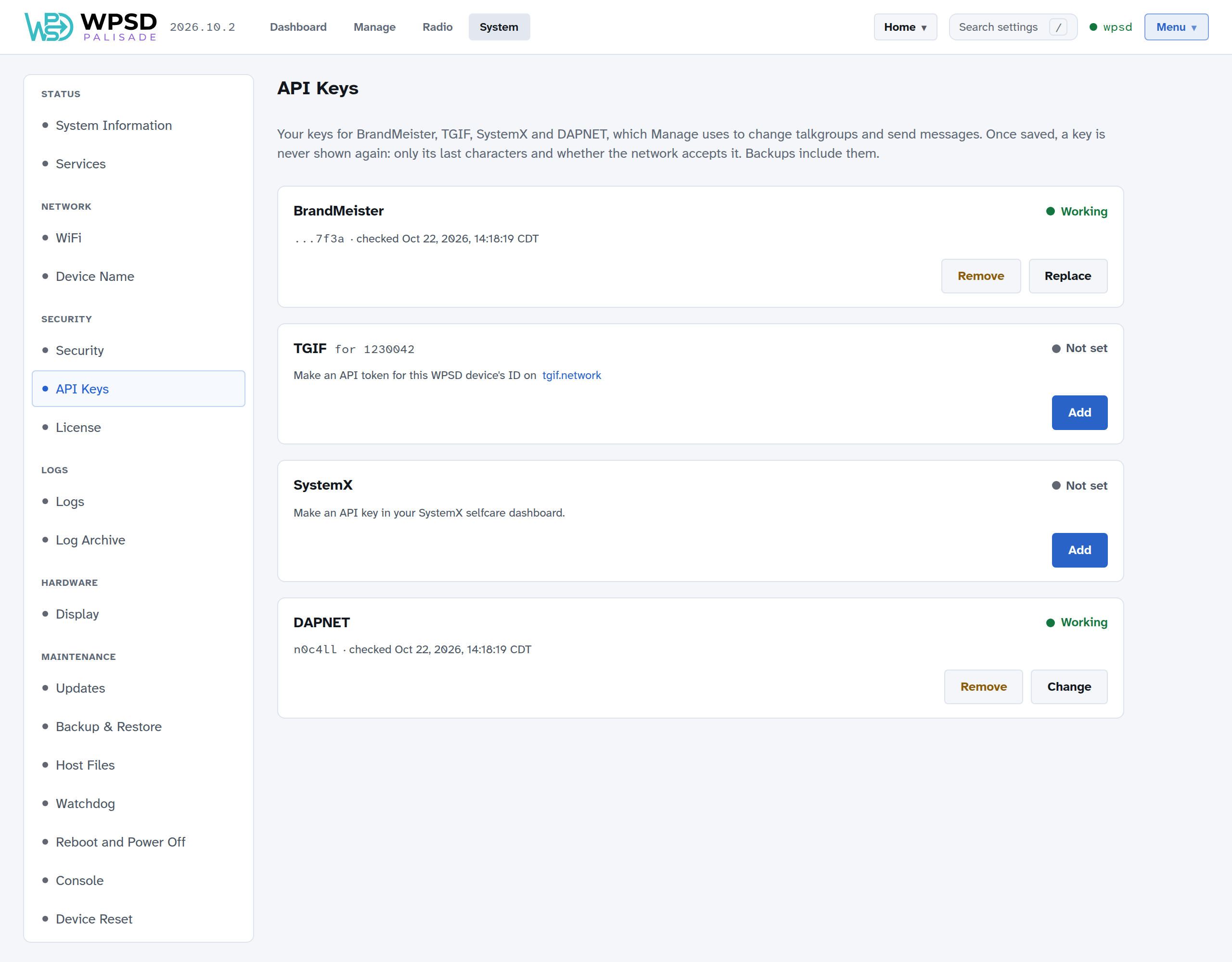
Each card says where to get the key:
Network |
What to enter |
Where to get it |
|---|---|---|
BrandMeister |
API key |
BrandMeister SelfCare: Profile > API Keys |
TGIF |
API token |
tgif.network, for this WPSD device’s DMR ID (shown on the card) |
SystemX |
API key |
Your SystemX selfcare dashboard |
DAPNET |
Username, password, transmitter group and your pager’s RIC |
Your DAPNET login, from hampager.de |
Add (or Replace), paste the key, then Save and check: the WPSD device asks the network whether it accepts the key, and the card shows Working, Rejected, or Couldn’t check (offline). Keys are checked again whenever Manage uses them.
Once saved, a key is never shown again, not even to you: only its last characters and whether the network accepts it. Backups include them; profiles don’t (API keys are the same in every profile).