First Boot
The first time you start your WPSD device, two things happen: it gets onto your network, and you adopt it, which makes you its owner. There’s no default password: nobody can change your WPSD device until you’ve adopted it, and then only with your password.
Getting it on your network
Your WPSD device needs your network to reach the digital voice networks, and to let you open its dashboard. There are three ways in, and a fourth that also does the adoption for you: the first-boot file.
With a network cable
Plug the Raspberry Pi into your router before you power it on. That’s all: go on to Finding your WPSD device.
With Wi-Fi, set up from your phone or computer
Power the WPSD device on with no network to join, and after a minute or two it starts its own open Wi-Fi network, the setup network, named WPSD-Setup- and a six-character ID, such as WPSD-Setup-5CA1AB.
Join it from your phone or computer. A setup page opens by itself, as at a hotel’s Wi-Fi. If it doesn’t, stay connected and open
http://172.16.42.1/.Choose your Wi-Fi network from the list (or Other network… for a hidden one), and enter its password. Add more than one if you like, such as home and your phone’s hotspot, in the order to try them.
Choose Connect. The WPSD device leaves the setup network and joins yours, and your phone or computer loses the setup network.
Reconnect your phone or computer to your own Wi-Fi, and open the address the page showed you, or find.wpsd.direct (see Finding your WPSD device).
If the WPSD device can’t join your network (a mistyped password, say), the setup network comes back within about a minute: rejoin it, and the page says what went wrong.
Tip
If the setup is in progress on another device, the page asks for a handoff code: it’s shown on that device’s setup page, and lets you continue on this one.
With Wi-Fi, set up on the card
If you’d rather the WPSD device joined your Wi-Fi by itself on its first start, put a Wi-Fi settings file on the card before you put it in the Pi:
Make the file with the WPSD Wi-Fi Configuration Generator: enter your network’s name and password, and it gives you a
.nmconnectionfile. (Any NetworkManager profile works.)Copy it to the card’s boot partition, the part a computer can open.
At its first start, the WPSD device installs the file and deletes it from the card, since it holds your Wi-Fi password. A file it can’t use is left on the card renamed .invalid, so you can see it was refused; the WPSD device then starts its setup network instead.
Or set it all up before it boots
The first-boot file, wpsd-firstboot.toml, sets up a new WPSD device before it ever starts: it joins your Wi-Fi, takes your owner password, callsign and location, finds your modem, and skips adoption and most of Guided Setup. It’s handy for setting up a WPSD device you can’t easily reach, or a batch of cards for a club.
Build the file with the WPSD First Boot Configurator. Fill in what you know; anything you leave blank is set up the usual way, in the dashboard. The page builds the file in your browser: nothing you type is sent anywhere.
Write the WPSD Palisade image to the card, as usual (see Installing).
Copy
wpsd-firstboot.tomlto the card’s boot partition (the small drive your computer opens after writing the card, withconfig.txtin it). Keep the name exactly as it is.Put the card in the Pi and power it on. Then open find.wpsd.direct, or your WPSD device’s address (
https://and its name followed by.local), and log in with your owner password. The browser’s certificate warning appears once, as described below.
What it can set:
Section |
What |
|---|---|
Owner |
The owner password (or only a scrambled form of it, a hash: recommended, so nobody who finds the card can read it), and the recovery Wi-Fi passphrase. Without an owner password, the WPSD device is adopted in the dashboard as usual. |
Device |
Its name (left blank, each WPSD device names itself after its own ID, so one file can serve several cards), and the private dashboard. |
Station |
Your callsign, DMR ID, latitude and longitude, and location name. |
Modem |
Found automatically at first boot, a board you name with its serial port, or left for Guided Setup. |
Wi-Fi |
The country, and up to 8 networks in the order to try them. |
SSH |
On or off, whether it accepts the owner password, and your public keys (the configurator can fetch them from GitHub). |
The WPSD device applies the file once, then deletes it from the card, since it holds your Wi-Fi passphrases. It’s checked whole first: if anything in it is wrong, none of it is applied, and it’s renamed wpsd-firstboot.toml.invalid, with the reasons in the WPSD device’s log. The file only works on a WPSD device that hasn’t been adopted yet.
Tip
With an owner password hash in the file, SSH and the Console take the password after your first login to the dashboard.
Finding your WPSD device
The easiest way: on a phone or computer on the same network as the WPSD device, open
https://find.wpsd.direct
Every WPSD device tells find.wpsd.direct its address on your network, and the page matches you with the WPSD devices reporting from the same network. On a home network it shows your WPSD device straight away: choose Open (a new WPSD device that isn’t adopted yet says Set up).
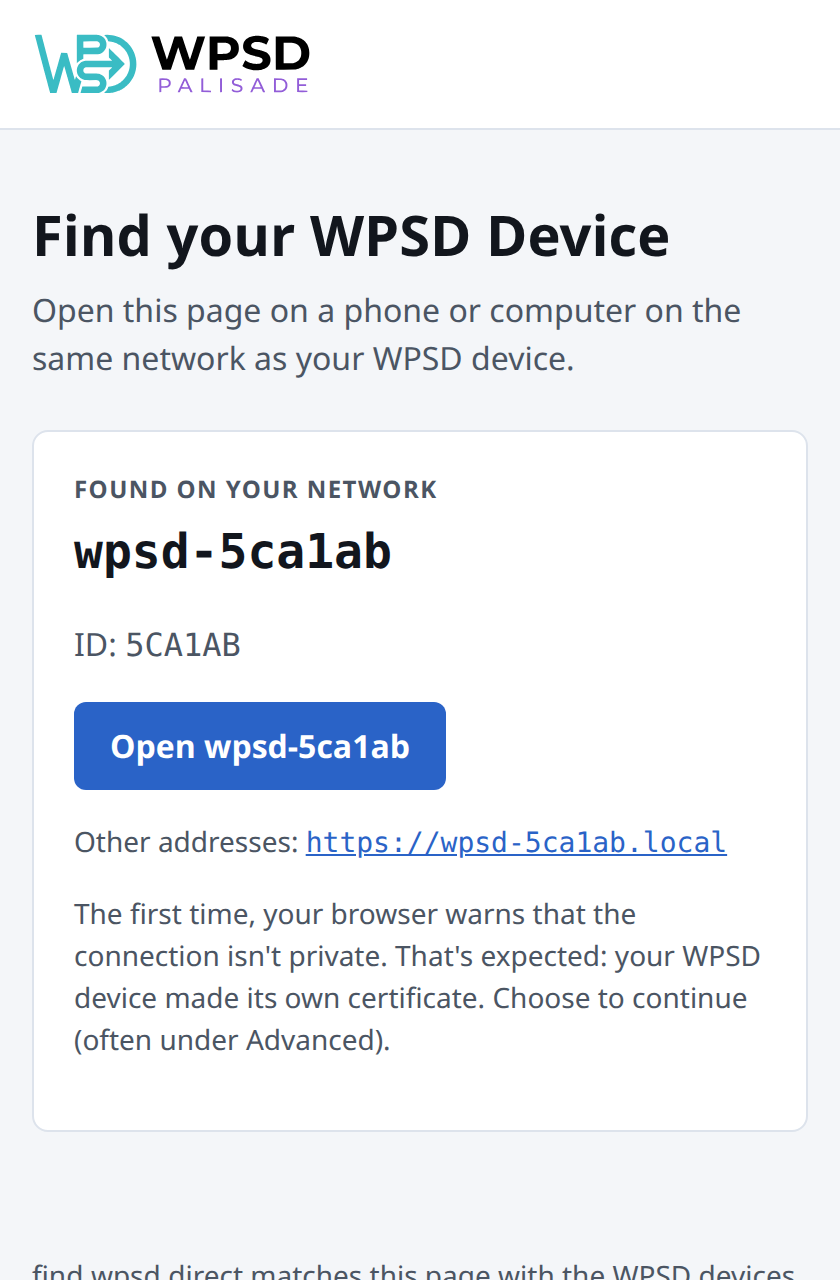
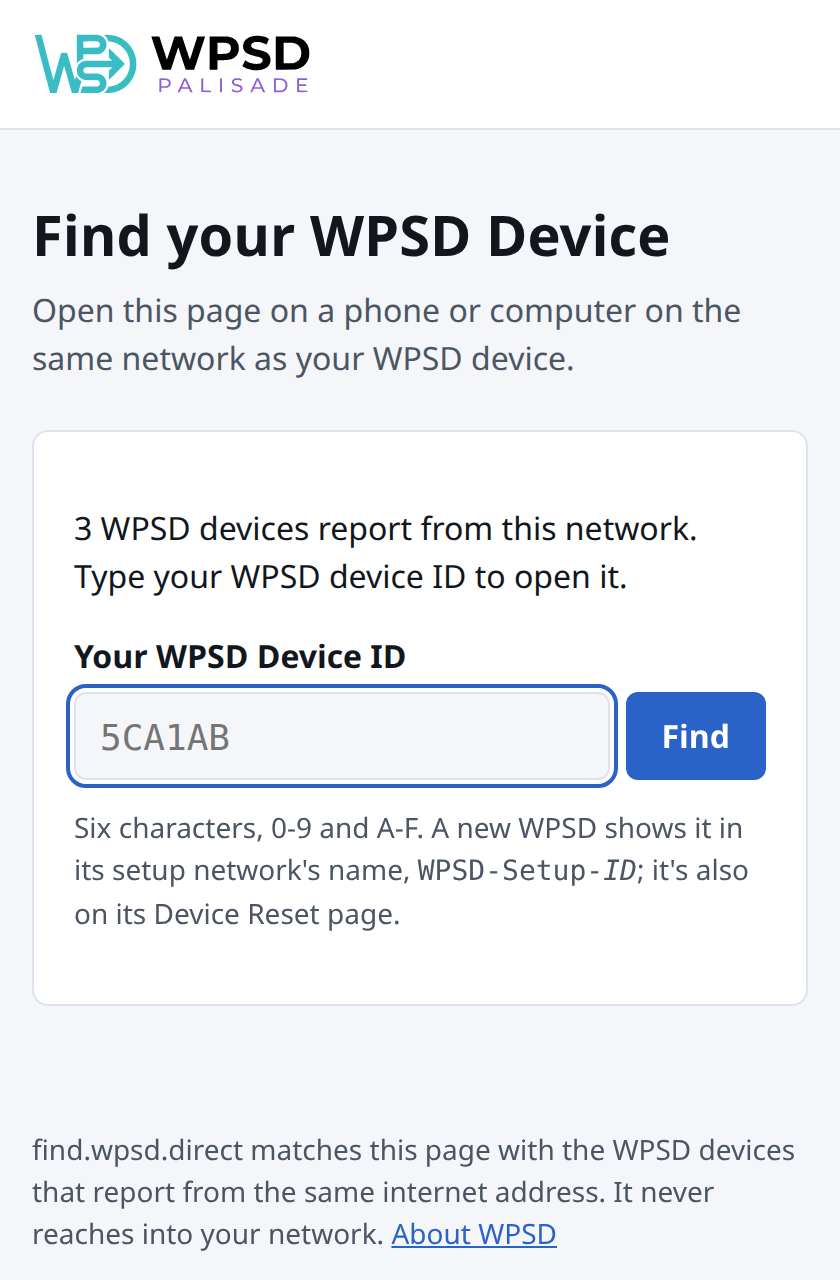
Where several hotspots report from the same network (a club, a campus, a hamfest), the page only says how many it found: type your WPSD device’s ID to open yours. The ID is the six characters in its setup network’s name (WPSD-Setup-5CA1AB).
Tip
If find.wpsd.direct finds nothing: make sure your phone is on the same Wi-Fi (not mobile data), turn off any VPN or iCloud Private Relay, and give a WPSD device you just started two or three minutes to come online.
Other ways in. A new WPSD device names itself wpsd- followed by its ID in lowercase, such as wpsd-5ca1ab, so two new WPSD devices on one network never clash. You can open it by that name followed by .local:
http://wpsd-5ca1ab.local
using your WPSD device’s own ID: the setup page shows the full address. If .local addresses don’t open on your network (some routers, guest networks and many Android phones don’t support them), look for wpsd- in your router’s list of connected devices and use the address it lists.
Note
The dashboard uses an encrypted connection (HTTPS) with a certificate the WPSD device made for itself, so the first time, your browser warns that the connection isn’t private. That’s expected: choose to continue (often under Advanced). The warning doesn’t come back.
A few minutes after it’s online, a listed hotspot also gets an address of its own, <id>.wpsd.direct, with a certificate browsers trust, so there’s no warning there. While wpsd.direct is being tested these are test certificates, and the warning still shows; see Security.
Adopting it
The first page you see is Adopt this WPSD Device.
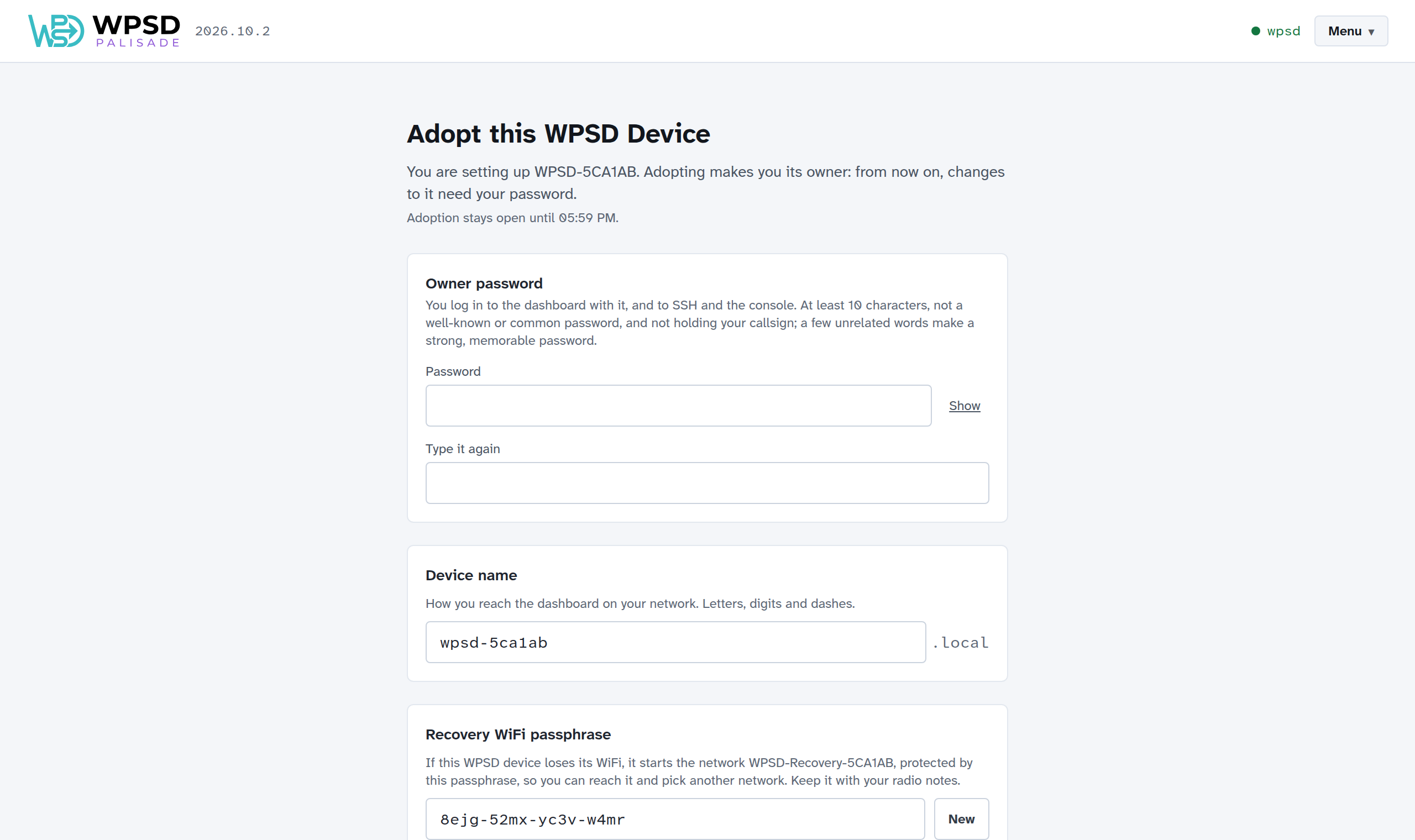
Owner password: you log in to the dashboard with it, and to SSH and the Console. At least 10 characters; a few unrelated words make a strong password you’ll remember. The page refuses the passwords anyone tries first, and says why as you type (see Passwords WPSD refuses).
Device name: how you reach the dashboard on your network (the name, followed by
.local). Keep the one it chose, or pick your own: lowercase letters, digits and dashes.Recovery Wi-Fi passphrase: if the WPSD device later loses its Wi-Fi, it starts a protected network,
WPSD-Recovery-and its ID, with this passphrase, so you can reach it and choose another network. New makes another one. Write it down, or keep it with your radio notes.
Choose Adopt this WPSD Device. The WPSD device is yours, and you’re logged in. If you changed its name, the page gives you the new address to continue at.
Important
Adoption is open for an hour after the WPSD device starts, to whoever opens it first. If the hour has passed, unplug the WPSD device and plug it back in: adoption opens for another hour.
Setting it up
Once it’s adopted, the WPSD device asks how you’d like to set it up:
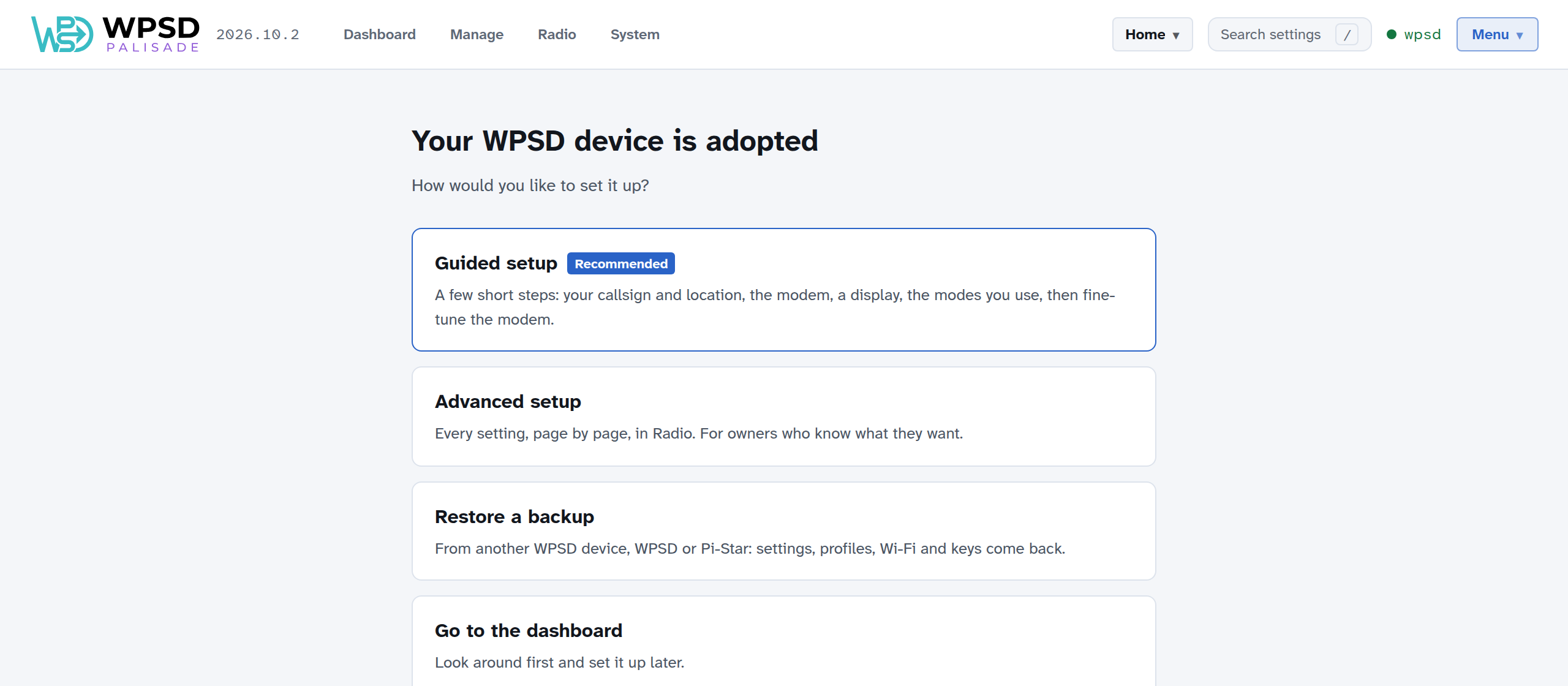
Guided setup (recommended): a few short steps, your callsign and location, the modem, a display, and the modes you use. See Guided Setup.
Advanced setup: every setting, page by page, in Radio.
Restore a backup: from another WPSD device, WPSD (legacy) or Pi-Star. See Backup and Restore.
Go to the dashboard: look around first. A bar reminds you that the WPSD device isn’t set up yet, and the panel beside the activity, Waiting for setup, shows what’s left: your callsign, whether a modem was found, and the modes. A new image has no mode on, and the radio stays off until the device is set up, so nothing transmits or connects to a network before you’ve chosen to.
If you forget your password
Put an empty file named wpsd-reset on the SD card’s boot partition and start the WPSD device. It gives up its owner, but keeps its radio and network settings, and you can adopt it again with a new password. See Device Reset for that and the other ways back.
Networks and ports
Behind an ordinary home router, nothing needs opening or forwarding: the WPSD device’s connections to the digital voice networks go out from your network, like a web browser’s. On your own network, the dashboard is on the usual web ports (80 and 443) and SSH on port 22.
Some networks get in the way: guest and hotel Wi-Fi, workplace networks, and some mobile carriers’ connections (carrier-grade NAT) can block the kinds of traffic digital voice uses. If a mode connects at home but not elsewhere, try another connection, such as your phone’s hotspot. See Common Symptoms.
Changing Wi-Fi later
Add, order and remove networks on System > WiFi. See Wi-Fi and Device Name.