Profiles
A profile is a saved radio setup: which modes are on, the networks, talkgroups and reflectors, the frequencies, and the dashboard’s preferences. Keep one for each way you use your WPSD device (at home, for the club net, on a trip) and switch between them in a few seconds. Only what differs changes, and only the programs whose settings changed restart.
You always have one profile active. Guided Setup saves your first one, usually called Home.
What a profile holds, and what it doesn’t
In each profile |
The same for every profile |
|---|---|
Your callsign, IDs and location |
Wi-Fi, the device name and network settings |
Frequencies and duplex |
Your password, SSH, keys and the private dashboard |
Modes on and off, and every mode’s settings |
The modem hardware (board, port, speed) |
Networks, startup talkgroups and reflectors, cross-mode bridges |
Displays, logging and the log archive |
APRS and paging (DAPNET) |
API keys (BrandMeister, DAPNET) |
Dashboard preferences: time zone, clock, units, Last Heard |
Your own talkgroup names; this browser’s theme and language |
Your custom settings |
So switching profiles can never take your WPSD device off your network or lock you out.
Radio > Profiles
Radio > Profiles lists your profiles, the active one first.
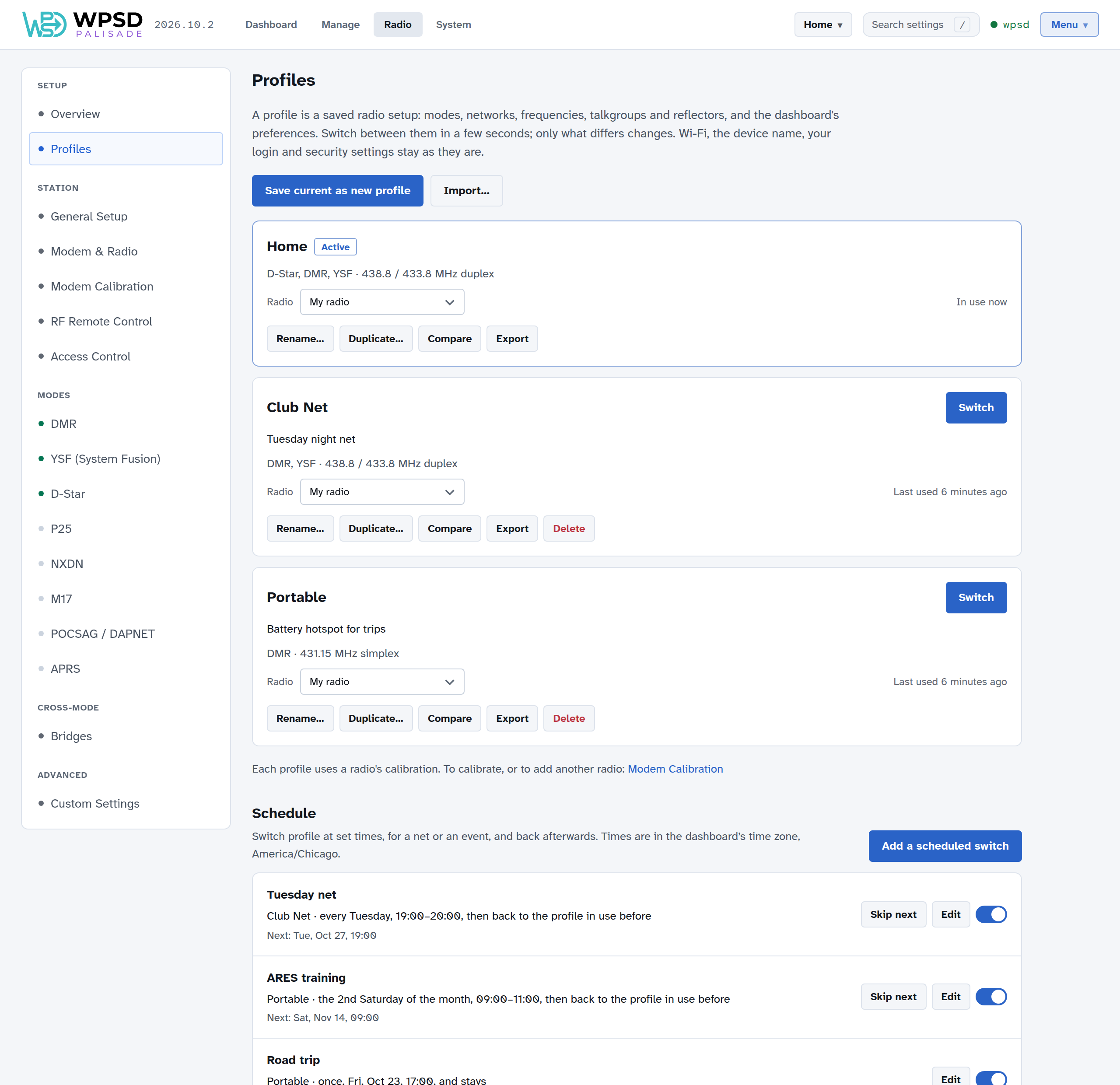
Each card shows the profile’s name and note, a summary (its modes, networks and frequencies), the Radio it uses (see Radios and calibration), when it was last used, and:
Switch (on profiles that aren’t active).
Rename… its name and note.
Duplicate… to start a new profile from a copy.
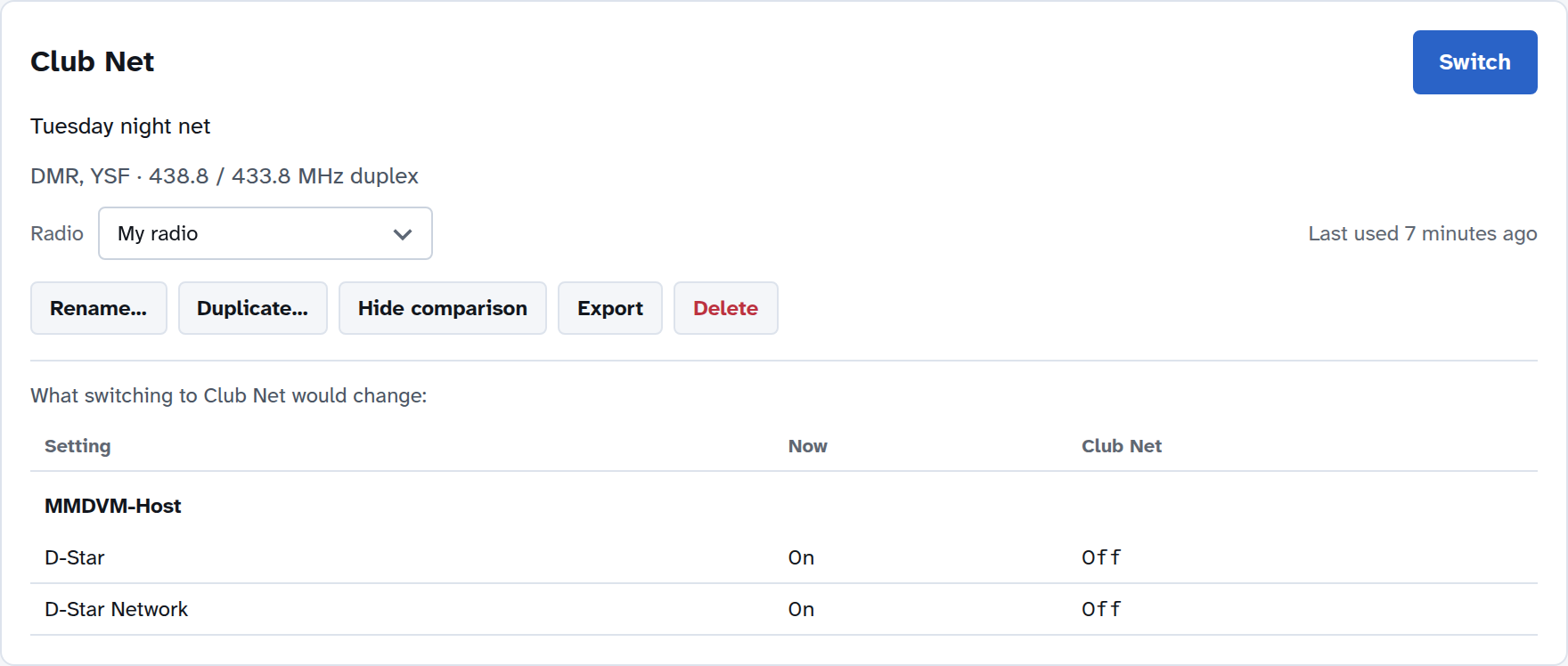
Compare shows what switching to it would change, setting by setting (for the active profile: what you’ve changed since it was saved).
Export downloads it as a file, to keep or to load on another WPSD device.
Delete (not the active profile; it asks first).
At the top: Save current as new profile saves what runs now as a new profile, which becomes the active one, and Import… loads an exported profile. An imported profile never brings Wi-Fi, passwords or keys with it.
Switching
Switch from the profile menu in the top bar, which shows the active profile’s name. Open it, and choose a profile; type to find one in a long list. Or choose Switch on a profile’s card.
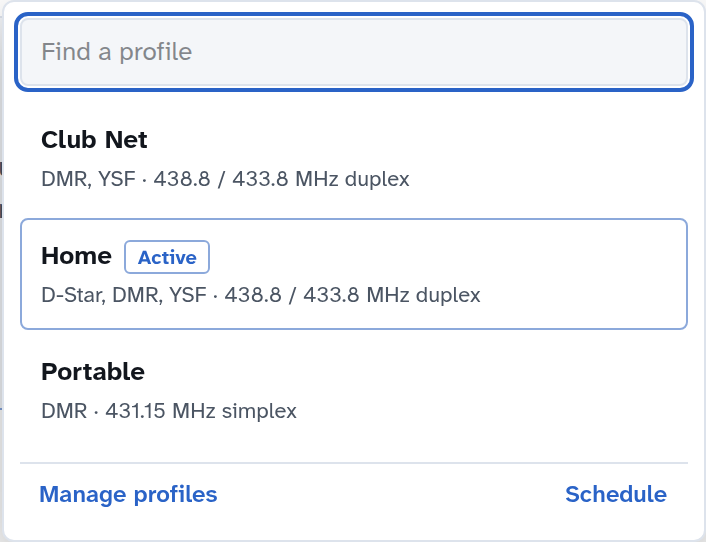
The top bar shows the switch as it happens (Switching to Club Net…), and the dashboard keeps running and reconnects. Switching usually takes a few seconds.
While the modem is being calibrated, switching waits until calibration ends.
Changes you haven’t saved
When you change settings in Radio and apply them, they run at once, but they aren’t saved to the profile yet: the profile is now Changed. A dot appears on the profile menu, and the menu offers three choices:
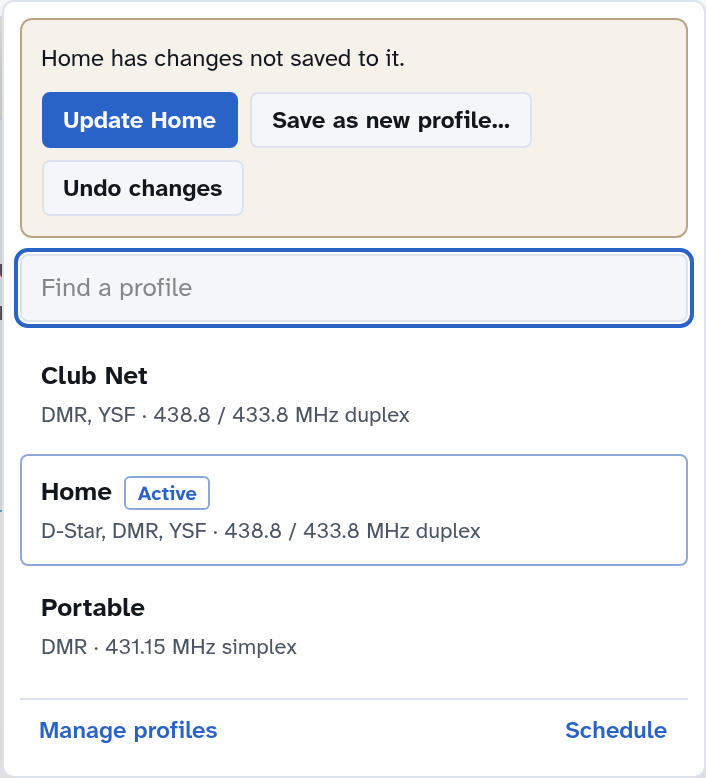
Update Home (your profile’s name): saves the changes to it.
Save as new profile…: keeps the active profile as it was and saves what runs now as a new one.
Undo changes: puts everything back as the profile was saved.
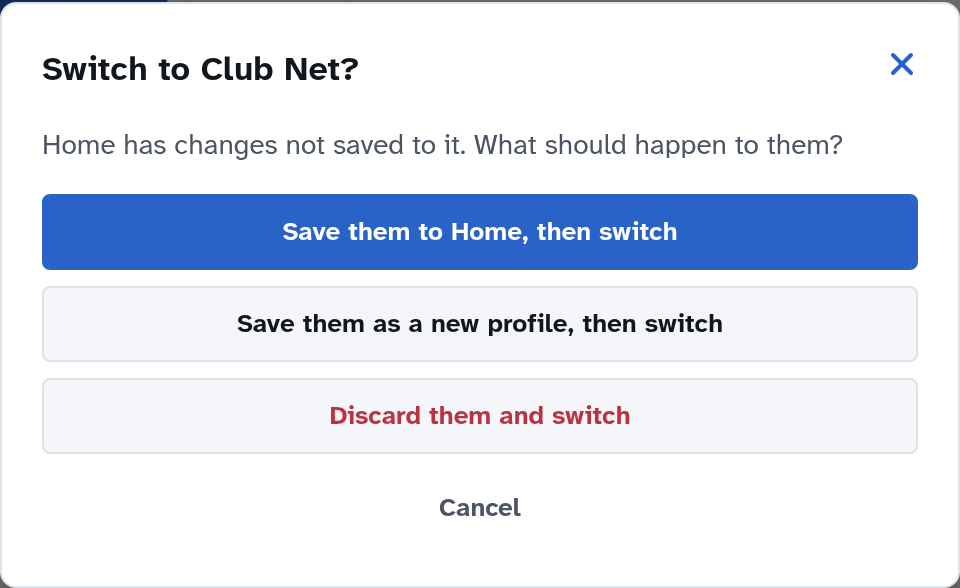
You don’t have to choose straight away: the changes stay running, marked Changed. If you switch profiles while there are unsaved changes, WPSD Palisade asks what to do with them first:
Radios and calibration
Calibration belongs to the modem and the radio you use with it together, so WPSD Palisade keeps it in a radio rather than in a profile. Every profile uses a radio, chosen on its card; you start with one, My radio, and every profile uses it.
If you use the same hotspot with different radios, add one in Modem Calibration (Add another radio…), calibrate it, and choose it on the profiles that use it. Switching to such a profile then brings that radio’s calibration with it. A radio’s offsets are adjusted for the profile’s frequency automatically.
Switching on a schedule
Profiles can switch by themselves, for a weekly net or an event, and back afterwards: see Profile Schedule.
Who sees profiles
Only you, logged in. Visitors to the dashboard see no profile names and can’t switch.