Backup and Restore
A backup holds everything that makes your WPSD device yours: radio settings, profiles and your radios’ calibration, saved Wi-Fi networks, the device name, your login and your API keys. Keep one somewhere safe, off the WPSD device, and you can put it all back on this WPSD device or a new one in a minute.
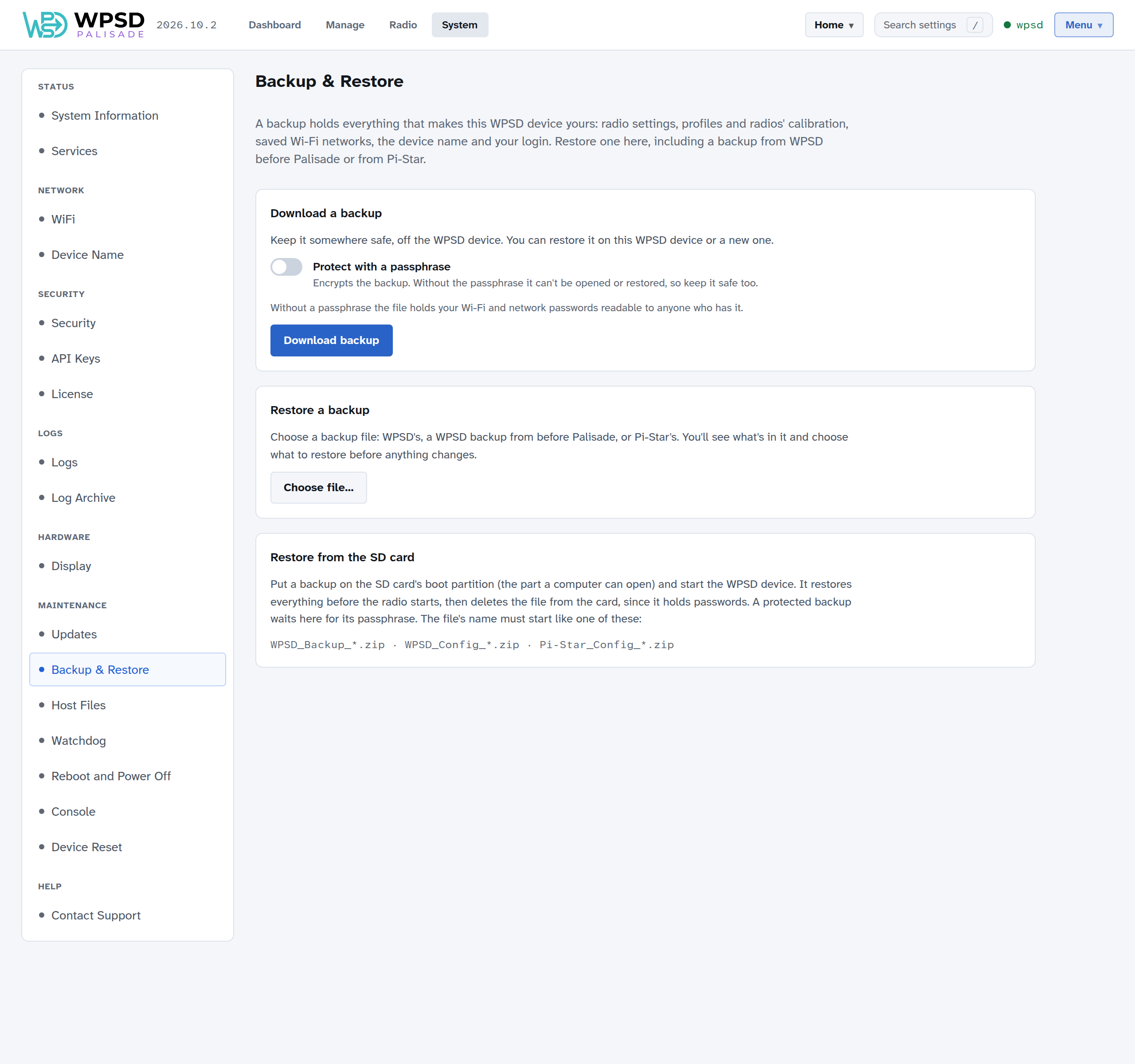
Making a backup
On System > Backup & Restore, under Download a backup:
Turn on Protect with a passphrase and enter a passphrase of 8 characters or more, twice. This encrypts the backup.
Choose Download backup. Your browser saves the file.
Warning
Without a passphrase, the file holds your Wi-Fi and network passwords readable to anyone who has it. With one, the backup can’t be opened or restored without the passphrase, so keep the passphrase safe too.
Make a new backup after big changes, and before installing kernel or firmware updates (see Updates).
Restoring
Under Restore a backup, choose Choose file… and pick the backup. A protected backup asks for its passphrase first.
Nothing changes yet: WPSD Palisade reads the file and shows what’s in it, part by part, so you can choose what to restore:
Radio settings: the callsign and modes in the backup. Only the programs whose settings change restart.
Profiles, and which one becomes active.
Saved Wi-Fi networks.
Device name: if it differs from now, the dashboard moves to the backup’s name, followed by
.local.Login & security: replaces your login with the backup’s owner password, and restores the SSH settings and keys.
Choose Restore…, confirm, and the chosen parts are restored. The page then lists what changed. If any program didn’t start afterwards, it names them: check them in Services.
Backups from WPSD (legacy) and Pi-Star
You can restore a backup made with WPSD (legacy), or a Pi-Star backup, the same way. Before you restore, the page shows How this backup carries over:
Carried over: settings that mean the same in WPSD Palisade.
Adjusted for Palisade: settings changed to fit how WPSD Palisade works.
Kept for later: things WPSD Palisade keeps but doesn’t use yet.
Not carried over: things that have no place in WPSD Palisade.
Read the list before you restore: it says what to check afterwards.
Restoring from the SD card
You can restore without reaching the dashboard at all, such as on a freshly written card:
Put the backup file on the SD card’s boot partition (the part a computer can open). Its name must start like one of these:
WPSD_Backup_*.zip(WPSD Palisade),WPSD_Config_*.zip(WPSD (legacy)) orPi-Star_Config_*.zip.Put the card in the WPSD device and start it.
The WPSD device restores everything before the radio starts, then deletes the file from the card, since it holds passwords. The dashboard then shows what was restored, with See what changed.
A protected backup can’t be opened at startup: it waits, and the dashboard asks for its passphrase (A backup from the SD card is waiting).