Modem Calibration
Every WPSD device’s crystal is a little off frequency, so out of the box it may decode your radio poorly: broken audio, calls that drop, or a high BER (bit error rate, the share of the signal received wrong) on the dashboard. Calibration finds the correction that suits your WPSD device and your radio together. It takes a minute or two, with your radio in hand.
Calibrate once when you set up the WPSD device (Guided Setup offers it), and again if you change the modem or the radio, or if BER creeps up.
How it works
Calibration measures the BER while your radio transmits, with the WPSD device listening a little above and below its frequency, and finds where reception is best: reception is good across a window and falls off on both sides, and the best correction (the offset) is the middle of that window.
While calibrating, your WPSD device is off the air. It only listens and never transmits.
Calibrating
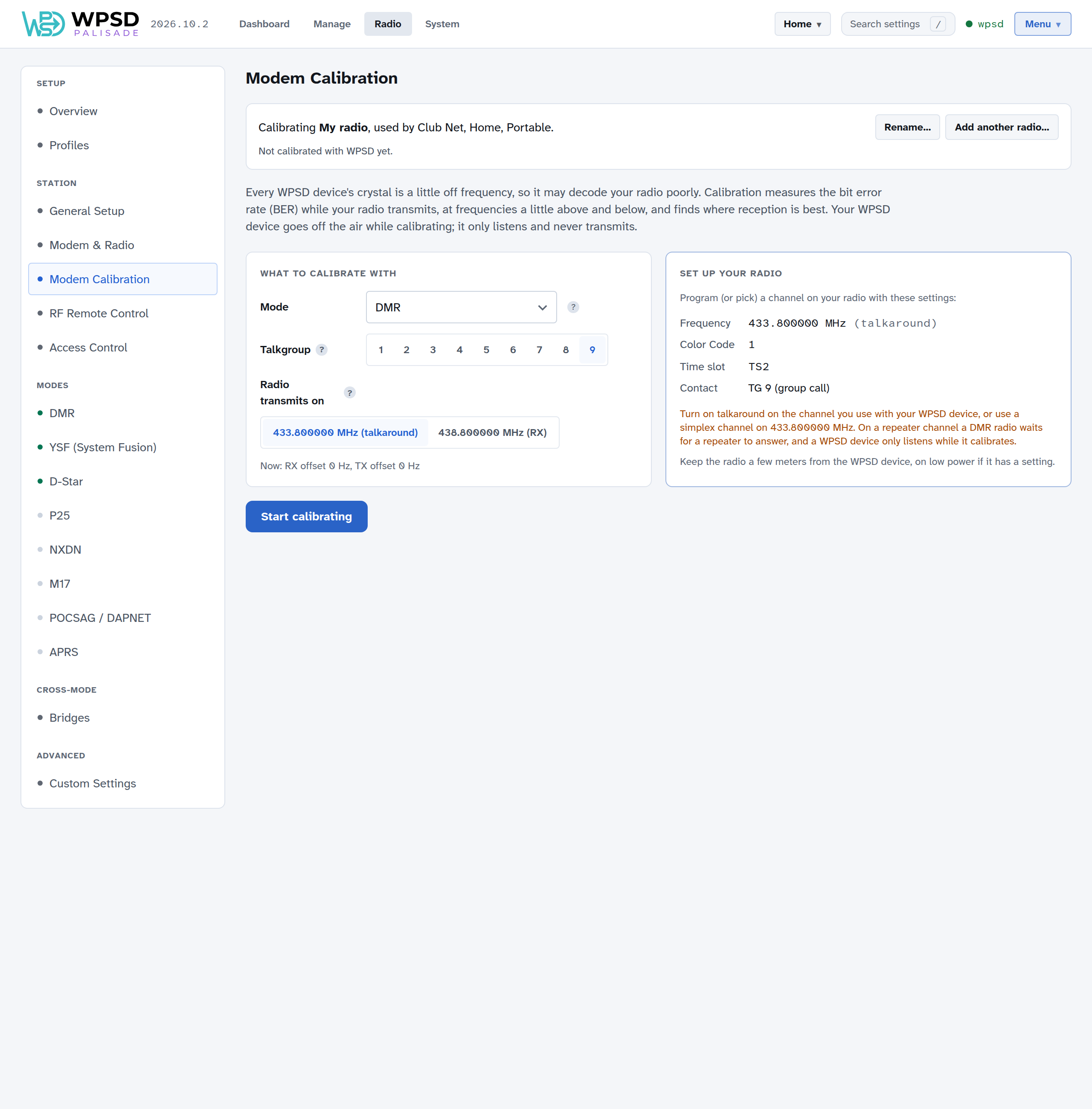
On Radio > Modem Calibration:
What to calibrate with: choose the Mode your radio will transmit in. DMR gives the sharpest result. In D-Star the modem corrects small frequency errors by itself, so the window looks wider. The result suits every mode, since one crystal sets them all.
For DMR, choose a Talkgroup. Only calls on that talkgroup are counted, so another station on the frequency can’t spoil the result.
On a duplex hotspot, choose which frequency your radio transmits on (Radio transmits on).
Set up your radio: program a channel (or pick one) with the settings shown: frequency, Color Code, time slot and contact for DMR. For DMR, use a simplex channel, or turn on talkaround: on a repeater channel a DMR radio waits for a repeater to answer before it sends voice, and a calibrating hotspot only listens.
Keep the radio a few meters from the WPSD device, on low power if it has a setting, and choose Start calibrating.
Then, under Method:
Automatic: choose Find the best offset, key up your radio and hold PTT (talk, or just hold it). WPSD steps the frequency up and down until it finds the edges where reception gets worse, then picks the middle. If your radio times out, key up again and it carries on where it left off.
Manual: hold PTT and watch the BER, then step the offset with Lower and Higher until it’s lowest. Or click a spot on the chart to listen there.
The chart shows the BER at each offset tried, the good window, and the recommended offset. A cross marks an offset where nothing could be decoded.
When it’s done, the page shows the best offset and its BER, with the new RX offset and TX offset. One crystal sets both frequencies, so the same correction suits both (scaled to each frequency). Choose Save and finish, or Finish without saving to keep what you had. Your WPSD device then starts again.
Tip
If even the best offset reads 1% or more, move the radio closer to the WPSD device (or further away, if it’s very close), and try again. If that doesn’t help, the modem’s RX level may need changing: the page links to Custom Settings for it (see Levels).
Radios
Calibration belongs to the modem and the radio you use with it together, so WPSD Palisade keeps it in a radio, not in a profile. The top of the page shows which radio you’re calibrating and which profiles use it.
If you use the WPSD device with more than one radio, choose Add another radio…, name it, and calibrate it. It starts from the current calibration. The active profile then uses it; other profiles keep theirs, and you can change which radio each profile uses on Radio > Profiles. Rename… renames a radio.
If you fit a different modem, the radio’s card says it was calibrated with another modem: calibrate again for the best results.
Levels
A radio also holds the modem’s levels (such as RX and TX level). Most WPSD devices never need them changed. If yours does, for example on the advice of your modem’s maker, set them in Custom Settings, under MMDVM-Host’s [Modem] section.
Modem firmware
The dashboard’s Modem panel shows your modem’s type and firmware version; hover over it for the full description the modem reports.
WPSD Palisade updates the firmware of modems on the Pi’s GPIO header from Radio > Modem & Radio (see Modem firmware). Calibrate again after an update.