Displays
A small screen on your WPSD device can show who’s talking, the mode and the network, without a phone or computer. System > Display sets it up.
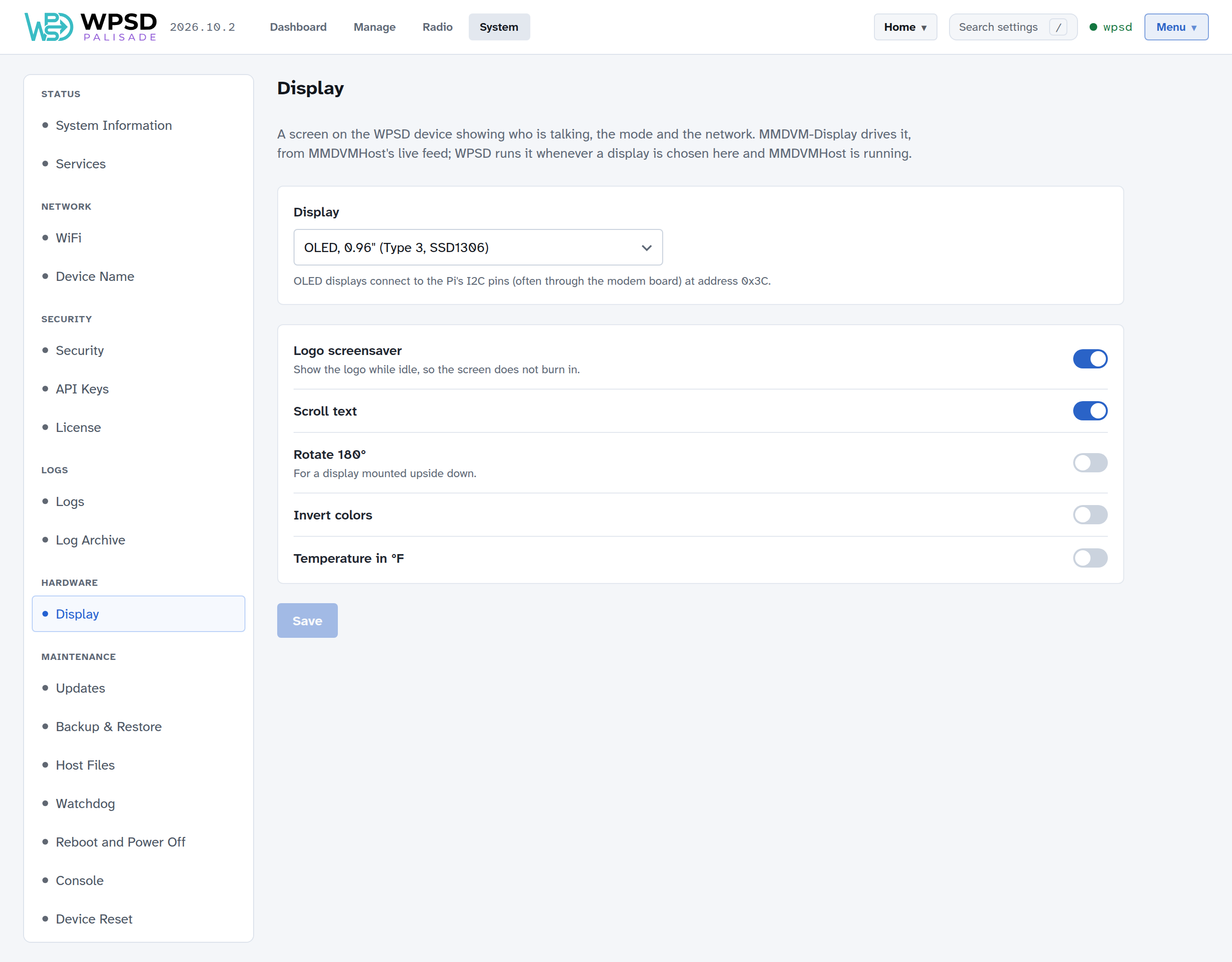
Choose your screen under Display, adjust its settings, and Save. The display restarts with the new settings. MMDVM-Display drives the screen, from MMDVM-Host’s live feed; WPSD Palisade runs it whenever a display is chosen and MMDVM-Host is running.
Guided Setup looks for a display and chooses it for you: an OLED on the Pi’s pins, or a Nextion on a USB adapter.
The displays
Display |
Connected to |
|---|---|
OLED, 0.96” (Type 3, SSD1306) |
The Pi’s I2C pins, often through the modem board, at address 0x3C |
OLED, 1.3” (Type 6, SH1106) |
The same |
Nextion |
The modem board, or a serial port on the Pi (such as a USB adapter) |
HD44780 character LCD (I2C) |
The Pi’s I2C pins, on a PCF8574 backpack |
TFT Serial (Surenoo) |
The modem board, or a serial port on the Pi |
LCDproc |
An LCDproc server, on the WPSD device or elsewhere |
Choose None if you have no display.
Settings
OLED:
Logo screensaver: show the logo while idle, so the screen doesn’t burn in.
Scroll text. The 1.3” display doesn’t scroll.
Rotate 180°, for a display mounted upside down, and Invert colors.
Nextion:
Port: Modem board if the screen is wired to the modem, or the Pi’s serial port it’s on, and the Speed for a serial port.
Screen layout: must match the screen file loaded on your Nextion (G4KLX, ON7LDS or ON7LDS DIY).
Caller details (ON7LDS layouts): the modes whose pages show who’s calling, with their callsign, name, city, state and country, and on DMR the talkgroup’s name. Every mode is chosen at first. The WPSD device looks callers up in RadioID’s lists, and names talkgroups as the dashboard does, prefixed talkgroups included. Screens made for the NextionDriver of WPSD (legacy) show them in the same places, with no NextionDriver, groups file or user file needed.
Brightness and Idle brightness.
Show the clock while idle, and Clock in UTC.
Screen file: load a new layout into the screen; see Loading a screen file.
HD44780: the Size (columns × rows) and the backpack’s I2C address. Most backpacks are at 0x27 (or 0x3F for the PCF8574A); i2cdetect -y 1 in the Console shows yours.
LCDproc: the server’s address and port, Dim while idle, and the clock.
Every display can show the temperature in °F instead of °C.
Note
The display’s clock follows the time zone the dashboard uses, set in Preferences, unless Clock in UTC is on. If the dashboard follows each viewer’s browser, the display shows UTC.
Loading a screen file into a Nextion
A Nextion’s layout is a compiled screen file (.tft). With a Nextion chosen and saved, the Screen file section shows which screen it is and gets a new layout into it.
Detected: WPSD asks the screen which it is: its model (such as
NX4832K035), size, resolution, firmware and memory. Check again asks once more. If it doesn’t answer, check the wiring and the Port; after a load that stopped midway, see below.WPSD screens: WPSD’s own screens, listed for your screen’s model (Show all lists the others).
Your own file: drop or choose a
.tftmade for your exact screen model. WPSD keeps your five newest files. A file made for another screen size is refused before anything is sent.
A screen on a USB serial adapter (or the Pi’s own serial pins): Load screen file… loads it from the page in a few minutes, at 115200 bps. The screen is blank while it loads; the radio keeps working, and you can leave the page.
A screen on the modem board: the modem passes data to the screen at a fixed 9600 bps, so loading a screen file that way would take well over an hour. WPSD doesn’t; instead, Download the file and load it from the screen’s SD card:
Copy the
.tftalone onto a FAT32 microSD card (32 GB or smaller).Switch the WPSD device off, put the card in the screen’s slot, and switch it on. The screen shows its progress.
When it’s done, switch off, take the card out, and switch on again.
A load that stops midway doesn’t harm the screen, but the screen then waits for the rest of the file and answers nothing: switch the WPSD device off and on (unplug it, so the screen loses power), then load the file again. A Nextion can’t send its current layout back, so keep a copy of any screen file you might want again.