Updates
System > Updates keeps your WPSD device current, in two separate sections:
WPSD Palisade: new releases of the whole system: WPSD, the radio programs, and the Debian they were tested on, together. A release is installed beside the running system and tried with one restart; if it doesn’t come up healthy, the WPSD device goes back to the one it had, by itself.
Operating System: Debian’s own security fixes and Raspberry Pi’s kernel and firmware updates, installed into the running system, as on any Debian computer.
Both install by themselves only in their update window, which you choose, and never during a call.
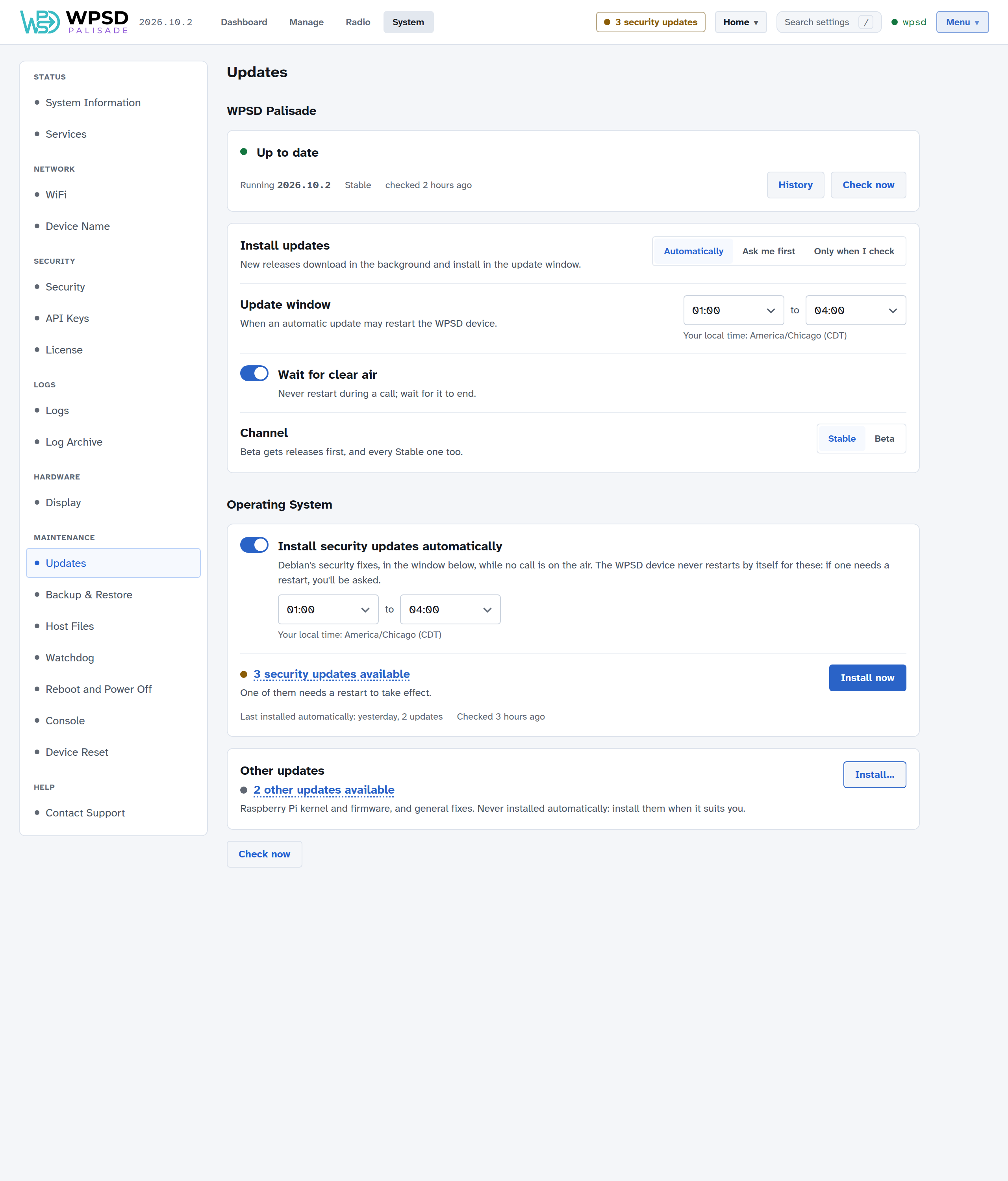
WPSD Palisade releases
Versions and channels
Releases are numbered by the year and month they were built, then a count: 2026.11.0 is the first release built in November 2026, 2026.11.1 the next. A higher number is always newer, and a number is never reused. The section shows the release you are running.
Every release is tested before it reaches you, and comes on a channel:
Channel |
What you get |
|---|---|
Stable (the default) |
Releases that have been on Beta first. Choose this for a WPSD device you rely on. |
Beta |
Releases a little earlier, and every Stable one too. Choose this to help find problems before everyone else meets them. |
A new release may reach some WPSD devices a few days before others, so that a problem shows up on few. Yours may say Up to date while a friend’s already has the new one; it will be offered to you shortly.
Most releases change only WPSD itself (the dashboard, wpsd-helper and the radio programs) and come as a small WPSD-only update: about 20 MB, switched in place with no restart; the radio is off for a few seconds while the programs restart. Releases that change Debian, the kernel or the system come whole: about 430 MB, written beside the running system, with one restart. Your WPSD device picks the right one by itself; the review says which it is.
Moving from Beta back to Stable never goes back a version: the WPSD device keeps the release it has until Stable has a newer one. Right after a channel opens, it can have nothing released on it yet; the page says so, and you keep the release you have.
Install updates
Choose how releases are installed:
Automatically (the default): new releases download in the background and install in the update window.
Ask me first: new releases download in the background, then wait for you. The top bar says WPSD update ready.
Only when I check: nothing is looked for or downloaded until you choose Check now.
Update window: when an automatic update may restart the WPSD device; the default is 1:00 to 4:00 in the morning. Pick the start and end from the lists; they’re shown the way your Preferences show times (12- or 24-hour), and they’re your local time: the dashboard’s time zone if you chose one in Preferences, otherwise your browser’s, named under the window. A window may run past midnight (for example 23:00 to 2:00).
Wait for clear air: never restart during a call; the update waits for it to end.
A release is ready
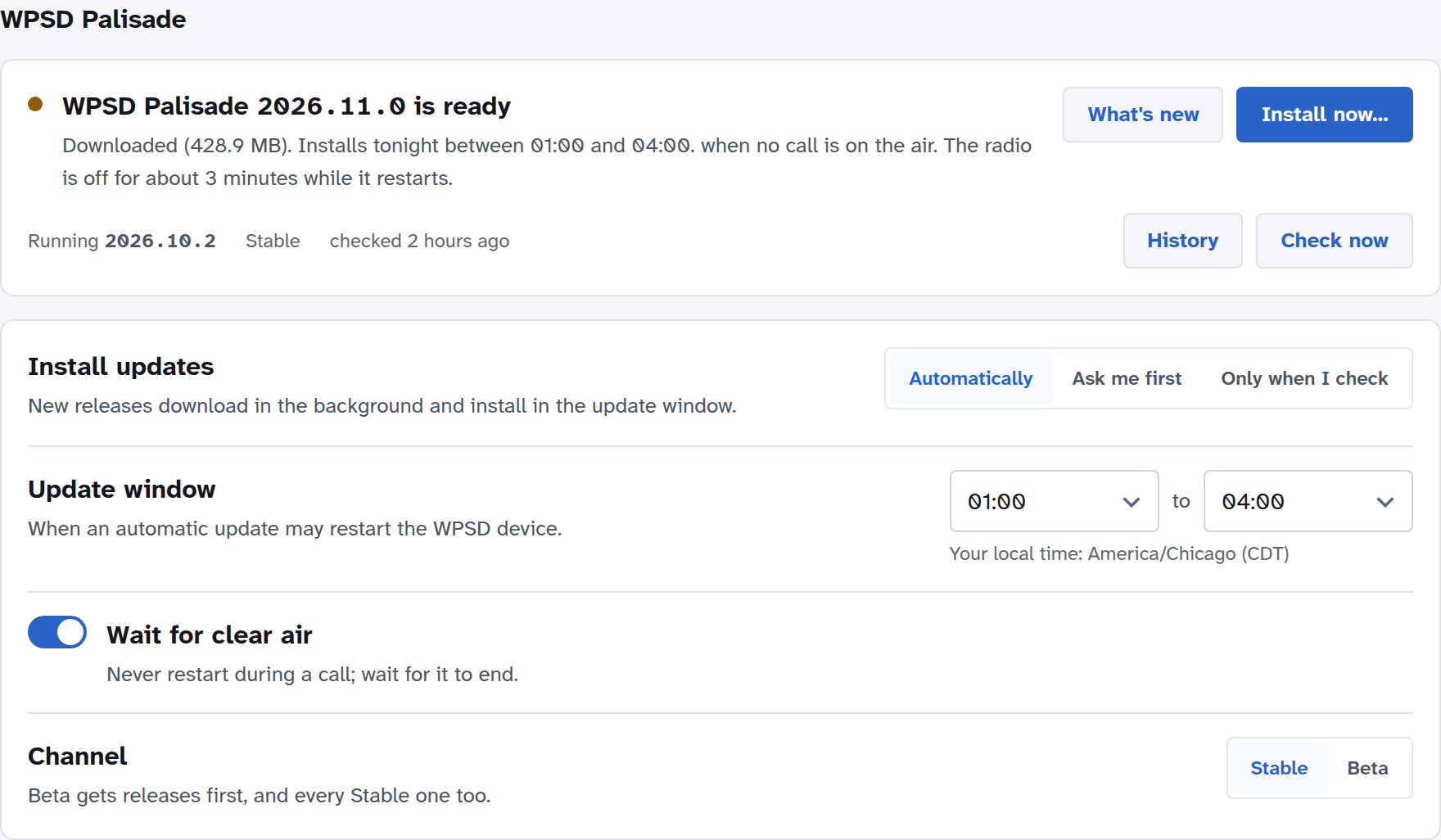
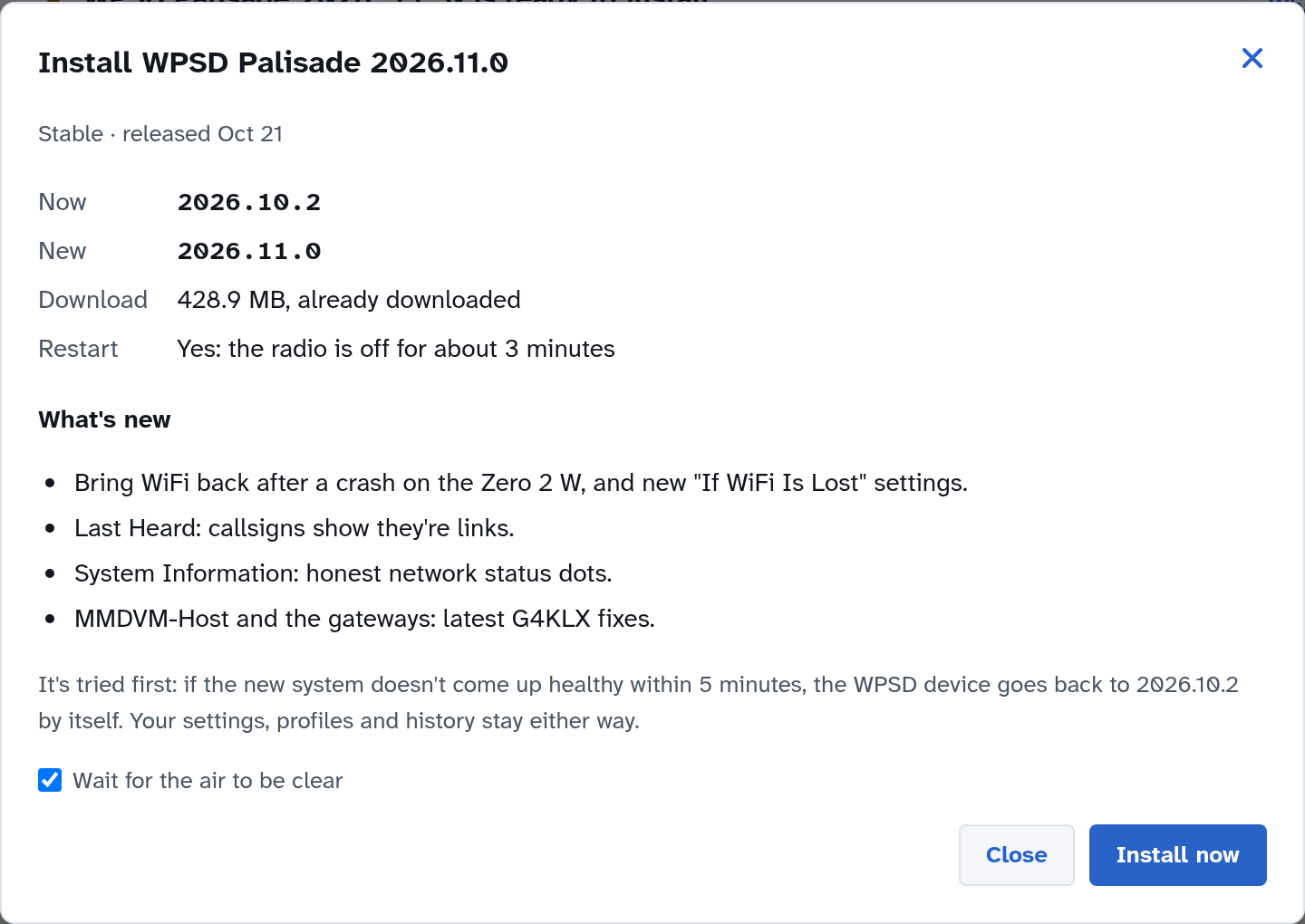
When a release has downloaded, the section says so and when it will install. What’s new and Install now… both open the review: the version you have and the new one, its size, what’s new in it, and that it needs one restart (the radio is off for about 3 minutes). Install now starts it straight away (after the current call, with Wait for the air to be clear); in Automatic, Tonight in the window leaves it for the window.
A new Debian release inside
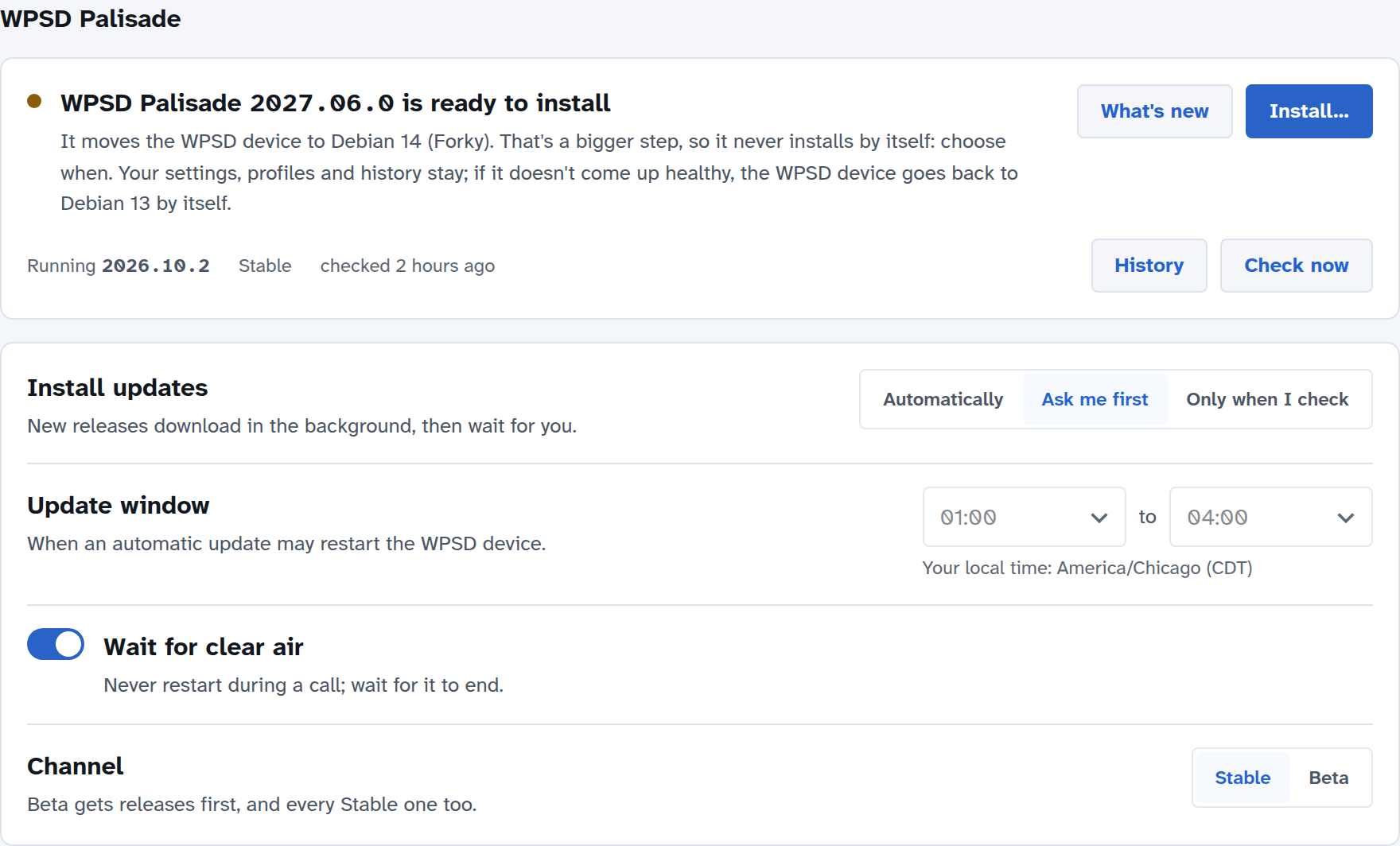
Some releases move the WPSD device to a new Debian release, the kind of change that used to need a fresh SD card. Not any more: it installs like any other release, and your settings, profiles and history stay. Because it’s a bigger step, it never installs by itself, even in Automatic: choose when.
While a release installs
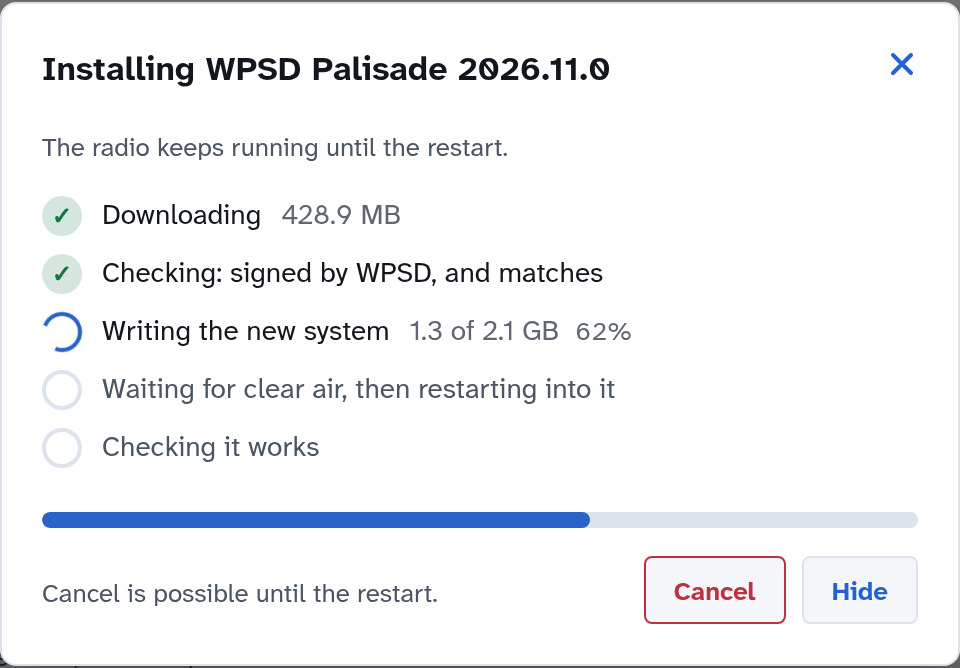
Downloading and Checking: the release is checked against WPSD’s signature before anything is written; a damaged or tampered download is refused.
Writing the new system beside the running one. The radio keeps running; this takes several minutes on a small Pi.
Waiting for clear air, then restarting into it. The radio is off until the new system is up.
Checking it works: WPSD has to come up and stay up, and the WPSD device has to be back on the network if it was before. Then the new release is kept.
A WPSD-only release has the same steps without the restart: Unpacking instead of writing the new system, then restarting the programs, then the same check. If WPSD doesn’t come up healthy, the WPSD device puts the previous WPSD back by itself, within a few minutes at most.
You can close the window: the install carries on, and the page (from any browser) shows the same step. Cancel works until the restart. While the WPSD device restarts the page loses it for a few minutes and reconnects by itself; when the release is kept, it says Now running WPSD Palisade 2026.11.0.
An OLED or Nextion display shows Updating WPSD… and the version while the WPSD device restarts into a new release and starts it, and Update failed / Going back… if it has to go back.
If a release doesn’t stay
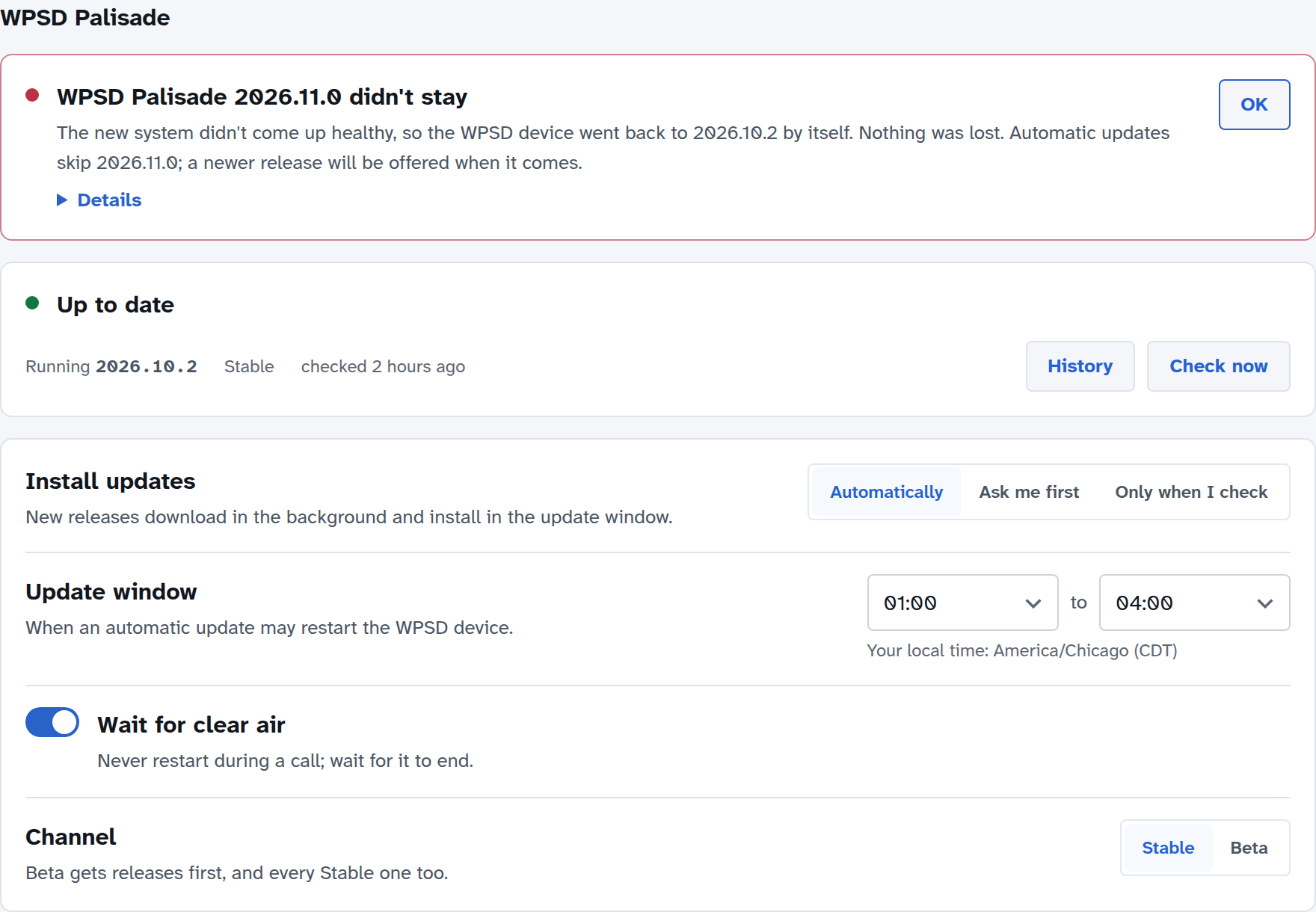
If the new release doesn’t come up healthy within 5 minutes (or the power goes off while it starts), the WPSD device restarts into the release it had, by itself. Nothing is lost. The page and the top bar say so in red until you choose OK, and Details says what went wrong. Automatic updates skip that release from then on; a newer one is offered when it comes.
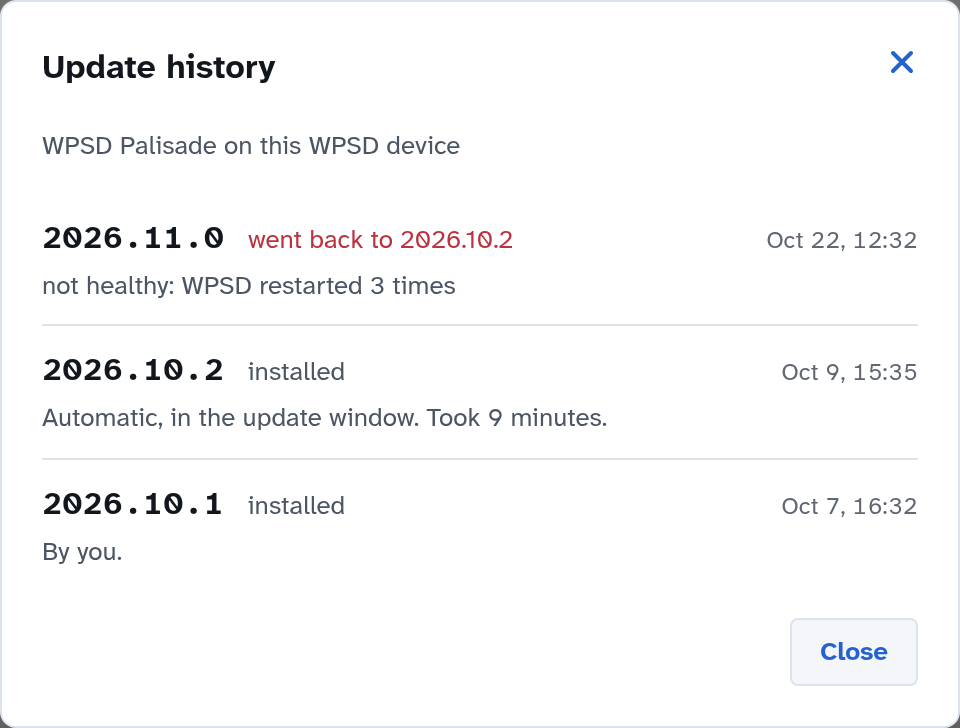
History lists every release installed on this WPSD device, when, and whether it was kept.
Older cards
A card made before updates came in (only cards from before the first public release) can’t install releases in place. The section says so: back up, flash the current image once, and restore; from then on, releases install by themselves.
Operating System updates
WPSD Palisade looks for Debian and Raspberry Pi updates every day and lists them here. The two sections never work at the same time: when both are due, the WPSD Palisade release goes first.
Security updates
With Install security updates automatically on, security updates from Debian’s security team install in the window below it (by default 1:00 to 4:00, your local time, as for releases), while no call is on the air. The device never restarts by itself for these: if an update needs a restart, you’re asked (see Restarting after an update).
Turn it off, and updates are still looked for every day and shown here; you install them.
The card shows how many security updates are waiting, how many of them need a restart, when the last automatic install ran, and when updates were last looked for. Install now installs them straight away.
Other updates
Raspberry Pi kernel and firmware updates and general fixes are listed under Other updates. They’re never installed automatically: choose Install… when it suits you.
Warning
Kernel and firmware updates have, rarely, upset an add-on board. Make a backup first if the WPSD device matters today.
Choose a count (such as 3 security updates available) to see the list: each package, its new version, the size to download, and which ones need a restart.
Check now looks for updates straight away. It takes a few minutes, and you can leave the page meanwhile.
While updates install
The radio keeps running while updates install. A progress window shows each step; you can close it and the install carries on, shown on the page and in the top bar.
Programs using an updated library restart on their own, between calls.
If an install fails for lack of space, the page says how much is needed and how much is free, and offers Free up space, which clears downloaded update files.
Restarting after an update
Some updates (a new kernel, for example) take effect only after the device restarts. The page then shows Restart needed and why, and Restart… offers:
Restart now: the radio is off for about a minute.
Schedule it: at a time you pick from the list, at a quiet time. With Wait for the air to be clear it waits, up to an hour, for no call to be on the air. A scheduled restart can be changed or canceled from the page.
Not now: you’ll be reminded; the update takes effect at the next restart.
The top-bar notice
While something here needs you, the top bar shows one notice, the most pressing: Update didn’t stay (in red), Installing WPSD update or Installing updates, Restart needed, WPSD update ready (a release waiting for you), then the number of security updates waiting (or, more quietly, other updates). Select it to open this page. A release waiting for its window in Automatic needs nothing from you, so it shows no notice.
On a computer that isn’t a WPSD device (a development machine), updates are the operating system’s to manage, and the page says so.