Profile Schedule
The Profile Schedule switches profiles for you at set times: to your club’s profile for the weekly net and back afterwards, to a training profile once a month, or to your portable profile on the day you leave. It’s at the bottom of Radio > Profiles.
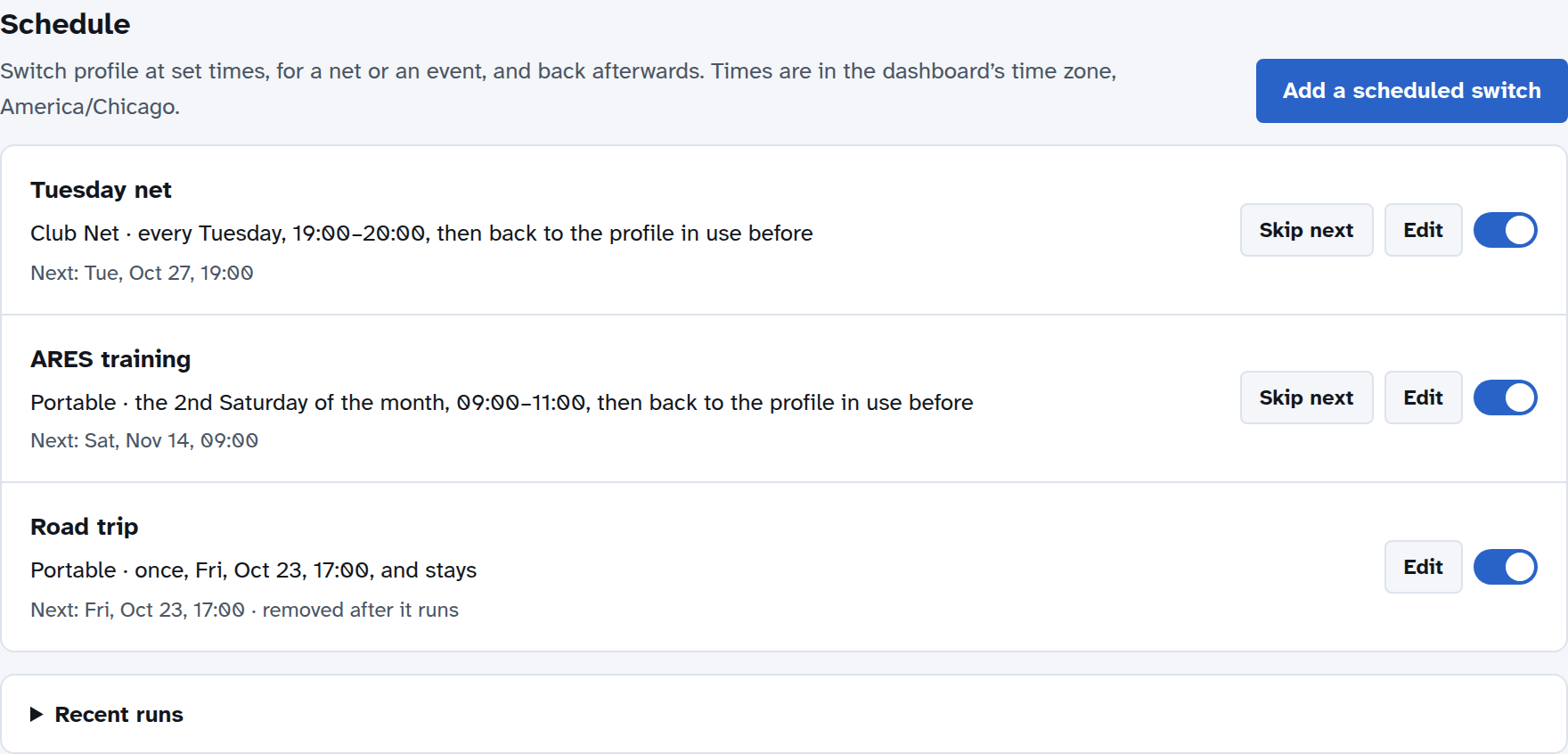
Each scheduled switch shows its profile, when it repeats and its times, and when it next runs. Its switch turns it off and on; Skip next skips its next run only; Edit changes it.
Adding a scheduled switch
Choose Add a scheduled switch.
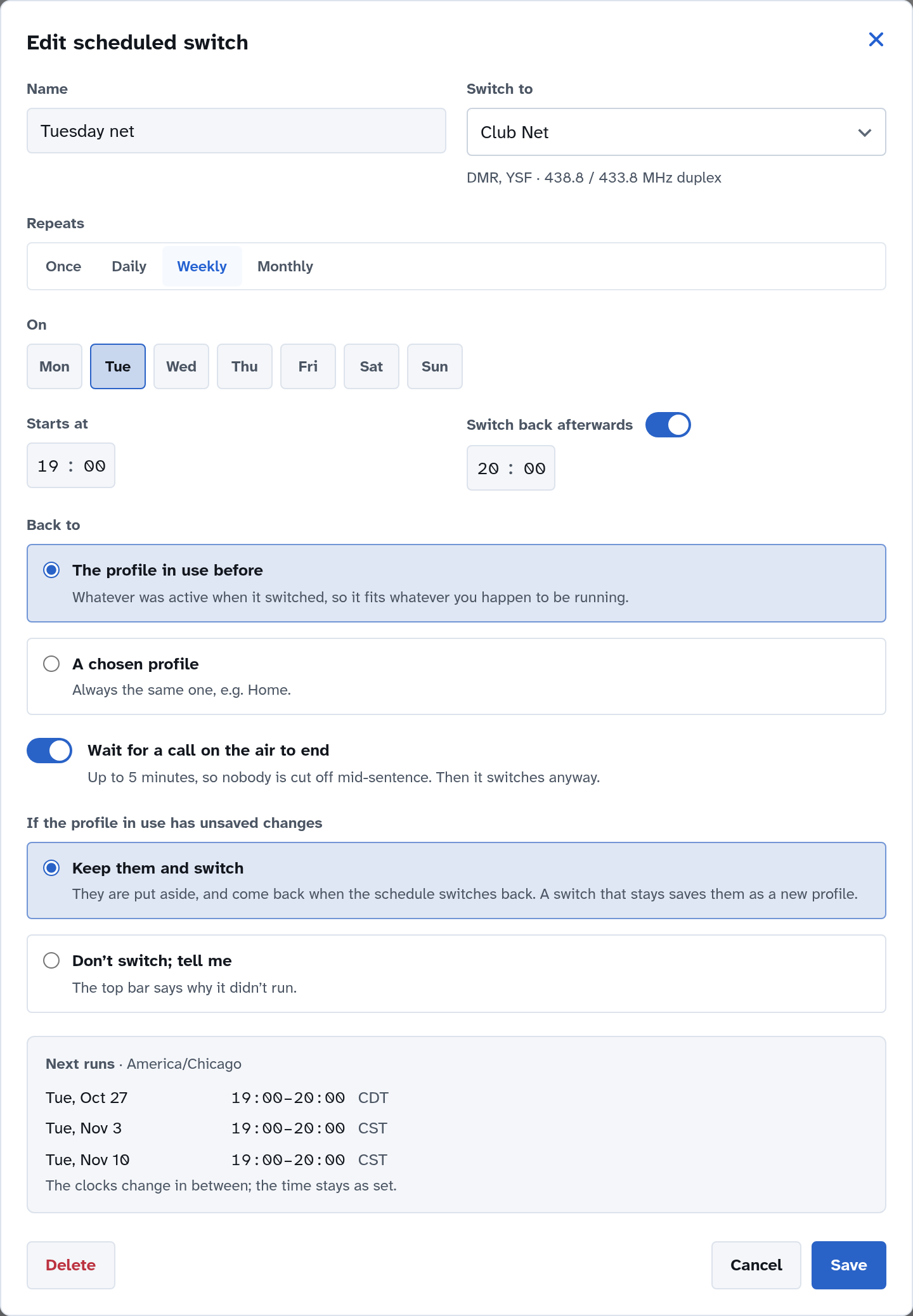
Name: whatever helps you recognize it, such as Tuesday net.
Switch to: the profile to use.
Repeats: Once (on a date; it’s removed after it runs), Daily, Weekly (on the days you choose), or Monthly: a day of the week (the first to fourth, or the last, such as the 2nd Saturday) or a date (such as the 15th; months without that date are passed over).
Starts at: the time to switch.
Switch back afterwards: turn it on, and set when. An end time earlier than the start is the next day (for a net that runs past midnight). Leave it off for a switch that stays, such as the start of a trip.
Back to: the profile in use before (whatever was active when it switched; usually what you want), or a chosen profile.
Wait for a call on the air to end: waits up to 5 minutes rather than cutting someone off, then switches anyway.
If the profile in use has unsaved changes: Keep them and switch puts them aside and brings them back when the schedule switches back (a switch that doesn’t come back saves them as a new profile instead, so nothing is lost); Don’t switch; tell me leaves the profile as it is and tells you why in the top bar.
Next runs shows the next three dates and times, so you can check it does what you mean. Times follow your 12/24-hour preference.
Two scheduled switches can’t overlap: if a new one would, saving it says which one it clashes with, and when.
Times and time zones
Times are in the dashboard’s time zone, set in Preferences. If none is set, they’re in the WPSD device’s own clock (UTC), and the Schedule section says so. A scheduled switch keeps its time when the clocks change: a 7:00 PM net stays at 7:00 PM local time.
Time zone is part of each profile’s preferences, so if your profiles use different time zones, the schedule follows the one in use.
While a scheduled switch runs
The top of Radio > Profiles says which profile is on, until when, and what comes next. Go back now switches back at once; Stay on keeps the scheduled profile and cancels tonight’s switch back.

The profile menu in the top bar shows until and the time, and offers the same two choices:
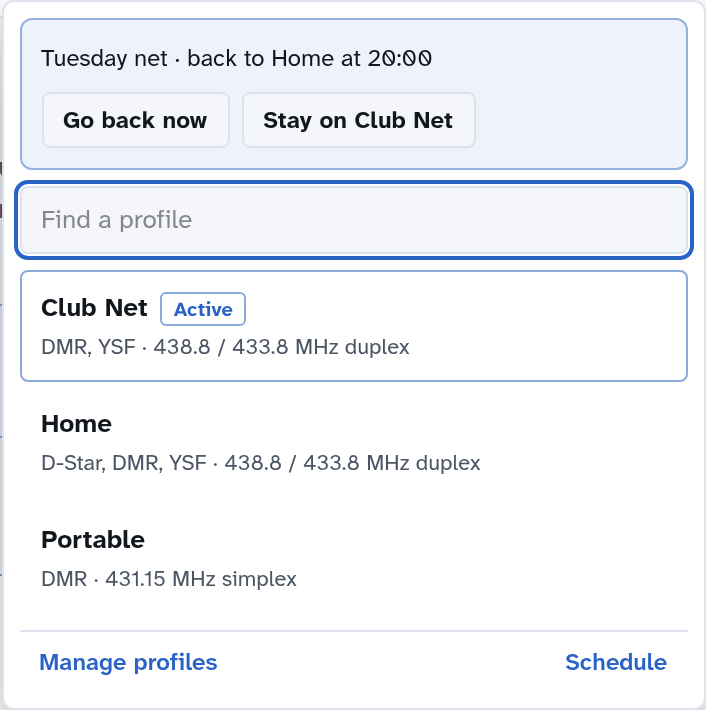
Fifteen minutes before a scheduled switch, the profile menu mentions it, and offers Skip this one. While a switch waits for a call to end, the menu says so.
What it does when things get in the way
You switch profiles yourself during a run: your choice wins. The schedule won’t switch back over it, and tells you so.
A call is on the air: it waits, if you asked it to (up to 5 minutes).
The modem is being calibrated: it waits until calibration ends, and tries again until the run’s end time.
A program doesn’t start in the new profile: it switches back to the profile before, and says so in the top bar.
The WPSD device was off at the start time: if it comes back on during the run, it switches then. If it was off when it should have switched back, it switches back as it starts.
If a scheduled switch didn’t run as set, a notice in the top bar says so; it leads to the Schedule section, which explains why and lets you dismiss it. Recent runs, under the list, keeps the last 30 runs: when each switched, waited or was skipped.
Backups and resets
The schedule is part of your backups. A Device Reset that resets the radio settings clears it.