Station, Modem and Radio
Two pages hold what every mode shares: Radio > General Setup (who you are and where) and Radio > Modem & Radio (the hardware and frequencies). Guided Setup fills both in; come here to change them later. Like every Radio page, changes wait for Apply (see Applying changes).
General Setup
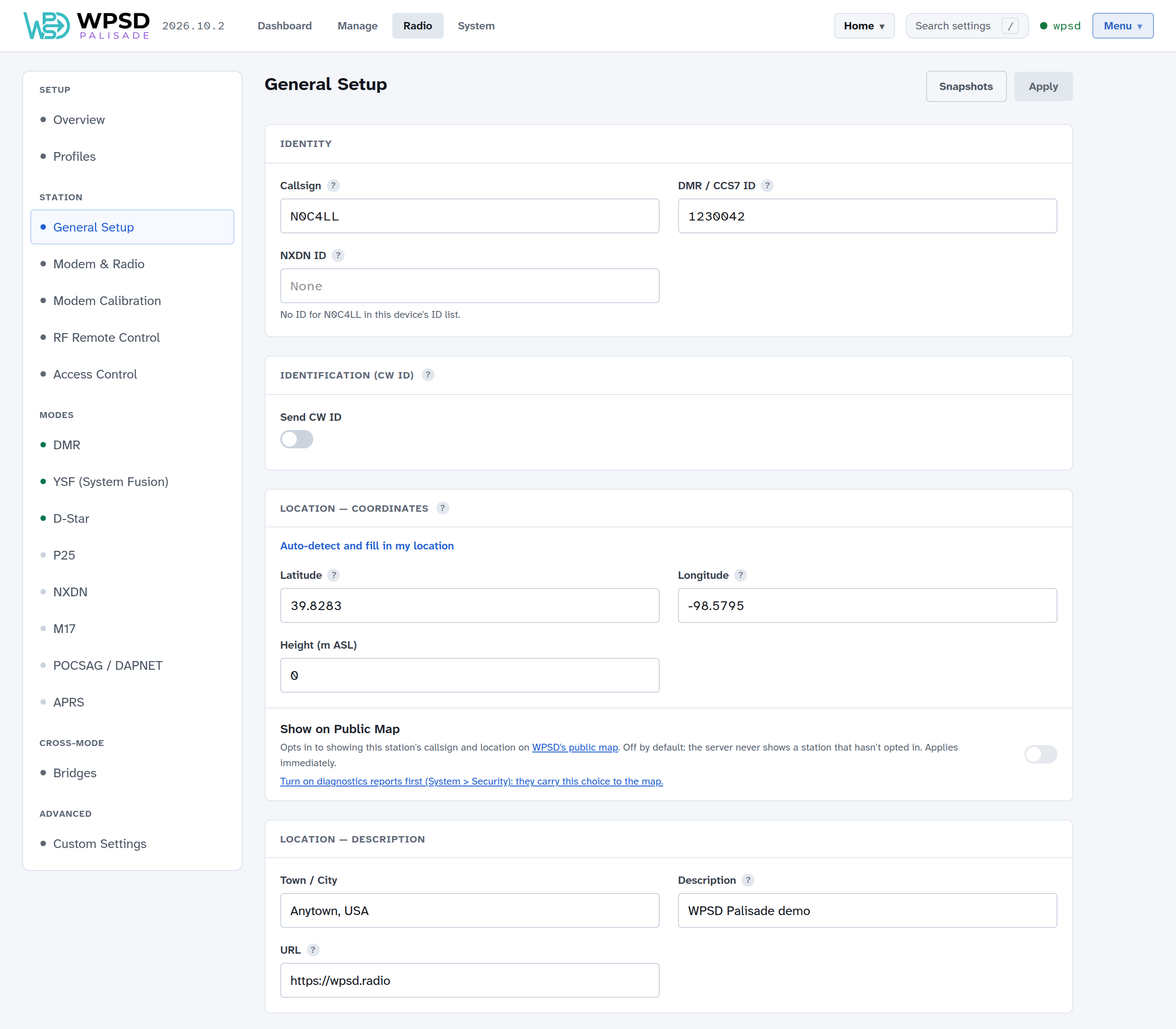
Identity
Callsign: your amateur radio callsign, in capitals, with no suffix. Every mode uses it.
DMR / CCS7 ID: needed for DMR and the DMR bridges. Get one at radioid.net if you don’t have one.
NXDN ID: needed for NXDN and YSF→NXDN. It’s filled in from your callsign when the WPSD device’s NXDN ID list has it.
Identification (CW ID): where your license asks for it, the WPSD device sends your callsign in Morse now and then (Every (minutes), 10 is common). Most hotspot operators don’t need it, so it’s off.
Location
Latitude and Longitude (positive for north and east, negative for south and west) and Height above sea level. Auto-detect and fill in my location asks your browser, or looks it up from the WPSD device’s internet address. Set both to 0 to leave your location out of what the networks show.
Show on Public Map: puts your callsign and location on WPSD’s public map. It’s off unless you turn it on, and takes effect at once.
Town / City, Description and URL (your own site or your QRZ.com page): shown by networks that list stations, such as BrandMeister.
APRS beacons use this location too, unless you use a GPS (see APRS and GPS).
Modem & Radio
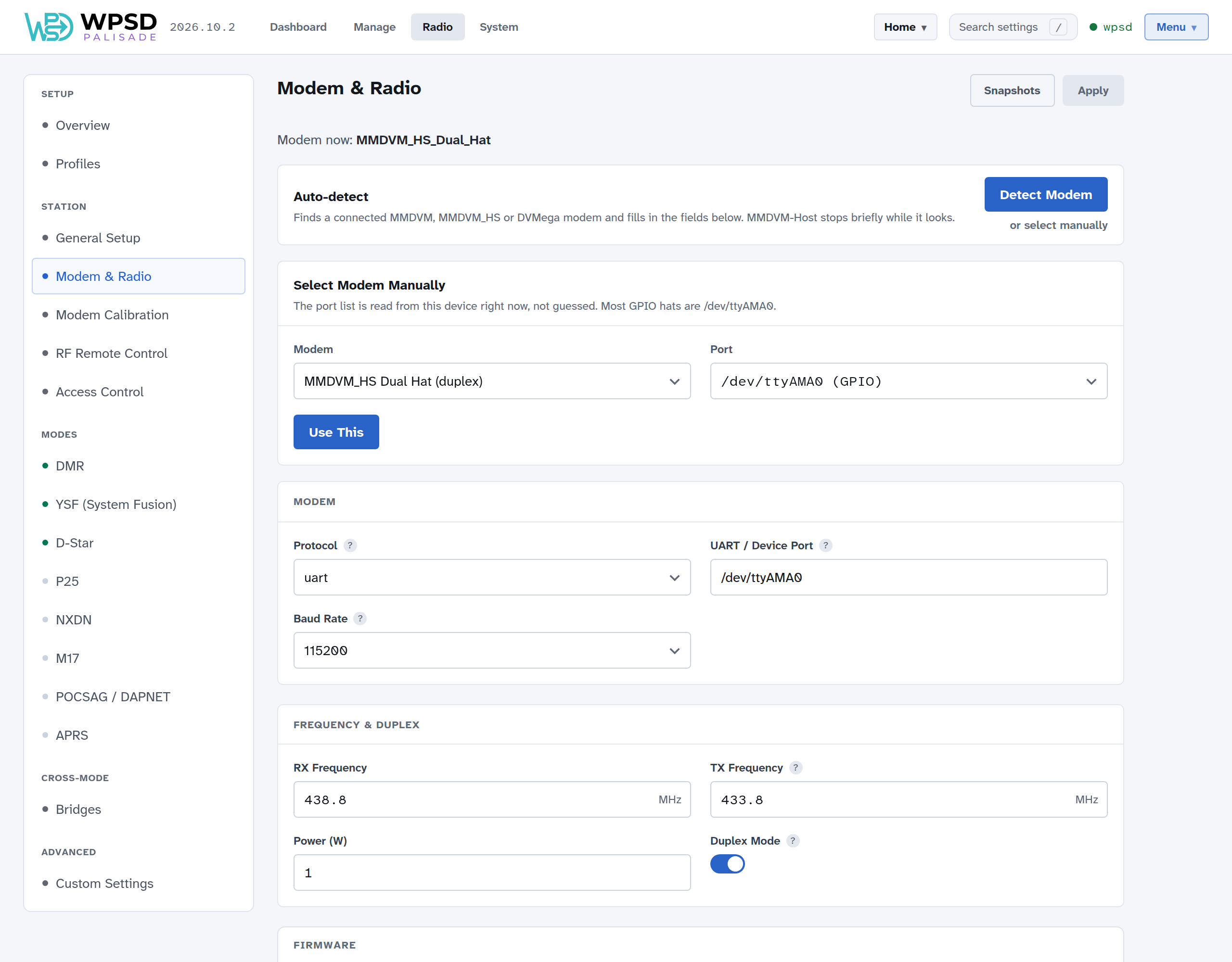
Modem now shows the modem the WPSD device is set for.
Detect Modem finds a connected MMDVM, MMDVM_HS or DVMega modem and fills in the fields below. MMDVM-Host stops briefly while it looks.
Or choose it yourself under Select Modem Manually: the Modem (type to search) and the Port, read from the WPSD device right now. Most boards on the Pi’s pins are on
/dev/ttyAMA0; a modem on USB is usually/dev/ttyACM0or/dev/ttyUSB0. Use This fills in the fields below.
Modem: the Protocol, UART / Device Port and Baud Rate (115200 is right for nearly every modem). Detect Modem and Guided Setup set them; change them only if your modem’s maker says to.
Frequency & Duplex
RX Frequency and TX Frequency, in MHz: the WPSD device’s receive and transmit frequencies. The same for a simplex hotspot; different for a duplex one. Your radio transmits on the WPSD device’s RX frequency and listens on its TX frequency.
Power (W): your transmit power, as networks list it. It doesn’t change the modem’s power.
Duplex Mode: on for a duplex board (two antennas, or a dual-hat) running as a repeater; off for a simplex hotspot. A duplex hotspot carries both DMR timeslots.
Choose frequencies your band plan allows for hotspots. WPSD Palisade won’t accept the amateur satellite sub-bands (145.800-146.000 and 435.000-438.000 MHz), which hotspot modems refuse, or frequencies outside the bands the modems cover (144-148, 219-225, 420-475 and 842-950 MHz).
After changing the modem or frequencies, check Modem Calibration.
Modem firmware
At the bottom of Radio > Modem & Radio, the Firmware card shows which board your modem is, the firmware it runs, and the newest firmware WPSD Palisade has for it. WPSD reads the board and its crystal from the modem’s own answer, so there’s nothing to look up.
WPSD updates modems on the Pi’s GPIO header: MMDVM_HS hats (MMDVM_HS Hat and Dual Hat, ZUMspot, Nano hotSPOT, Nano DV, SkyBridge, EuroNode, D2RG and generic boards), MMDVM repeater boards, and the DVMega Pi hat. A modem on USB is updated with its maker’s tools.
To update, choose Update firmware…, check the board and the versions, and choose Update. The radio is off for about a minute while WPSD downloads the firmware, checks its signature, writes it, reads every block back and starts the modem again. You can leave the page; WPSD carries on, and says when it’s done. Keep the WPSD device powered on until then.
WPSD never updates the firmware by itself: you choose when.
MMDVM_HS older than 1.6: M17 needs 1.6 or newer, and newer firmware fixes bugs in older versions. Until you update, the top of the Modem page, Radio > Overview, the M17 page and Guided Setup’s modem step say so.
WPSD can’t tell exactly which board it is: some boards report the same name. Choose yours from the list the card shows.
A vendor build, or a modem that doesn’t answer: choose Choose the board by hand, then your board. If an update stopped midway, the modem waits in its bootloader, unharmed: choose the board by hand and update it again.
The bootloader didn’t answer: some boards need a jumper set for updates; see the board’s instructions.
The board is locked by its maker: its bootloader refuses to be written. Only the maker can update it.
The firmware comes from WPSD’s update server, signed like WPSD Palisade’s own releases; Source code links to the source it’s built from. WPSD flashes firmware it doesn’t develop: support for a modem’s firmware comes from its makers. After an update, check Modem Calibration.
Below it, Reset the modem (a hat on the GPIO header only) restarts a modem that stops answering.